Screenplay
Write, import and export a formatted screenplay on the Canvas, with a title page and one doc per episode, next to your images, videos and Copilot.
A Screenplay on Morphic is a script in standard screenplay format that lives on the Canvas. Each line formats itself as you type: scene headings, action, characters, dialogue and transitions each land in their place on the page. A screenplay holds a title page and one doc per episode, so a whole series stays in one place. Import from Fountain, Final Draft or PDF, edit with Copilot or your team, and export in the same formats.
Use a Screenplay for scripts. A Document leaves the layout to you. New to screenplays? Start with Screenplay basics.
Here's a quick tutorial on using Screenplay, from writing your first scene to turning it into a storyboard:
Add a screenplay
- Open a file. You land on the Canvas
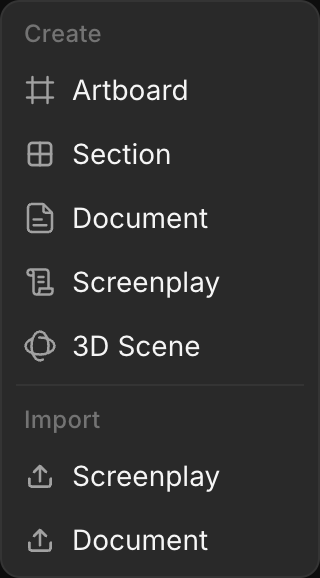
- Click '+' in the toolbar at the top left, then 'Screenplay' under 'Create'. Or right-click an empty spot and choose 'Screenplay' under 'New'
- It opens full screen, untitled. Start typing
-
From Home: 'Create new' > 'Screenplay' makes a new file with the screenplay open
-
To bring in a script you already have, choose 'Screenplay' under 'Import' in the same menus. See Import and export
-
To close it, click 'X' at the top right or press Esc. It stays on the Canvas as a card; double-click the card to open it again
-
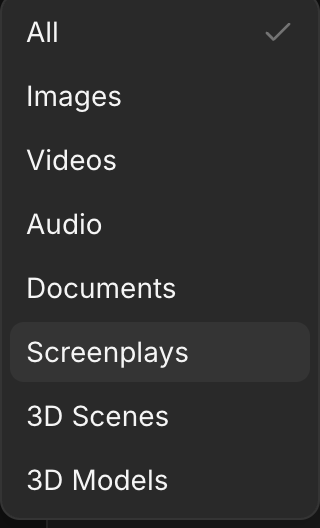
Every screenplay is saved to your assets. In Assets, pick 'Screenplay' in the 'Type' filter to list them
Line types
| Line type | Holds | Example |
|---|---|---|
| Scene heading | Where and when | INT. COFFEE SHOP - DAY |
| Action | What we see and hear | The morning rush. MAYA (20s) waits in line. |
| Character | Who speaks | MAYA |
| Parenthetical | How a line is said | (to the barista) |
| Dialogue | What they say | One coffee, please. To go. |
| Transition | How the scene ends | CUT TO: |
| Shot | A camera angle | CLOSE ON HER PHONE |
Editor layout
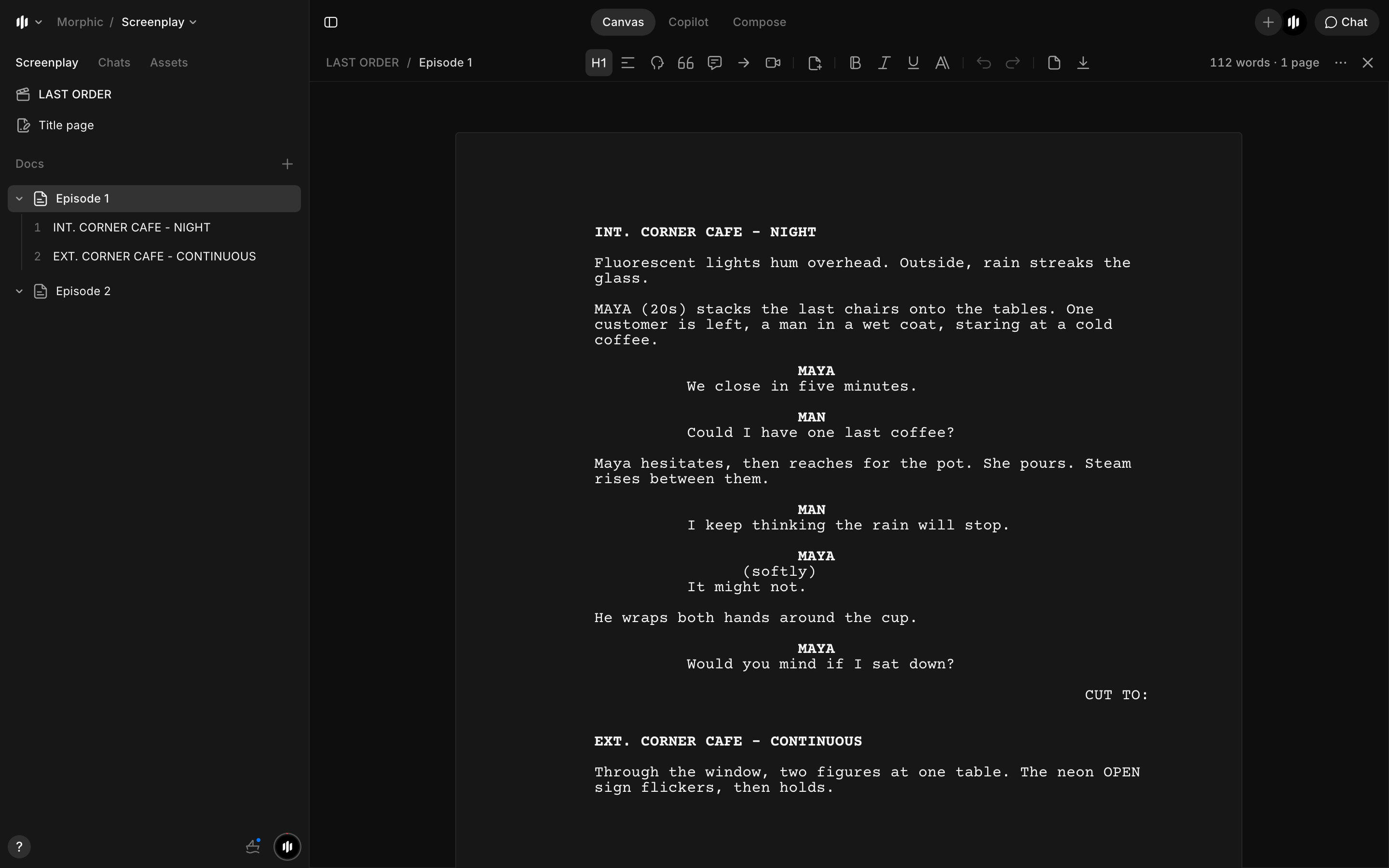
- Left: the side panel. Its 'Screenplay' tab holds the screenplay's name, its 'Title page' and its 'Docs'; 'Chats' and 'Assets' sit beside it
- Top: the line type buttons (the current line's type is highlighted), 'Insert page break', 'Bold', 'Italic', 'Underline', 'Block styles', 'Undo', 'Redo', 'Title page' and 'Download'
- Top right: the word and page count, '...' for more options, 'X' to close
- 'Chat' at the top right opens Copilot beside the script, with the screenplay attached
Episodes and scenes
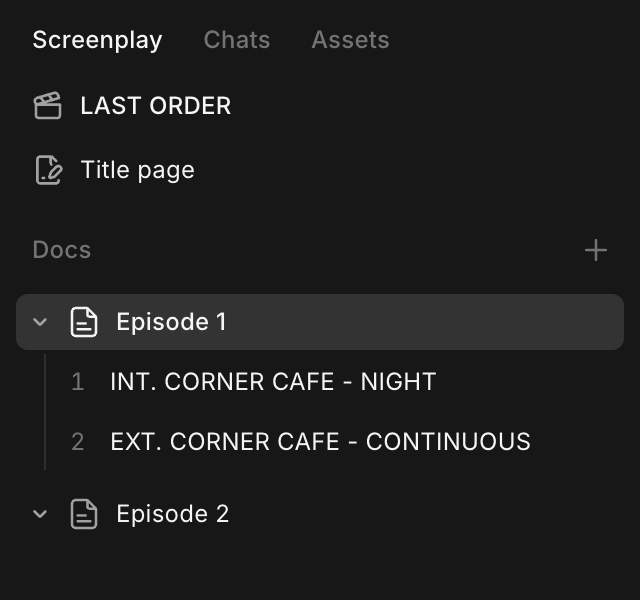
Each doc in the side panel is one episode or part, with its scenes numbered under it.
-
Click a doc to open it, or a scene to jump to it
-
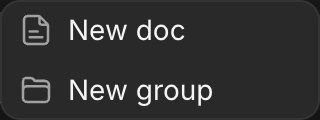
To add one, click '+' next to 'Docs', then 'New doc'. 'New group' adds a folder, for example for a season
-
To rename or delete a doc, hover it and click '...'
-
Click the arrow beside a doc to fold its scenes away
All Screenplay guides
- Screenplay basics: how a script reads, scene heading codes and abbreviations
- Write a screenplay: formatting, keys, shortcuts, pages and the title page
- Import and export: file formats, limits and errors
- Edit with Copilot: rewrites, Copilot edits and teamwork
To plan and write a whole series of short episodes, see Write a micro-drama series.
That's what a Screenplay is on Morphic. Use it for any script that will become shots.
If you have any trouble or have any questions, feel free to reach out. We're happy to help. Write to us at support@morphic.com.
Localização
Como levar um vídeo finalizado para outro idioma no Morphic, com legendas traduzidas e uma dublagem nas vozes originais que devolve o vídeo com os lábios sincronizados.
Screenplay basics
How to read a screenplay. What each line does, what INT., EXT., EST. and I/E mean in a scene heading, and the common abbreviations.