Comments
How to leave feedback on an image or video, pin it to a spot, an area, or a moment, tag a teammate, reply in a thread, and clear it once it is handled.
Comments on Morphic let you and your team give feedback directly on an asset. A note can sit on the whole asset, on a spot or an area in the frame, or on a moment in a video, so nobody has to describe where they mean. Each one becomes a thread you can reply to and mark resolved once it is handled.
For feedback on an edit in Compose, pinned to a frame, a range or a clip, see Timeline comments.
Open the comments panel
- Open Assets and hover the asset you want
- Click the '...' menu on the card, then click 'Open'
- Click 'Comments' in the top right of the panel, beside 'Info'
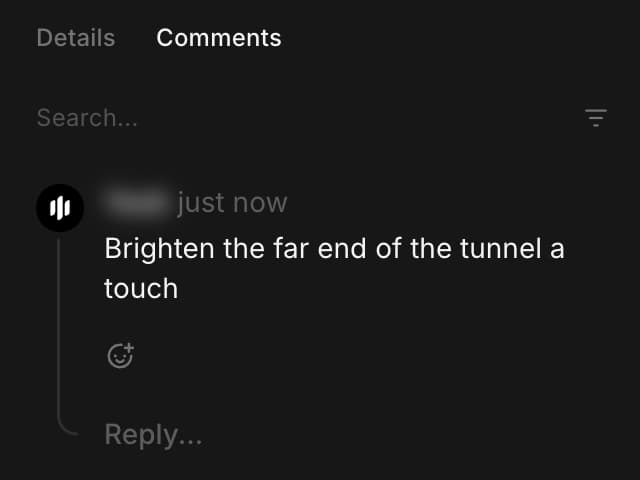
On the Canvas, select the asset and click 'Comments' at the top of the right sidebar, beside 'Details'.
The speech-bubble icon in the top bar hides and shows the panel, and carries the number of comments on the asset, so you can see at a glance whether one has feedback waiting.
Leave a comment
Pick where the note belongs, then type it and press 'Enter'.
- On the whole asset: use 'Add a comment...' at the bottom of the panel. Best for a general note, like an approval
- On a spot: click that point on the image or the video frame and type in the box that opens there
- On an area: drag a box over the part you mean, and drag its handles to adjust it before you post. This is the one to use for a fix, like 'need to remove these fingerprint marks' on a product shot, since the box shows exactly how much of the frame you mean
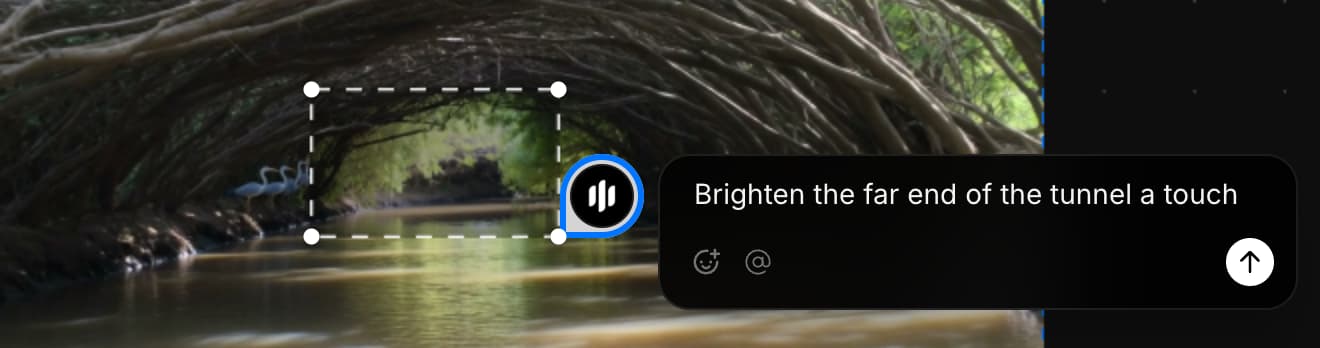
Anything pinned leaves a marker on the asset. Hover a marker to read the comment and, where one was drawn, see the area it covers. On a video, the box shows the timestamp it will attach, so the note lands on the frame you are paused on, and the panel lists that timestamp beside your name.
Tag a teammate
- Type '@' anywhere in a comment or a reply
- Keep typing to filter the list by name
- Click the person you want, or press 'Enter' to take the highlighted one
The name becomes a blue tag in the box, and that person gets a notification headed 'You were mentioned in a comment'. Once the comment is posted, hover the tag to see that person's profile. Add a tag to a comment you already posted and they are notified then. Editing anything else notifies nobody again.
- One comment can tag up to 25 people
- The list holds the members of your organization
- A tag on anyone outside it stays as text and notifies no one
- Morphic also emails a digest of comment activity every three hours
Reply and react
- Click 'Reply...' under a comment
- Type your reply and press 'Enter'
Replies sit under the comment they answer, so one point stays in one thread instead of spreading down the panel. The smiley icon adds an emoji reaction, which sits under the comment with a count, so a whole team can agree without anyone adding another line to read.
Clear what is handled
Once a note has been acted on, hover it and click the checkmark to resolve the thread. It leaves the list and its marker comes off the asset, so what is left in the panel is what still needs work.
To look back at what was resolved, open the filter icon beside 'Search...' and turn on 'Only resolved'. The same checkmark marks a thread unresolved if it needs another pass.
Find an older comment
- 'Search...' at the top of the panel searches the comments on that asset
- 'Sort by' in the filter icon takes 'Newest' or 'Oldest'. Oldest first is the one to use when you are working through a review in the order it came in
- 'Reset filters' puts the list back
Edit, link, and delete
The '...' menu on any comment holds the rest.
- 'Edit' rewrites your own comment
- 'Copy link' gives you a link straight to that comment, which is the quickest way to point someone at one note
- 'Delete' asks you to confirm and cannot be undone. Replies survive their parent: delete a comment that has replies and it reads 'This comment was deleted' while the thread stays readable
That's how comments work on Morphic. Use them when feedback needs to point at a particular spot or moment, and resolve each one as it is handled so the panel stays a list of open work.
If you have any trouble or have any questions, feel free to reach out. We're happy to help. Write to us at support@morphic.com.