Audio
Set levels and fades in Compose, balance music against narration, and clean up a noisy clip.
Sound in Compose lives on audio lanes. Music, voiceover and effects each get their own lane, and every clip carries its own level, so you can balance them against each other rather than settling for one volume.
A video's sound is a separate clip on an audio lane, joined to the picture so the two move together. When you drag a video onto the timeline, its sound lands on the audio lane below it.
Clip volume and fades
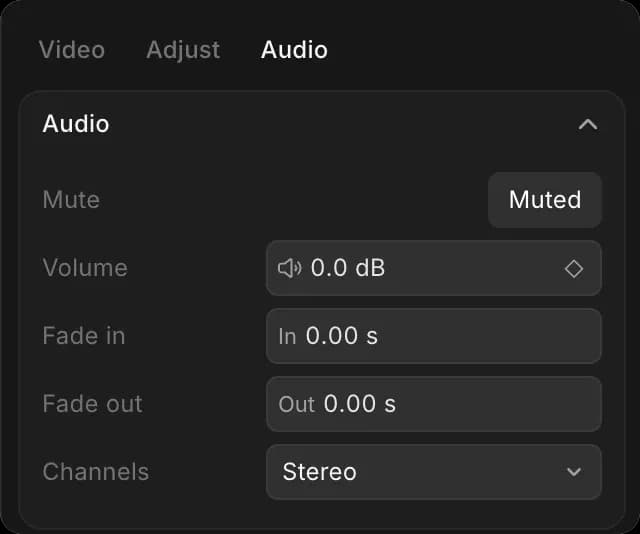
Select an audio clip and open the 'Audio' tab in the right panel:
- 'Mute'
- 'Volume', in decibels. Negative numbers are quieter, 0 is unchanged.
- 'Fade in' and 'Fade out', in seconds, so sound starts and stops smoothly rather than cutting in. How a fade curves can be changed too.
- 'Channels', 'Stereo' by default. 'Mono' sends a single mix to both sides; 'Left only' and 'Right only' take one channel to both, which rescues a recording where the voice landed in one ear.
Decibels are not a percentage. Around -6 dB is noticeably quieter, and -20 dB is background level. Move in small steps and listen.
Mixing
Give each kind of sound its own lane. A workable order, loudest first:
- Voiceover or dialogue, the thing everything else sits under
- Sound effects, loud enough to notice and no louder
- Music, under the voice
Each audio lane header has 'Mute lane' (M) and 'Solo track' (S). Solo is for checking one element on its own; mute is for taking something out while you listen to the rest. Both are for working, not for the export, so remember to unsolo before you render.

The panels set volume per clip. The level and pan of a whole lane, and the overall level of the finished video, are set by asking Copilot rather than by a control. Ask for 'bring the whole music lane down 6 dB' or 'lower the overall volume a little' instead of changing every clip.
Ducking
To dip the music while someone is speaking, select the music clip and click 'Curve editor' at the bottom of the 'Audio' tab. It opens 'Keyframe curves' for the clip's volume: 'Add key at playhead' adds a point, and the points set the level across the clip, so the music drops where the voice is and comes back after.
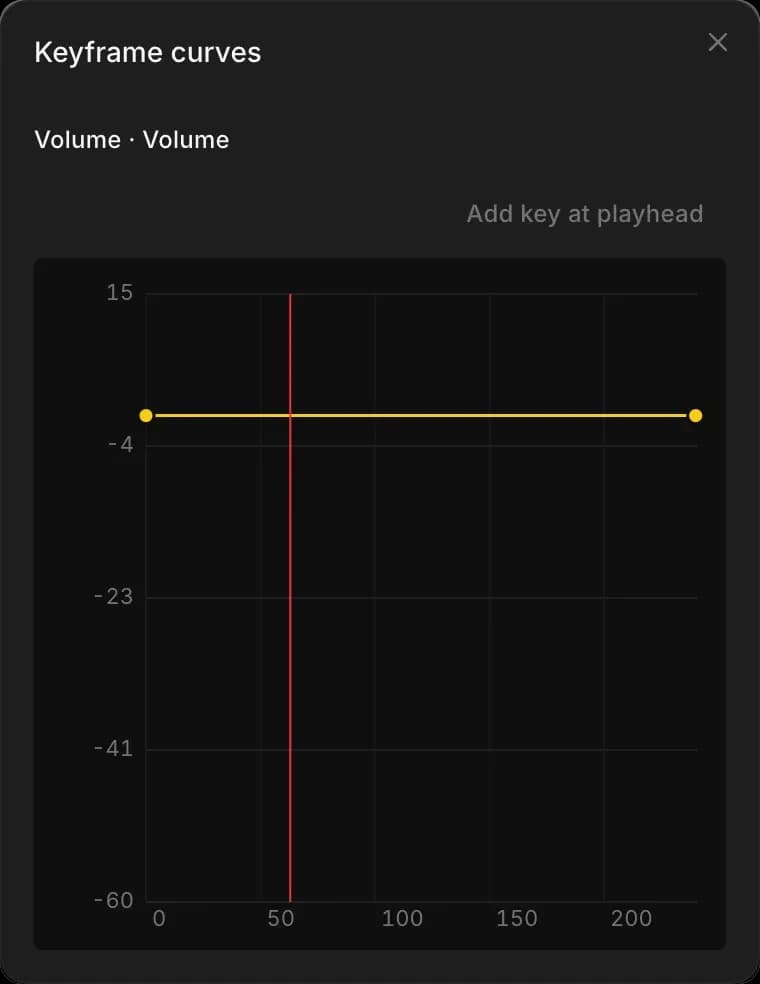
Copilot can do it for you: ask it to 'duck the music under the voiceover' and it lowers the music wherever someone is speaking and brings it back in the gaps.
This is the change most worth getting right. A voice competing with music at the same level is the most common reason a finished video sounds amateur.
Clean up audio
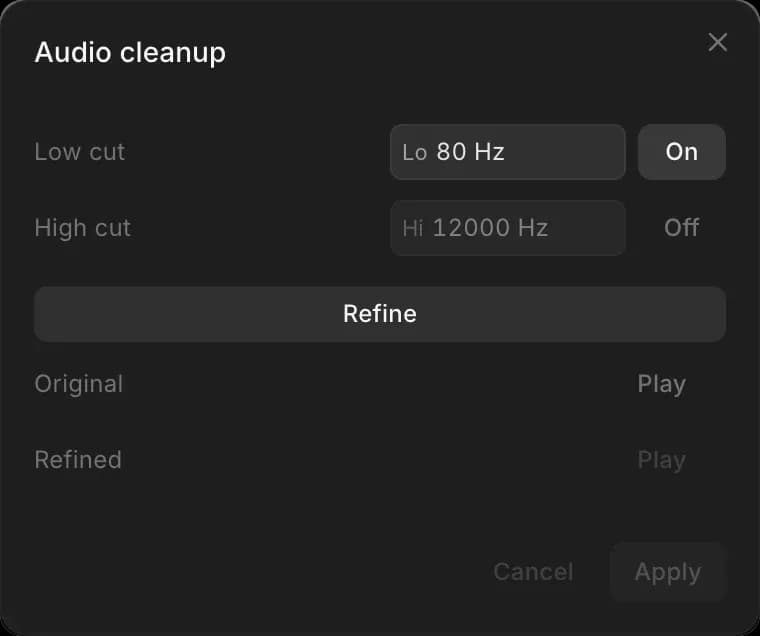
'Clean up audio', at the bottom of the 'Audio' tab, filters the selected clip. In 'Audio cleanup', 'Low cut' removes rumble below a frequency (on, at 80 Hz, to start), and 'High cut' removes hiss above one (turn it 'On' first). Click 'Refine', compare 'Original' and 'Refined' with 'Play', then click 'Apply'. It runs in your browser and costs nothing.
Common fixes
| The problem | What to reach for |
|---|---|
| Music drowns the voice | Curve editor on the music clip |
| Sound cuts in abruptly | Fade in of half a second |
| One clip much louder than the rest | Volume on that clip |
| Voice only in one ear | Channels |
| Hiss or low rumble behind speech | Clean up audio |
| No sound from a video clip | Its audio clip is missing, muted, or on a muted lane |
| Everything on one lane is too loud | Ask Copilot to change the level for the whole lane |
| The whole video is too quiet | Ask Copilot to raise the overall level |
Using Copilot
Balancing a long timeline by hand is slow. Try 'bring the music down under the voiceover', 'add a half second fade to every music clip', 'make all the dialogue clips the same level', or 'cut out the silences in this interview'.

Part of the mix is reachable only this way: the level and pan of a whole lane, the overall level of the video, and separating a video's sound onto its own clip.
Copilot can also transcribe a clip already on the timeline, which is how you get subtitles without re-uploading anything. See Edit with Copilot.
Tips
- Set the voice level first, then bring music up under it. Mixing the other way round leads to narration you cannot hear.
- Add short fades to every music clip. A hard cut on music is far more noticeable than a hard cut on picture.
- 'Mute monitor' under the preview silences your speakers without changing the mix. It does not affect the export.
- Check the mix on headphones and on a phone speaker. They disagree, and most people will be on the second one.
That's how you handle sound in Compose on Morphic. Get the levels right before you export; sound is what people notice first when it is wrong.
If you have any trouble or have any questions, feel free to reach out. We're happy to help. Write to us at support@morphic.com.