Edit with Copilot
Ask for a change in plain English, build a timeline from any chat, generate new clips without leaving the editor, and see what it costs when Copilot does the work.
Copilot sits inside the Compose editor and changes the timeline for you. Describe what you want; it does it. That makes it the easiest way in if you are new to editing, and the fastest way to repeat a change across a long video if you are not.
It is a full Copilot chat, so it can also make new media and put it straight on the timeline.
Ask for an edit
- Click 'Chat' at the top right, next to 'Export'
- Type what you want, then send it
- Copilot reads your timeline, makes the change, and says what it did

It knows which clip you have selected and where the playhead is, so 'make this one shorter' is enough.
Edits carry on if you switch to another tab while Copilot works, and they appear on the timeline as each one lands.
Edit from any chat
You do not have to open Compose to start an edit. Ask for a timeline in any chat in the file, including the standard Copilot view, and Copilot builds it for you:
- 'Make a Compose timeline that cuts these five clips into a 30 second teaser'
- 'Start a timeline with a vertical edit of this interview, with subtitles'
Asking only to join or render clips gets you a finished video in the chat instead, with no timeline to edit.
If the chat has no timeline yet, Copilot creates one, names it after your request, and links it in the reply. Click the link to open it in Compose, where it sits as its own tab above the preview. Later requests in the same chat keep working on that timeline, from whichever view you send them.
Copilot exports in the cloud, on any plan, so exporting through it uses credits for the render time. See Export a video.
What Copilot can edit
- Trim, split, reorder, retime, reframe
- The same change everywhere: 'put a cross dissolve between every clip', 'turn the music down under the voiceover'
- Build a whole cut from a shot list, or cut every shot on the beat of a song
- Remove silences and filler words from a talking clip, leaving a short breath either side of each cut
- Loop a clip or a sequence a set number of times
- Reframe the whole timeline to a new shape, such as 16:9 to 9:16, refitting every clip in one go
- Add slow push-ins, pull-outs and pans, or punch in on alternate jump cuts
- Look and sound: color, a named look (film, warm, cool, teal and orange, noir, vintage, dreamy, punchy, moody), blur, grain, glow, green screen, opacity, levels, pans and fades
- Text: title cards, lower thirds, end cards and on-screen hooks, placed and sized for the frame
- Structure: add lanes, reorder them, change the frame rate or resolution
- Export when you are finished
Ask what it plans to do and it answers without changing anything.
Add media
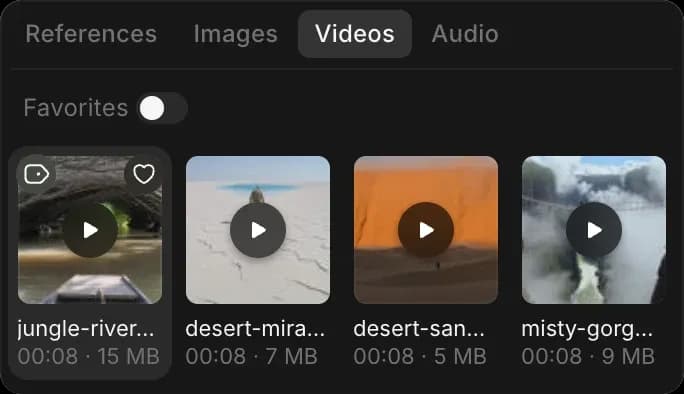
- Attach a file in the chat, or click it in the media browser, then ask for it. Copilot places the picture and its sound together and joins them.
- Type '@' to point at something already in your workspace.
- Copilot never asks you to import a file by hand. If it cannot find what you mean, name it again rather than going looking for it yourself.
Copilot-only settings
Most of what Copilot can change also has a control in the panels, including every effect under 'Adjust'. A few settings do not, so asking is how you reach them:
- The level and pan of a whole audio lane
- The overall level of the video
- Separating a video's sound onto its own clip
Keyframe animation works on clip properties, audio lane gain and effect settings, so an effect can build across a shot rather than sit at one strength.
Copilot checks its command reference before answering, so if you are unsure whether something is possible, ask. It will tell you rather than guess.
Generate new media
The Compose chat is an ordinary Copilot chat with the timeline attached, so everything Copilot can make, it can make here:
- Generate an image, a video clip, music, a voiceover or sound effects, then ask for it on the timeline
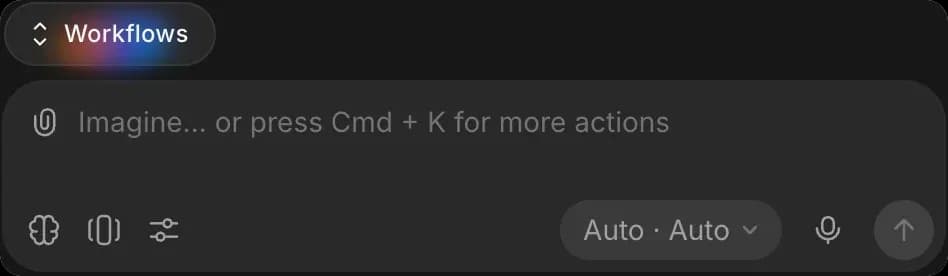
- Run a saved workflow from the 'Workflows' button above the prompt bar
- Ask it to write a script or a shot list, and work from that
Transcribe, upscale and analyze clips
Copilot can read the media under your clips, so it can act on it without you exporting and re-uploading anything:
- Transcribe a clip, then turn the transcript into subtitles
- Find the silences in a clip, or the beats in a music track, and cut to them
- Upscale or enhance a clip that is softer than the rest
- Answer questions about what is in a shot
Copilot can also replace the media under a clip, so a better take can go in without you rebuilding the clip around it.
Mode and model
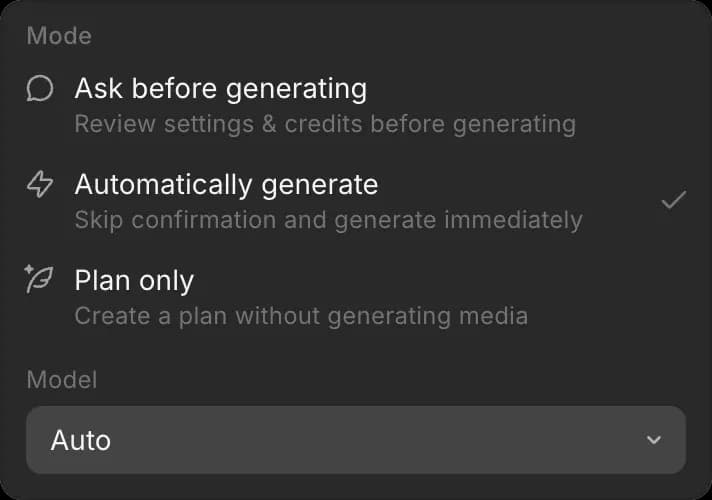
The button at the bottom right of the prompt bar reads mode first, model second.
- Mode: 'Automatically generate' runs straight away, 'Ask before generating' shows you the cost and waits, and 'Plan only' writes a plan without making anything. See Chat modes.
- Model: which model runs the conversation. See Choose a model.
Cost
Editing by hand is free. Asking Copilot to edit is not.
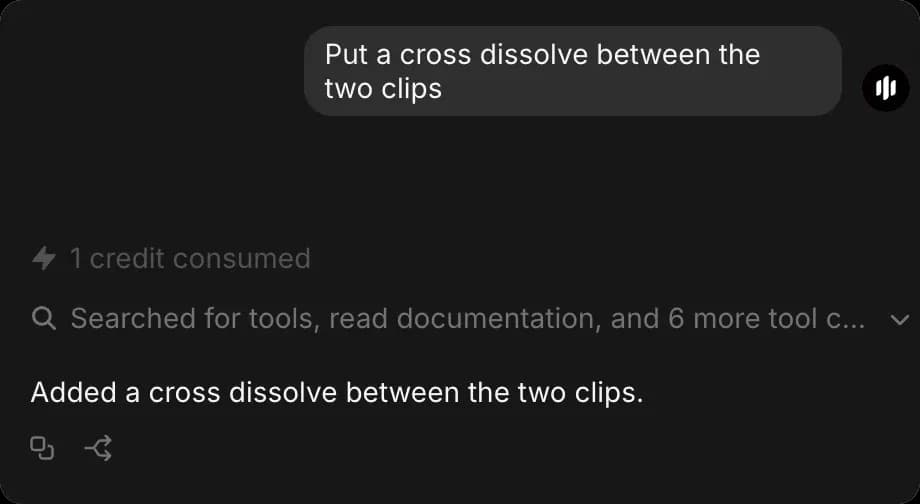
Copilot breaks your request into small steps and charges 1 credit per step it applies, so one sentence can be many steps. Placing a video with its sound is 3 steps: the picture, the sound, and the link between them. A cross dissolve is 1 more.
- The figure appears on the reply. That is what you were charged.
- An edit that fails costs nothing. Each edit Copilot applies goes in whole or not at all, so a charge means that edit worked.
- Reading your timeline, planning, and answering questions do not add edit credits.
- Generating media is charged at that model's normal rate, on top of the placing.
For what each kind of edit costs, with examples, see Compose on the Plans & Credits page.
For one small change you know how to make, the tool bar is cheaper. For something repeated across a long video, one sentence is faster.
Undo
Copilot's edits are not on the editor's undo history, so Cmd + Z takes back only the changes you made yourself.
To take back a change Copilot made, ask it: 'undo that' or 'put the cross dissolve back'. It reverses its own change and never touches yours. Reversing it is an edit like any other, so it is charged the same way, usually a credit or two.
Before asking for something drastic, duplicate the timeline so the version that worked stays safe. See Start a project.
Tips
- Keep one chat to one video. Copilot reads the conversation for context, so a chat that has wandered gives worse results.
- 'Open in Copilot' at the top of the panel moves the same conversation into the full Copilot view, for work that is not about the timeline.
- For phrasing that lands first time, see Writing Copilot requests.
That's how you edit with Copilot in Compose on Morphic. Use it for changes that are repetitive or spread across the whole video, and do the fine cutting yourself.
If you have any trouble or have any questions, feel free to reach out. We're happy to help. Write to us at support@morphic.com.