Writing Copilot requests
How to phrase a request so Copilot makes the change you meant, and when to do it by hand instead.
Copilot reads your timeline before it acts, so a good request is usually shorter than you expect. These are the habits that make it land first time.
Select first
Copilot already knows which clips you have selected and where the playhead is. Select first, then ask, and you can drop the describing.
| Instead of | Say |
|---|---|
| 'Shorten the third clip on the top video lane by two seconds' | Select it, then 'make this two seconds shorter' |
| 'Add a cross dissolve between clip 4 and clip 5' | Put the playhead on the cut, then 'add a cross dissolve here' |
| 'Change the second and third clips to black and white' | Select both, then 'make these black and white' |
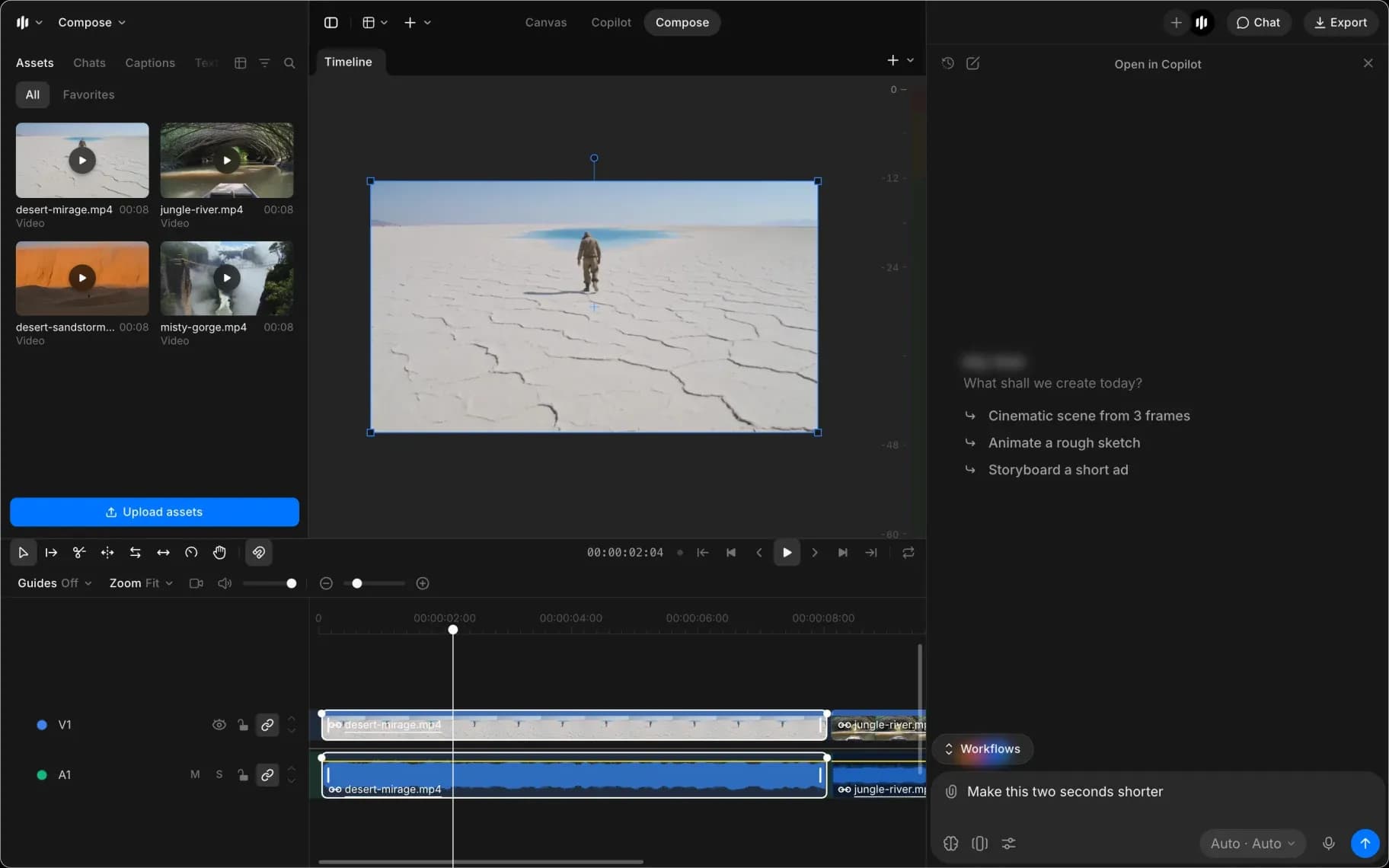
A request that lands first time usually goes:
- Select the clips you mean, or put the playhead where the change goes
- Say the outcome in one sentence
- Read back what Copilot says it did
- Ask it to put things back if it is not what you wanted
Describe the result
Say what the video should look or sound like, and let Copilot work out the commands. 'Bring the music down under the voiceover' is a better request than a list of decibel changes, because Copilot can see where the voiceover actually is.
This matters most for sweeping changes. 'Put a cross dissolve between every clip' is one sentence for a job that would take you a hundred clicks.
Group related changes
Changes that belong together should go in one request, so you check them together and can ask for them back together:
- Together: 'trim the first three clips to two seconds each and add a cross dissolve between them'
- Separately: 'tidy up the cut' then, once you have seen it, 'now grade it warmer'
Vague requests are where credits go without much to show. A request that is too broad tends to produce a lot of steps you did not want.
Preview the plan
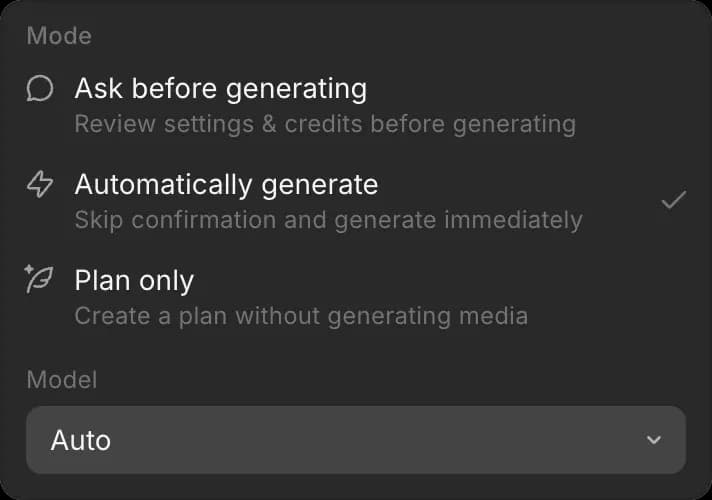
- Ask what it plans to do and it answers without changing anything.
- Switch the mode to 'Ask before generating' and anything that costs credits shows you the cost and waits. See Chat modes.
- 'Plan only' writes the plan and makes nothing, which is useful for working out an approach on a long timeline.
When Copilot refuses
- If it says the export did not start, check your credits. Copilot exports in the cloud, on any plan, and sets aside the credits for the shortest render when it starts. Or click 'Export' in Compose and render on 'This device', which is free.
- If it says the timeline is being edited elsewhere, someone else changed it while Copilot worked. Wait for them to finish, then ask again.
- If it cannot find a file, name it again or attach it in the chat. It will not tell you to import a file by hand, so a missing file means the id, not your library.
- If it says an edit is not supported, it has checked its command reference rather than guessed. Ask what it can do instead.
When to edit manually
Asking costs about 1 credit per step. For a single trim you can see and drag, the tool bar is quicker and free. Reach for Copilot when the change is repetitive, spread across the whole timeline, or something you cannot find a control for.
That's how to write a Copilot request in Compose on Morphic. Select first, describe the result, and preview the plan when the job is large.
If you have any trouble or have any questions, feel free to reach out. We're happy to help. Write to us at support@morphic.com.