Record and clean up sound
Record a voiceover from your microphone in Compose, then clean up noise, room echo and harsh "s" sounds with Enhance speech, De-reverb, De-esser and Clean up audio.
Compose on Morphic can record a voiceover straight onto the timeline while the picture plays, and clean up a recording that has noise, echo or harsh "s" sounds behind it. Recording and every clean-up tool on this page cost no credits.
Record a voiceover
- Move the playhead to where the voiceover should start
- Click 'Record voiceover', the microphone in the tool strip on the left of the timeline
- Set 'Record onto' to an audio track, or 'New track'
- Pick your 'Microphone', and speak to check that the level meter moves
- Click 'Record'. After a short countdown, the timeline plays from the playhead while you speak.
- (Optional) Click 'Pause' to take a break, then 'Resume'
- Click 'Stop'
The take is saved to 'Assets' and lands as a clip where you started, so it lines up with the picture you were watching. Its name starts with 'Voiceover'.
- The first time, your browser asks for access to the microphone. Allow it.
- A very long take stops by itself at the upload size limit, and keeps what was recorded.
- Wear headphones, so the sound from your speakers does not get into the recording.
Clean up a voice
Three effects in the clip's 'Audio' tab are made for speech. Select the clip, open the 'Audio' tab, and open the effect.
| Effect | Use it for | How to set it |
|---|---|---|
| 'Enhance speech' | Hum, hiss, traffic or room noise behind a voice | Click the switch on its heading. It starts at full strength; lower 'Strength' if the voice starts to sound processed. |
| 'De-reverb' | A voice that sounds far away or echoey, from a large or bare room | Pick 'Gentle', 'Dialogue' or 'Strong' under 'Preset', or set 'Amount' |
| 'De-esser' | Sharp "s" and "sh" sounds | Pick 'Gentle', 'Dialogue' or 'Strong' under 'Preset', or set 'Frequency', 'Threshold' and 'Reduction' |
Use the least that fixes the problem. Pushed too far, each one makes a voice sound thin or underwater.
- To clean up every clip on a track at once, put the effect on the track instead: in the 'Audio mixer', click 'Add effect' on the track's strip. See Audio mixer.
- The effects play live, so you hear the change as soon as you make it. Switch one off with the switch on its heading to compare.
- The other effects in the 'Audio' tab, such as 'EQ' and 'Compressor', are on Audio.
Clean up audio
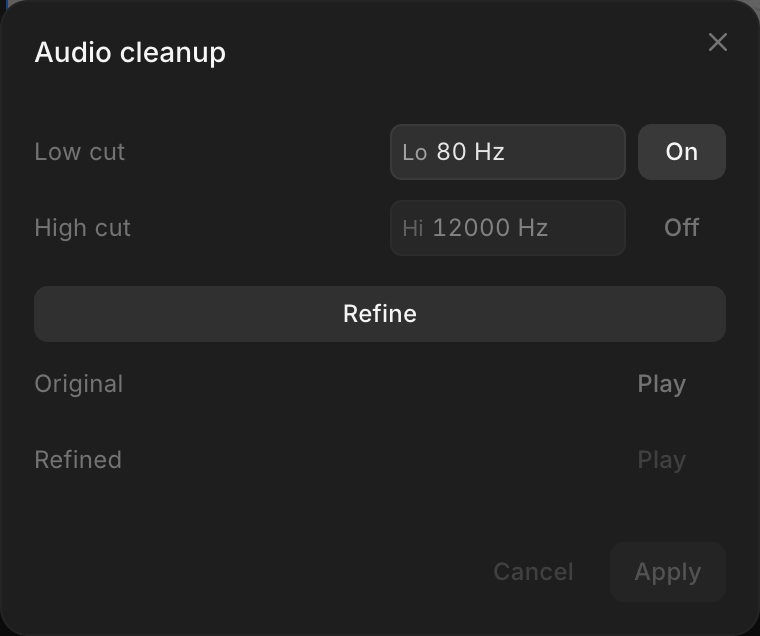
'Clean up audio', at the bottom of the 'Audio' tab, filters out low rumble and high hiss from the selected clip:
- Click 'Clean up audio' to open 'Audio cleanup'
- Set 'Low cut' to remove rumble below a frequency (on, at 80 Hz, to start)
- (Optional) Turn 'High cut' 'On' to remove hiss above a frequency
- Click 'Refine'
- Compare 'Original' and 'Refined' with 'Play'
- Click 'Apply'
Troubleshooting
Microphone does not record
"Microphone access is blocked. Allow it in your browser settings." means the browser was told not to share the microphone. Allow it for Morphic in your browser's site settings, then open the recorder again. "Couldn't open the microphone." means another app may be using it; close that app, or pick another 'Microphone'.
Recording was not saved
"Couldn't save the recording." means the take did not upload. Check your connection and record again.
Recording stopped early
"Recording stopped at the upload size limit." The take reached the largest file you can upload. It is kept up to that point; record the rest as a second take.
That's how you record and clean up sound in Compose on Morphic. Reach for it when a voiceover needs recording against the picture, or a recording needs fixing before it goes in the mix.
If you have any trouble or have any questions, feel free to reach out. We're happy to help. Write to us at support@morphic.com.