Elements
How to save a character, style, product, or object as an element on Morphic, and add it to a prompt so it looks the same in every generation.
Elements on Morphic keep a character, style, product, or object looking the same across your generations. Save one or more images under a name, then add the element to any prompt instead of describing the look again.
Create an element
- Open Elements from the left sidebar
- Click 'New element' at the top right. Keep 'Visual' selected at the top of the window. 'Voice' makes a copy of a voice instead; see Your ElevenLabs voices
- Under 'Name', enter the name you will pick it by
- Under 'Upload images', drag in your images or click to choose them. A single image works, such as:
- A character reference sheet, showing the character from several angles
- A style reference sheet, with samples of the look you want
- A clear photo of a product or object
- Click 'Create'
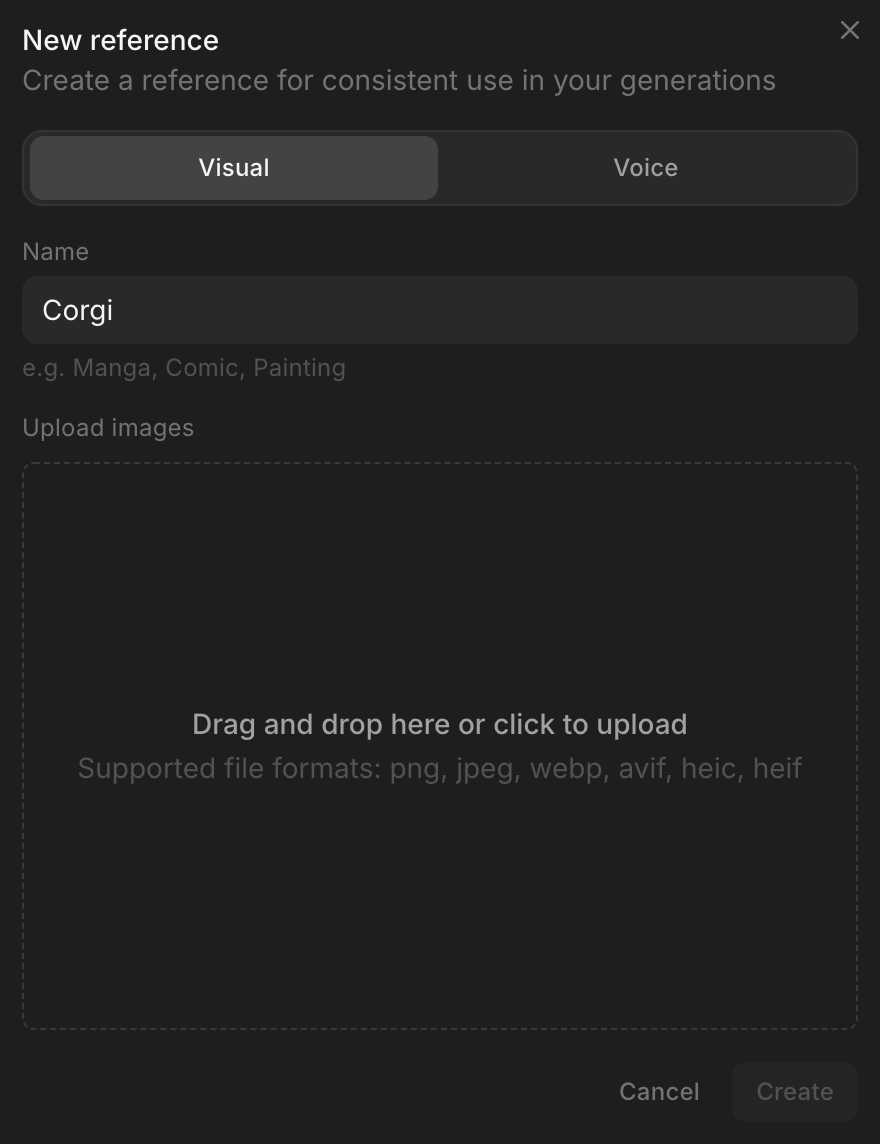
Creating an element uses no credits. 'Element ready' appears in 'Activity' once you can use it. The Free plan saves one element, Basic through Max save 100, and Enterprise has no limit.
When you generate, Morphic uses one image from the element. For a character, that is the image it rates clearest: one subject, facing forward, full body, sharp and well lit. It picks the same image whatever the prompt says, so a reference sheet with every view in a single image gives it the most to work with. For a different outfit, make a separate element.
Use an element
- Open a file and click into the prompt bar
- Click the 'Add saved element' icon beside the model name, or type
@and open the 'Elements' tab
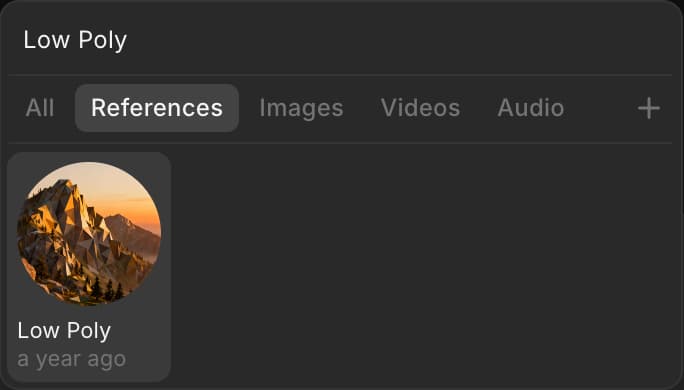
- Click an element. It enters the prompt as a chip. Add more the same way to put several in one scene
- Describe the scene around the chip, for example
@Corgi sitting at a cafe table by a sunny window, reading a newspaper - Click the blue button in the prompt bar. It shows what the generation costs
The same list includes Morphic's built-in style elements, such as Anime, Ink, and Low Poly. The 'Add saved element' icon is also in 'Reference to Video' mode.
Manage your elements
- Click an element to rename it or add images, then click 'Save'
- Click the three-dot button on an element for 'Edit', 'Share', 'Download images', and 'Rename'. On a paid plan it also has 'Delete'. 'Share' takes an email address and lets that person generate with the element
- Everyone in your organization can use its elements without sharing them, so save a character once and the whole team tags the same one
- Use 'All sources' at the top of the page to show only 'My elements' or 'Shared elements'
- Set the type filter at the top of the page to 'Voice' to see your organization's voices. See Your ElevenLabs voices. A dub assigns speakers voices from Morphic's own catalog, not from this list; see Use a voice in a dub
That's how you create and use elements on Morphic. Make one for any character, product, or style that appears in more than one generation.
If you have any trouble or have any questions, feel free to reach out. We're happy to help. Write to us at support@morphic.com.