Document
Write scripts, shot lists and briefs in a Document on the Canvas, mention your assets in it, rewrite any passage in place, and have Copilot edit it with you.
A Document on Morphic is a page of text that lives on the Canvas next to your images and videos. Use it for a script, a shot list, a brief or production notes. Everyone in the file edits the same Document at the same time, and Copilot reads it and can edit it for you.
Each Document is also saved to the project's assets, so you can attach it to a chat, or add it to a project's memory or skills so every Copilot chat reads it.
Here's a quick tutorial on how to use Documents on Morphic:
Add a Document
- Open a file. You land on the Canvas
- Click '+' in the toolbar at the top left, then 'Document'. Or right-click an empty spot on the Canvas and choose 'New' > 'Document'
- The Document opens as 'Untitled Document'. Start typing
Copilot opens on the right with the Document already attached, so you can ask for help with it.
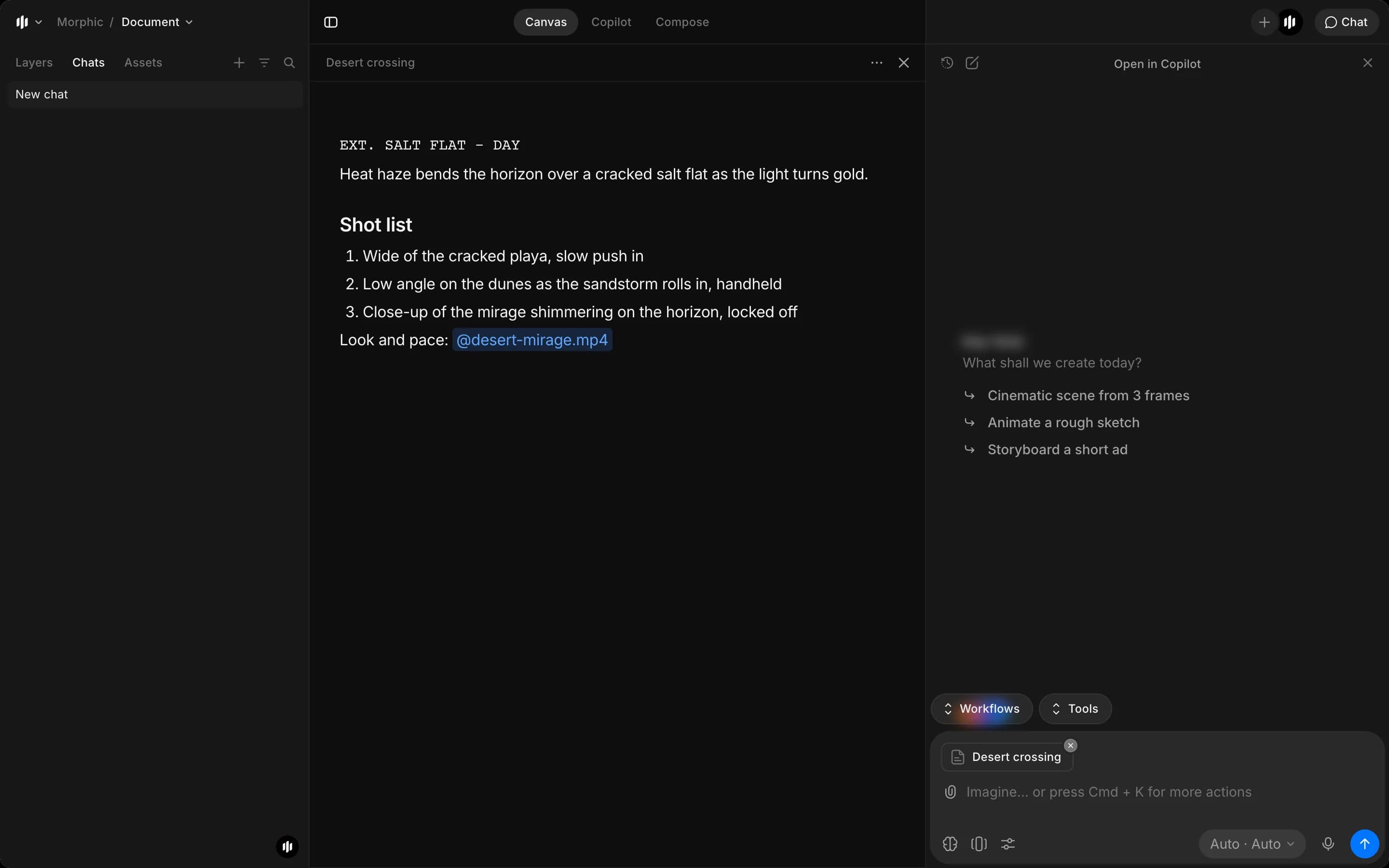
To go back to the Canvas, click 'X' at the top right of the Document. It stays on the Canvas as a card with its name and when it was last edited. Click 'Open' at the bottom right of the card to edit it again.
Write and format
Type '/' at the start of a line to pick a block:
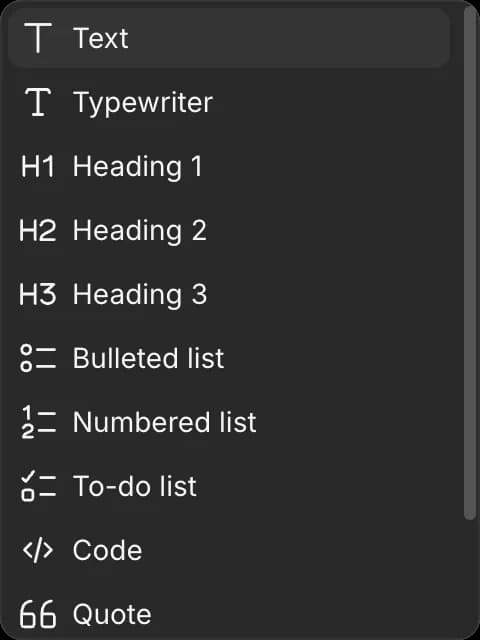
| Block | Use it for |
|---|---|
| Text | Normal paragraphs |
| Typewriter | Script lines in a typewriter font, such as scene headings and dialogue |
| Heading 1, Heading 2, Heading 3 | Titles and sections |
| Bulleted list, Numbered list | Shot lists, beats, notes |
| To-do list | Tasks you can tick off |
| Code | Prompts or text you want to keep exactly as written |
| Quote | Lines pulled from a script or a client brief |
| Divider | A line between sections |
| Table | Shot breakdowns, schedules, comparisons |
Markdown shortcuts also work as you type: '#' and a space starts a heading, '-' and a space starts a bulleted list.
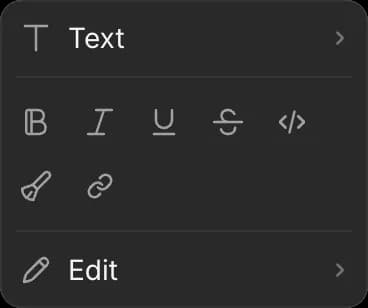
Select any text to open the formatting toolbar: change the block type, or apply 'Bold', 'Italic', 'Underline', 'Strikethrough', 'Inline code' or 'Link'. 'Clear formatting' removes it all. 'Edit' at the bottom rewrites the selection, see Rewrite selected text.
Mention assets
Type '@' to pick an asset from the project. The picker has tabs for 'References', 'Images', 'Videos', 'Audios' and 'Documents'. The asset goes into the text as a link, such as '@desert-mirage.mp4'.
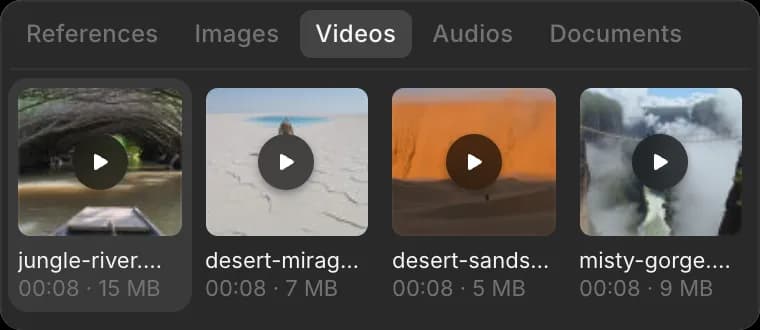
Mentions tie your notes to the exact image or clip they are about. Copilot reads them as the assets themselves, so a request like 'make a video of shot 2 using the image I mentioned' points at the right file.
Rewrite selected text
- Select the text you want to change, from a word to several paragraphs
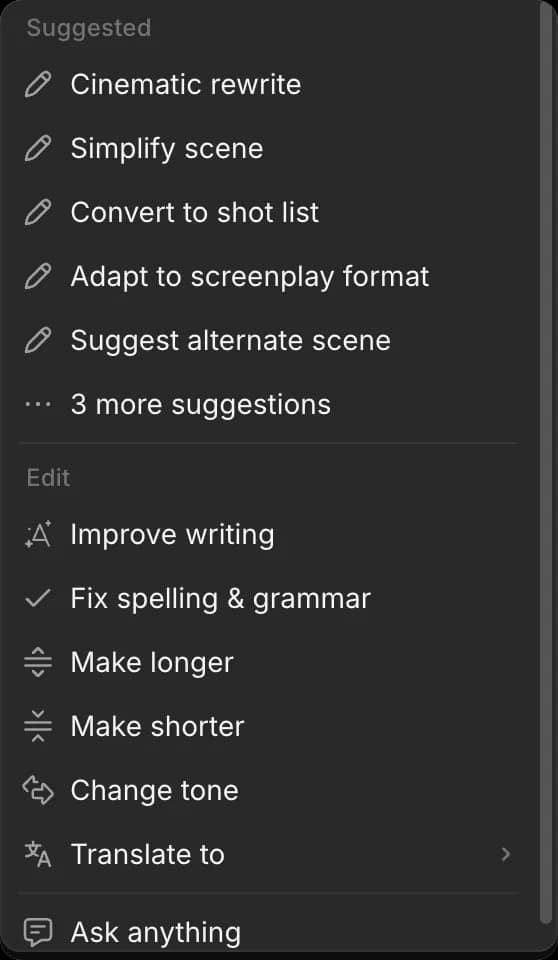
- In the toolbar that opens, hover 'Edit'
- Pick an action:
- Under 'Suggested': 'Cinematic rewrite', 'Simplify scene', 'Convert to shot list', 'Adapt to screenplay format', 'Suggest alternate scene'. Click '3 more suggestions' for 'Generate summary', 'Generate key points' and 'Generate outline'
- Under 'Edit': 'Improve writing', 'Fix spelling & grammar', 'Make longer', 'Make shorter', 'Change tone', 'Translate to'
- 'Ask anything' to type your own instruction
- The new text appears highlighted in place of the selection. Choose what to do with it:
- 'Replace' swaps it in for your selection
- 'Insert below' keeps your original and adds the new text under it
- 'Retry' writes another version
- 'Show original' compares it with what you had
- 'X' discards it
The rewrite reads the rest of the Document for context, so it keeps your names, tone and format. It changes only the selection.
Edit with Copilot
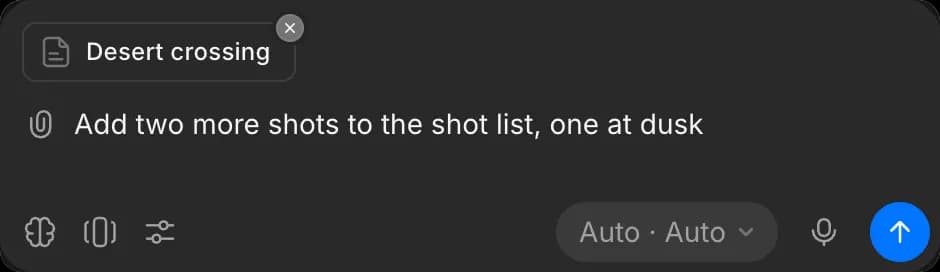
- Open the Document. Copilot opens beside it with the Document attached
- Ask for the change, for example 'add two more shots to the shot list, one at dusk' or 'turn this outline into a one-page brief'
What happens next depends on the chat mode:
- 'Automatically generate': Copilot writes the change into the Document straight away
- 'Ask before generating': Copilot shows its changes in the Document first, removed lines in red and new lines in green, and waits for you
To review changes in 'Ask before generating':
- Step through each change with the arrows at the bottom of the Document
- Click 'Accept' or 'Reject' on each one. 'Undo' takes back a choice. Or use 'Accept remaining' or 'Reject remaining' at the top to decide everything left at once
- Click 'Submit review'. Only the changes you accepted are saved
Copilot edits the text as it is now, so anything a teammate types while it works is kept. Its replies use credits, the same as any Copilot chat.
Work together
A Document updates live for everyone in the file. You see each person's cursor with their name on it as they type, and their changes appear as they make them. There is nothing to save or refresh.
Manage a Document
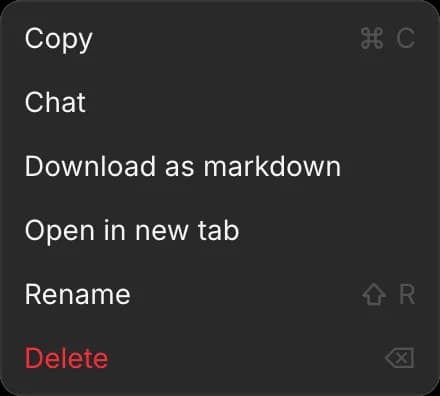
Click '...' at the top right of an open Document, or right-click its card on the Canvas:
| Option | What it does |
|---|---|
| Copy | Copies the Document. Right-click the Canvas and choose 'Paste' to add a duplicate named '<name> (copy)' |
| Chat | Opens Copilot with the Document attached |
| Download as markdown | Saves the text as a Markdown (.md) file |
| Open in new tab | Opens the Document full page in its own browser tab. 'Back' returns to the file |
| Rename | Changes the Document's name. Shortcut: Shift + R |
| Delete | Removes the Document |
Once it has text in it, the Document also appears in the file's 'Assets' tab and the project's assets, marked 'Document'. From there you can attach it to a chat in another file.
Use a Document as memory or a skill
A Document can become project memory or a skill, so Copilot can use it in every chat in a project:
- As memory, Copilot reads it when it matters to the task. Good for rules the team writes and keeps up to date together, like brand rules, a character bible with each character's reference image mentioned, or a client's notes
- As a skill, Copilot loads it when a task matches. Good for how-tos, like how your team writes a shot prompt or breaks a script into shots
To add one:
- Open the project and click the 'Memory' or 'Skills' tab
- Click 'New memory' or 'New skill', then 'Add from assets'
- Pick the file's project, select the Document, and click 'Add'
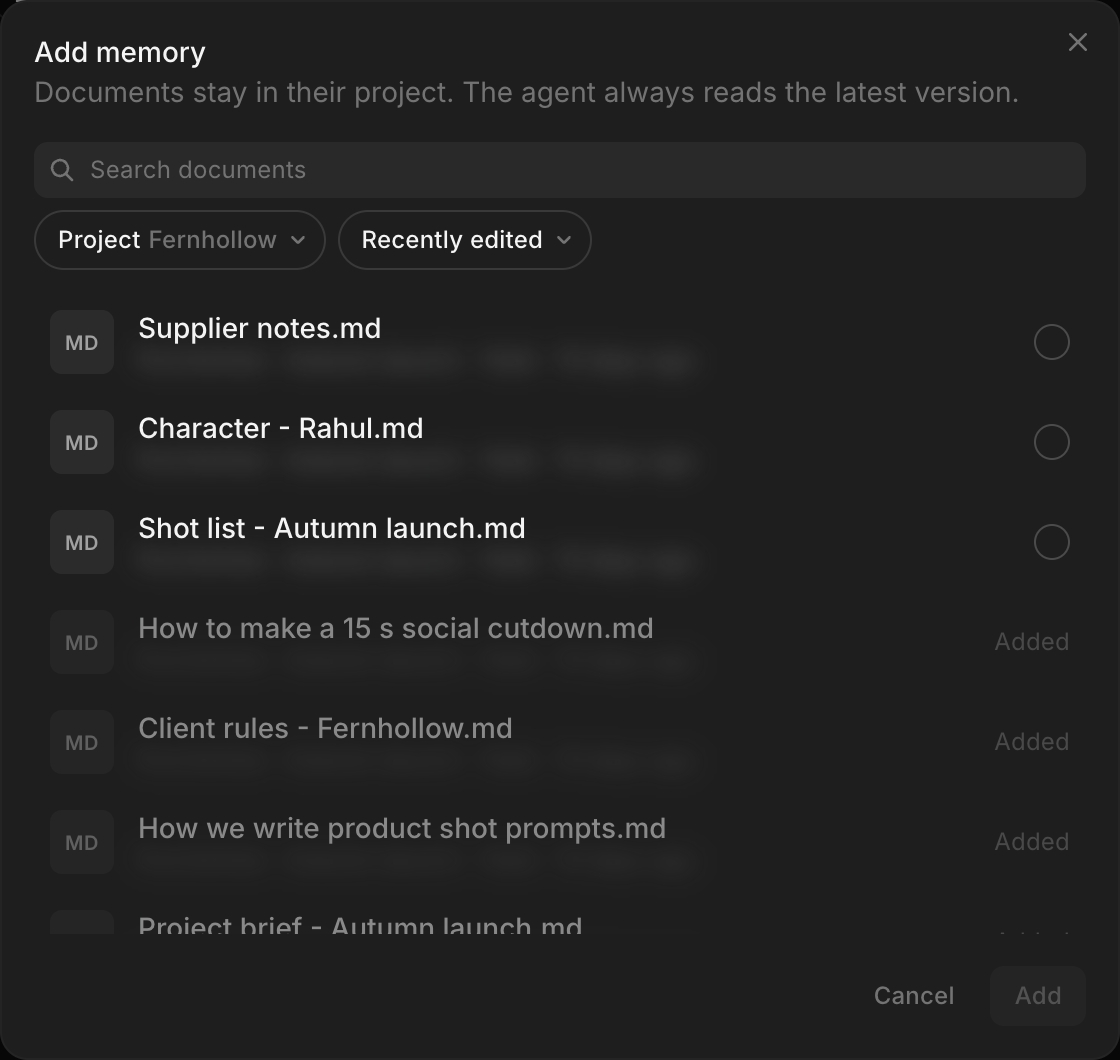
Copilot reads the latest version of the Document on your next message, and the Document stays on the Canvas where it was.
A skill needs a description so Copilot knows when to load it, and a Document has none. For a skill, name the Document for when to use it, like 'How we write a shot prompt', or write it with 'New skill' > 'Create new', which has a 'Description' field.
Copilot's change did not save
Copilot replies "The document update didn't go through. Would you like me to try again?" and the Document is unchanged.
Start a new chat with the Document open: click 'New chat' at the top left of the Copilot panel, check the Document is attached, and ask again.
That's how you use Documents on Morphic. Use one when a script, a shot list or a client's notes belong on the Canvas beside the work they describe.
If you have any trouble or have any questions, feel free to reach out. We're happy to help. Write to us at support@morphic.com.