Prompt bar
What each control in the Canvas prompt bar does, from picking the mode and model to the settings and the credit cost.
The prompt bar sits at the bottom of the Canvas. Write what you want, pick what to make and which model makes it, and click the blue button.
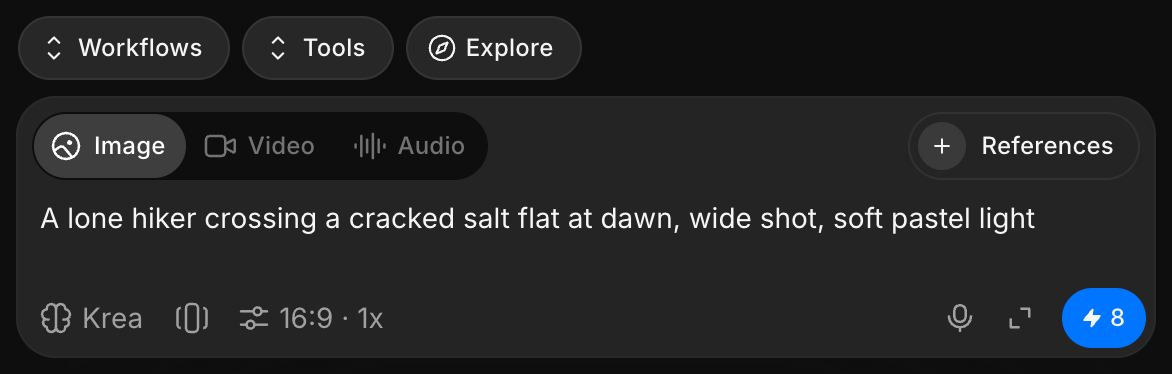
Controls
| Control | What it does |
|---|---|
| 'References' | '+' adds images, video or audio to guide the generation, and shows how many the model takes |
| Mode | 'Image', 'Video' or 'Audio'. Video offers 'Text/Image to Video', 'Frames to Video', 'Lip Sync' and 'Reference to Video'. Audio offers 'Speech', 'Sound effects', 'Music', 'Dialogue' and 'Speech to speech' |
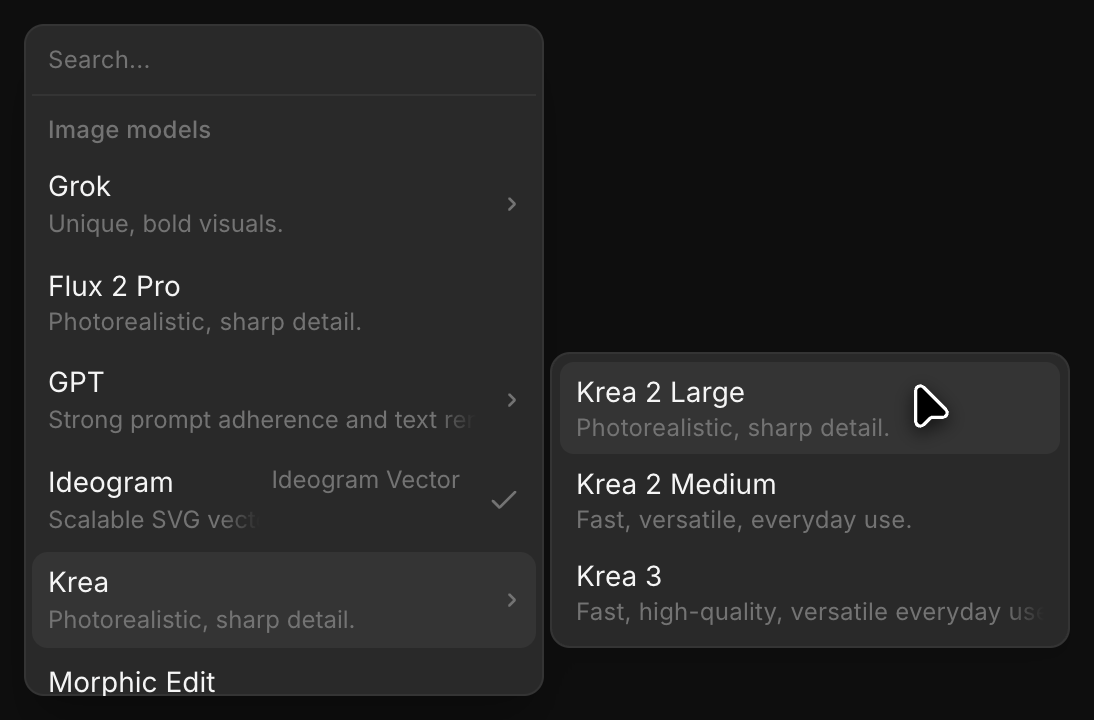
| Model | Pick a model. Hover a family, such as 'Seedance', to choose a version |
| 'Add saved reference' | Adds one of your saved References |
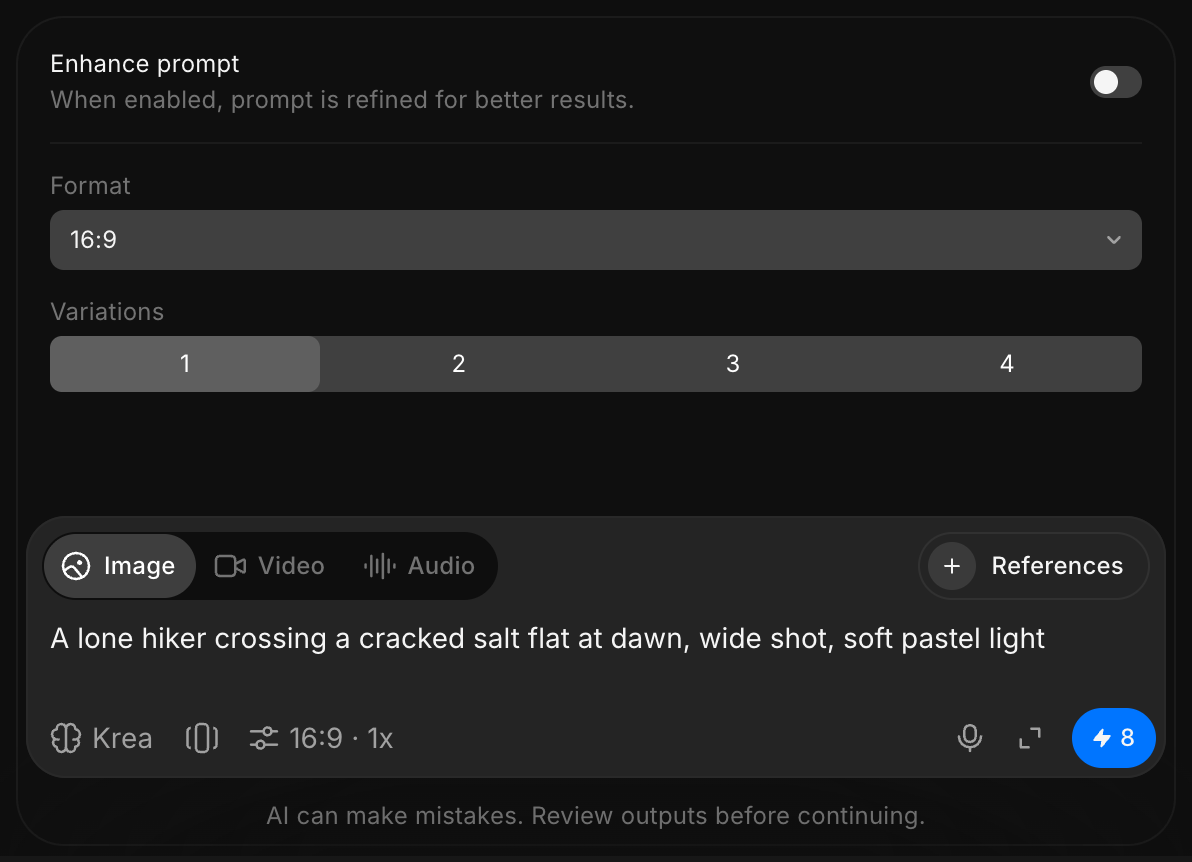
| Settings | The summary, such as '2K · 16:9 · 1x · Medium', opens 'Enhance prompt', 'Resolution', 'Format', and the settings your model has, such as 'Variations', 'Quality', 'Audio' or 'Duration' |
| 'Start voice input' | Speak your prompt instead of typing it |
| 'Open Chat' | Opens a Copilot chat beside the Canvas |
| Blue button | Generates. It shows the credit cost first |
'Workflows' and 'Tools', just above the bar, open your workflows and the tools you can run on an asset.
On a selected asset
Select an image, video or audio on the Canvas and the prompt bar moves under it, ready to work on that asset.
Tag an asset as a reference
Type @ in the global prompt bar to pull an asset out of your library and into the prompt, so the next generation builds on something you already have.
Here's a quick tutorial on how to tag assets in a prompt on Morphic:
- Click into the global prompt bar and type
@ - Choose a tab in the picker that opens: 'References', 'Images', 'Videos', or 'Audio'. Switch on 'Favorites' to narrow it to your shortlist
- Keep typing after the
@to filter by asset name - Click the asset. It enters the prompt as a chip and joins the 'References' tray above the prompt bar
- Describe what you want done with it, then click the blue button in the prompt bar
The 'References' tray shows how many references the selected model accepts, such as '1/3 images'. Open it to remove an asset with its 'x' or add another with the '+'.
That's how the prompt bar works on Morphic. Start from the mode and model, then open the settings only when the defaults are not what you need.
If you have any trouble or have any questions, feel free to reach out. We're happy to help. Write to us at support@morphic.com.