GPT Image
The GPT Image models on Morphic, GPT Image 2, 2.5 and 2.6, what sets each apart, and how to use them for text-heavy images, edits and short animated GIFs.
GPT Image on Morphic is OpenAI's family of image models, in three generations: GPT Image 2, GPT Image 2.5 and GPT Image 2.6. Each generates images from text and edits images you attach. They render text well, so they suit product labels, posters, packaging and app screens. GPT Image 2.6 can also make a short animated GIF through Copilot.
All GPT Image models are on paid plans.
The models
| Model | What it adds |
|---|---|
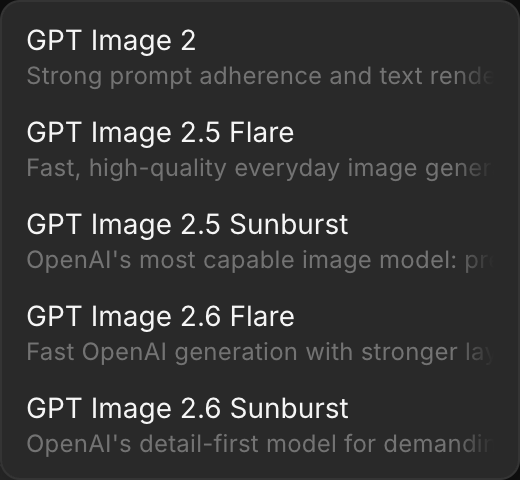
| GPT Image 2 | Text to image and edits, with a 'Quality' of Low, Medium or High |
| GPT Image 2.5 Flare | Five 'Quality' settings, from Low to Max. Flare is the version for generating new images |
| GPT Image 2.5 Sunburst | Same settings as Flare, tuned for precise edits |
| GPT Image 2.6 Flare | Text to image and edits with up to 10 reference images, and short animated GIFs through Copilot |
| GPT Image 2.6 Sunburst | Same as 2.6 Flare, tuned for precise edits |
Each renders at 1080p, 1440p or 2160p in eight aspect ratios, from 21:9 to 9:16.
Use GPT Image on the Canvas
- Open a new or existing file in a project on Morphic
- Switch the mode to 'Image' in the prompt bar at the bottom
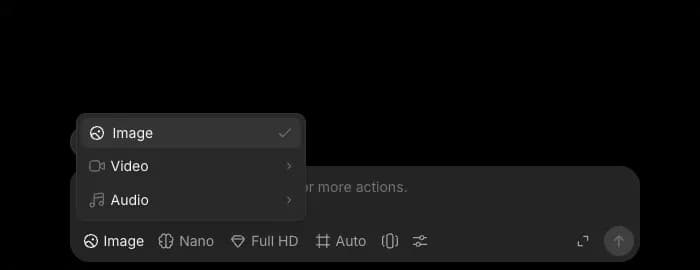
- Click the model selector, point at 'GPT', and pick a version
- (Optional) Click the settings button and pick a 'Quality'. Higher settings cost more, and the picker starts at Medium in each session
- Write your prompt describing what you want to generate
- (Optional) Attach a reference image to edit it, rather than generate from scratch
- Click the blue button in the prompt bar
You can also start from the 'GPT Image 2.5' card in the Tools library, which sets up GPT Image 2.5 Flare.
Animated GIFs with GPT Image 2.6
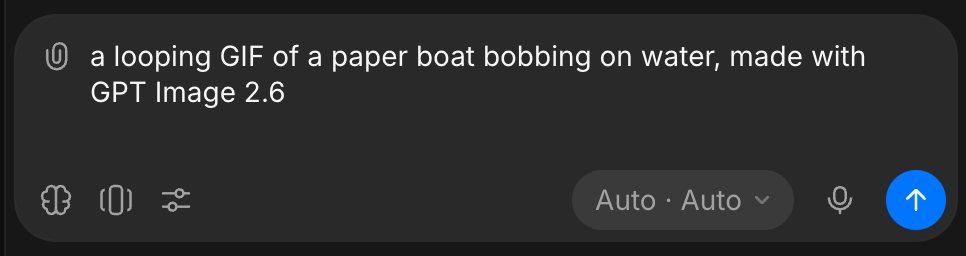
Ask Copilot for a GIF, an animation or a loop, and name GPT Image 2.6, for example "a looping GIF of a paper boat bobbing on water, made with GPT Image 2.6".
- A GIF runs 2 to 16 frames, each shown for 20 to 2,000 milliseconds. Ask for a frame count or speed if you need one
- GIFs come from text alone. An edit, or a request with reference images attached, comes back as a still
- A GIF is charged per frame
Tips for better results
| Do | Don't |
|---|---|
| Put the exact text you want in quotation marks, like "OPEN LATE" or "Summit Roast" | Leave text unquoted and hope the model spells it right |
| Add a spatial direction for text placement ("centered at the top," "bottom-left corner") | Skip placement instructions and assume the model will guess |
| Start your prompt with the visual style before the subject ("a photorealistic 35mm photograph of...") | Describe everything first and add the style as an afterthought |
| Name a real lighting setup ("soft window light from the left," "natural fluorescent lighting") | Say "good lighting" or leave it out entirely |
| Attach a reference image for edits and describe what changes and what stays the same | Describe an existing image from memory instead of attaching it |
Credits
Each GPT Image model and quality setting has its own price, shown on the blue button before you run it. See Image on Plans & Credits for the rates.
That's how you use GPT Image on Morphic. Reach for it when your visuals need accurate text, realistic detail, or edits to an existing image without starting over.
If you have any trouble or have any questions, feel free to reach out. We're happy to help. Write to us at support@morphic.com.