> For the complete documentation index, see [llms.txt](https://morphic.com/docs/llms.txt). Markdown versions of documentation pages are available by appending `.md` to page URLs; this page is available as [Markdown](https://morphic.com/docs/tr/how-tos/creating-motion-comics.md).

# Hareketli çizgi romanlar oluşturma

Artık durağan karelerinizi dinamik hikâye anlatımı dizilerine dönüştürerek hareketli çizgi romanlar oluşturabilirsiniz. Morphic, manga panellerine hareket, tempo ve sinematik akış eklemeyi kolaylaştırır.

Morphic üzerinde sıfırdan bir hareketli çizgi roman oluşturmanın yolu şöyle.

<figure><img src="https://991311795-files.gitbook.io/~/files/v0/b/gitbook-x-prod.appspot.com/o/spaces%2FoPhHCbNZdzW70rakoLhf%2Fuploads%2FYC5E18VSbWq0FdZvG9Xs%2F1-ezgif.com-video-to-gif-converter.gif?alt=media&amp;token=d6edd4c9-9221-42ce-aab9-166e150c223f" alt=""><figcaption></figcaption></figure>

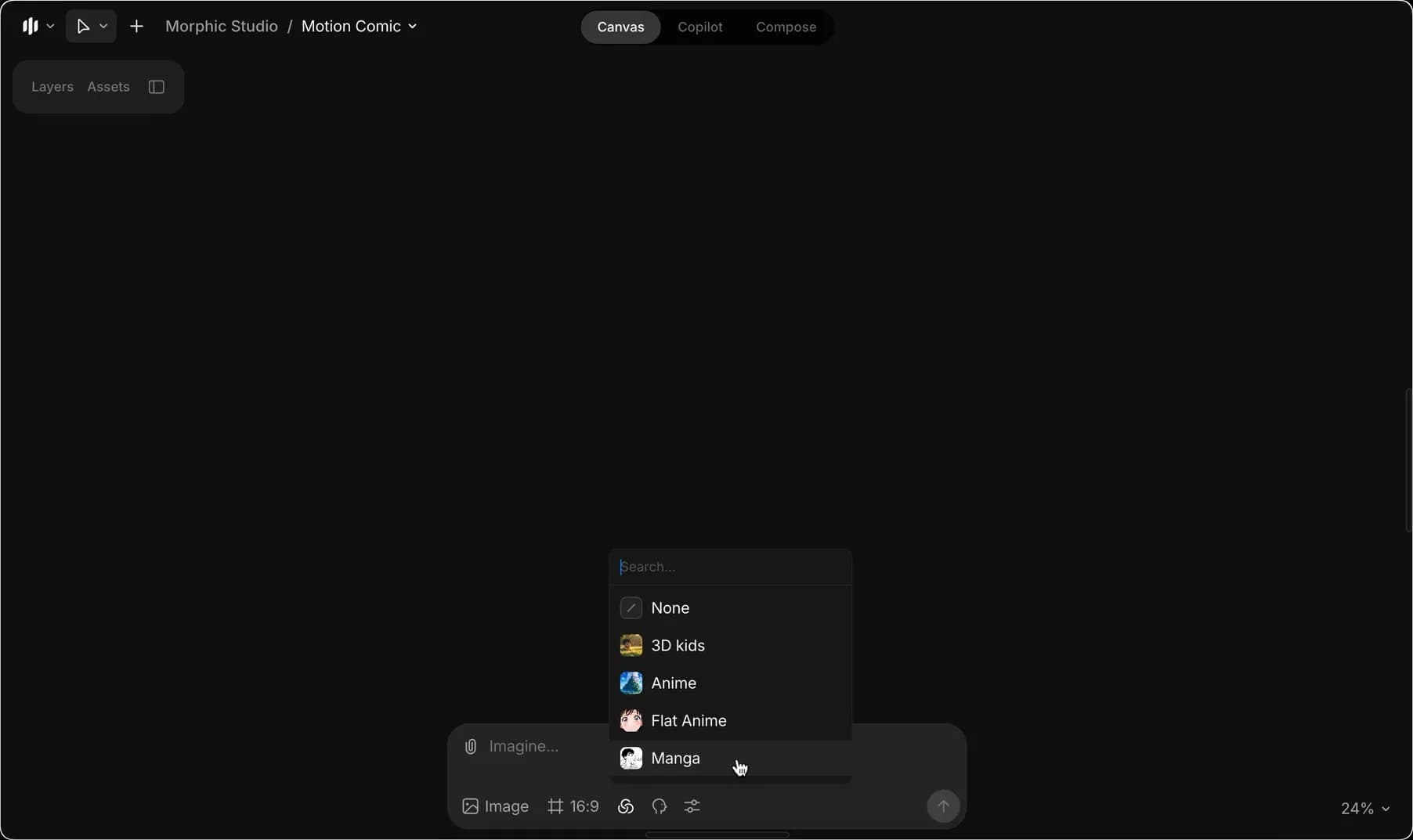
1. Komut çubuğundan, stil modeli olarak Manga’yı seçin. Kendi [özel stil modelinizi](/docs/tr/essentials/models.md) eğer eğittiyseniz seçebilirsiniz.

<figure><img src="https://991311795-files.gitbook.io/~/files/v0/b/gitbook-x-prod.appspot.com/o/spaces%2FoPhHCbNZdzW70rakoLhf%2Fuploads%2Fdbng6N8wa7dSg7SldFkP%2FCleanShot%202025-09-05%20at%2006.26.46%402x.png?alt=media&amp;token=3c497182-50e4-45ce-9fec-abec5396c6b9" alt=""><figcaption></figcaption></figure>

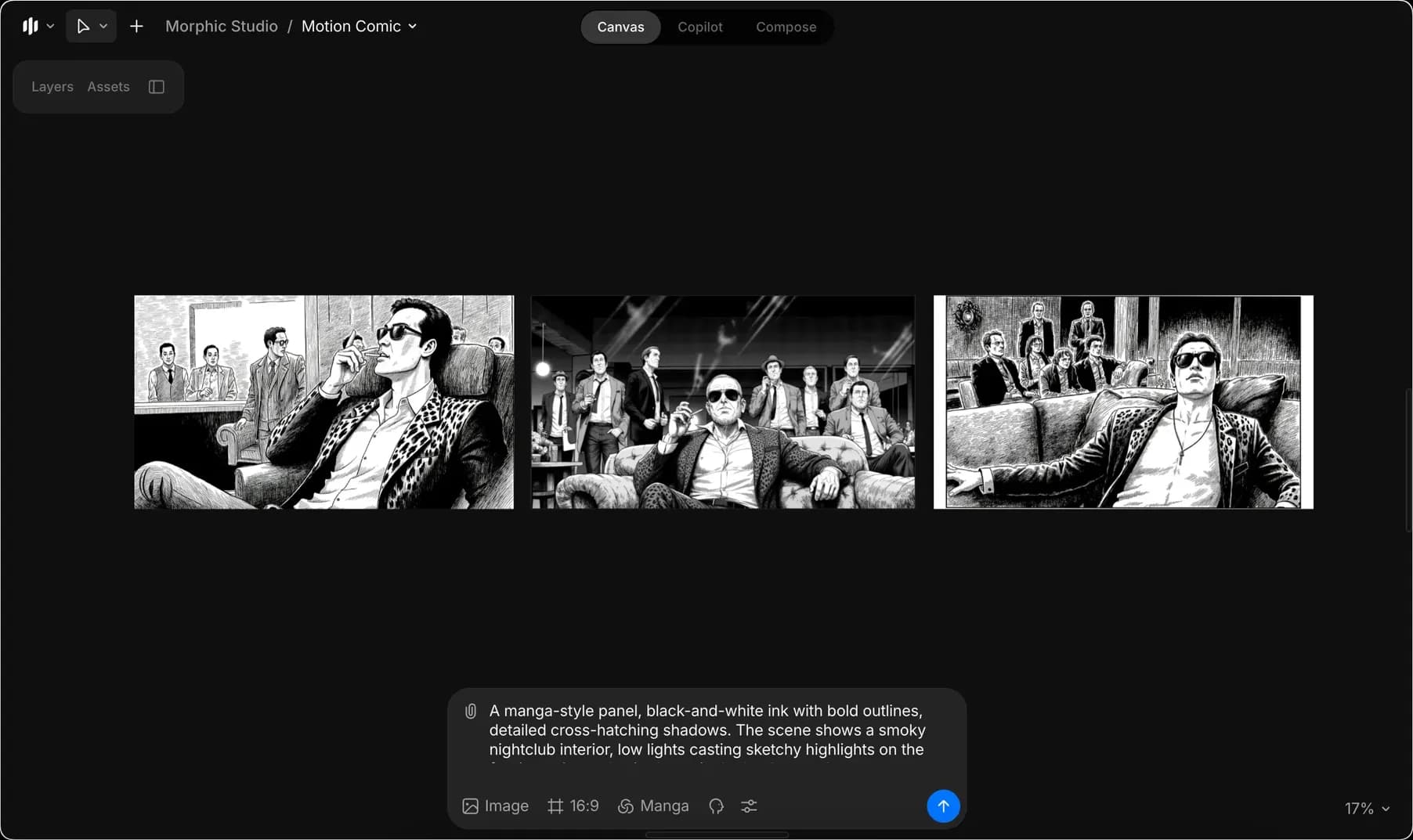
2. Hareketli çizgi romanınız için görselleri oluşturmak üzere bir komut girin, ardından komut çubuğundaki mavi düğmeye tıklayın.

<figure><img src="https://991311795-files.gitbook.io/~/files/v0/b/gitbook-x-prod.appspot.com/o/spaces%2FoPhHCbNZdzW70rakoLhf%2Fuploads%2FSOuu10ShNCIaUvXVukWe%2FCleanShot%202025-09-05%20at%2006.27.52%402x.png?alt=media&amp;token=36a51942-4464-4cef-8f34-3f48881160c9" alt=""><figcaption></figcaption></figure>

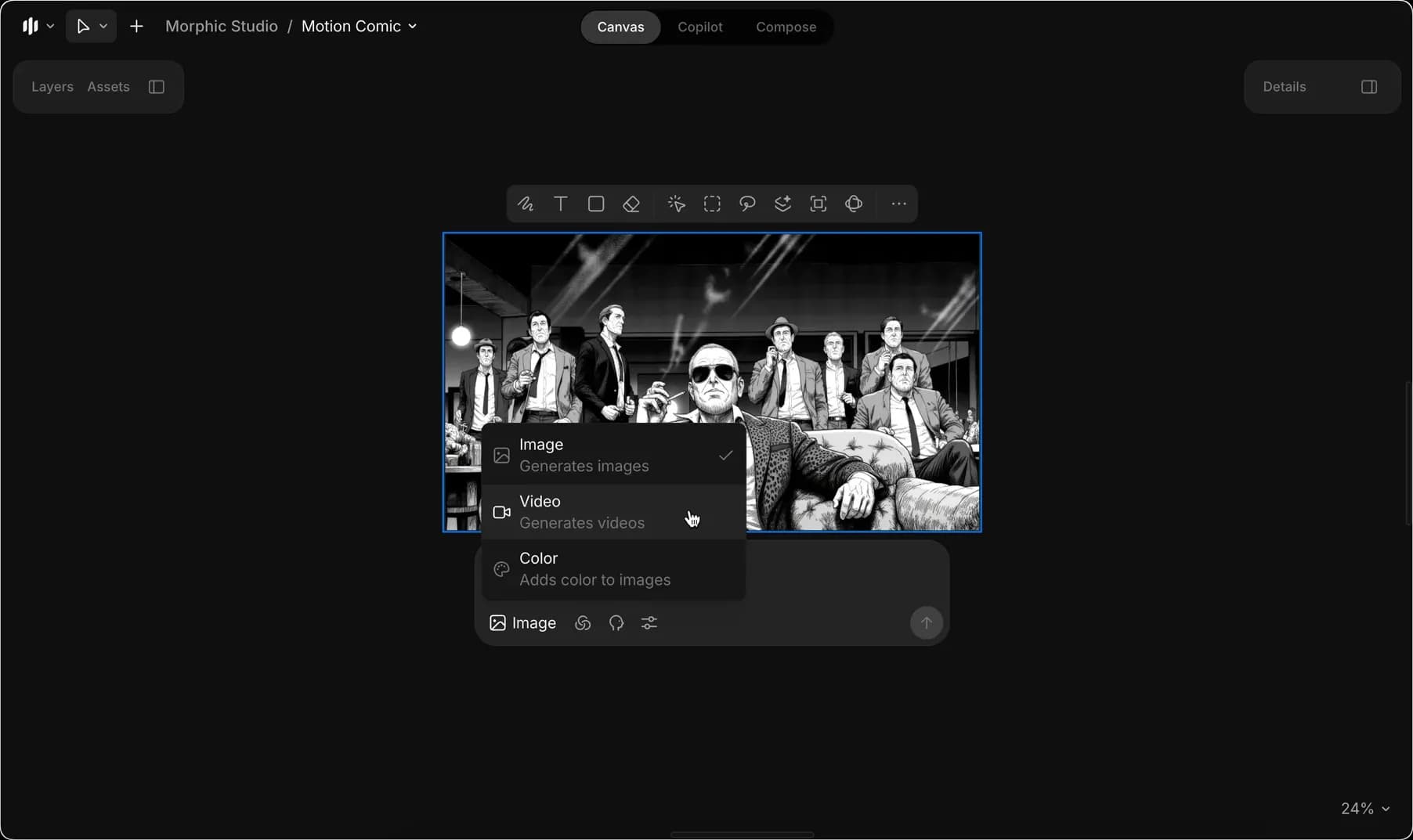
3. Devam etmek için bir görsel seçtikten sonra, onu seçin ve Video Moduna geçin.

<figure><img src="https://991311795-files.gitbook.io/~/files/v0/b/gitbook-x-prod.appspot.com/o/spaces%2FoPhHCbNZdzW70rakoLhf%2Fuploads%2FgcVgkh8hUTWWUzkxQBvh%2FCleanShot%202025-09-05%20at%2006.28.46%402x.png?alt=media&amp;token=50aec3ea-8cbc-4464-b938-6e4729a25f5f" alt=""><figcaption></figcaption></figure>

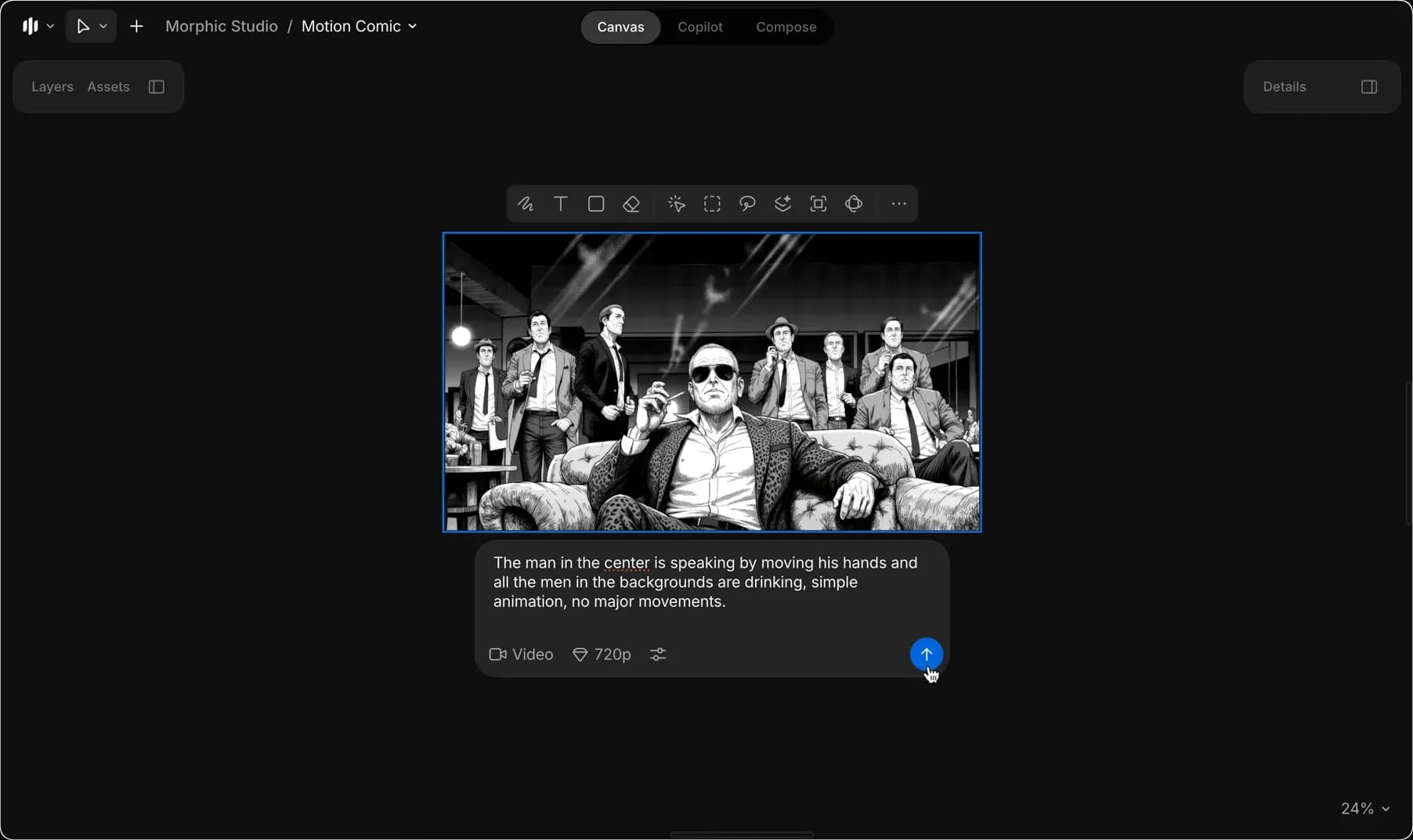
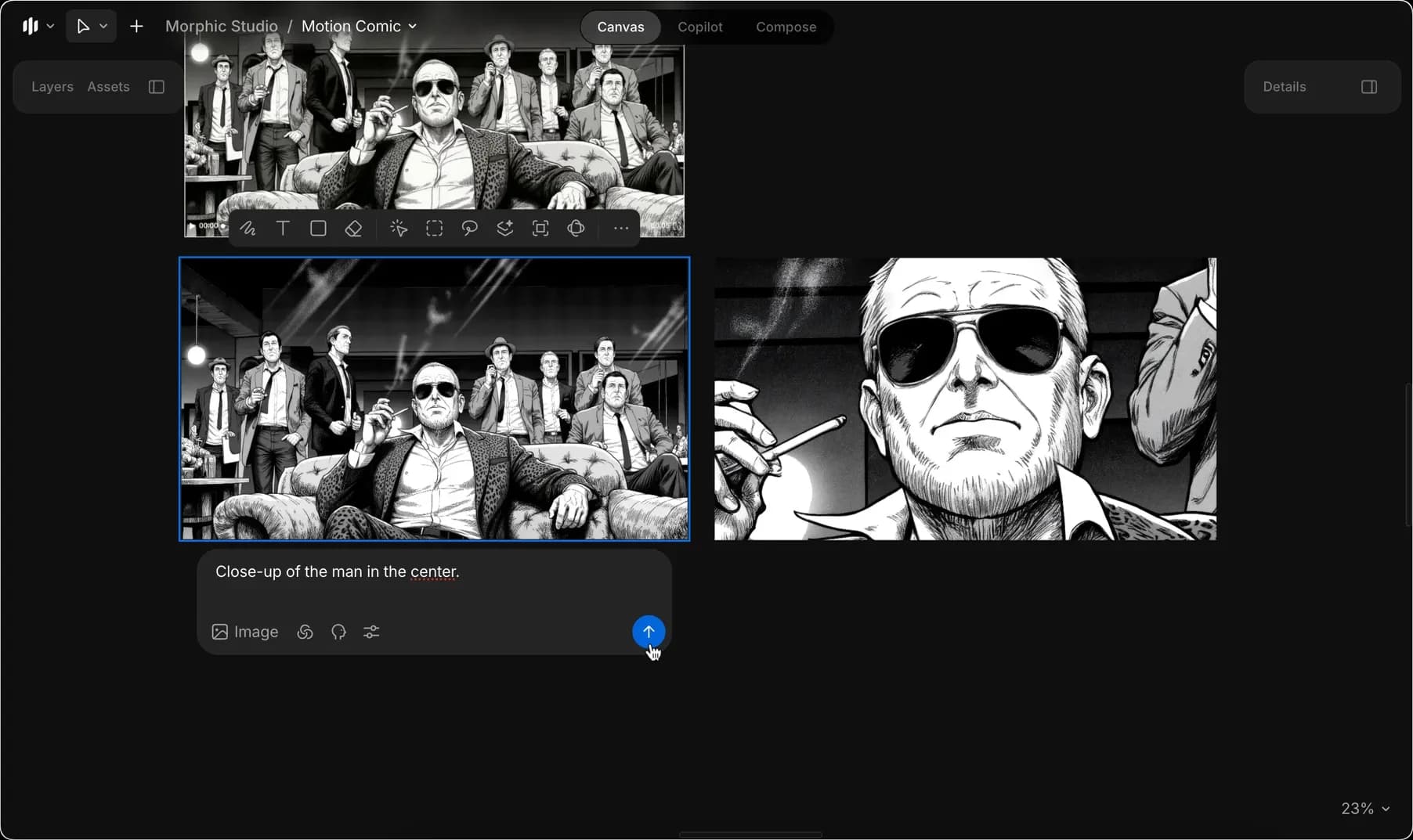
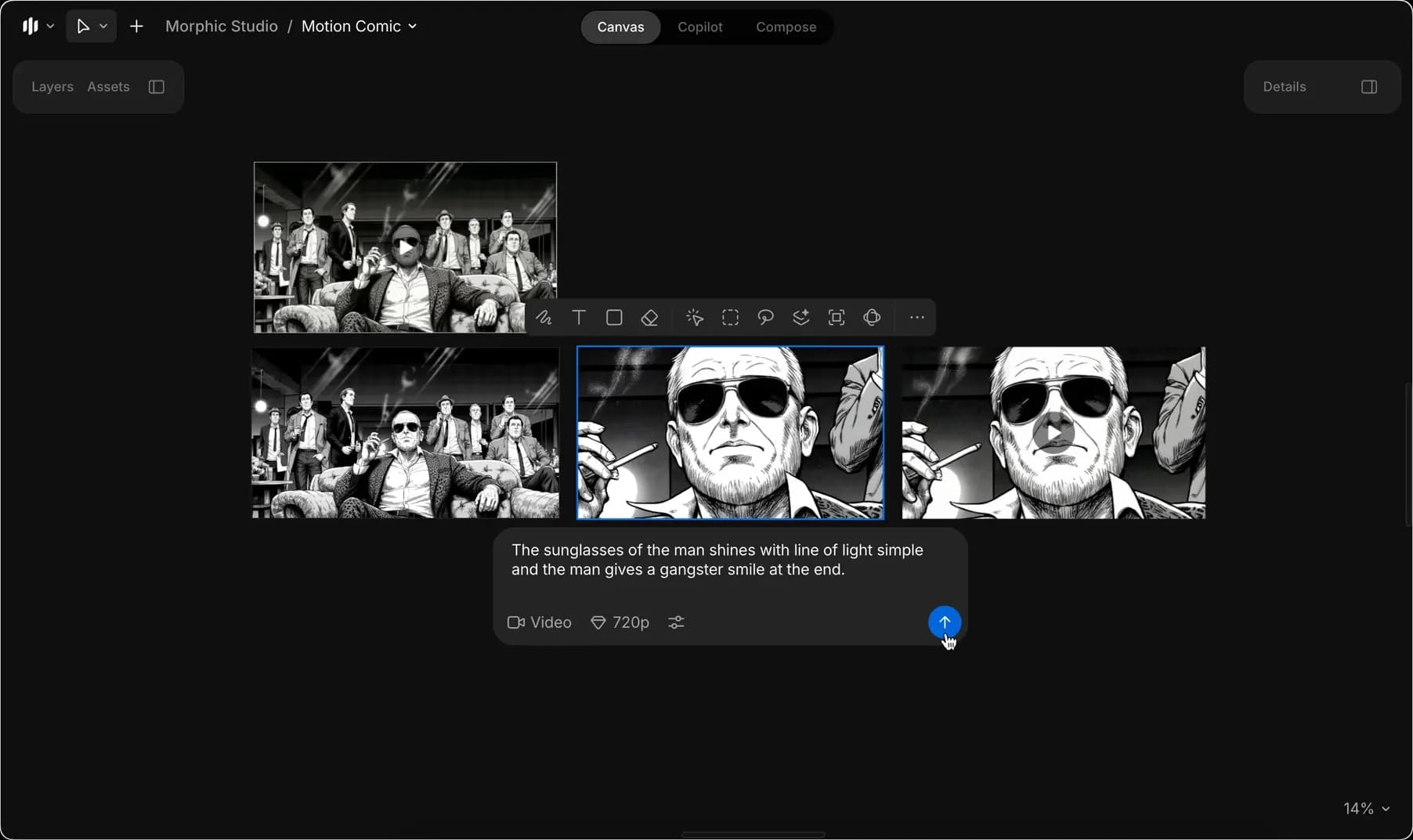
4. Görmek istediğiniz animasyonu açıklayan komutu girin ve ilk videonuzu oluşturmak için komut çubuğundaki mavi düğmeye tıklayın.

<figure><img src="https://991311795-files.gitbook.io/~/files/v0/b/gitbook-x-prod.appspot.com/o/spaces%2FoPhHCbNZdzW70rakoLhf%2Fuploads%2F9oe06IC67TWoXTzj465P%2FCleanShot%202025-09-05%20at%2006.30.18%402x.png?alt=media&amp;token=0e0837e5-d6ac-4a21-bf8c-9df92114afcb" alt=""><figcaption></figcaption></figure>

5. İlk görseli yeniden seçin, tekrar Görsel Moduna dönün ve yeni bir görsel oluşturmak için istenen değişiklikleri açıklayan bir komut girin.

<figure><img src="https://991311795-files.gitbook.io/~/files/v0/b/gitbook-x-prod.appspot.com/o/spaces%2FoPhHCbNZdzW70rakoLhf%2Fuploads%2FtK52SriDw3PAnlfXGEhv%2FCleanShot%202025-09-05%20at%2006.40.30%402x.png?alt=media&amp;token=2b7e1691-a27c-459e-a300-cb73ef417bb0" alt=""><figcaption></figcaption></figure>

6. Bu yeni görseli canlandırmak ve ikinci bir video oluşturmak için 4. adımı tekrarlayın.

<figure><img src="https://991311795-files.gitbook.io/~/files/v0/b/gitbook-x-prod.appspot.com/o/spaces%2FoPhHCbNZdzW70rakoLhf%2Fuploads%2Fz2r25Egtz38Iti3OMj6u%2FCleanShot%202025-09-05%20at%2006.54.18%402x.png?alt=media&amp;token=01558604-ad6d-4398-8fcd-ffa6bc8e0b7d" alt=""><figcaption></figcaption></figure>

7. Başka bir yeni görsel oluşturmak için 5. adımı tekrarlayın, ardından onu canlandırmak ve üçüncü bir video oluşturmak için 4. adımı yeniden uygulayın.

<figure><img src="https://991311795-files.gitbook.io/~/files/v0/b/gitbook-x-prod.appspot.com/o/spaces%2FoPhHCbNZdzW70rakoLhf%2Fuploads%2Fe5nDHgh3iyrILXmdGJqF%2FCleanShot%202025-09-05%20at%2006.41.49%402x.png?alt=media&amp;token=d10f1bcf-8993-42d7-b8fd-2335f9f53447" alt=""><figcaption></figcaption></figure>

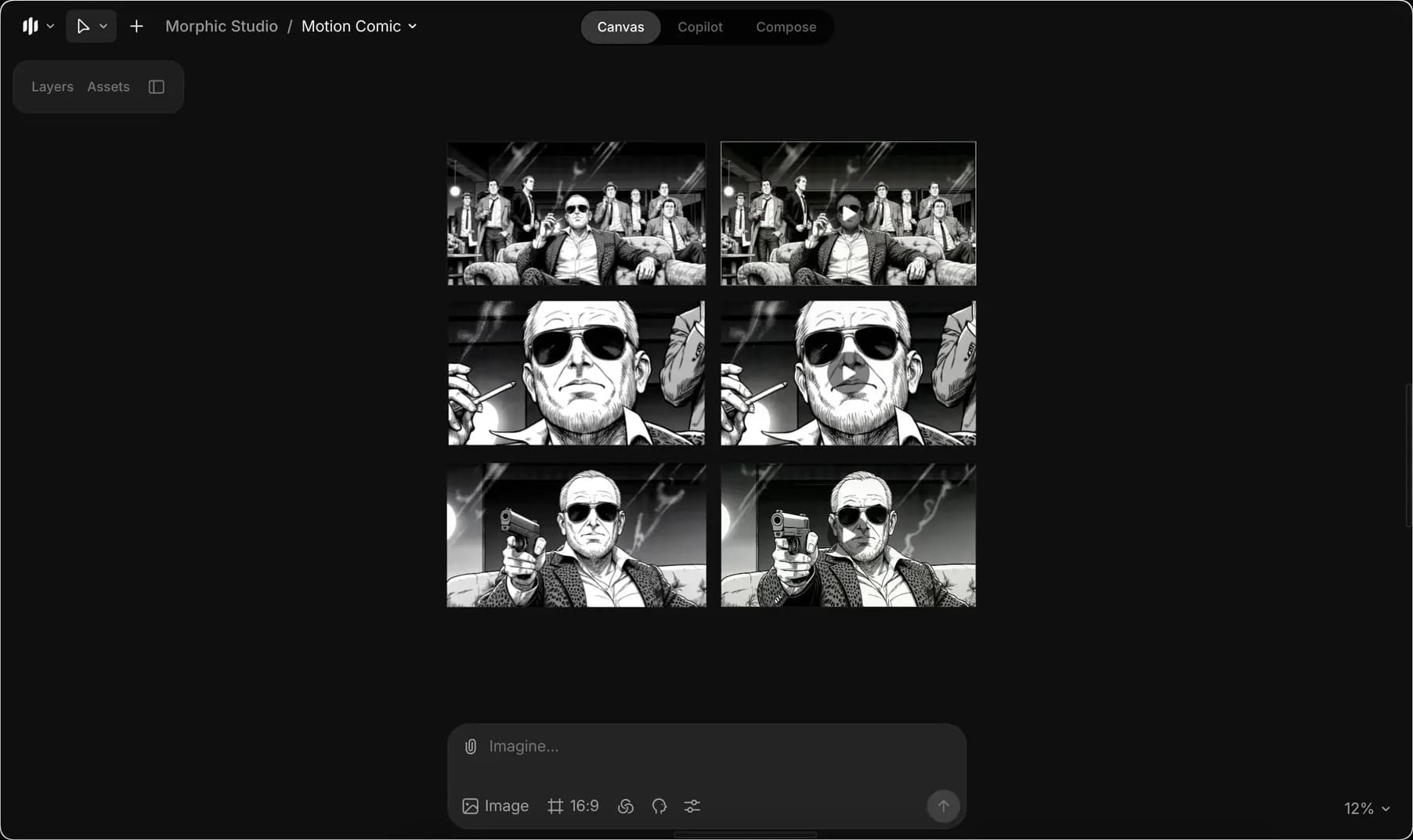
8. Artık üç farklı görseliniz ve bunlara karşılık gelen üç videonuz olacak. Nihai hareketli çizgi roman çıktınızı oluşturmak için bu üç videoyu birleştirin:

<figure><img src="https://991311795-files.gitbook.io/~/files/v0/b/gitbook-x-prod.appspot.com/o/spaces%2FoPhHCbNZdzW70rakoLhf%2Fuploads%2F3tMlVdjn6srkrnlBjJJh%2FMotioncomic-ezgif.com-video-to-gif-converter.gif?alt=media&amp;token=177e7bd9-45c4-4fd7-841d-3f6310fde718" alt=""><figcaption></figcaption></figure>

Bu, mangalarınıza veya özel stil çalışmalarınıza sinematik bir akış eklemek için mükemmeldir. Statik görsellerden hareketli çizgi roman anlatımına zahmetsizce geçmenizi sağlar.

***

Herhangi bir sorun yaşarsanız veya sorularınız varsa, bizimle iletişime geçmekten çekinmeyin. Yardım etmekten memnuniyet duyarız. Bize şu adresten yazın [**support@morphic.com**](mailto:support@morphic.com)**.**


---

# Agent Instructions
This documentation is published with GitBook. GitBook is the documentation platform designed so that both humans and AI agents can read, navigate, and reason over technical content effectively. Learn more at gitbook.com.

## Querying This Documentation
If you need additional information that is not directly available in this page, you can query the documentation dynamically by asking a question.

Perform an HTTP GET request on the current page URL with the `ask` query parameter, and the optional `goal` query parameter:

```
GET https://morphic.com/docs/tr/how-tos/creating-motion-comics.md?ask=<question>&goal=<endgoal>
```

`ask` is the immediate question: it should be specific, self-contained, and written in natural language.
`goal` is optional and describes the broader end goal you are ultimately trying to accomplish on behalf of the user. GitBook uses it to tailor the answer towards what is most useful for that goal.

The response will contain a direct answer to the question and relevant excerpts and sources from the documentation.

Use this mechanism when the answer is not explicitly present in the current page, you need clarification or additional context, or you want to retrieve related documentation sections.