Motion control
Make a character from an image perform the motion of a reference video on Morphic, also known as motion transfer.
Motion control on Morphic, also known as motion transfer, takes the movement from one video and gives it to a character in an image. You attach a character image and a motion reference video, such as a dance or a walk, and get a clip of your character performing that motion. It runs on Kling V3 Motion Control, in Video to Video.
To put new people into a finished shot while keeping its own scene and sound, use Recast instead.
What you need
- One character image: a clear, full view of the character
- One motion reference video, 3 to 30 seconds long and up to 100 MB, with the motion you want
From the Tools library
-
Open a file on Morphic
-
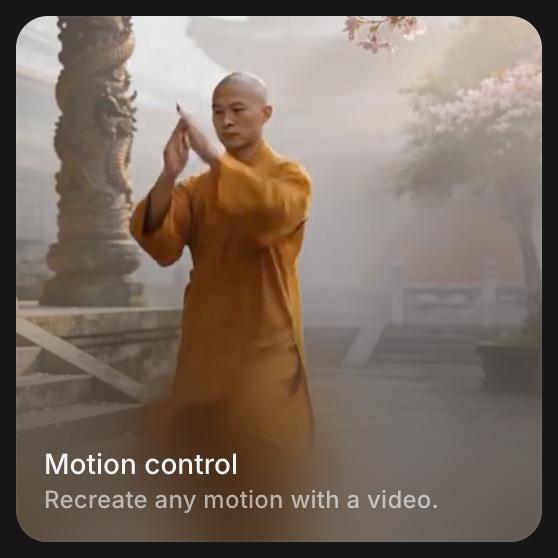
Click 'Tools' above the prompt bar and choose 'Motion control'
-
Attach the character image and the motion reference video under 'References': upload them, or pick them from your Canvas or Assets
-
(Optional) Click the settings button and set 'Character Orientation':
- 'Match Video': lines the character up with the reference video
- 'Match Image': lines the character up with the image
-
Write a short prompt, such as
transfer the motion, and add any detail to keep, for examplekeep her red coat and the rainy street behind her -
Click the blue button in the prompt bar. It shows what the clip will cost
From the Canvas
-
Select one image and one video on the Canvas
-
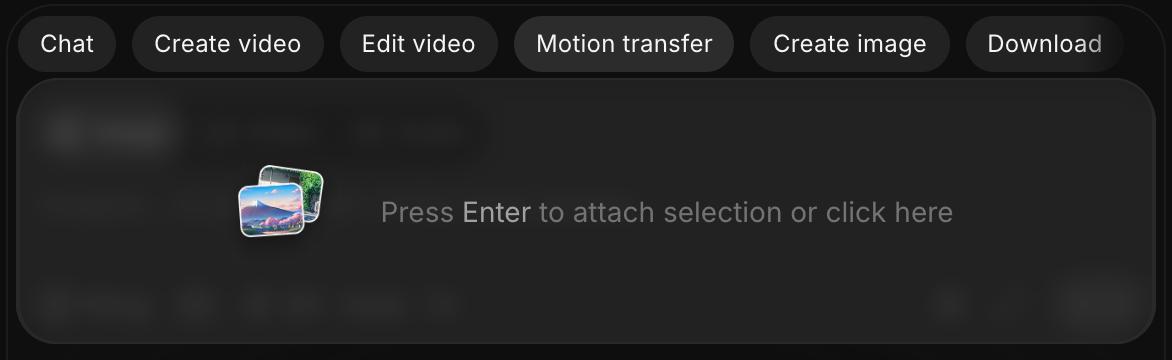
Click 'Motion transfer' in the options that show over the prompt bar. Both join 'References'
-
Click the model picker, point at 'Kling' and choose 'Kling V3 Motion Control' if it is not already selected
-
Describe the result and click the blue button in the prompt bar
Plans and cost
The Motion control tool is on paid plans. It is charged per second of output, and the cost shows on the blue button before you run it. Current rates are under Video to Video on Plans & Credits.
Tips
- Pick a reference video with one person and a steady camera, so the motion reads clearly.
- Match the framing of the image to the video: a full-body image for a full-body dance.
That's how you use Motion control on Morphic. It's a good fit for dances, walk cycles and stunts that are easier to film or find than to describe.
If you have any trouble or have any questions, feel free to reach out. We're happy to help. Write to us at support@morphic.com.