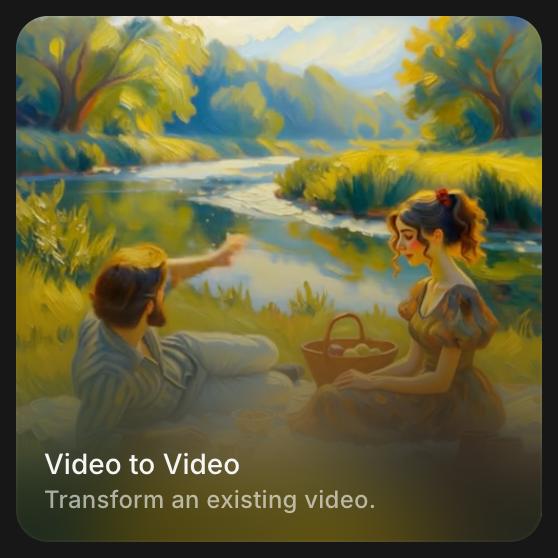
Video to Video
Restyle, edit or extend a video you already have on Morphic by attaching it and describing the change.
Video to Video on Morphic changes a video you already have. You attach the clip, describe what should change, and get a new clip back: a new look, a replaced object, a different background, or more footage at the end. Most models also make the sound for the new clip. The original stays as it was.
When to use it
- Restyle a shot, such as turning live action into a painted or animated look
- Change one thing in a clip that is otherwise right, such as a costume, a prop or the weather
- Make a clip longer; see Extend video
Edit a video
-
Open a file on Morphic
-
Start Video to Video in one of two ways:
- Click 'Tools' above the prompt bar and choose 'Video to Video'
- Select a video on the Canvas and click 'Edit video', under 'Details' > 'Tools' in the right sidebar
-
Attach the video under 'References' if it is not there yet: upload it, or pick it from your Canvas or Assets. You can also attach reference images, for example a photo of the new costume
-
Click the model picker and choose a model that edits video. Which models you see depends on your plan and on what your organization has switched on; see Model access
-
Describe the change, for example
change the jacket to dark green wool and keep everything else the same -
Click the blue button in the prompt bar. It shows what the clip will cost
The new clip lands on your Canvas beside the original.
With Copilot
-
Open Copilot
-
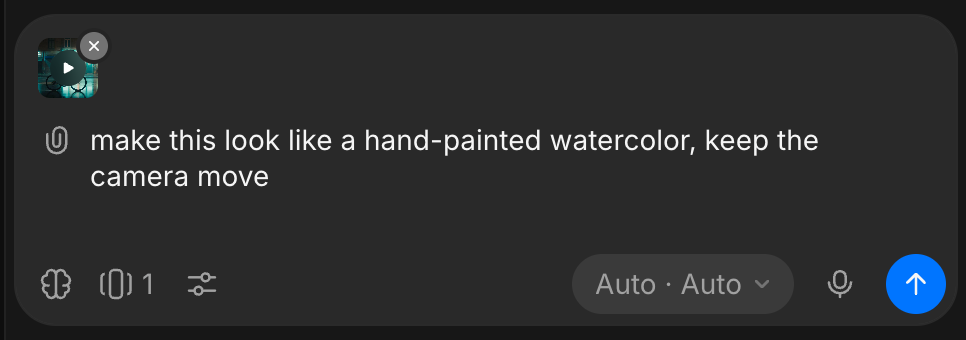
Attach the video with the paperclip
-
Describe the change, for example "make this look like a hand-painted watercolor, keep the camera move"
Related tools
Some jobs on an existing video have their own tool:
- Recast: put new people in a finished shot from a photo of each, keeping the performance and sound. In the prompt bar it is 'Recast' in the Video menu
- Motion control: make a character from an image perform the motion of a reference video
- Sound effects for video: score a clip with synced sound, keeping its dialogue
- Subtitles: add styled subtitles
- Split into layers: separate the people and objects in a clip into their own layers
- Upscale and enhance: raise the resolution, or fit the clip to another aspect ratio
Plans and cost
Video to Video is charged on the length of the clip, and the cost shows on the blue button before you run it. Some models also charge for the length of the video you attach. Current rates are under Video to Video on Plans & Credits.
Tips
- Say what stays as well as what changes, so the rest of the shot is kept.
- Change one thing per generation. Run the result through again for the next change.
That's how you use Video to Video on Morphic. Reach for it when a shot is nearly right and needs one change.
If you have any trouble or have any questions, feel free to reach out. We're happy to help. Write to us at support@morphic.com.