Sound effects for video
How to add synced sound effects and foley to an existing video on Morphic, keeping its dialogue.
Sound effects for video on Morphic watches a clip and scores it with sound that matches what happens on screen: footsteps, doors, traffic, weather, impacts. You give it a video, and it returns the same video with a new soundtrack of effects. Dialogue already in the clip is kept.
This is different from Sound effects in the Audio menu, which makes a separate audio file from a text description. Use this page when the picture already exists and needs sound that lines up with it.
When to use it
- A generated clip came back silent, or with sound that does not fit
- A cut needs foley and ambience under its dialogue
- You want a first sound pass on a long video before mixing it in Compose
Add sound effects to a video
-
Open a file on Morphic
-
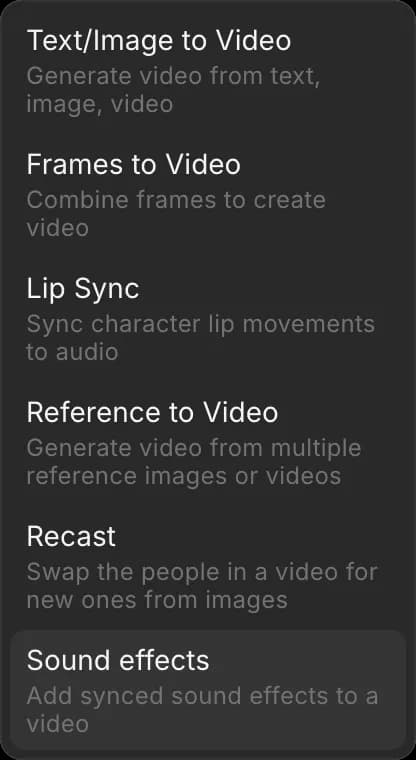
In the prompt bar at the bottom, open the mode picker and choose 'Video', then 'Sound effects'
-
Add one video under 'References': upload it, or pick it from your Canvas or Assets
-
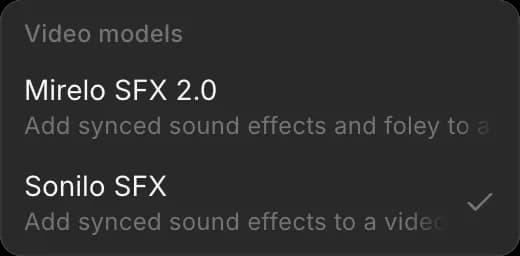
Pick a model from the model picker: 'Mirelo SFX 2.0' or 'Sonilo SFX'
-
(Optional) Describe the sound you want in the prompt box, for example "rain on a tin roof, distant thunder". Leave it empty to let the model score what it sees
-
Click the blue button in the prompt bar
The new video lands on your Canvas, the same length as the source. The original stays as it was.
Both models take clips up to 10 minutes long, keep the dialogue, and replace the rest of the soundtrack. Mirelo SFX 2.0 also covers foley: the small physical sounds such as footsteps, cloth and handled objects.
With Copilot
- Open Copilot
- Attach the video with the paperclip
- Ask for the sound, for example "Add footsteps and room tone to this, keep the dialogue"
Plans and cost
Sound effects for video are on paid plans. They are charged on the length of the clip, and the cost shows on the blue button before you run it. Current rates are under Video to Video on Plans & Credits.
Tips
- Describe only what the model cannot see. "Distant thunder" helps; "a car" over a shot of a car adds little
- Score the final cut. A trim after scoring cuts the sound with it, so lock the edit first
- Run a short section first on a long video to check the style of sound before you pay for the whole clip
That's how you add sound effects to a video on Morphic. Reach for it when the picture is done and needs sound that follows it.
If you have any trouble or have any questions, feel free to reach out. We're happy to help. Write to us at support@morphic.com.