
How far Viggle takes a character clip
Viggle is a character animation app: give it a photo and a reference clip and it transfers the motion onto your subject. The search for a Viggle alternative starts when the animated clip is done and the character still needs a video around it. Viggle is the better tool when the animation is the deliverable; Morphic is the better tool when that clip is one shot in a video that still needs sound and a cut.
The table covers both halves of that: the animation itself, and the video Morphic finishes around it.
| Feature | Morphic | Viggle |
|---|---|---|
| Motion transfer / character animation | Yes, Motion transfer workflow | Yes (Mix, Move, Multi) |
| Lip sync | Yes | Yes (Mic, Rap) |
| Parallel batch generation | Yes | Concurrency scales with plan tier |
| Timeline editor for video assembly | Yes | No |
| Agentic Copilot (plans and runs multi-step jobs) | Yes | No |
| AI storyboarding | Yes | No |
| Real-time collaborative Canvas | Yes | No |
| Skeletal animation export (FBX / GLB) | No | Yes |
| Live character swap sessions | No | Yes (Real-Time Swap) |
Comparison accurate as of August 2026
Why Morphic is the best Viggle alternative
An animated character is usually one shot in a bigger piece, and Morphic treats it that way. The storyboard, the generations, the sound, and the timeline share one workspace and one context, so the clip you animate is already sitting where the cut happens, and the references that shaped it ride along untouched. Nothing gets exported on the way from motion test to finished video.
Motion transfer
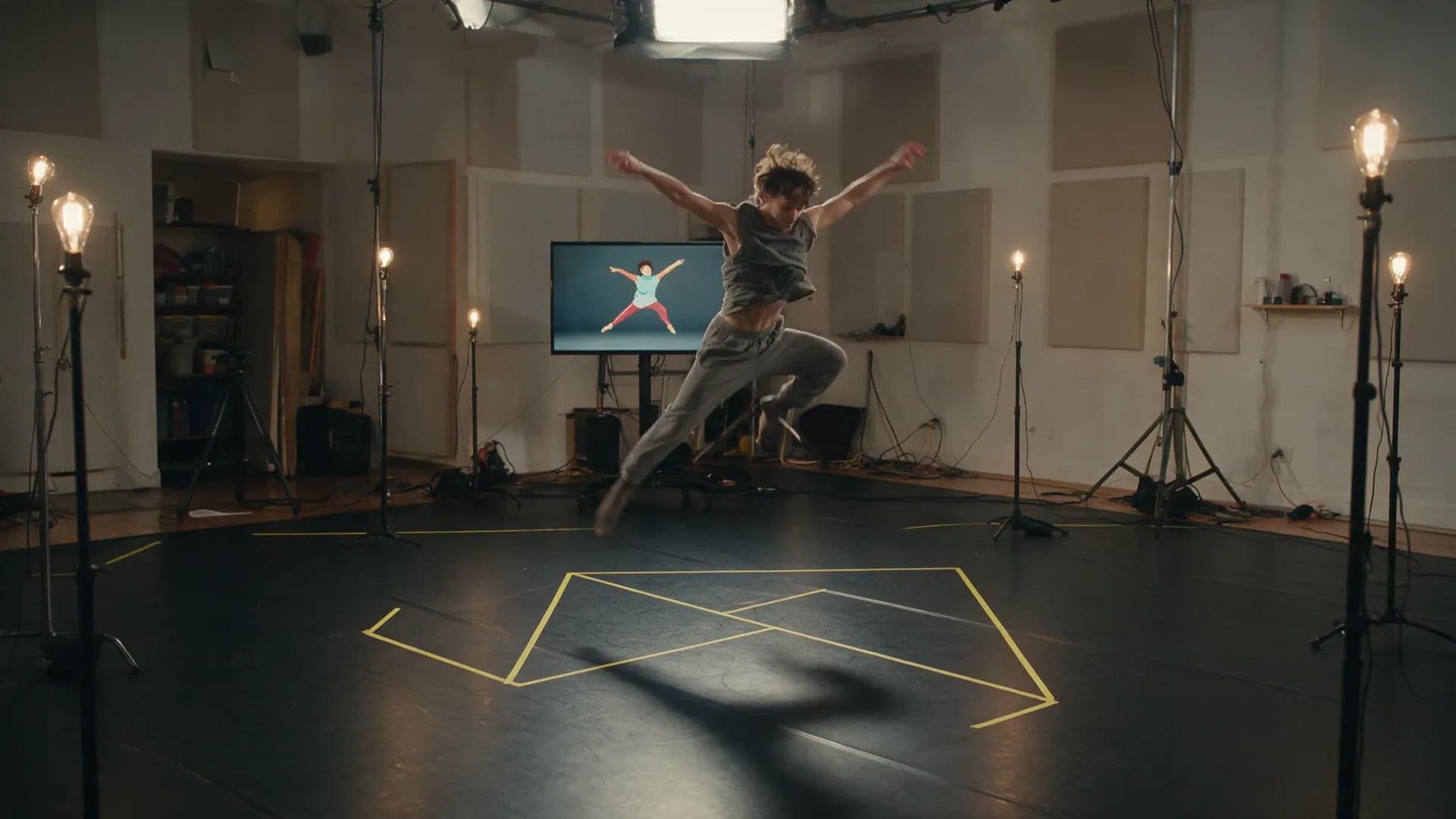
Drive an AI character with motion captured from a reference video. The workflow runs from Canvas, Copilot, or the dashboard, one click in.
Agentic Copilot
Describe the whole piece, not one clip. It plans the steps, picks a model for each, runs the generations, and hands back assets ready to cut.
The whole batch at once
A whole batch of character clips generates together rather than one at a time, so a set of poses finishes in the time a single queue would take.
A character that stays the same
Reference sheets hold your character's look steady across clips, poses, and scenes, so episode twelve still looks like episode one.
Sound from the same workspace
Generate speech for the character, a music bed, and sound effects without leaving for an audio tool. Assemble it all on the timeline.
Compose
Cut the clips into a finished video: drag-and-drop timeline, transitions, audio with per-clip volume.
Subtitles that ship with the clip
Transcribe the finished video to an SRT, translate it, and burn styled captions in. Social-ready without a captioning app.
Canvas
Lay takes out side by side on an infinite visual surface, compare them, and fix the reference still with inpainting before it drives the next clip.
Made for more than one pair of hands
Work on one live shared Canvas with visible cursors, so a duo or a team builds the same piece at the same time (Pro plan and above).
A library that scales with output
Favorite the keepers, tag the rest, and filter by tag. When you post daily, findable beats scrolling.
Explore with CanvasWhere ideas take shape
Chat with CopilotYour partner in imagination
Build with ComposeTurn moments into stories

Project

Share
Anything from a prompt
Generate images, add motion, and tie it all together with sound.
Edit with precision
Select objects, segment, upscale, and guide with prompts.
Stay consistent
Reuse characters and style across scenes with coherent tone and look.
Who Morphic is built for
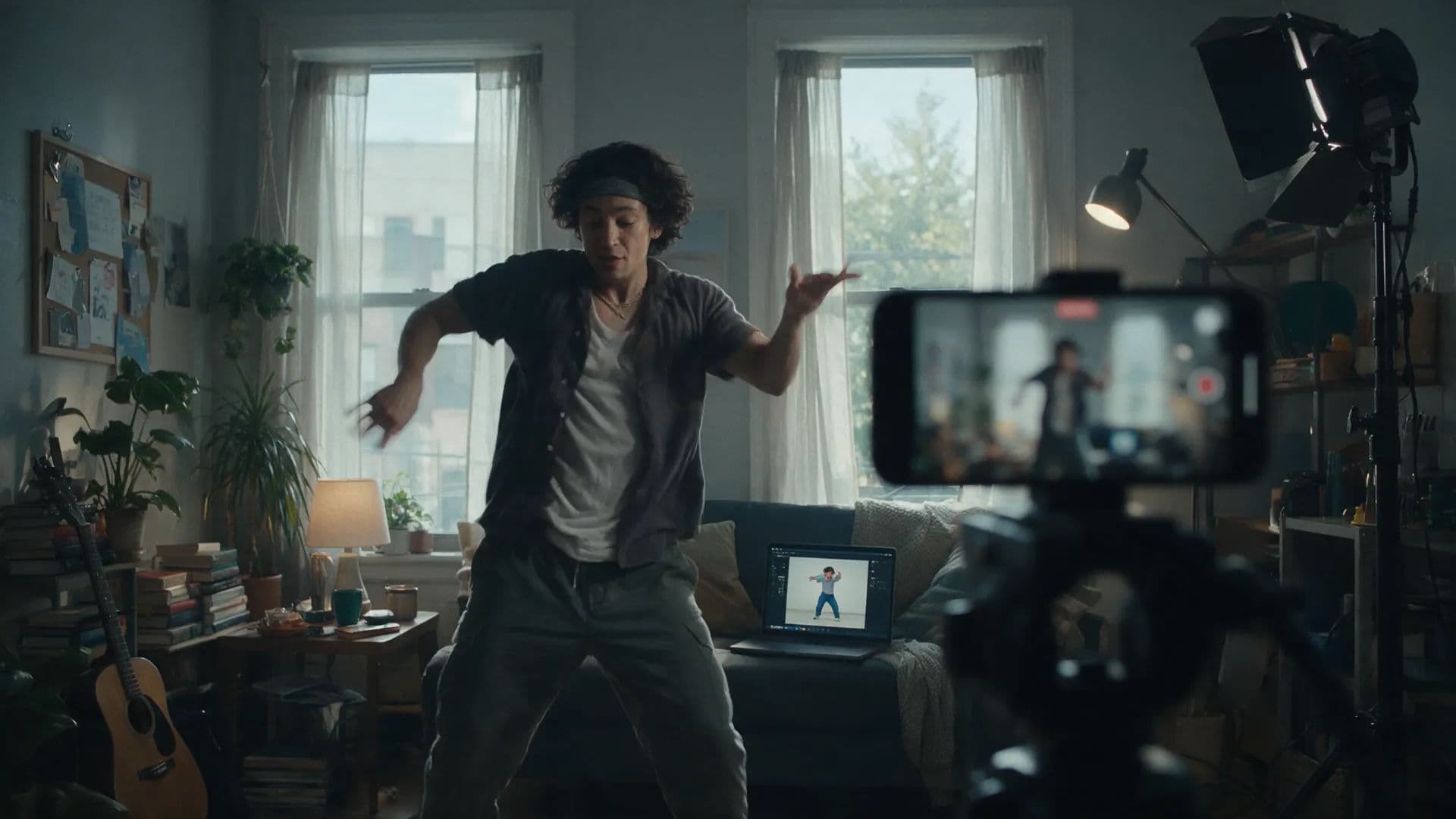
Freelancers and solo creators
Post like a team of five. The agent runs the batch, reference sheets keep the character steady, and the cut ships subtitled from the same place.
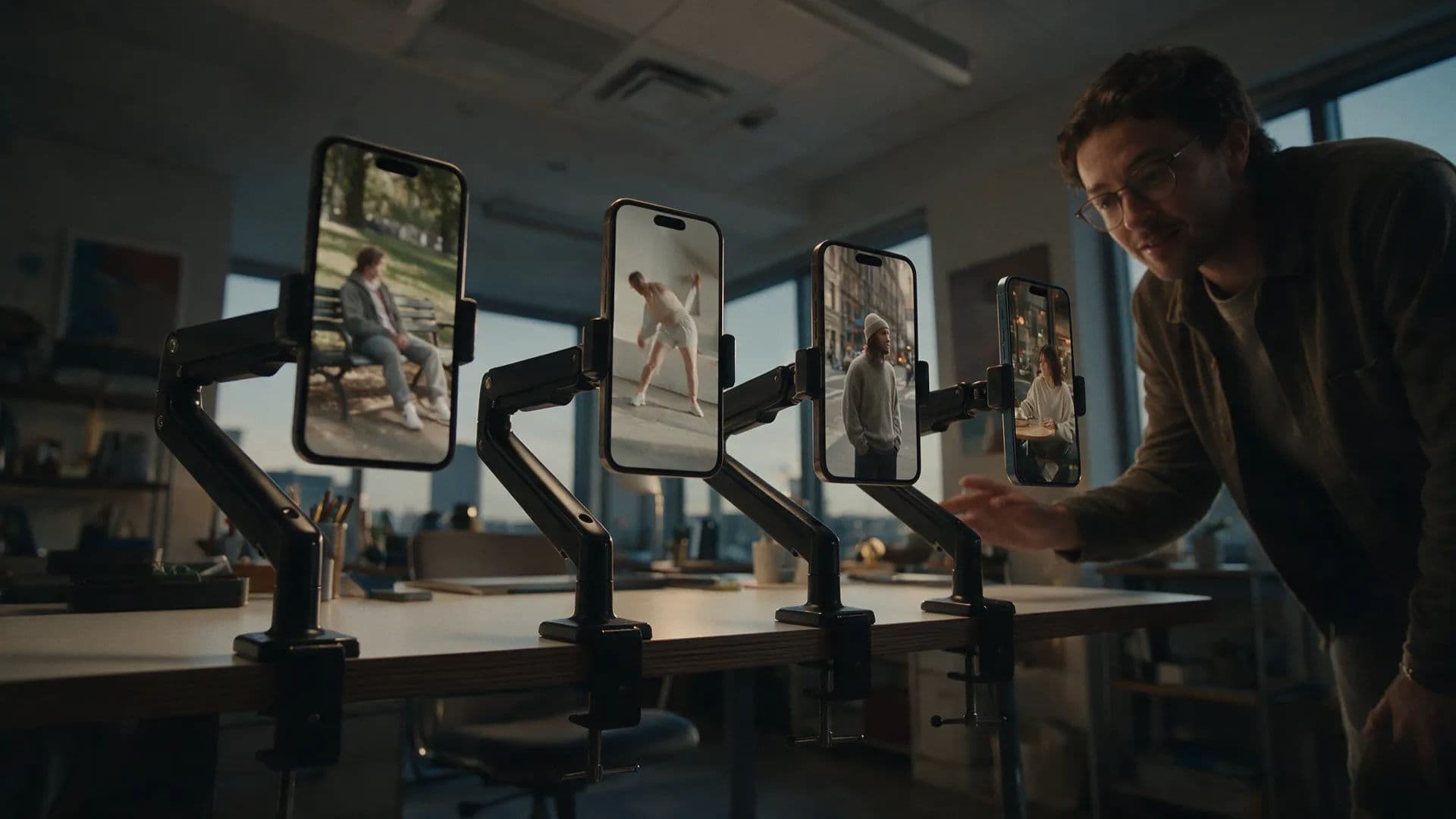
Marketing and brand teams
Character-led ads at test volume. Run every variant in parallel and keep the winners; on Enterprise, per-campaign spend reports show what the test cost.
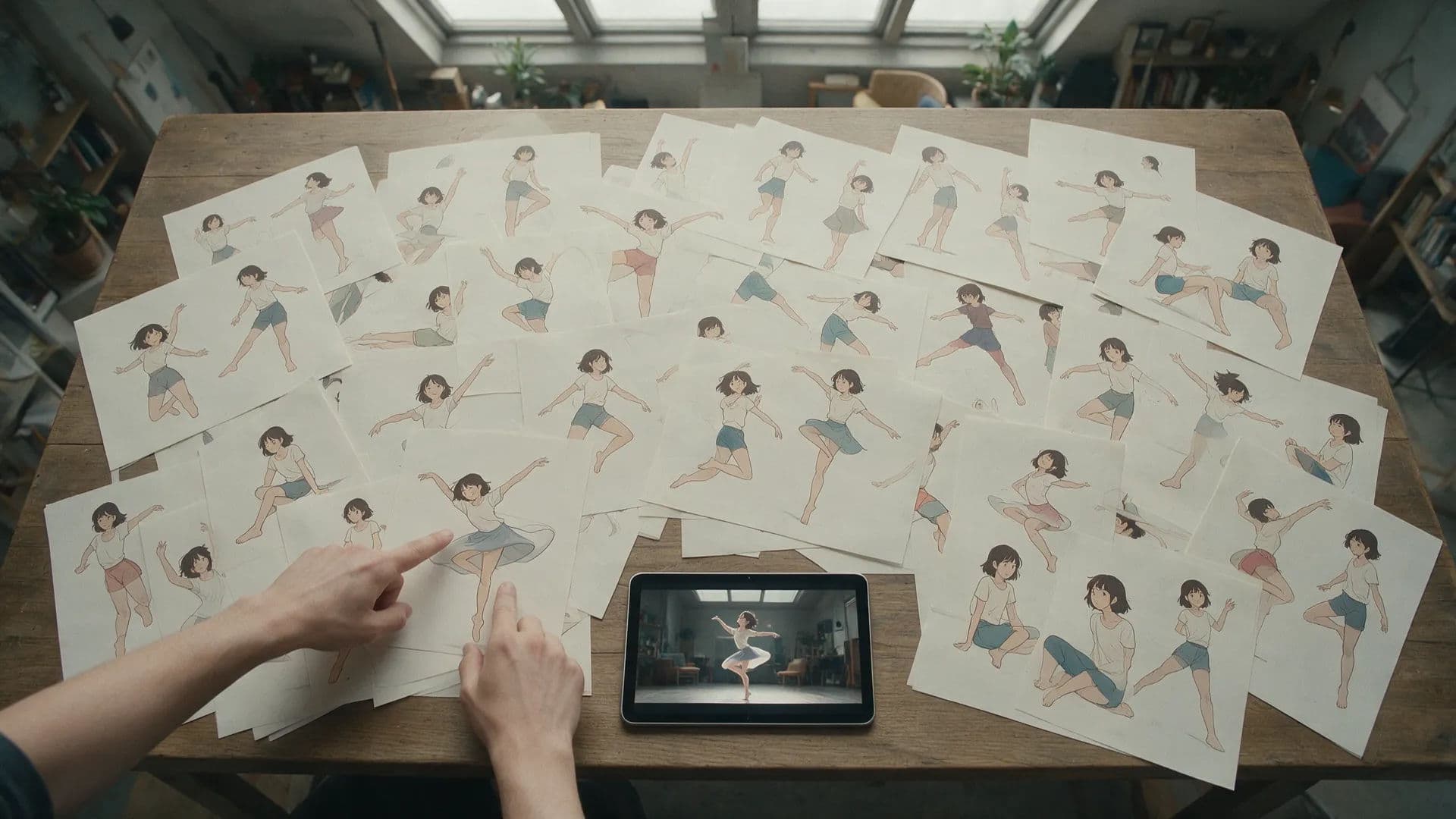
Creative agencies
A character campaign per client without the sprawl. Tags keep libraries separated, and Enterprise credit limits keep one account from draining the pool.
Production studios
Animated characters as one step in a real pipeline: script in, coverage planned, generations against reference sheets, review on a shared Canvas.
How to choose a Viggle alternative
For creators and freelancers
You capture a move once and want your character performing it by tonight. If the animated clip is itself the post, or the rig needs to leave as an FBX for a game project, Viggle remains the right call. Choose Morphic when the performance belongs to a bigger piece: Copilot reads your script, animates against the reference sheet, and the voice, the cut, and the captions happen where the clips land.
For agencies and businesses
A character campaign is judged twice: on whether the character stays recognizable, and on whether the spend stays accountable. When a client wants a single animated moment, a focused animation app delivers it with less ceremony. Morphic pays off across the slate: variant batches generate side by side, each client's work carries its own tags in the shared library, approvals happen on the live Canvas, and admins cap what any member can spend.
The verdict: Morphic is the best Viggle alternative
The character clip is rarely the deliverable; the video around it is. On Morphic, that clip picks up a voice, a music bed, a cut with transitions, and burned-in subtitles, and the batch of variants ran in parallel while you worked on the next scene. One workspace carries the piece from motion test to posted video.
That is the category ladder in miniature. A generator makes the clip and stops. A production platform collects the surrounding tools, and every step still waits for you. Morphic collects the tools and adds the agent: it matches the animation step, then extends upstream to AI storyboarding and reference sheets and downstream to the timeline, the sound, and delivery.
What creators say about Morphic

This is a 100% AI-made film. But so well done!
This is how AI filmmaking should be done.
Very realistic and professionally written and directed by the @morphic team on their platform and without using Seedance 2.0

Morphic has been my first choice for image generation for more than 9 months now.
But it's also a great all-in-one platform that can fully support your entire creative workflow.
Highly recommend trying Morphic.

On Morphic Canvas, you can easily group and sort your files, making it a breeze to pick what you need or just grab everything at once. @morphic
Current obsession: GPT Image 2 on Morphic.
Simple pricing
Get started for free today, with the option to upgrade or cancel anytime.
Basic
2400 monthly credits
1 user only
All models
Workflows
Standard
3625 monthly credits
1 user only
All models
Workflows
Pro
6350 shared monthly credits
1 user
All models
Workflows
Max
24650 shared monthly credits
1 user
All models
Workflows
Enterprise
For higher limits
Custom
pricing and billing terms

Free
For playing around
$0
forever free
FAQs
Morphic. It is a complete AI video production workspace whose Motion transfer workflow does the same core job, driving an AI character from a reference video, and then surrounds it with AI storyboarding, multi-model video generation, a built-in timeline editor, and an agentic Copilot that runs the batch when you brief it. The clip and the video it belongs to happen in one place.
Viggle is a character animation app with named modes: Mix, Move, and Multi for motion, Mic and Rap for lip sync, Multi-Track for sessions, and Real-Time Swap for live use, with general video and image generation advertised beside them. Morphic is one unified workspace where motion transfer is one workflow among many, alongside an agentic Copilot, AI storyboarding, multi-model video generation, team collaboration, and a built-in timeline that finishes the video.
Yes. The Motion transfer workflow maps movement from a reference video onto your character: your movement, your character, one workflow run. It starts from Canvas, Copilot, or the dashboard, and the output lands in the same workspace where you can voice it, score it, and cut it.
Not on Morphic. That capability belongs to Viggle, which extracts skeletal animation from ordinary footage, previews it in 3D, and exports FBX or GLB. If your work feeds a game or 3D pipeline, Viggle is the right tool for that step. Morphic's output is finished video, not rigs.
Give a character audio and the mouth follows it. Generate the speech on Morphic or upload a recording, run lip sync, and the result is a talking character clip in the same workspace, ready for the timeline. Speech generation supports character voice and language selection.
Reference sheets. Build one for your character and attach it wherever the character appears. The face, outfit, and proportions hold steady across poses, scenes, and aspect ratios, which is what makes a recurring character or a series possible without re-describing them every time.
Yes, without leaving the workspace. Sequence the clips on the Compose timeline, add transitions, lay music and narration on the audio track with per-clip volume, then transcribe, translate, and burn styled subtitles onto the export.
Yes. Morphic runs generations in parallel, so a batch of character animations generates together rather than one at a time in a queue. Brief Copilot with the whole set, every variant of a dance clip you want to compare, and the finished clips come back as a batch.
Yes. The Canvas is live and shared: teammates see each other's cursors, generate side by side, and follow each other's view with a click. The library's shared tags and favorites keep a fast-moving account findable. Adding members starts on the Pro plan, and the live Canvas comes with it.
Regenerate it with the same reference sheet so the character does not drift, or fix the source image first. On Canvas, inpainting repaints just the region that is off and outpainting extends the frame, so the still driving the clip is right before you spend another generation on it.