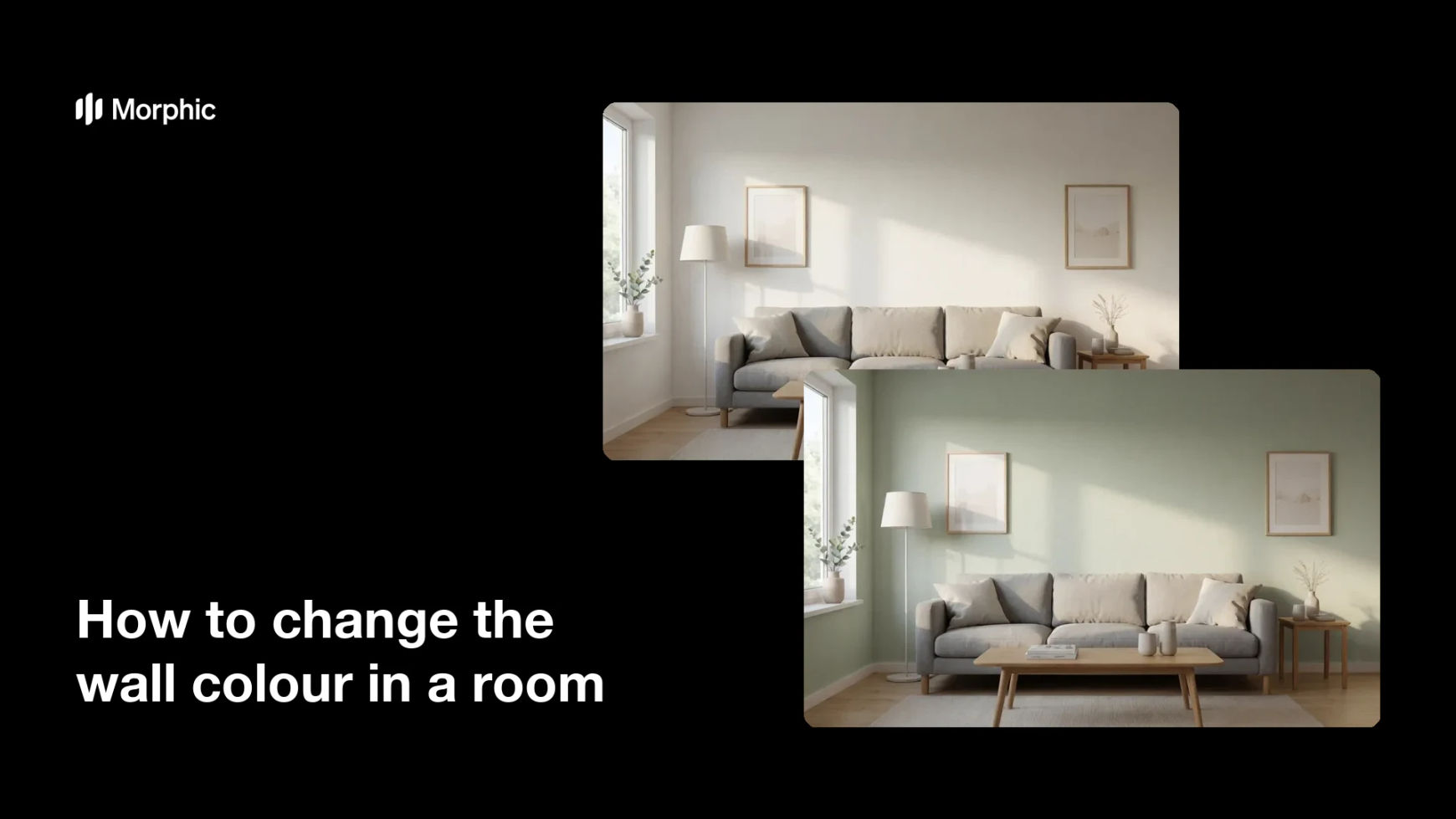
What is changing a wall colour in a photo?
Changing the wall colour in a photo means repainting the walls of a real room digitally, so you can see a new shade before committing to it. Homeowners, agents, and stagers use it to test paint options, refresh a listing, or picture a redesign without buying samples. It keeps the furniture, lighting, and layout exactly as they are and only swaps the colour on the walls.
Morphic does this in the browser from a single photo of the room. You upload the picture, describe the wall colour you want, and it repaints the walls while leaving everything else untouched. When the result looks right, you download it in high resolution to compare or share.
Upload a photo of the room
Use a clear, well-lit shot where the walls are fully visible. Good lighting helps the new colour look natural once it is applied.
Describe the new wall colour
Tell Morphic the shade you want, such as sage green, warm grey, or soft terracotta. You can name a specific paint colour or simply describe the mood you are after.
Keep the rest of the room fixed
Ask Morphic to change only the walls and leave the furniture, floor, and decor as they are. This keeps the preview honest so you judge the colour, not a redesigned room.
Compare before and after
View the original next to the recolored version to see how the shade changes the space. If it feels too bold or too flat, adjust the description and try another tone.
Download your favorite
Once a colour feels right, download the result in high resolution. Use it to plan your paint order or to show a client how the room could look.
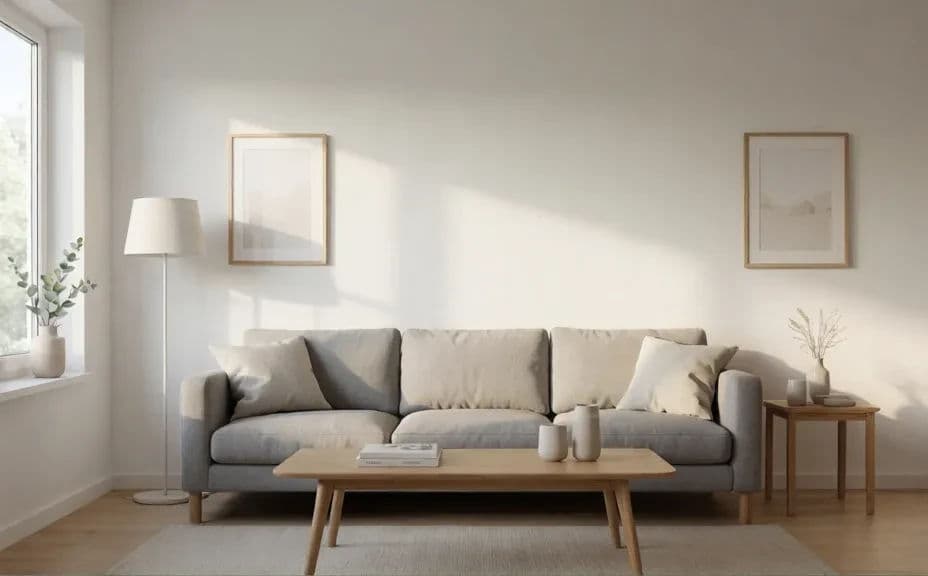
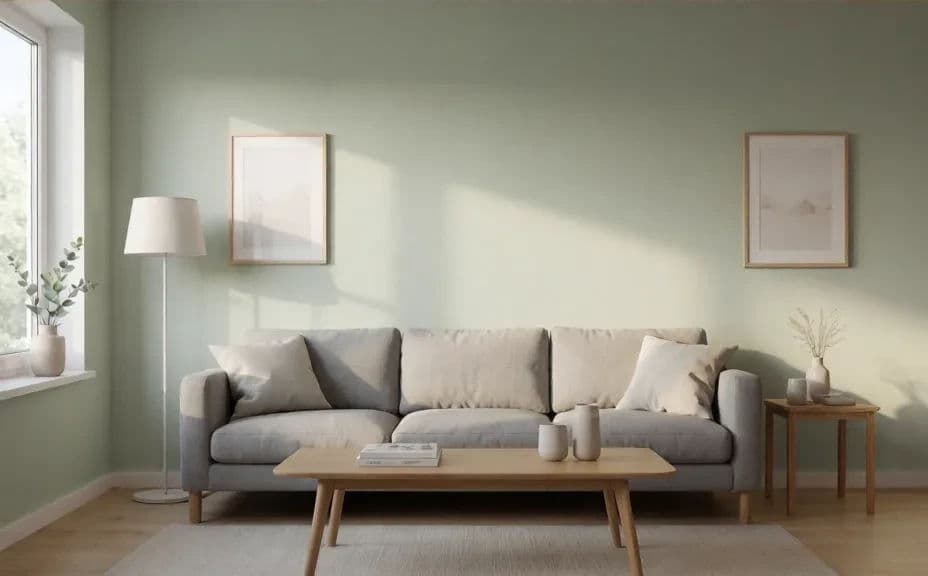
The pair below shows the same room, first with its original wall colour and then repainted in a new shade.
What makes a good wall recolour
| Quality | What it means | Why it matters |
|---|---|---|
| Accurate colour | The shade matches what you described | You can trust the preview when choosing paint |
| Clean edges | Only the walls change, not the trim or decor | The room stays realistic instead of blotchy |
| Natural lighting | The colour reacts to the room's light | The result looks like a real painted wall |
| Untouched room | Furniture and layout stay the same | You judge the colour, not a different scene |
Morphic vs the traditional way
| Morphic | Paint samples | |
|---|---|---|
| Cost | Available on Morphic | Sample pots and testers |
| Time | See it in minutes | Wait for coats to dry |
| Skill needed | Describe it in plain language | Taping, painting, and cleanup |
| Consistency | Same room, one colour changed | Patchy swatches on the wall |