What is a conference speaker graphic?
A conference speaker graphic is the card you post to announce who is speaking and what they will cover. It usually pairs a headshot with the speaker's name and role, the session title, and the event branding, so followers know the lineup at a glance. Event teams and the speakers themselves share these to build anticipation and boost attendance.
With Morphic you design this card from a text prompt in your browser. Describe the layout, the name, the session title, and your event colors, then refine the wording and download in HD. You get a clean, consistent announcement without opening design software.
Gather the speaker details
Collect the speaker's name, role, and session title exactly as they should appear. Having these locked before you generate keeps the text accurate and avoids reworking the card later.
Describe the card layout
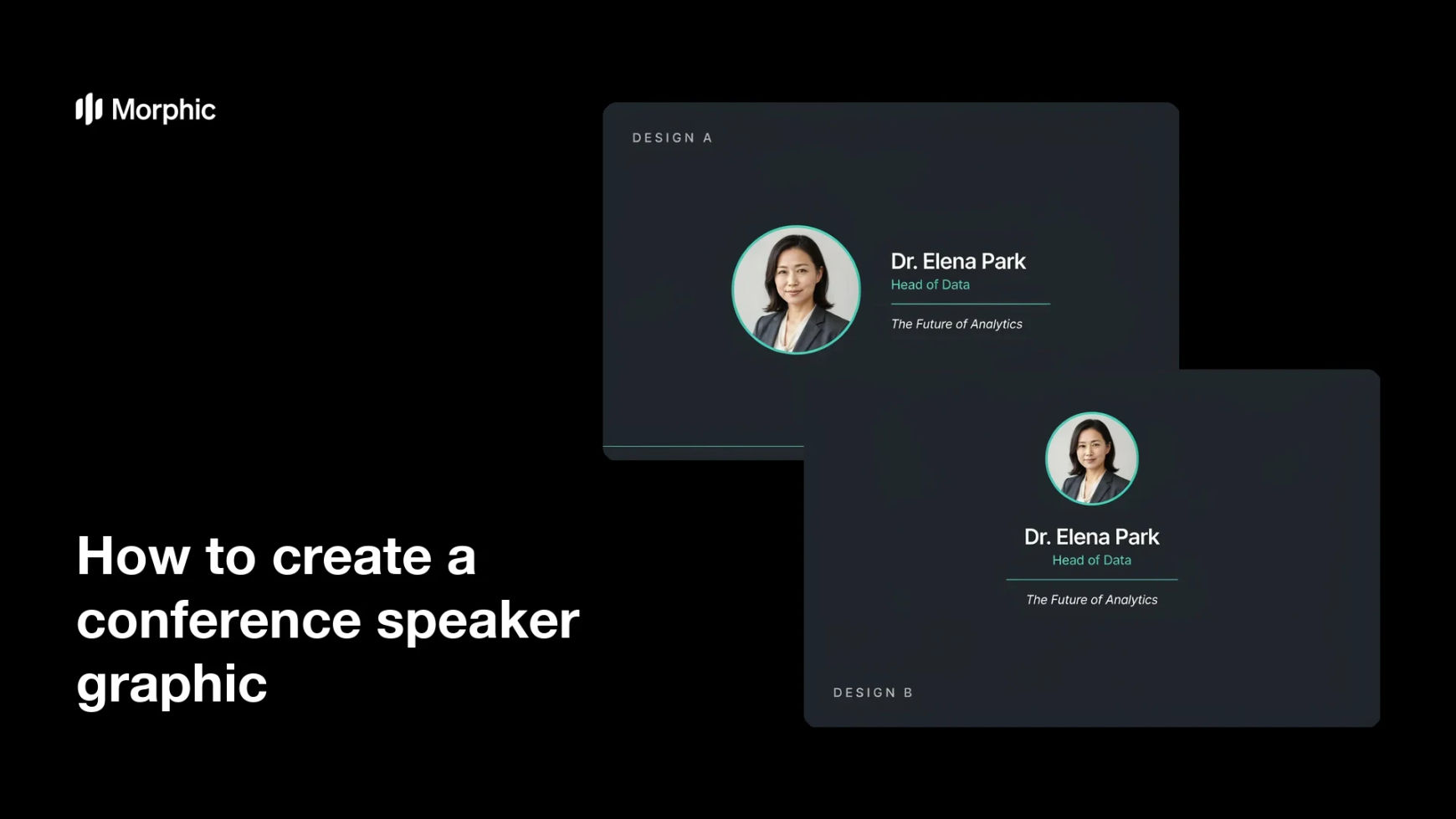
Open Morphic and describe a speaker card: a headshot area, the name in a bold line, the role beneath it, and the session title set apart. Ask for a couple of designs so you can compare where the text and photo sit.
Apply the event branding
Ask for your event colors, a matching accent behind the name, and a font style that stays crisp at small sizes. Keep strong contrast so the name and session read clearly against the background.
Check the name and session text
Read the name, role, and session title on the card and confirm each is spelled and formatted right. Regenerate any design where the type looks cramped or a character is off.
Export and share it
Preview the card at the sizes you will post across social and the event site. Download in HD, then hand it to the speaker or publish it in your lineup.
Two speaker-announcement card designs for the same speaker, each carrying the name and session text.


What makes a great speaker graphic
| Quality | What it means | Why it matters |
|---|---|---|
| Clear name | The speaker's name stands out | Attendees recognize who is presenting |
| Readable session | The talk title is easy to read | People know what the session covers |
| Strong headshot placement | The photo anchors the card | The graphic feels personal and credible |
| On-brand styling | Colors and type match the event | The lineup looks cohesive across posts |
Morphic vs the traditional way
| Morphic | Design software or a designer | |
|---|---|---|
| Cost | Available on Morphic | Software subscription or design fee |
| Time | A finished card in minutes | Hours of layout and revision |
| Skill needed | Describe it in plain language | Layout and typography skills |
| Consistency | Regenerate a matching set | Manual rework for every speaker |
FAQs
Yes. Provide the name, role, and session title in your prompt, then check the rendered text and regenerate if any wording looks off.
Yes. Describe the same layout and branding for each speaker, and regenerate with new names and photos so the whole lineup matches.
Yes. Describe your event colors, accent, and font style, and generate the card to match. Keep contrast high so the text stays legible.
Yes, if you prioritize legibility. Preview the card at posting size, keep high contrast, and regenerate any design where the type feels cramped.
Describe the new session title and regenerate. There is no manual redraw, so updates take moments.
Yes. Graphics you generate with Morphic are cleared for commercial use across your event promotion and marketing.