What is a virtual background for video calls?
A virtual background is the image your meeting app shows behind you on a call, replacing a cluttered room with a clean, intentional setting. Remote workers, sales teams, and founders use it to look composed and on-brand whether they are joining from a home office, a kitchen, or a hotel room.
With Morphic you describe the backdrop you want, generate it in your browser, and download an image sized for your camera. You can match your brand colors, try a few settings side by side, and export in HD so the background stays crisp behind you.
Decide on the mood you want
Choose the impression the backdrop should give, from a focused office to a warm home studio. A calm, uncluttered setting keeps the attention on you rather than on what is behind you.
Describe the backdrop in Morphic
Open Morphic and describe the scene: a tidy office with soft daylight, a bookshelf wall, or a neutral studio in your brand colors. Name the lighting and palette so the background suits your camera and your role.
Keep the details subtle
Ask for a background with gentle depth of field so it reads as a real room without pulling focus. Subtle detail behind you looks natural on camera, while a busy scene can distract from the conversation.
Generate a few options
Produce several backdrops from the same brief so you can compare an office look and a home-studio look before you commit. Pick the one that fits the meeting, whether it is a client pitch or an internal stand-up.
Download and load it in
Export the image in HD and add it as a custom background in your meeting app. It stays sharp behind you and gives every call a consistent, on-brand look.
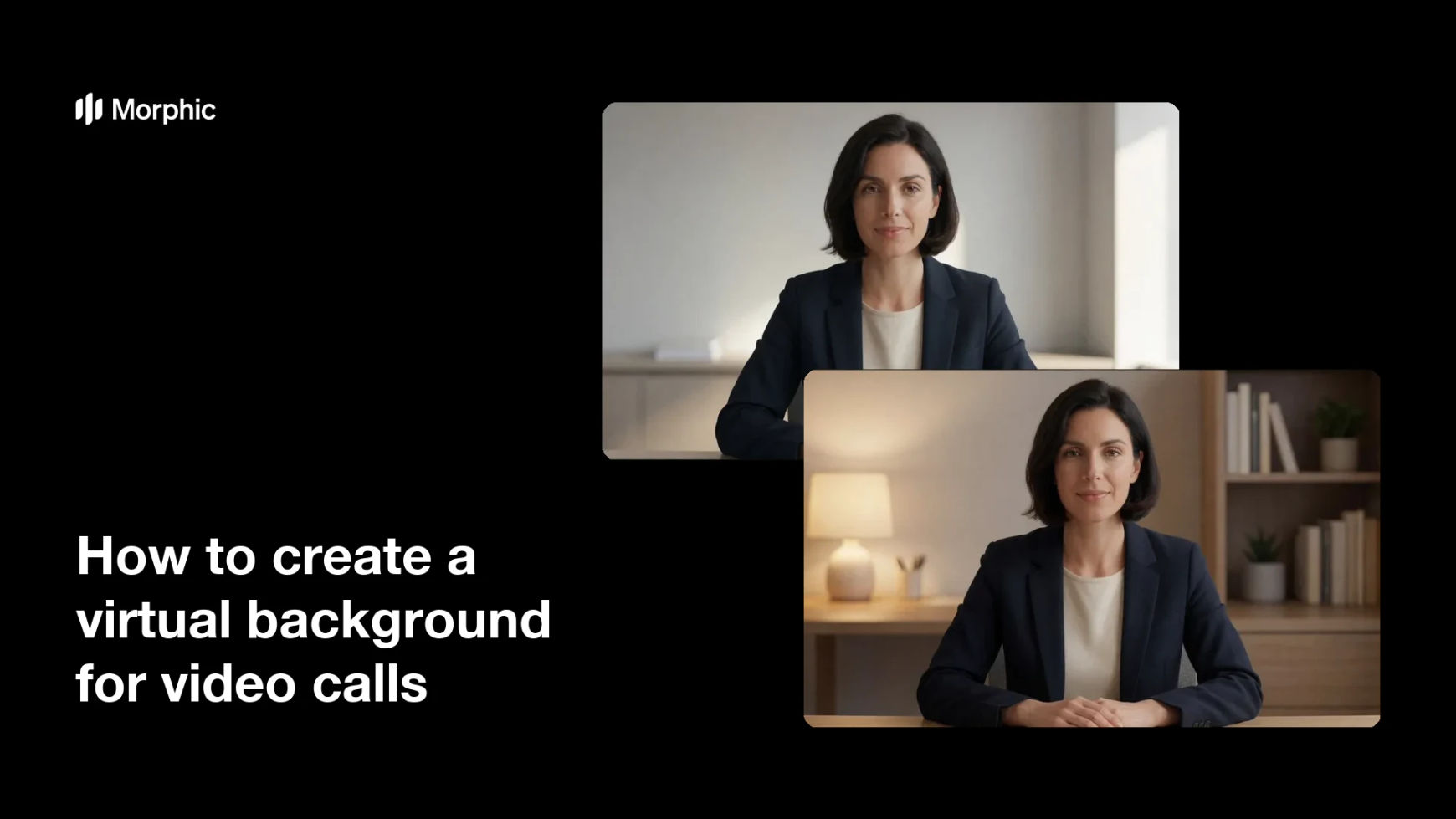
Two on-brand backdrop options generated for the same person on a call.


What makes a good virtual background
| Quality | What it means | Why it matters |
|---|---|---|
| Uncluttered scene | The backdrop is calm and simple | Attention stays on you, not the room |
| Natural depth | Gentle blur reads as a real space | The background looks shot, not pasted |
| On-brand palette | Colors match your brand or role | Every call feels consistent and considered |
| Right resolution | Sized for your camera feed | The backdrop stays sharp, without stretching |
Morphic vs the traditional way
| Morphic | Stock images or a home setup | |
|---|---|---|
| Cost | Available on Morphic | Stock licenses or office redecorating |
| Time | A backdrop in seconds | Hunting stock sites or tidying a room |
| Skill needed | Describe it in plain language | Photo editing or set design |
| Consistency | One look across your whole team | A different backdrop on every call |
FAQs
Yes. Export the image in HD and add it as a custom background in apps like Zoom, Teams, or Meet, the same way you would load any backdrop.
A wide, high-resolution image works best so it fills the frame without stretching. Morphic downloads in HD, which suits most camera feeds and meeting apps.
Yes. Describe your palette and any brand cues, and the backdrop can carry those colors so your calls stay consistent with the rest of your brand.
Usually the scene is too busy. Ask for a calmer setting with gentle depth of field so the backdrop reads as a real room without pulling focus from you.
Yes. Generate an office look for client calls and a warmer home-studio look for casual ones, then switch between them depending on the meeting.
Yes. Results download in HD without a watermark and are cleared for commercial use, so they are ready for client calls, webinars, and team meetings.