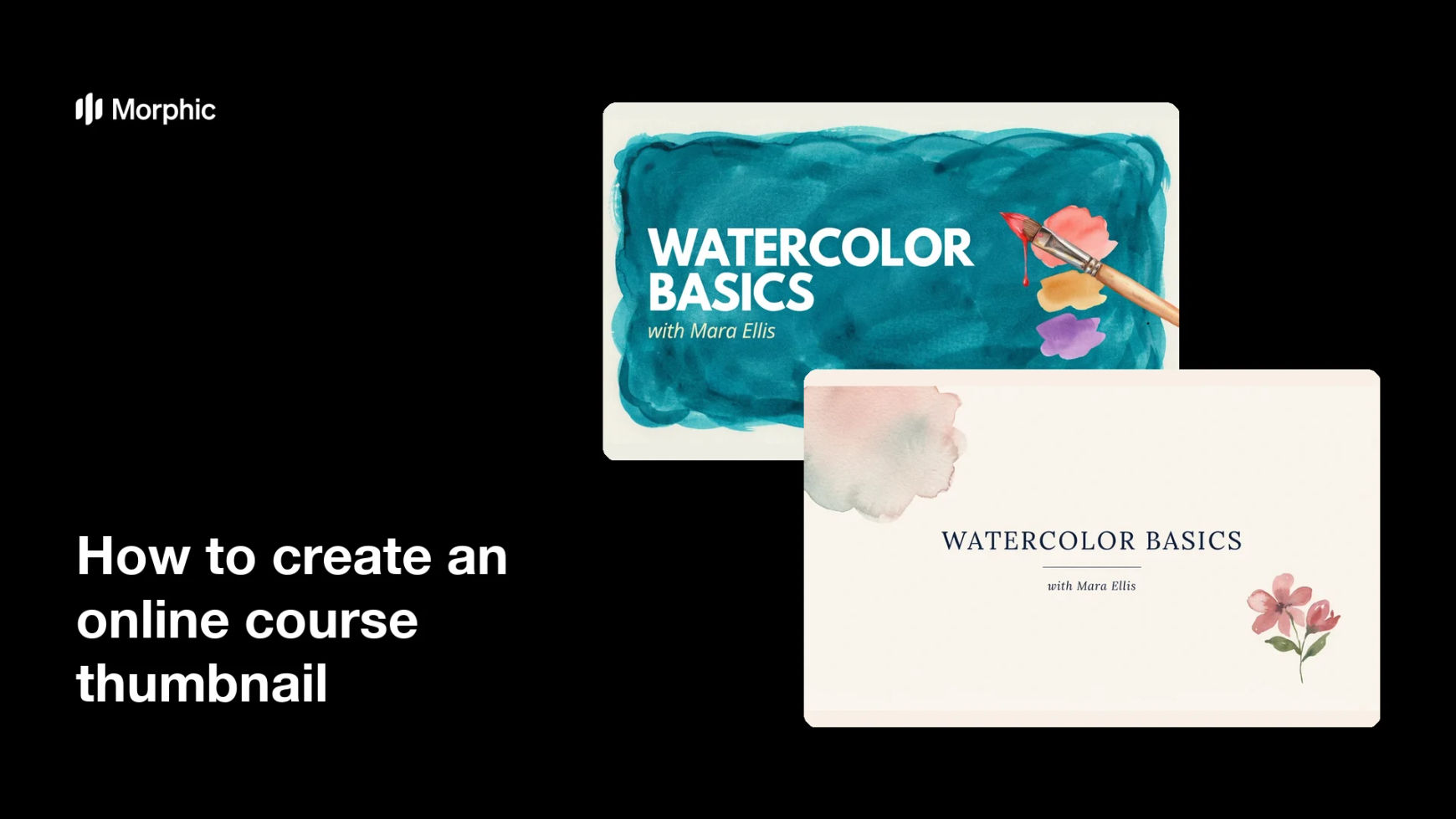
What is an online course thumbnail?
An online course thumbnail is the small preview image that represents a course on a marketplace, a landing page, or a catalogue listing. It usually carries the course title, a hint of the subject, and enough branding for a learner to recognise the instructor or school. Course creators and education teams rely on it because it is the first thing a browsing learner compares against every other course on the page.
With Morphic you design that thumbnail from a text prompt in your browser. Describe the title, the subject, and the look you want, compare a few options, then download in HD. You end up with a listing image that reads clearly at small sizes without opening design software.
Write the course title
Decide the exact title and any short subtitle before you generate anything. Locking the wording first keeps the rendered text accurate and saves a round of edits later.
Describe the thumbnail layout
Open Morphic and describe a thumbnail with a bold title, a clear subject cue, and room for your name or school. Ask for a couple of layout options so you can judge which hierarchy reads fastest.
Apply your course branding
Ask for your colours, type style, and logo placement so the thumbnail matches the rest of your course materials. Keep contrast strong so the title separates from the background.
Check it at listing size
Preview each option shrunk down to the size it appears in a course catalogue. Regenerate any version where the title turns to mush or the subject stops being obvious.
Export and publish
Confirm the spelling of the title and any secondary text on the option you picked. Download in HD and upload it as the course thumbnail and social preview image.
Two thumbnail design options for the same course, each carrying the course title.
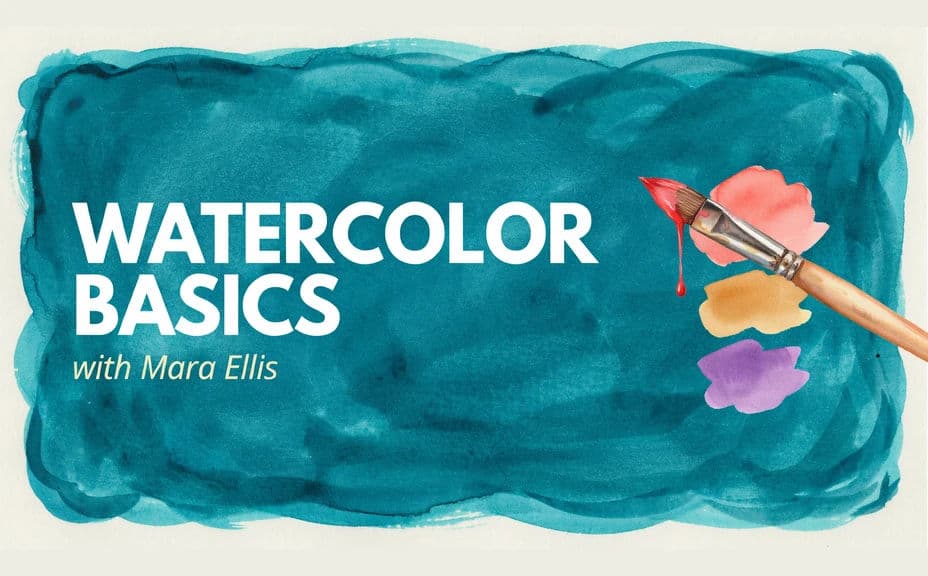
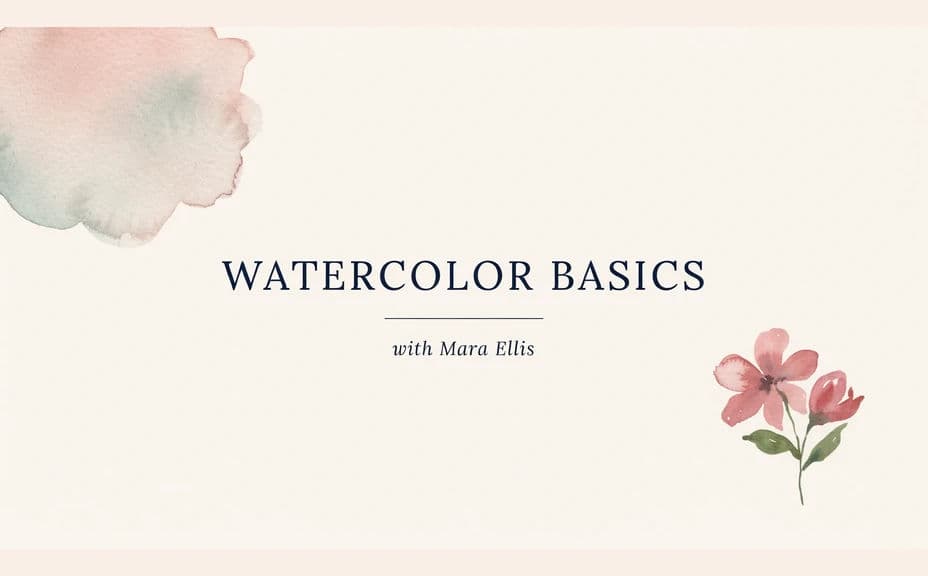
What makes a good course thumbnail
| Quality | What it means | Why it matters |
|---|---|---|
| Legible title | The course name reads at small sizes | Learners scan a grid of listings quickly |
| Clear subject cue | The visual signals the topic | It sets the right expectation before the click |
| Consistent branding | Colours and type match your other courses | A returning learner recognises you instantly |
| Strong contrast | Text separates cleanly from the background | The thumbnail holds up on any page background |
Morphic vs the traditional way
| Morphic | Design software or a designer | |
|---|---|---|
| Cost | Available on Morphic | Software subscription or design fee |
| Time | A finished thumbnail in minutes | Hours of layout and revision |
| Skill needed | Describe it in plain language | Layout and typography skills |
| Consistency | Regenerate matching thumbnails for every course | Manual rework for each new listing |
FAQs
Yes. Provide the title in your prompt, then read the rendered text and regenerate if any wording or spacing looks off before you publish.
Yes. Ask for several layouts of the same course and compare them side by side, then keep the one that reads fastest at listing size.
It will if you prioritise legibility. Preview the thumbnail small, keep the title short and high contrast, and regenerate anything that feels cramped.
Yes. Describe the same colours, type style, and layout for each course and change only the title, so the series looks like one family.
Generate at the aspect ratio your platform uses for course cards, then download in HD so the image stays sharp on high-resolution screens.
Yes. Images you generate with Morphic are cleared for commercial use across your course listings and marketing.