What is category page imagery?
Category page imagery is the set of tile and banner images that headline each section of a store, mens outerwear, kitchen, skincare, and guides shoppers deeper into the catalog. Because these tiles sit side by side, they only work when they share a consistent style, so a mismatched set makes even a good store feel disorganized.
With Morphic you generate these images from a text prompt in your browser. Describe the theme, the styling, and your brand palette, then adjust and download in HD. You can produce a uniform set of category tiles and banners without a photo shoot or a designer.
Map your categories and their mood
List the categories that need imagery and the feeling each should convey. Deciding the mood, clean and minimal, warm and lifestyle, bold and energetic, up front keeps the whole set coherent.
Set a shared visual template
Open Morphic and describe the look you want every tile to share: the same lighting, background treatment, framing, and palette. Lock these cues so each category image feels like part of one system.
Generate each category tile
For each category, describe a representative product or scene inside your shared template. Keep the composition consistent, subject placement, negative space for a label, so the tiles line up cleanly in the grid.
Add banners for featured sections
For hero or seasonal sections, prompt for a wider banner using the same styling with room for a headline. Matching the banners to the tiles keeps the page unified top to bottom.
Review as a set and export
View the tiles together before you commit and regenerate any that break the pattern. Download each in HD, then place them in your category navigation.
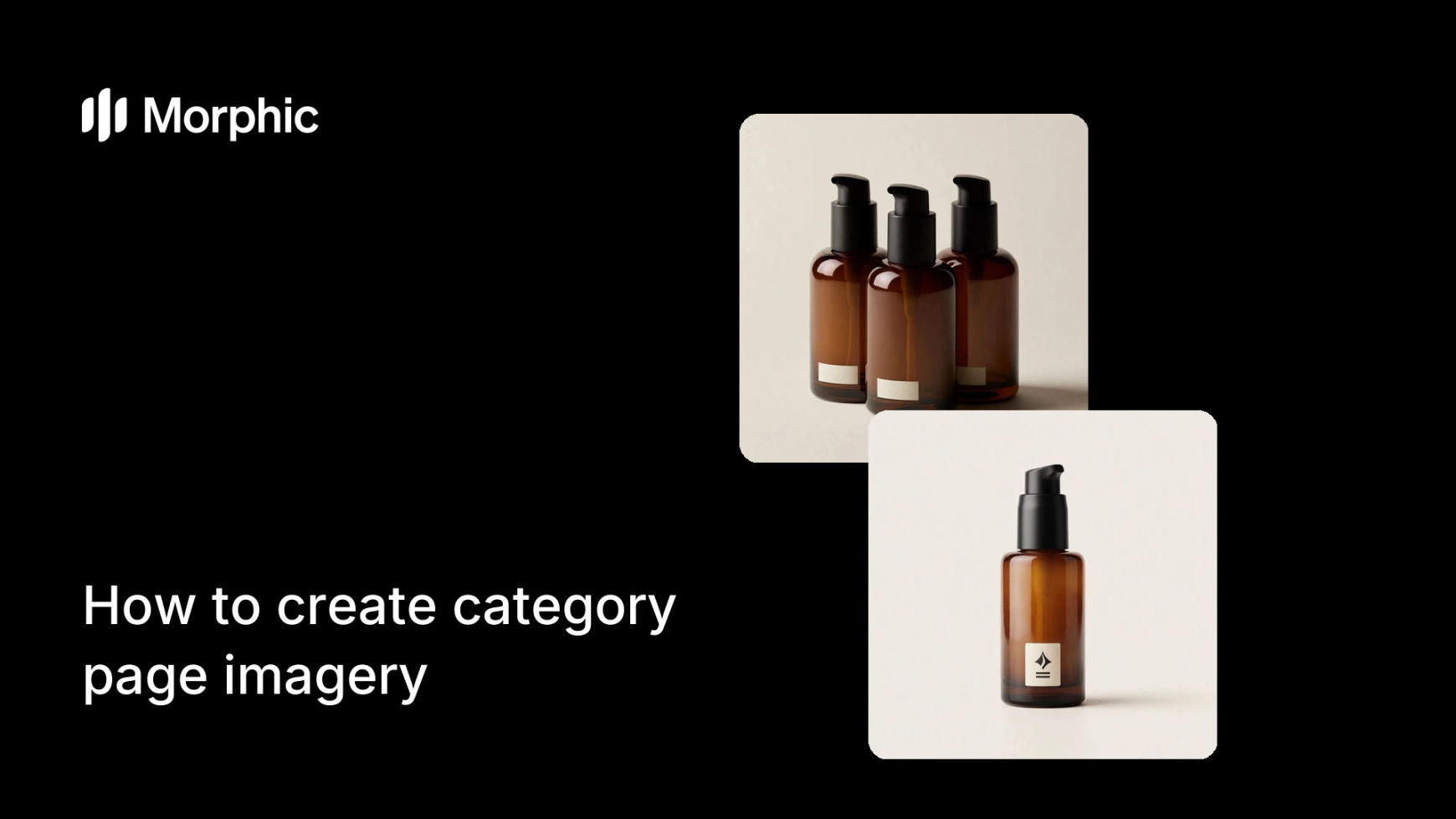
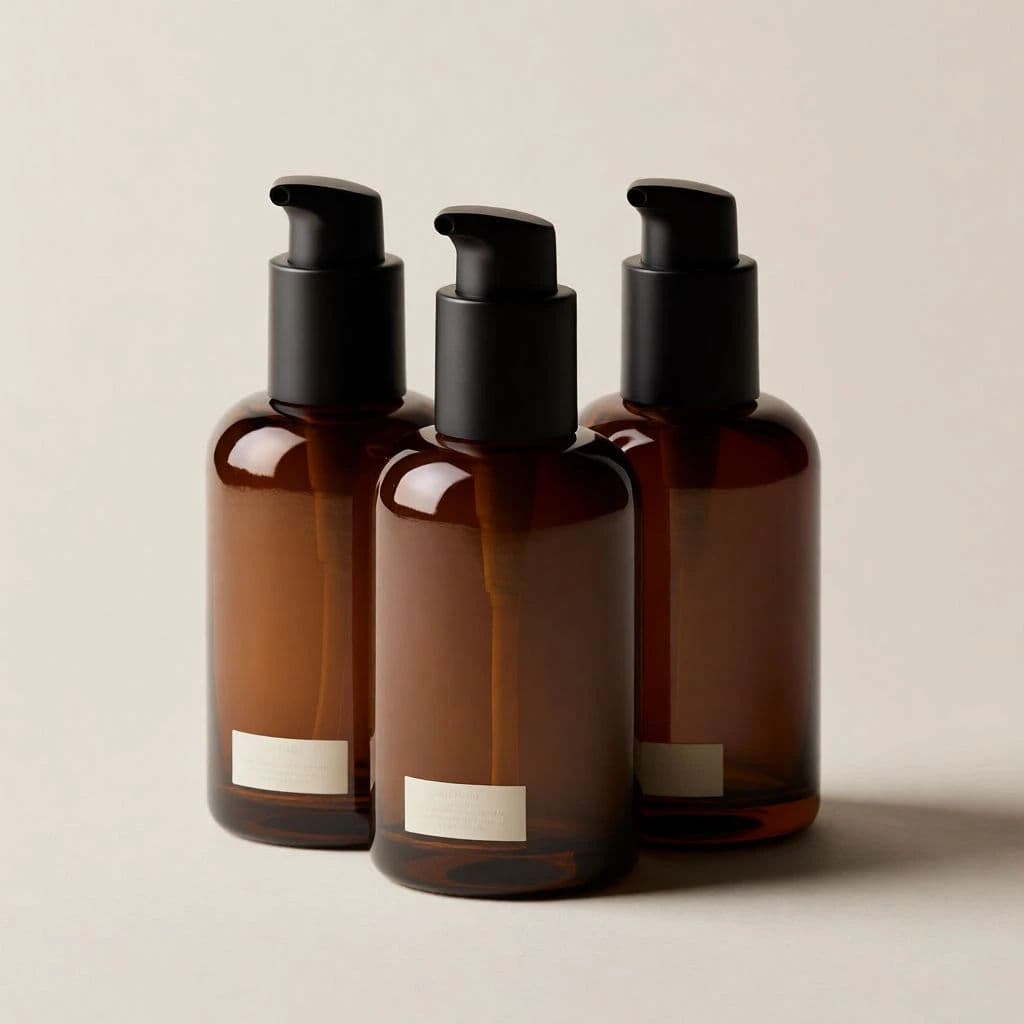
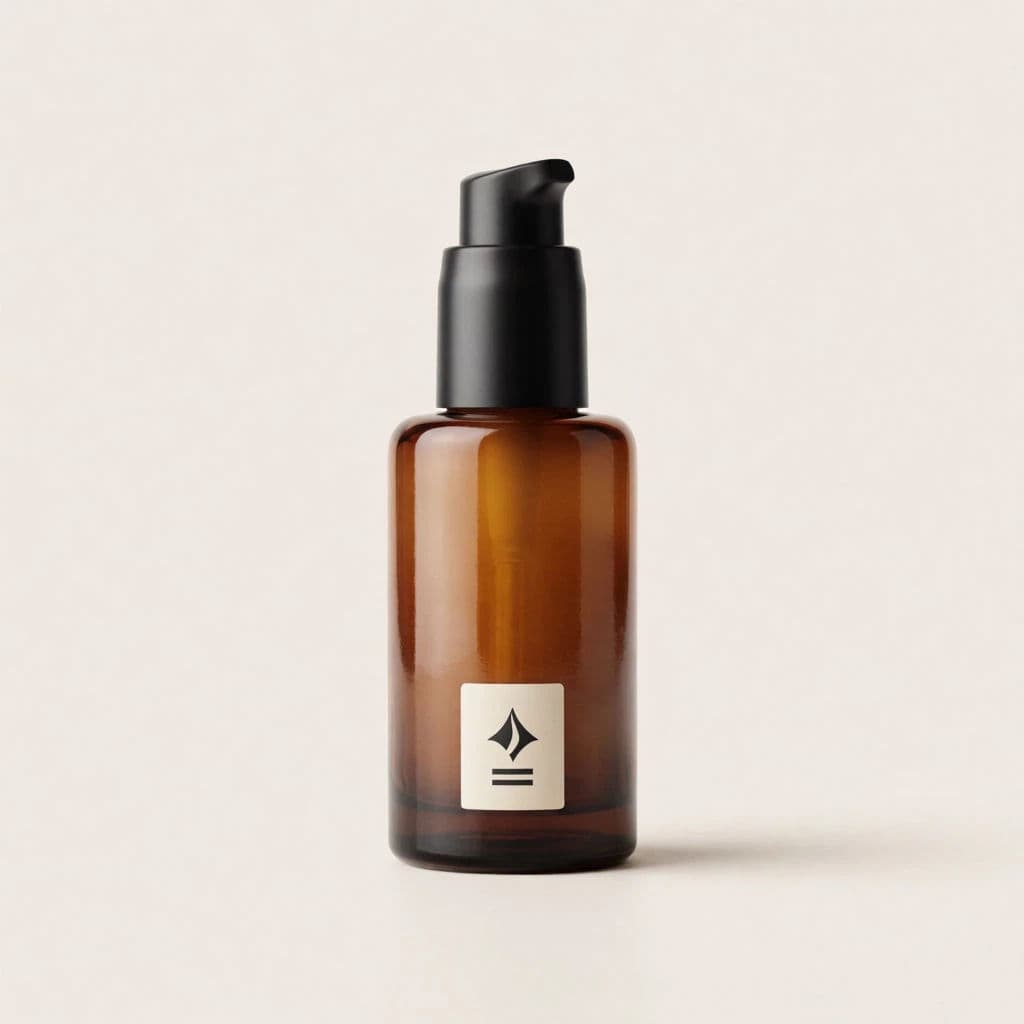
Two category tiles built from one shared template so they line up cleanly.
What makes great category imagery
| Quality | What it means | Why it matters |
|---|---|---|
| Set consistency | Every tile shares lighting and style | The page looks organized and intentional |
| Clear representation | Each image reads as its category | Shoppers navigate without confusion |
| Label-ready framing | Negative space for category names | Text sits cleanly over the image |
| On-brand palette | Colors match the store | The page feels like one brand |
Morphic vs the traditional route
| Morphic | Photo shoot or stock plus design | |
|---|---|---|
| Cost | Available on Morphic | Shoot fees or stock licenses |
| Time | A full set in minutes | Days to shoot, source, and edit |
| Skill needed | Describe the template in words | Photography and layout skills |
| Consistency | Shared cues across every tile | Hard to match sources by hand |
FAQs
Lock a shared template first, the same lighting, background, framing, and palette, and reuse those cues on every tile. Review the set together and regenerate any that break the pattern.
Yes. Prompt for consistent negative space in the composition so headings and category names sit cleanly over each image.
Yes. Generate wider banners using the same styling with room for a headline, so hero sections match the category grid.
No. Describe a representative product or scene for each category and generate it inside your shared template. Reference images are optional.
Adjust the mood or palette in your template and regenerate the affected tiles. The shared cues keep the refreshed set consistent.
Yes. Images you generate with Morphic are cleared for commercial use across your storefront.