What is a lesson slide deck cover?
A lesson slide deck cover is the opening slide of a teaching deck, carrying the lesson title, the unit or subject, and often the teacher's or school's name. It orients a class before the first point is made and gives the deck an identity when it is shared, printed, or reused next term. Teachers, trainers, and course designers use it to make a deck feel prepared rather than improvised.
With Morphic you design that title slide from a text prompt in your browser. Describe the lesson title, the subject mood, and your school or brand look, compare a few options, then download in HD. The result drops straight into your slide software as the first slide.
Fix the lesson title and subject
Write the lesson title, the unit or subject line, and any teacher name exactly as they should appear. Settling the wording first keeps the rendered text accurate on the first pass.
Describe the cover slide
Open Morphic and describe a widescreen title slide with a bold lesson title, a smaller subject line, and a background that suits the topic. Ask for a couple of options so you can compare how the hierarchy reads from the back of a room.
Match your school or course style
Ask for the colours, type style, and logo placement used across the rest of your materials. Keep the background calm enough that projected text stays easy to read.
Check the text and proportions
Read every word on each option and confirm the spelling and line breaks are right. Regenerate any slide where the title crowds the edges or competes with the background.
Export and place it
Preview the chosen slide at full width to confirm it holds up when projected. Download in HD and set it as the first slide of the deck.
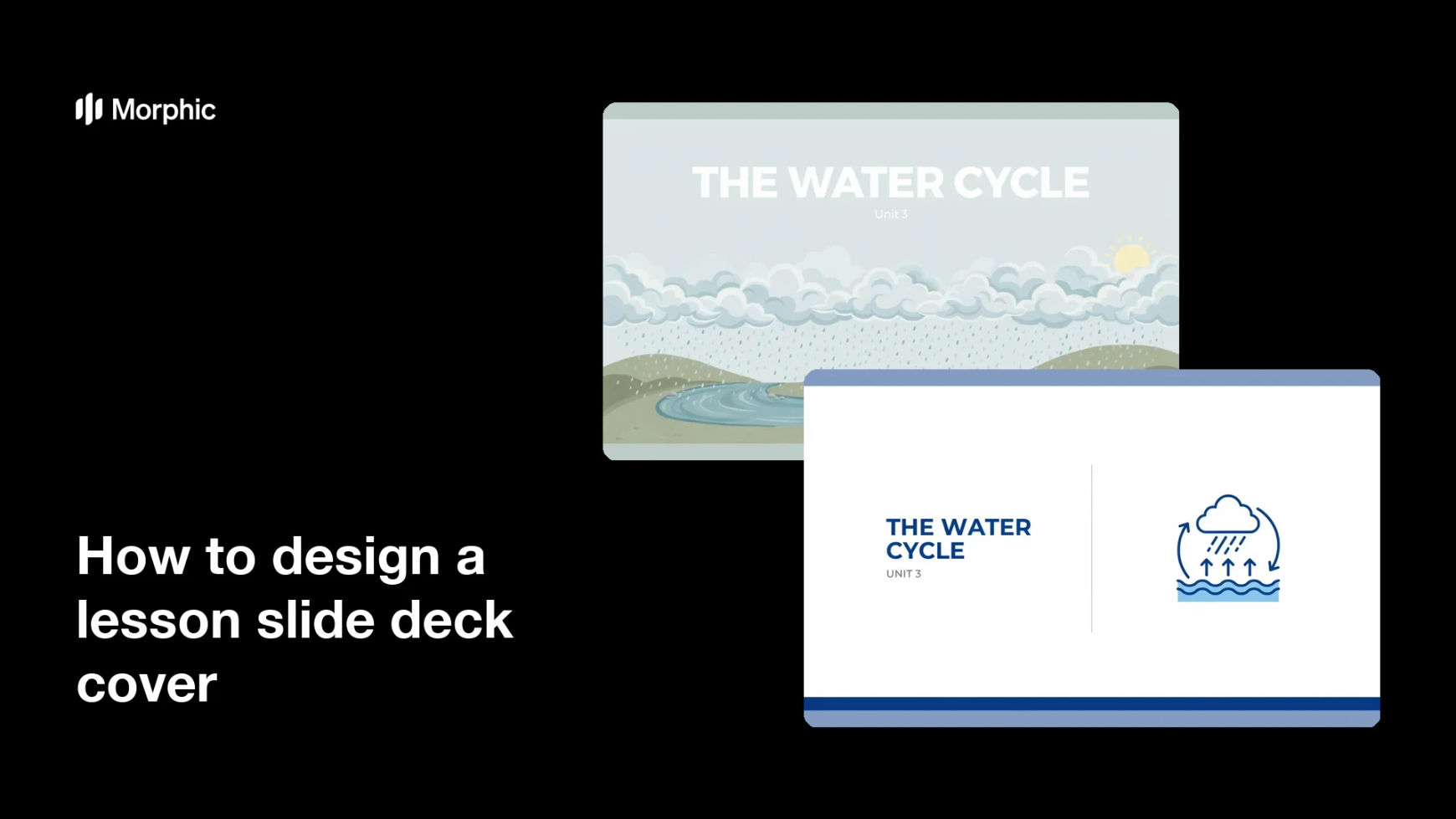
Two cover-slide options for the same lesson, each carrying the lesson title.


What makes a good lesson deck cover
| Quality | What it means | Why it matters |
|---|---|---|
| Readable when projected | Large type and strong contrast | The back row can read the title too |
| Clear subject signal | The visual matches the lesson topic | Students know what the session covers |
| Room for the title | Text has margin and does not crowd | The slide looks composed, not cramped |
| Reusable styling | The same look fits every lesson | A whole unit of decks stays consistent |
Morphic vs the traditional way
| Morphic | Slide templates and manual design | |
|---|---|---|
| Cost | Available on Morphic | Template packs or design fees |
| Time | A finished cover slide in minutes | An hour of fiddling with a template |
| Skill needed | Describe it in plain language | Layout and typography skills |
| Consistency | Regenerate a matching cover per lesson | Manual edits for every deck |
FAQs
Yes. Give the title and subject line in your prompt, then check the rendered text and regenerate if anything reads wrong before you teach from it.
Yes. Ask for a 16:9 cover so it fills a standard slide without cropping or letterboxing when you drop it in.
Yes. Keep the same described style and change only the lesson title, so the whole unit looks like one set.
It will if you keep the title short, the type large, and the background quiet. Preview it at full width before the class.
Describe where the logo should sit and how much space it needs, then place your official file over that area in your slide software for an exact match.
Yes. Images you generate with Morphic are cleared for commercial use, including paid lessons and training material.