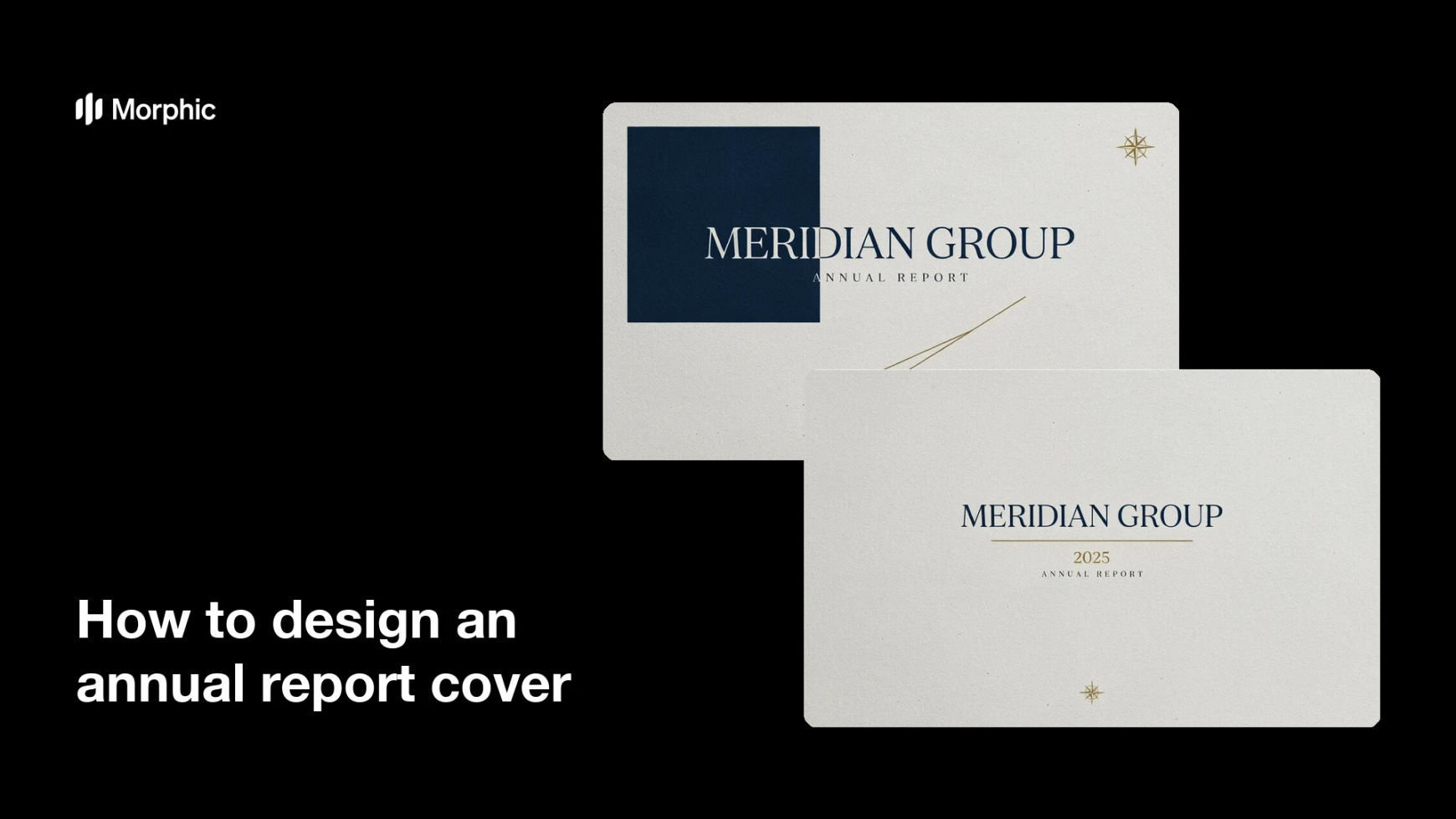
What is an annual report cover?
An annual report cover is the front page of a company's yearly report, the first thing investors, partners, and employees see before a single figure. It carries the reporting year, the company name, and a visual theme that sets the tone for the whole document, whether that is confident, forward-looking, or grounded. Finance and communications teams treat it as a statement of brand, because a considered cover signals a considered report.
With Morphic you design this cover from a text prompt in your browser. Describe the theme, the layout, the year, and the company name, then adjust and download in HD. You get a polished, on-brand cover without opening design software or waiting on a studio.
Set the theme for the year
Decide the tone the cover should convey, such as growth, resilience, or a new direction. A clear theme guides the imagery, palette, and typography that follow.
Describe the layout
Open Morphic and describe a clean cover: a strong visual or pattern, the company name, and the reporting year placed with confidence. Specify the format you need, such as A4 portrait, so the cover fits the printed and digital report.
Add the year and company name
Place the reporting year and company name so they read clearly and anchor the page. Keep the type refined and give it room so the cover feels deliberate rather than crowded.
Apply your brand look
Ask for your brand colors, a matching accent, and a font style that fits your identity. Consistent styling ties the cover to the rest of your reporting and marketing.
Compare options and export
Generate two cover directions and place them side by side to judge which sets the right tone. Download the chosen cover in HD, then hand it to the report layout.
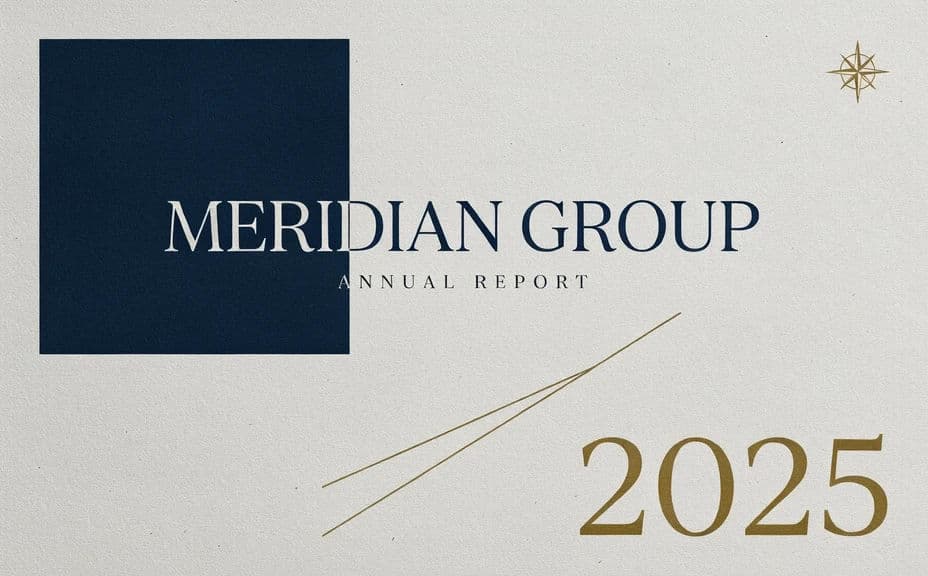
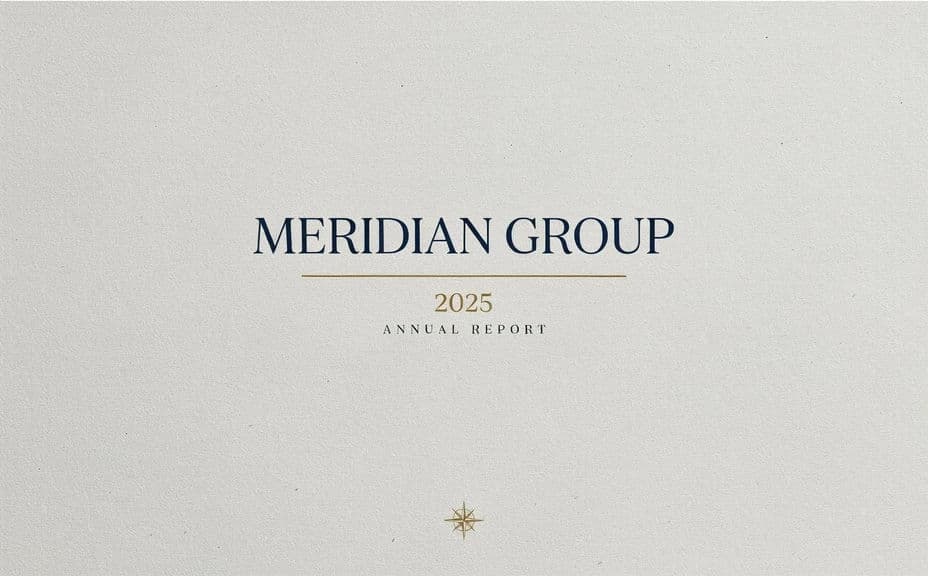
Two cover-design options for the same annual report, each showing the year and company name.
What makes a good annual report cover
| Quality | What it means | Why it matters |
|---|---|---|
| Clear year and name | Reporting year and company read at once | Readers know what they are opening |
| A defined theme | One idea carries the visual | The cover sets the tone for the report |
| On-brand styling | Colors and type match your identity | The report looks like an official document |
| Refined layout | Balanced spacing and typography | The cover signals a considered report |
Morphic vs the traditional way
| Morphic | Design software or a studio | |
|---|---|---|
| Cost | Available on Morphic | Software subscription or studio fee |
| Time | Cover options in minutes | Days of concepts and revision |
| Skill needed | Describe it in plain language | Layout and typography skills |
| Consistency | Regenerate options on brand | Manual rework for every concept |
FAQs
Yes. Specify the reporting year and company name in your prompt and place them so they anchor the cover clearly. You can regenerate with new text any time.
Yes. Describe your brand colors, accent, and font, and the cover renders to match the rest of your reporting and marketing.
Yes. Generate two or more options with different themes and place them side by side to judge which sets the right tone before you commit.
Whatever your report uses, usually A4 or letter portrait. Specify the format in your prompt so the cover fits both print and digital.
Yes. Download in HD and preview at report size, then regenerate if any element looks cramped before it goes to layout.
Yes. Covers you generate with Morphic are cleared for commercial use across your printed and digital reports.