What is a LinkedIn carousel post?
A LinkedIn carousel post is a swipeable set of slides that people scroll through in the feed, each carrying one headline and a short point. It breaks an idea into steps or tips so a busy reader can follow it without a wall of text. Marketers and founders lean on carousels because the format holds attention longer and often earns more engagement than a single image or link.
With Morphic you design carousel slides from a text prompt in your browser. Describe the headline, the point text, and your brand look for each slide, then adjust and download in HD. You get consistent, on-brand slides without opening design software or building a template from scratch.
Outline your slides
Decide the story your carousel tells and write a headline and one supporting point for each slide. A clear outline keeps the sequence tight and easy to follow as readers swipe.
Describe the slide design
Open Morphic and describe a clean slide with a headline, a short point, and room for a slide number. Specify a square or portrait ratio so the slides fill the feed on mobile.
Apply your brand look
Ask for your brand colors, a heading font, and an accent that ties the slides together as one set. Keep the text high contrast so the headline and point read on a small screen.
Generate slide designs to compare
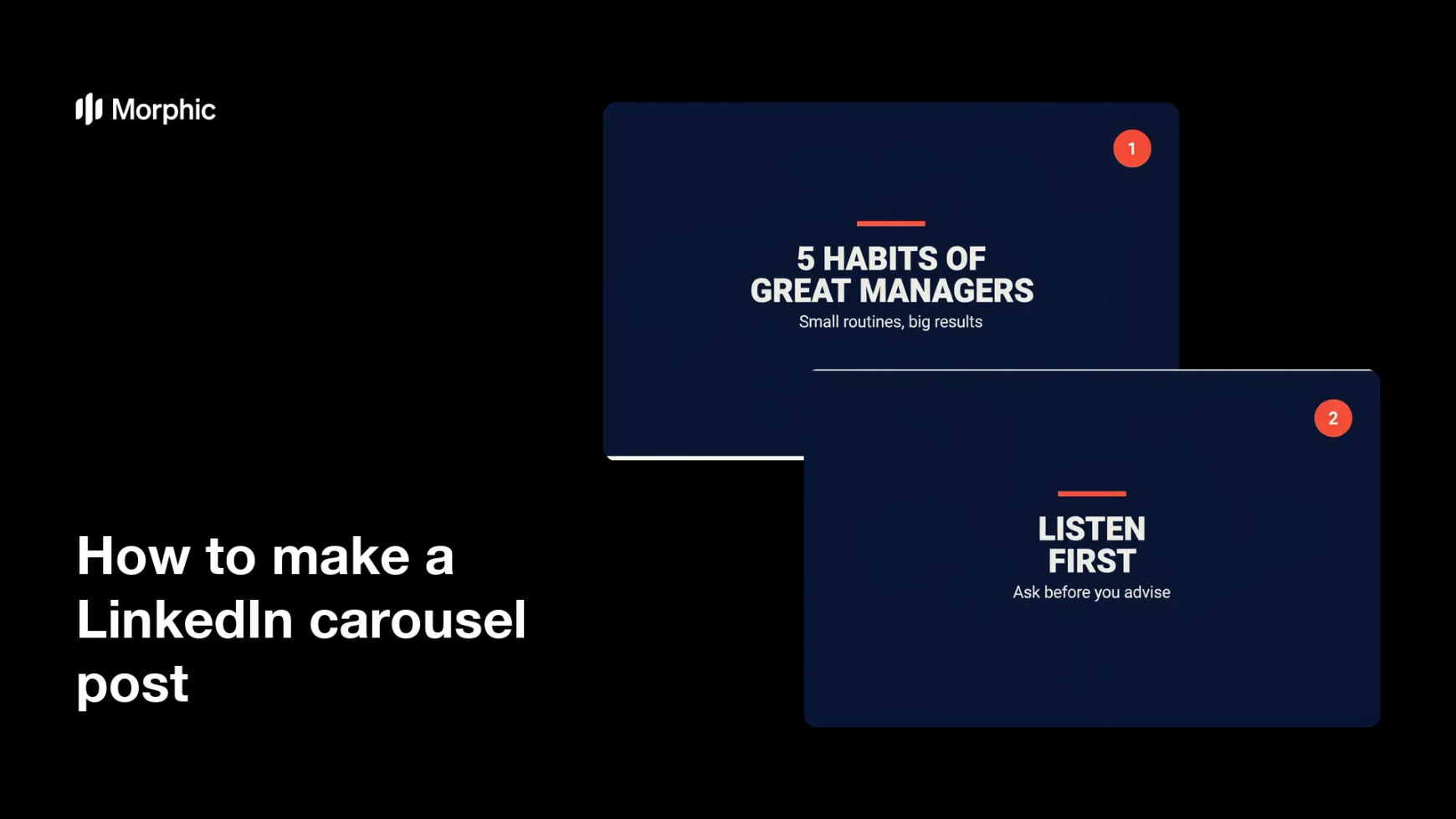
Produce two slide designs from the same carousel so you can see which layout carries your headline and point best. A quick comparison reveals which version stays clear as readers swipe.
Check the flow and export
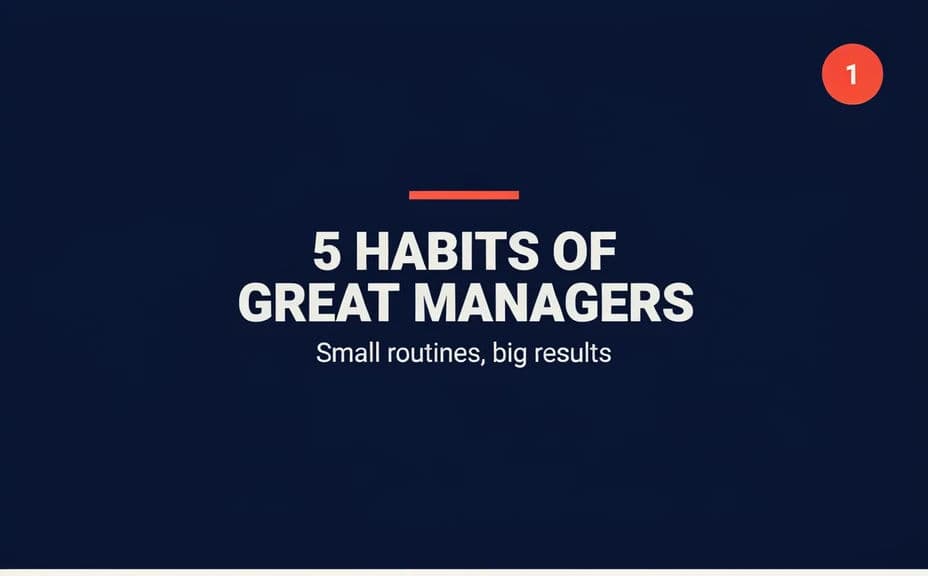
Preview the slides in order and confirm the headline and point text stay sharp on each one. Download in HD, then upload the set as a document post on LinkedIn.
Two slide designs from the same carousel, each with a headline and a supporting point.

What makes a good carousel post
| Quality | What it means | Why it matters |
|---|---|---|
| One idea per slide | Each slide holds a single point | Readers follow without feeling overwhelmed |
| Strong headlines | A clear line leads every slide | The message lands as people swipe |
| Consistent design | Slides share one look | The set reads as a single, polished post |
| Legible on mobile | Text stays sharp on small screens | Most of the feed is viewed on a phone |
Morphic vs the traditional way
| Morphic | Design software or a designer | |
|---|---|---|
| Cost | Available on Morphic | Software subscription or design fee |
| Time | A finished set in minutes | Hours of layout and revision |
| Skill needed | Describe it in plain language | Layout and typography skills |
| Consistency | One prompt keeps slides aligned | Manual matching across slides |
FAQs
Yes. Specify the headline and point for each slide in your prompt, and the design renders around them. You can regenerate with new wording any time.
Yes. Describe one design and palette, and each slide renders in that look so the carousel reads as one consistent post.
A square or portrait ratio fills the feed on mobile. Specify the ratio in your prompt and the layout adapts to fit.
Yes. Generate two slide designs from the same carousel and compare which layout carries your headline and point best before you finalize.
Yes, if you prioritize legibility. Keep contrast high, preview at slide size, and regenerate anything that looks cramped before you upload.
Yes. Slides you generate with Morphic are cleared for commercial use across your LinkedIn and other channels.