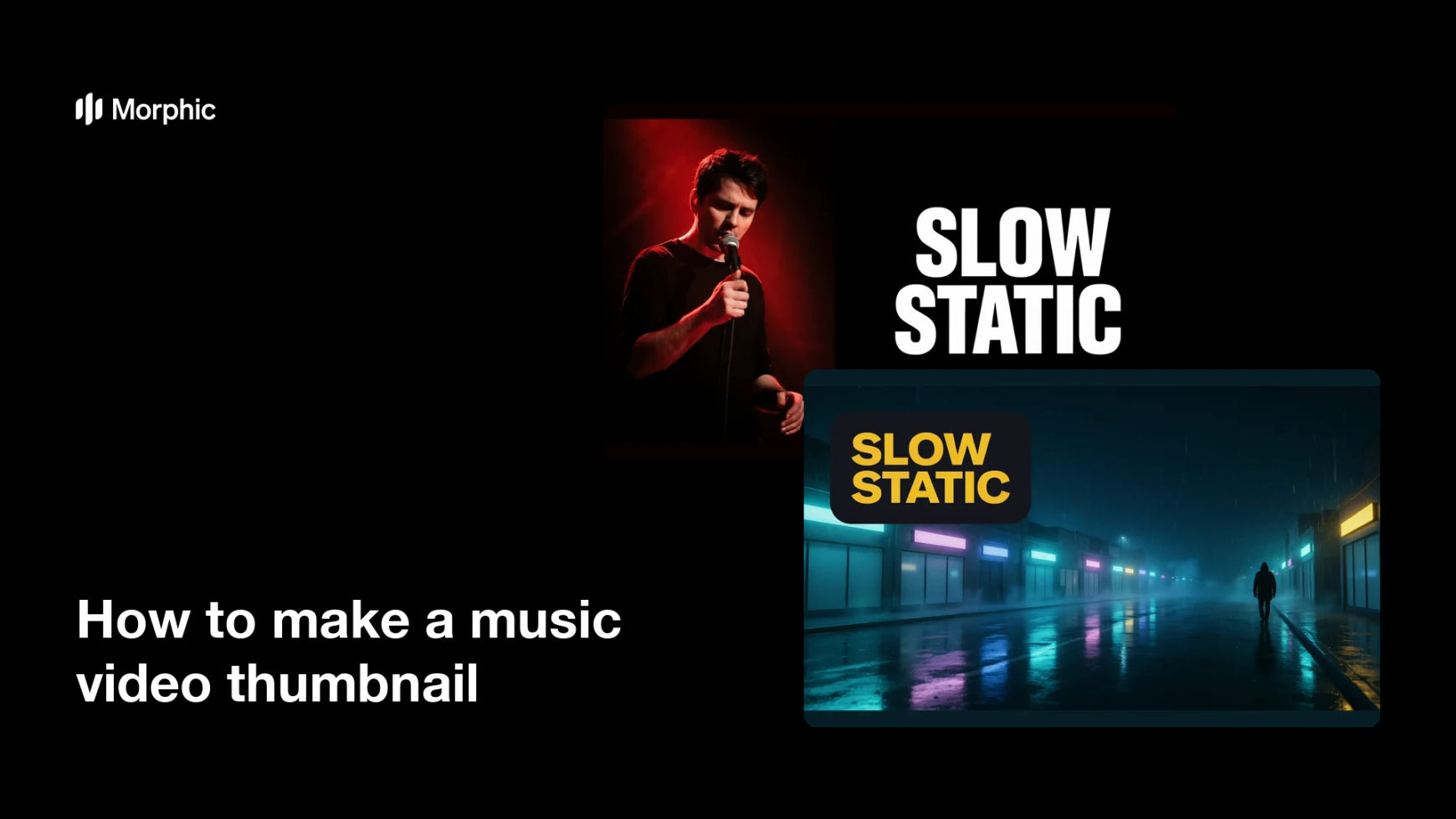
What is a music video thumbnail?
A music video thumbnail is the wide still that represents a video on YouTube and other platforms before anyone presses play. It usually pairs a strong focal image with the track or artist name in large, high-contrast type. Artists and labels invest in it because the thumbnail is the single biggest factor in whether a listener clicks.
With Morphic you build that thumbnail from a text prompt in your browser. Describe the focal image, the colour treatment, and the exact title text, then refine and download it in HD. You get a click-ready 16:9 image without editing software or a separate design pass.
Pick the focal image
Decide what the thumbnail centres on, such as the artist, a key scene, or a graphic motif from the video. One clear subject beats a busy collage at small sizes.
Describe the thumbnail in Morphic
Open Morphic and describe a 16:9 thumbnail with that subject, your colour treatment, and space for the title. Give the exact track or artist name you want rendered.
Push contrast and type size
Ask for punchy contrast and oversized lettering that survives a small player card. Keep the type clear of the lower-right corner where the duration badge sits.
Generate options to compare
Produce two thumbnails with different compositions and colour treatments so you can judge which one draws the eye. Comparing them side by side surfaces the stronger option quickly.
Test small and export
Shrink each version to feed size and check the subject and title still read. Download in HD and upload it with the video.
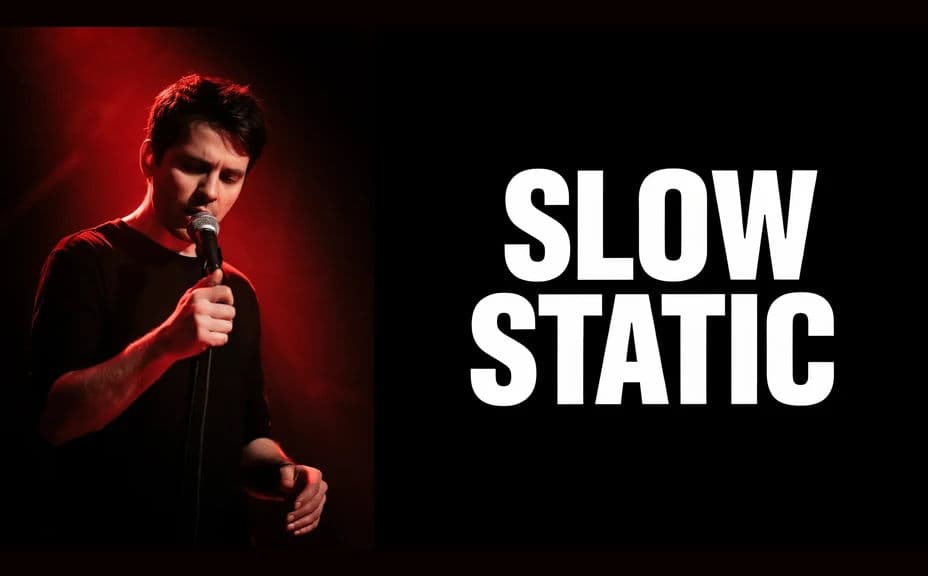
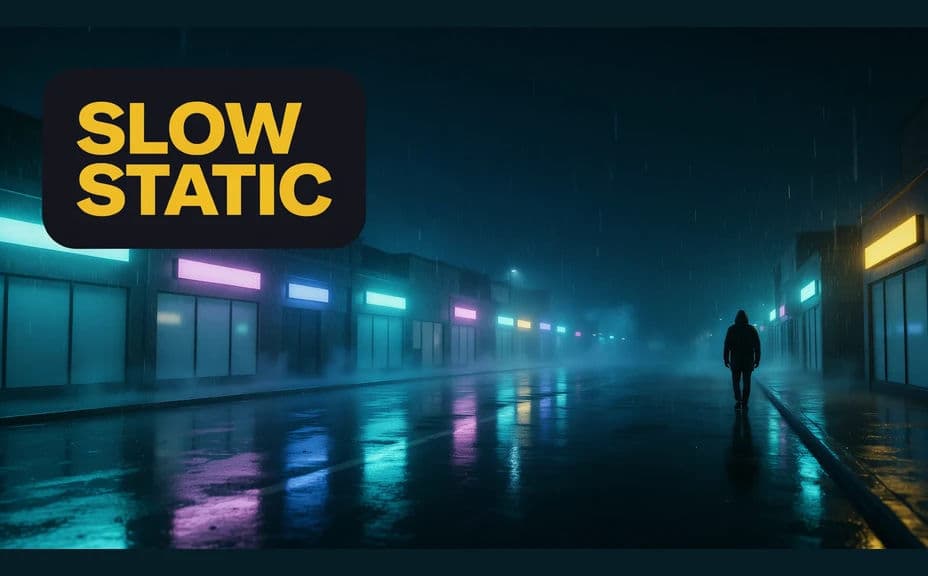
Two thumbnail designs for the same track, each carrying the same title text.
What makes a good music video thumbnail
| Quality | What it means | Why it matters |
|---|---|---|
| Single clear subject | One focal point carries the frame | The image reads instantly in a busy feed |
| Oversized title text | A few words at large size | Viewers catch the track name while scrolling |
| High contrast | Subject separates from the background | The thumbnail stands out beside competitors |
| Safe 16:9 framing | Nothing vital near the corners | Player badges never cover key details |
Morphic vs the traditional way
| Morphic | Photo editing software | |
|---|---|---|
| Cost | Available on Morphic | Software subscription or editor fee |
| Time | A finished thumbnail in minutes | An hour of masking and layout per video |
| Skill needed | Describe it in plain language | Compositing and typography skills |
| Consistency | Regenerate a whole series in one style | Manual rebuild for every upload |
FAQs
Yes. Give the exact title in your prompt and it renders into the artwork. You can regenerate with a different track name whenever you upload.
16:9 is the standard for video platforms. Ask for a 16:9 thumbnail in Morphic and download in HD so it stays sharp on large screens.
Yes. Reuse the same palette, type treatment, and framing in each prompt so an album rollout reads as one connected set.
Yes. Generate options with different compositions and colours, then choose the one that performs best at feed size.
Yes, if you keep it short. Use a few large words with strong contrast, and regenerate if the line feels crowded once scaled down.
Yes. Thumbnails you generate with Morphic are cleared for commercial use across your channels and campaigns, with no watermark.