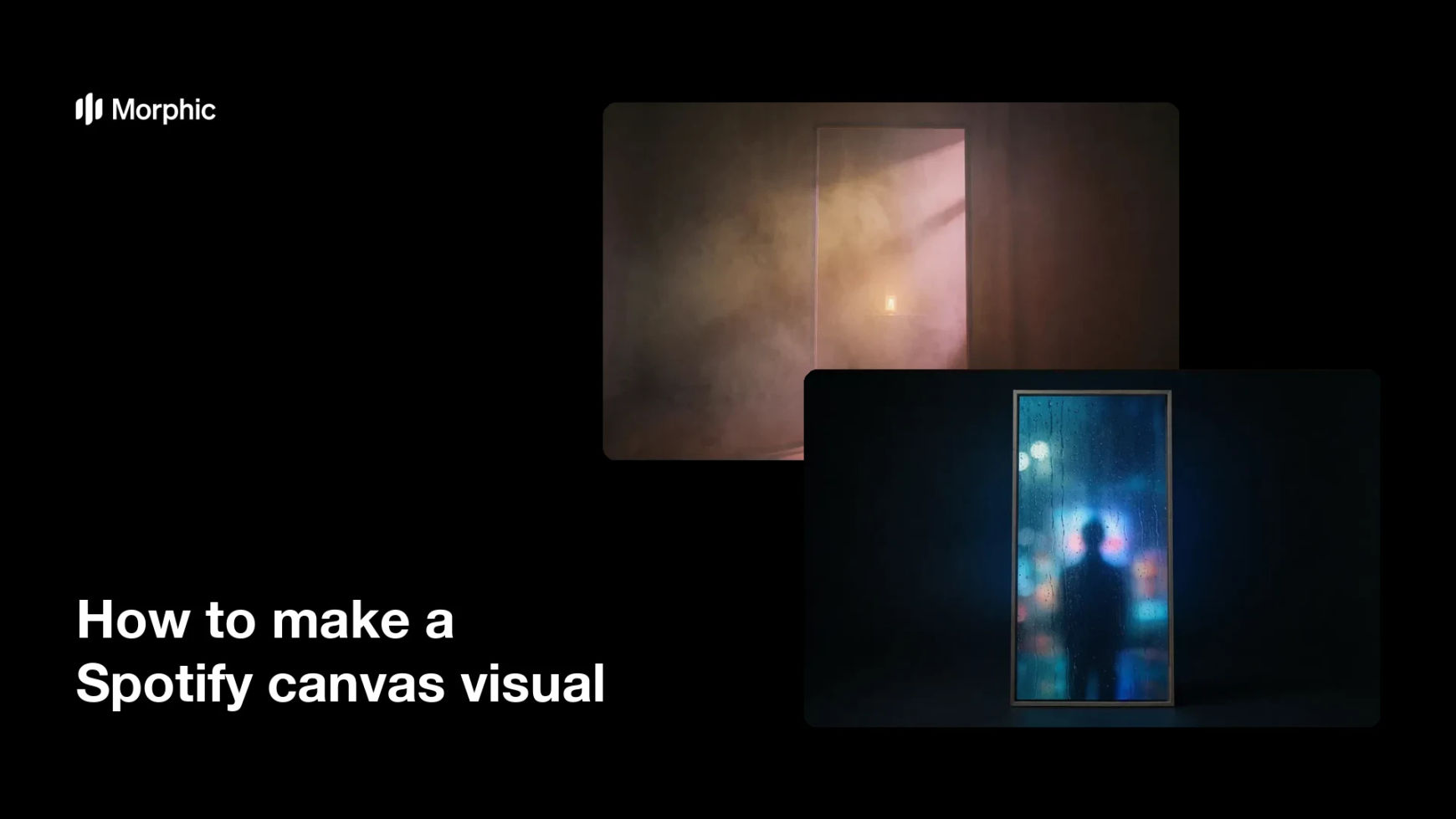
What is a Spotify canvas visual?
A Spotify canvas visual is the short vertical loop that plays behind a track in the mobile player instead of the static cover. It fills a 9:16 frame with a simple, repeating scene that suits the mood of the song rather than a busy narrative. Artists and labels use it because a moving canvas keeps listeners on the now-playing screen and gives them something to share.
With Morphic you create that visual from a text prompt in your browser. Describe the vertical scene, the palette, and the motion you want, then refine it and download in HD. You get an upload-ready visual without a shoot, an animator, or editing software.
Pick a simple visual idea
Choose one subject or texture that can repeat without a beginning or end, such as drifting smoke, a slow pan across a room, or a lit object turning. Simple ideas loop cleanly and keep the focus on the music.
Describe it in Morphic
Open Morphic and describe the scene in a vertical 9:16 frame, including the palette and the mood of the track. Keep the subject centred so the player controls never cover it.
Match the visual to the sound
Ask for colour and lighting that reflect the track, from warm and hazy to cold and neon. A canvas that matches the mood feels like part of the release rather than a stock clip.
Generate options to compare
Produce two visuals with different scenes and colour treatments so you can see which one suits the track. Comparing options tells you quickly which mood lands.
Check the safe area and export
Preview each version vertically and confirm nothing important sits behind the track title or the controls. Download in HD and upload it to your release.
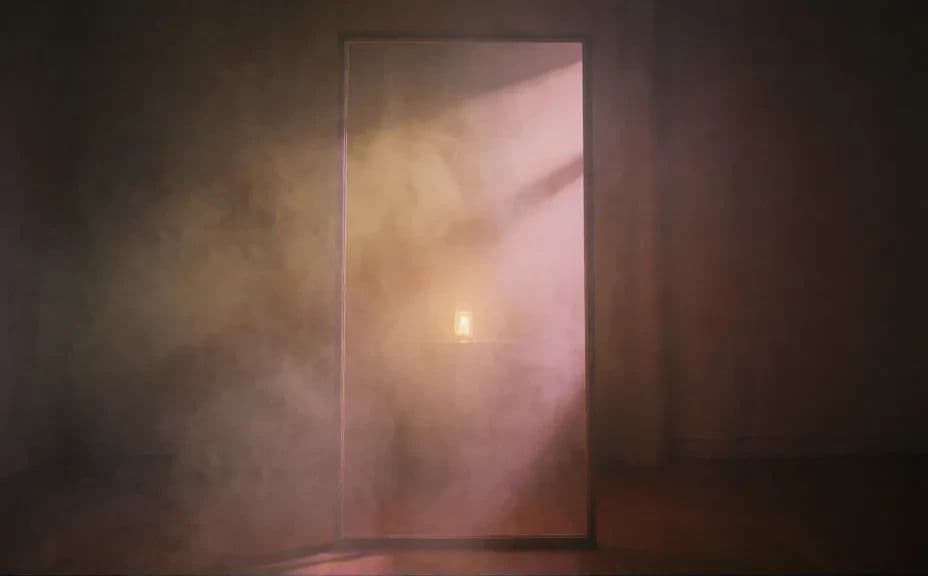
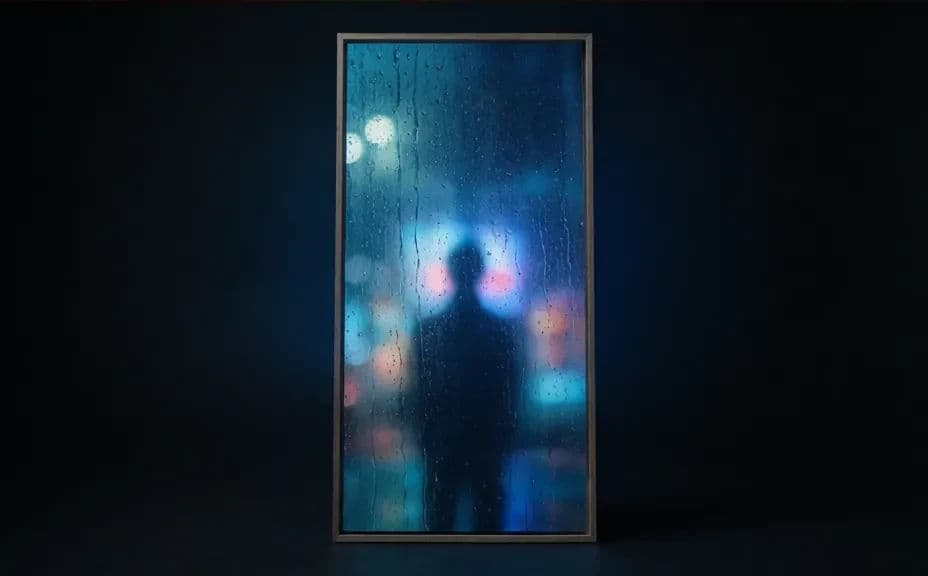
Two canvas visuals for the same track, each with a different scene and colour treatment.
What makes a good Spotify canvas visual
| Quality | What it means | Why it matters |
|---|---|---|
| Vertical 9:16 framing | The visual fills the mobile player | No bars or awkward crops on screen |
| Simple, loopable subject | One idea that repeats without a break | A short loop stays watchable on replay |
| Centred safe area | Key detail sits away from the edges | Player controls never cover the subject |
| Mood that matches the track | Colour and light echo the song | The canvas feels part of the release |
Morphic vs the traditional way
| Morphic | Filming and editing a clip | |
|---|---|---|
| Cost | Available on Morphic | Camera, location, and editor fees |
| Time | A finished visual in minutes | A shoot day plus an edit |
| Skill needed | Describe it in plain language | Camera work and editing skills |
| Consistency | Regenerate a catalogue in one style | A new shoot for every track |
FAQs
Vertical 9:16 fills the mobile player. Ask for that ratio in Morphic and keep the subject centred so the controls do not cover it.
Keep it clean. The player already shows the track and artist name, so a visual without lettering usually looks better and avoids clashing with the interface.
Yes. Reuse the same palette and subject family in each prompt so the whole record shares one look while each track keeps its own scene.
Yes. Generate visuals with different scenes and colour treatments, then choose the one that best matches the mood of the song.
Stay with one subject and slow, steady movement. Detailed, fast-cutting scenes distract from the music and rarely loop well.
Yes. Visuals you generate with Morphic are cleared for commercial use across your releases and promotion, with no watermark.