What is a stream schedule graphic?
A stream schedule graphic is a single image that lists the days and times a creator goes live, posted to social feeds, channel panels, and community servers. It usually carries the channel name, the days of the week, a start time for each, and sometimes the game or segment planned for that day. Streamers use it so followers can plan around the schedule instead of checking whether a stream is running.
With Morphic you make this graphic from a text prompt in your browser. Describe the days, the times, and the look you want, compare a few layouts, then download in HD with no watermark. The result matches your channel style without opening design software.
Write out your schedule
List the days you stream, the start time for each, and any segment or game name that belongs on the graphic. Fixing the wording first keeps the rendered text accurate and saves a second pass.
Describe the layout
Open Morphic and describe the graphic: your channel name at the top, a clear row or card per streaming day, and a background that suits your channel. Ask for a couple of layout options so you can compare how the days read.
Set the channel look
Ask for your channel colours, a font weight that stays readable at feed size, and any mascot or icon style you use. Strong contrast between the text and background keeps the times legible on a phone.
Proof the days and times
Read every day and time on each option and confirm the spelling and formatting are correct. Regenerate any version where a row is cramped or a number looks off.
Export and post it
Preview the graphic full size and as a small thumbnail to confirm both work. Download in HD, then post it to your feed and set it as a channel panel.
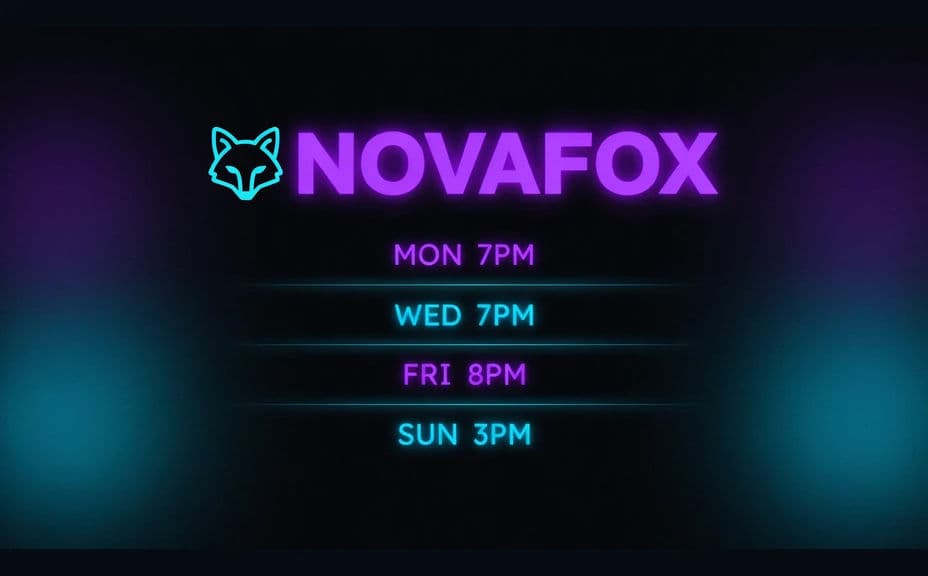
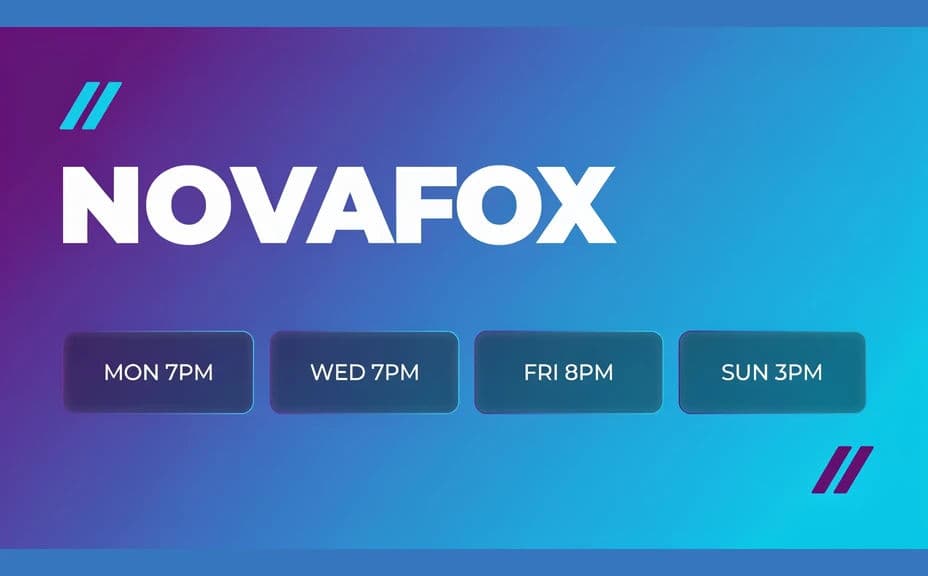
Two layout options for the same weekly schedule, each carrying the day and time text.
What makes a good stream schedule graphic
| Quality | What it means | Why it matters |
|---|---|---|
| Readable times | Days and start times stand out | Followers can plan without zooming in |
| Clear hierarchy | Channel name, then days, then details | The eye lands on the right thing first |
| On-brand styling | Colours and type match your channel | The post is recognised as yours in a busy feed |
| Works small | It holds up as a thumbnail or panel | The same file serves feed posts and channel panels |
Morphic vs the traditional way
| Morphic | Design software or a template editor | |
|---|---|---|
| Cost | Available on Morphic | Software subscription or a designer fee |
| Time | A finished graphic in minutes | An hour of layout and manual edits |
| Skill needed | Describe it in plain language | Layout and typography skills |
| Consistency | Regenerate a matching graphic each week | Manual rework every time the schedule changes |
FAQs
Yes. Give the days, start times, and any segment names in your prompt, then check the rendered text and regenerate if any wording looks off.
Yes. Ask for several layouts of the same schedule and compare them side by side, then keep the one that reads fastest.
Yes. Describe your channel colours, font style, and any mascot or icon treatment, and generate the graphic to match.
Export in HD and preview it at feed size and panel size. If a row feels tight when small, regenerate with fewer details per day.
Describe the new days and times and regenerate. There is no manual redraw, so a weekly refresh takes minutes.
Yes. Graphics you generate with Morphic are cleared for commercial use across your channel and sponsorships.