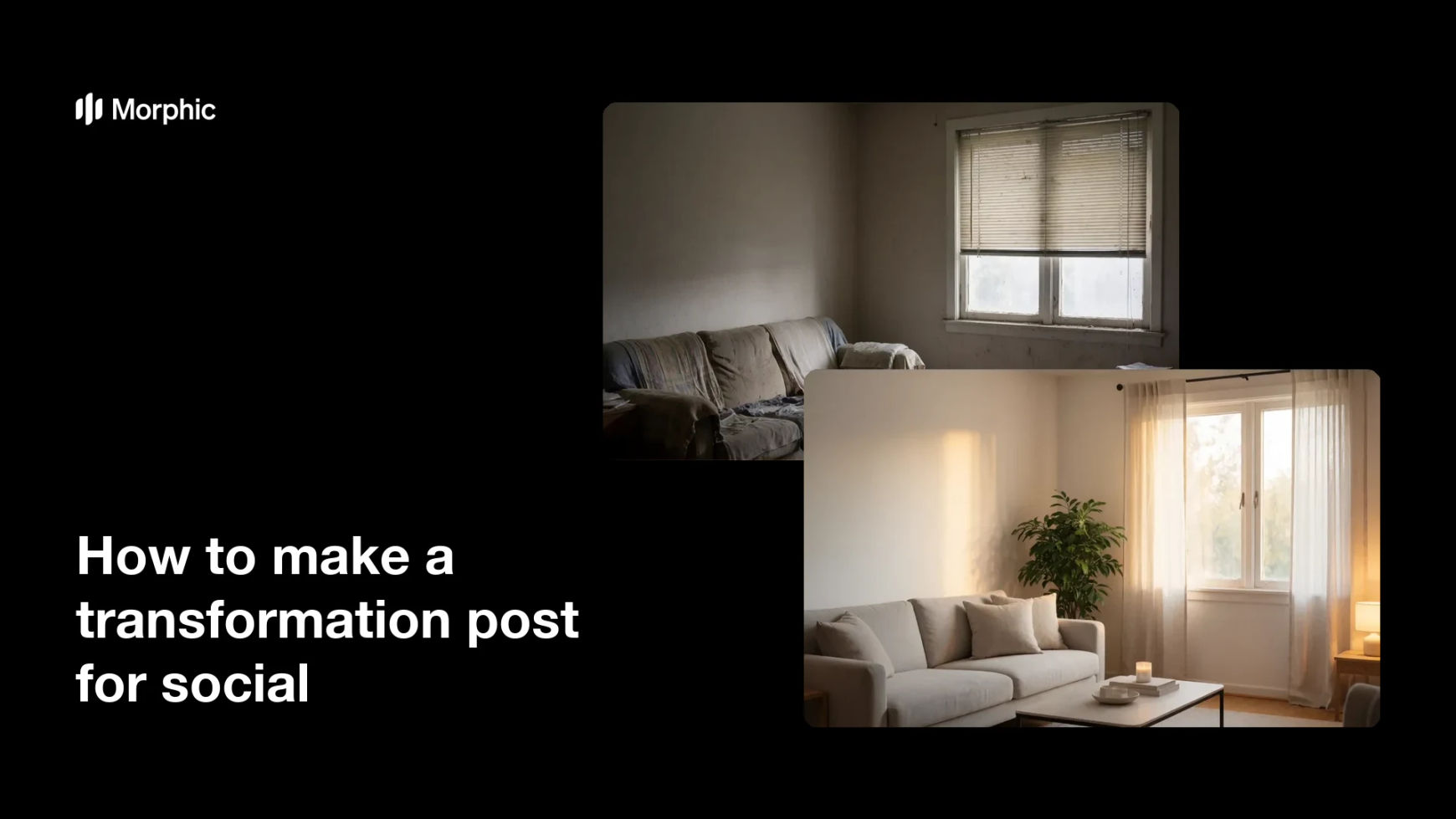
What is a transformation post?
A transformation post shows the same subject before and after a change, so the difference is the whole story. It works for a room refresh, a product glow-up, a styling change, or any visible improvement people want to show off. Creators and brands love the format because a clear before and after is easy to grasp in a scroll and tends to earn saves and shares.
With Morphic you make a transformation post from a text prompt in your browser. Describe the subject and the change you want to show, generate the before, then apply the glow-up to the same instance and download in HD. You get a matching before and after without a camera or a photo editor.
Choose the subject and the change
Decide the subject and the exact improvement you want to show, such as a brighter, tidier version of the same scene. A clear goal keeps the before and after focused on one visible change.
Generate the before
Open Morphic and describe the subject in its starting state to create the before image. Keep the framing and angle simple so the after can match the same view.
Apply the transformation
Ask Morphic to apply the glow-up to the same subject, changing only what the transformation should change. Hold the framing steady so the pair reads as one subject before and after, not two different scenes.
Compare the pair
View the before and after side by side and confirm the change is obvious while the subject stays the same. Adjust the after if the difference is too subtle or drifts too far from the original.
Export and post
Preview both images at feed size and confirm they line up as a clear before and after. Download in HD, then post them as a pair or a swipe to tell the transformation story.
The same subject shown before and after the transformation.


What makes a good transformation post
| Quality | What it means | Why it matters |
|---|---|---|
| Same subject | Before and after show one instance | The change reads as real, not a swap |
| Clear change | The improvement is easy to see | Viewers grasp the story in a scroll |
| Matched framing | Both images share the same view | The comparison feels fair and honest |
| Consistent style | Lighting and tone line up | The pair looks like one polished post |
Morphic vs the traditional way
| Morphic | A photo editor | |
|---|---|---|
| Cost | Available on Morphic | Software subscription or editing fee |
| Time | A matched pair in minutes | Hours of manual editing |
| Skill needed | Describe it in plain language | Photo editing and retouching skills |
| Consistency | Same subject, only the change moves | Hard to keep the subject identical |
FAQs
Yes. Generate the before, then apply the change to that same instance so the pair stays one subject rather than two different scenes.
Yes. Describe exactly what the transformation should change, and adjust if the difference feels too subtle or drifts too far from the original.
Use a square or portrait ratio so the pair fills the feed. Specify the ratio in your prompt and both images render to match.
Either works. Export both in HD and post them as a side-by-side pair or a swipe, depending on how you want the story to unfold.
Yes, if you keep the framing steady. Hold the angle and lighting consistent so only the transformation moves between the before and after.
Yes. Images you generate with Morphic are cleared for commercial use across your social channels.