
What is an art style slideshow?
An art style slideshow is a short video that cycles through the same image rendered in multiple distinct art styles, one after another in quick succession. The effect highlights how a single subject transforms across visual treatments like watercolor, oil painting, pop art, cyberpunk, and more. These slideshows are popular on social media for their visual impact and are useful for creative exploration when deciding on an art direction.
Upload your image, choose how many styles to generate, set the video duration, and optionally specify custom styles. Morphic handles the style transfer, frame sequencing, and video rendering.
Upload your source image
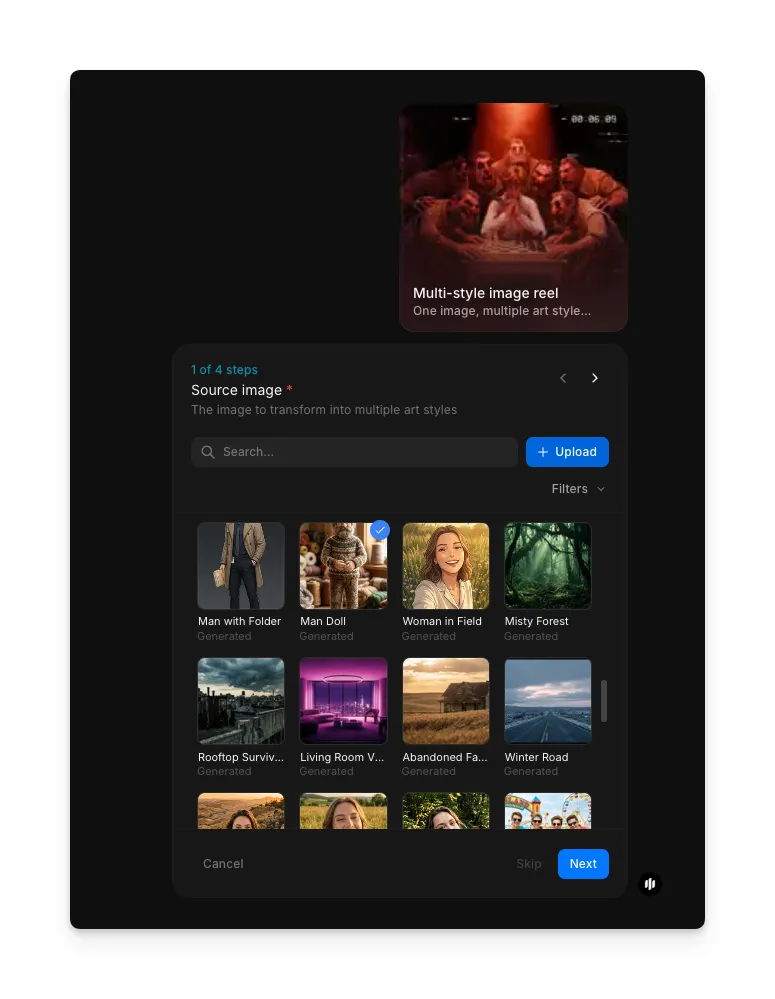
Open the "Multi-style image reel" workflow. In the "Source image" step, browse the gallery or upload the image you want to transform. Portraits, landscapes, product shots, and illustrations all work well.
Set the number of styles
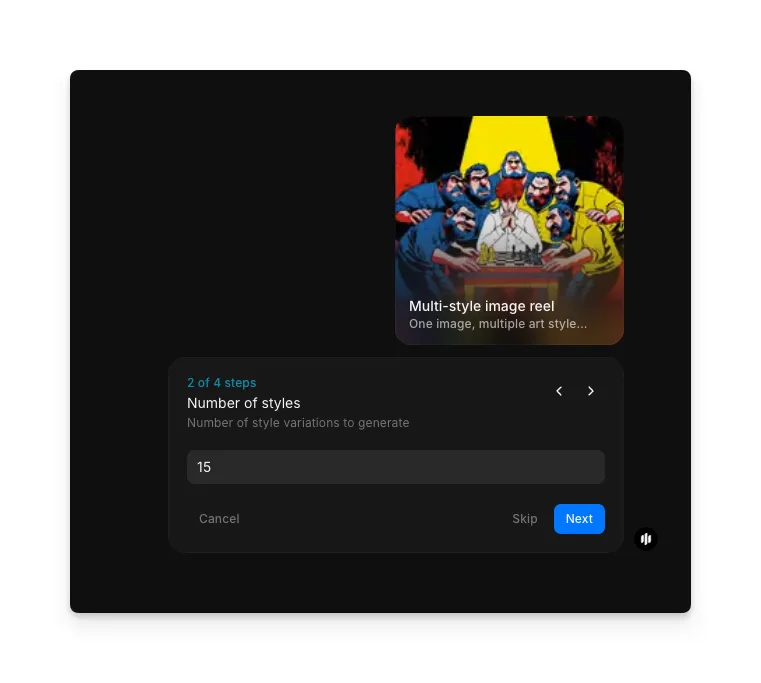
In the "Number of styles" step, enter how many art style variations to include. The example shows 15. More styles create a longer, more varied reel.
Set the video duration
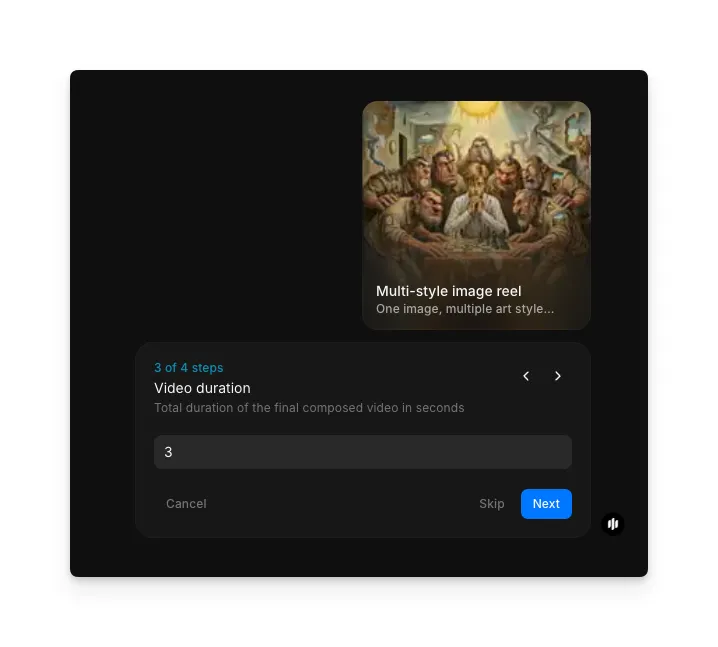
In the "Video duration" step, enter the total length in seconds. The example shows 3 seconds. The workflow distributes style variations evenly across the duration.
Add custom styles and generate
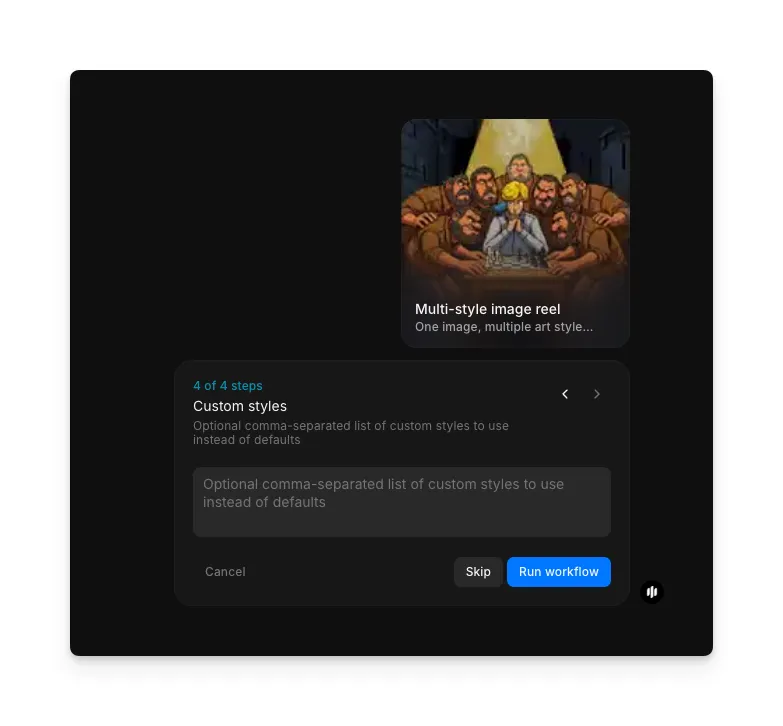
In the "Custom styles" step, optionally enter a comma-separated list of specific art styles you want included. If left blank, Morphic selects a curated mix. Click "Run workflow" to generate.
The completed art style slideshow video showing one image across multiple art styles
What makes an effective art style slideshow
| Quality | What it means | Why it matters |
|---|---|---|
| Style diversity | Each frame represents a clearly distinct art style with its own visual identity | Similar-looking styles make the slideshow repetitive and reduce its impact |
| Visual coherence | The subject remains recognizable and well-composed across every style | If the subject becomes unrecognizable in certain styles, the comparison effect breaks down |
| Transition smoothness | Frames flow naturally from one style to the next without jarring cuts | Harsh transitions distract from the art styles and make the video feel unpolished |
| Subject preservation | Key features, proportions, and composition stay consistent throughout | Inconsistent subjects make it look like different images rather than style variations of one |
Morphic handles style selection, transfer rendering, and video composition automatically, so you only need to upload an image and set your preferences.
Art style slideshow workflow vs. manual style transfer
| Morphic's art style slideshow workflow | Manual style transfer and video editing | |
|---|---|---|
| Cost | Available on Morphic | Style transfer software plus video editing tools and hours of manual work |
| Time to create | Minutes | 1 to 4 hours per style variation plus additional time for video editing |
| Style variety | Dozens of styles available with automatic diversity selection | Each style must be configured, applied, and quality-checked individually |
| Video assembly | Automatic sequencing with smooth transitions | Manual frame assembly, timing, and transition editing in video software |
| Subject consistency | AI preserves subject identity across all styles automatically | Each style transfer may distort the subject differently, requiring manual correction |
| Iteration speed | Regenerate with different style counts or custom styles instantly | Each change means re-processing individual styles and re-editing the video |
FAQs
Images with clear subjects and strong composition produce the best results. Portraits, landscapes, architecture, and product shots all translate well across styles. Avoid overly busy images where the subject gets lost in detail.
Morphic automatically sequences styles for maximum visual contrast between consecutive frames. If you specify custom styles, they appear in the order you list them.
The workflow supports a wide range of style counts. For social media, 5 to 10 styles in a short video create the most engaging content. For portfolio or exploration purposes, you can include more.
Yes. Each style variation is rendered as a full-quality image before being assembled into the video. You can download and use individual frames independently.
Morphic exports slideshow videos as MP4 files compatible with all major social media platforms, video editors, and web players.