What are Shopify product photos?
Shopify product photos are the images on each product page that show what a shopper is buying, the clean studio shot, the detail views, and the lifestyle scenes that give the item context. They are the closest thing to picking the product up in a store, so their clarity and consistency drive both conversion and how professional the whole shop feels.
With Morphic you make these photos from a text prompt in your browser. Describe the product, the background, and the setting, then adjust and download in HD. You can build a full, uniform product gallery without a lightbox, a camera, or editing software.
Create a clean studio shot
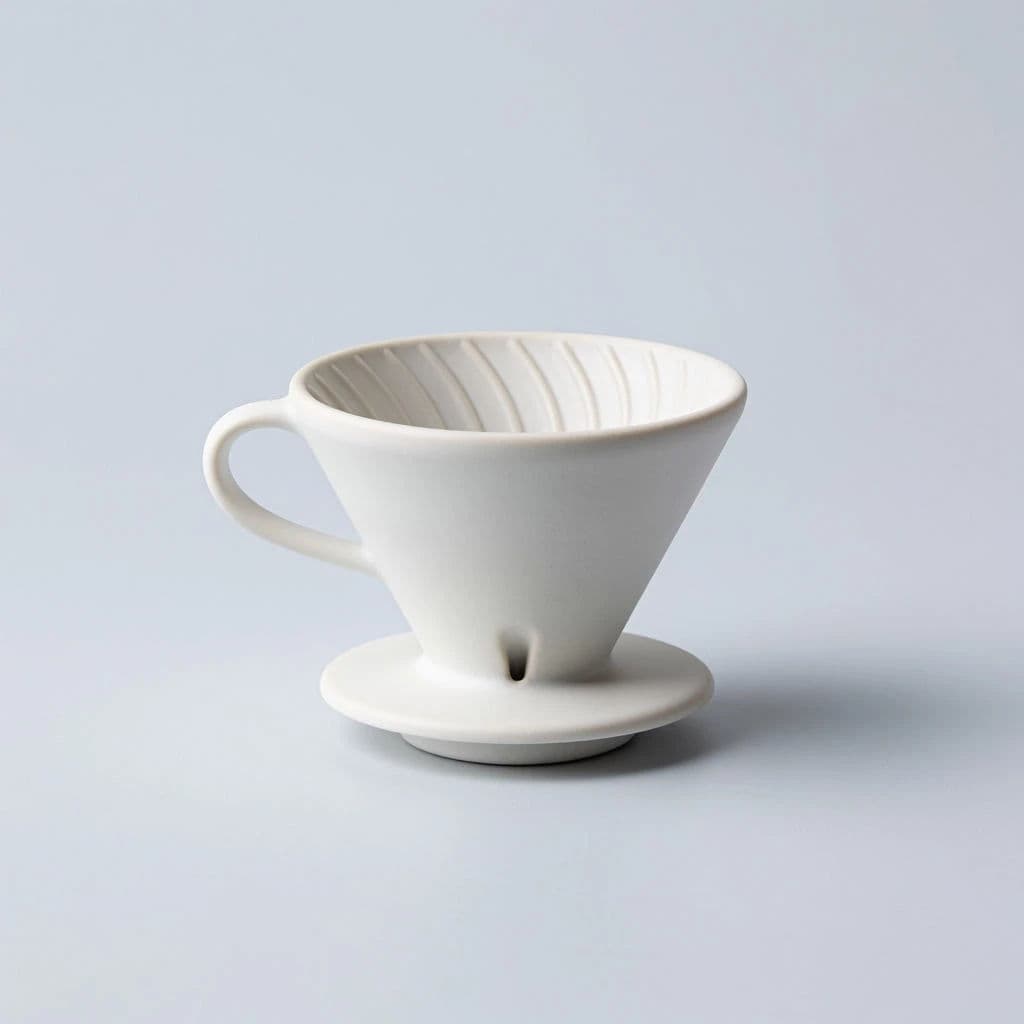
Open Morphic and describe your product on a plain background, centered and evenly lit, the kind of clean image a Shopify grid needs. Generate a few and keep the sharpest, most true-to-color option. For images that stay sharp when shoppers zoom, compare the top models by maximum resolution.
Add detail and angle views
Prompt for close-ups of the material, texture, and key features, plus a three-quarter angle. Multiple views answer buyer questions and reduce the doubt that leads to returns.
Stage lifestyle scenes
Describe the product in a real setting that fits your buyer so they can picture owning it. One or two lifestyle shots alongside the studio images make the gallery persuasive.
Keep the whole catalog consistent
Reuse the same background and lighting cues across every product so your store grid looks uniform. A consistent catalog reads as a more trustworthy brand.
Export at store resolution
Download each image in HD so it stays crisp on product pages and when shoppers zoom, then upload the set to your Shopify listing.
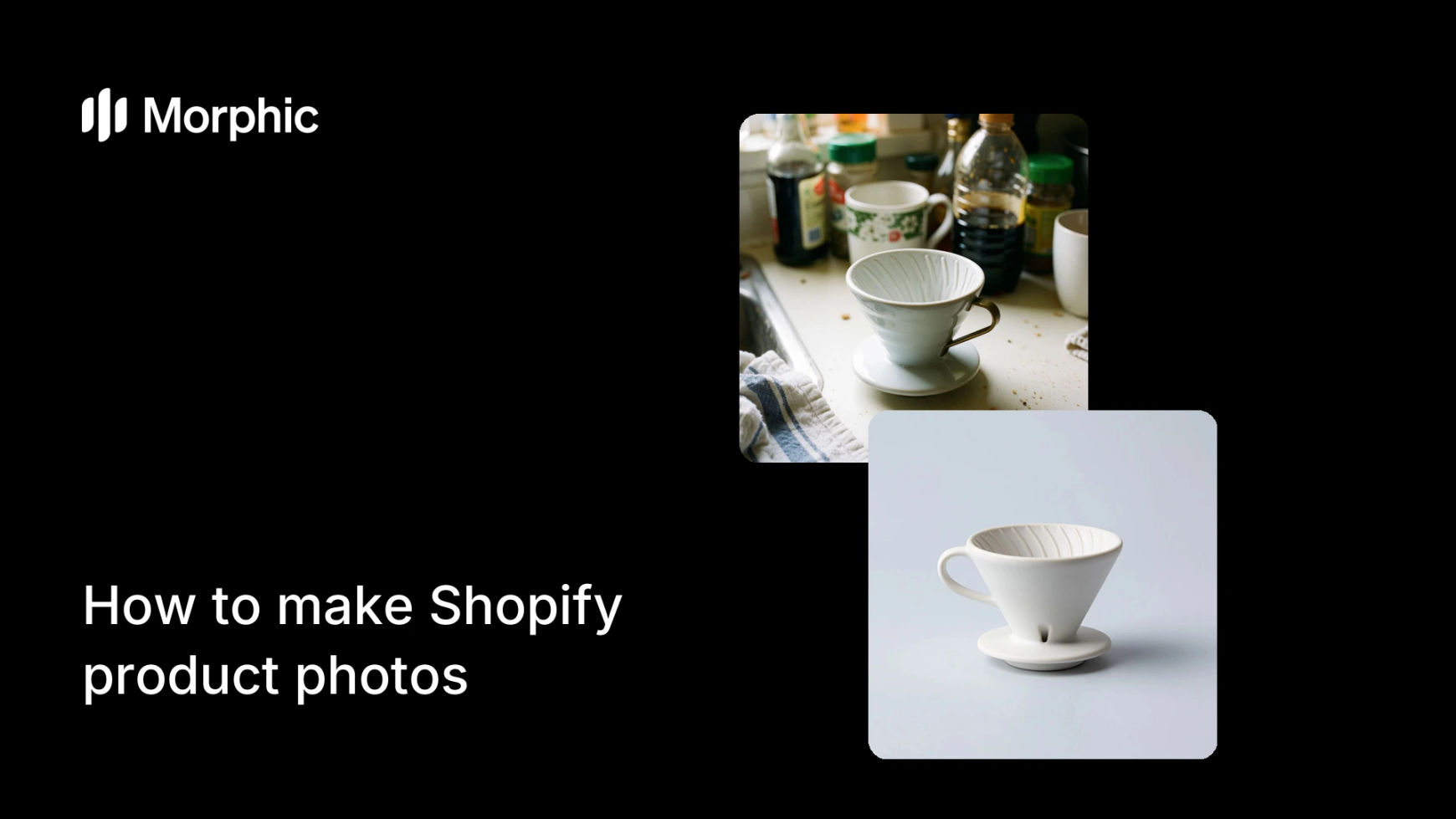
The same product before and after: a phone snapshot versus a clean studio Shopify shot.

What makes great Shopify product photos
| Quality | What it means | Why it matters |
|---|---|---|
| Clean studio shot | Plain background, even light, true color | The product page looks professional and clear |
| Multiple views | Angles and detail close-ups | Buyers inspect before committing |
| Lifestyle context | The item shown in a real setting | Shoppers picture owning it |
| Catalog consistency | Uniform look across products | The whole store feels trustworthy |
Morphic vs the traditional route
| Morphic | DIY shoot or product photographer | |
|---|---|---|
| Cost | Available on Morphic | Gear and lighting or a photographer fee |
| Time | A gallery in minutes | A shoot and edit per product |
| Skill needed | Describe the shot in words | Photography and retouching |
| Consistency | Reuse cues across the catalog | Reshoots to match the look |
FAQs
Yes. Describe your product on a plain background, centered and evenly lit, and generate a few options. Keep the sharpest, most true-to-color result for your grid.
Reuse the same background and lighting cues on every product. A uniform grid makes the store feel more professional and trustworthy.
Yes. Describe the product in a real setting that fits your buyer and generate one or two lifestyle scenes to sit alongside the studio shots.
No. Generate the product from a description, or start from a reference photo if you have one, then build the full gallery in the browser.
Yes. Download in HD so detail holds up when shoppers zoom on a product page, which builds trust and cuts returns.
Yes. Photos you generate with Morphic are cleared for commercial use on your Shopify store and ads.