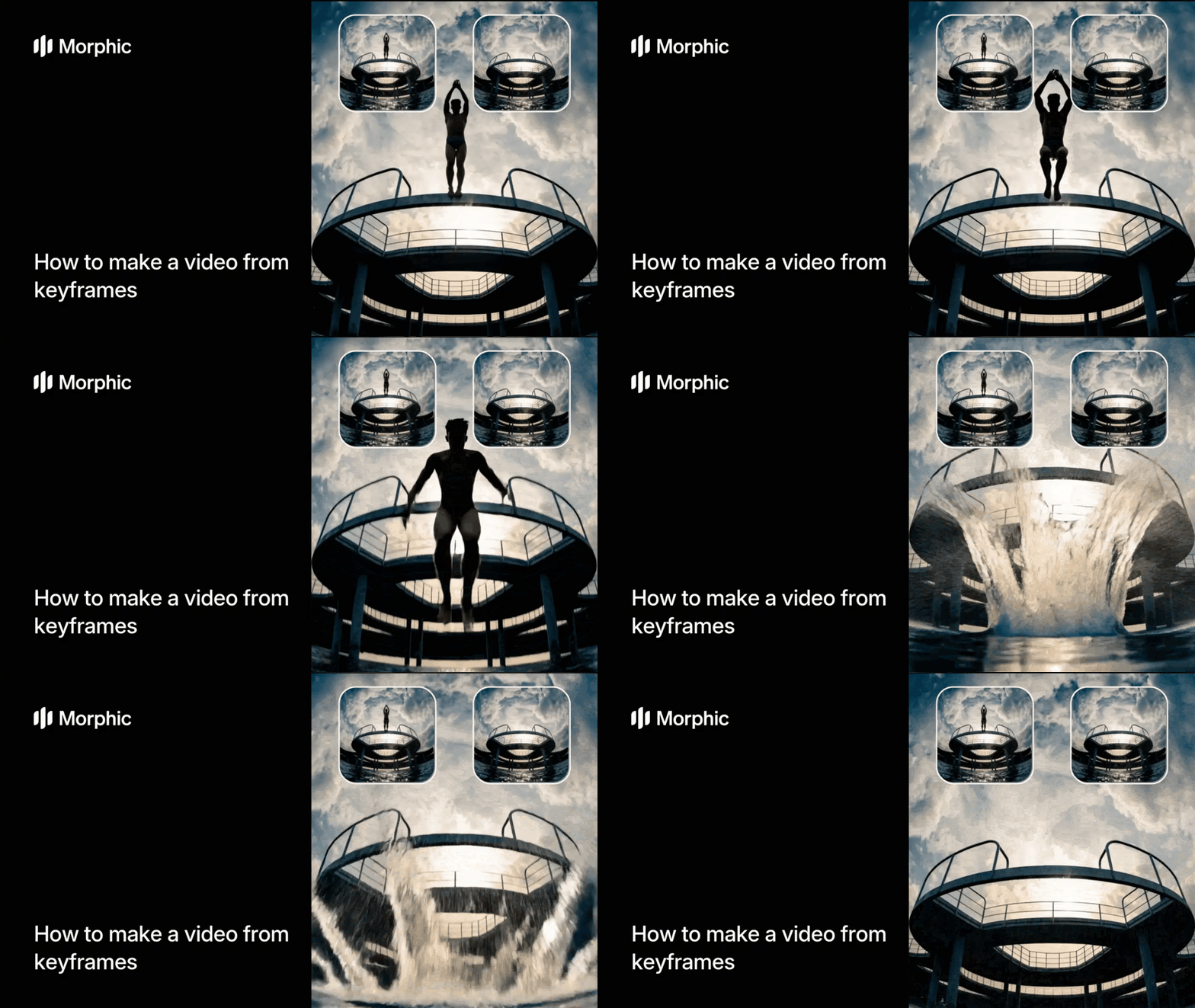
What is keyframe-to-video interpolation?
Keyframe interpolation is the process of generating intermediate frames between two or more defined positions to create smooth motion. In traditional animation and video production, artists define key poses or moments (keyframes) and then fill in the frames between them (in-betweens). This process determines how objects, characters, and cameras move through time.
Morphic's workflow accepts your start and end keyframes (and any intermediate keyframes), then uses AI to generate the transitional frames. The result is a continuous video where motion flows naturally between every keyframe you provide.
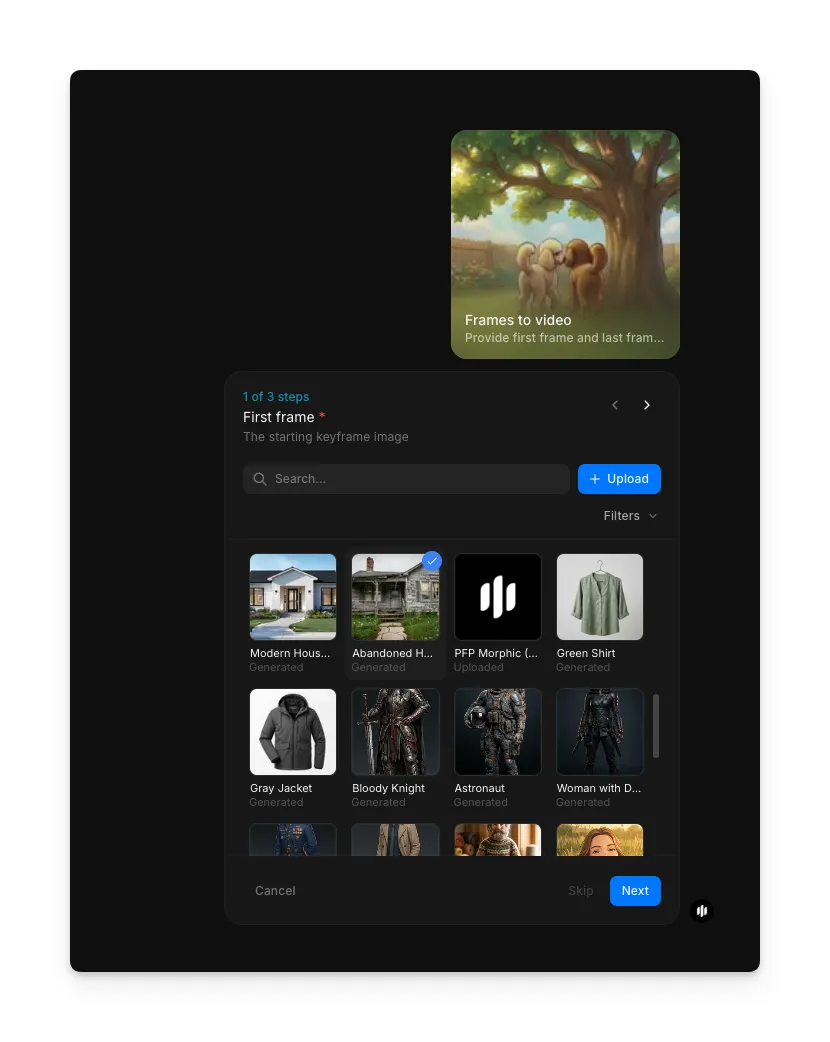
Upload your first frame
Open the "Frames to video" workflow. In the "First frame" step, browse the gallery or upload the starting image for your video.
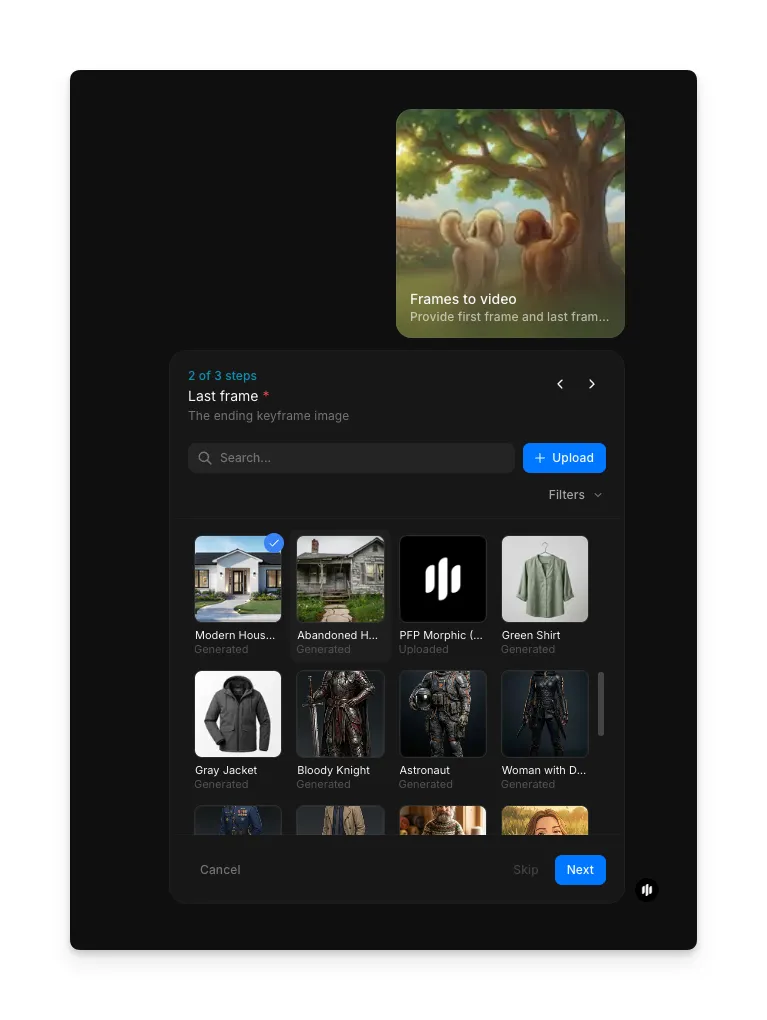
Upload your last frame
In the "Last frame" step, browse the gallery or upload the ending image. The workflow interpolates between these two frames.
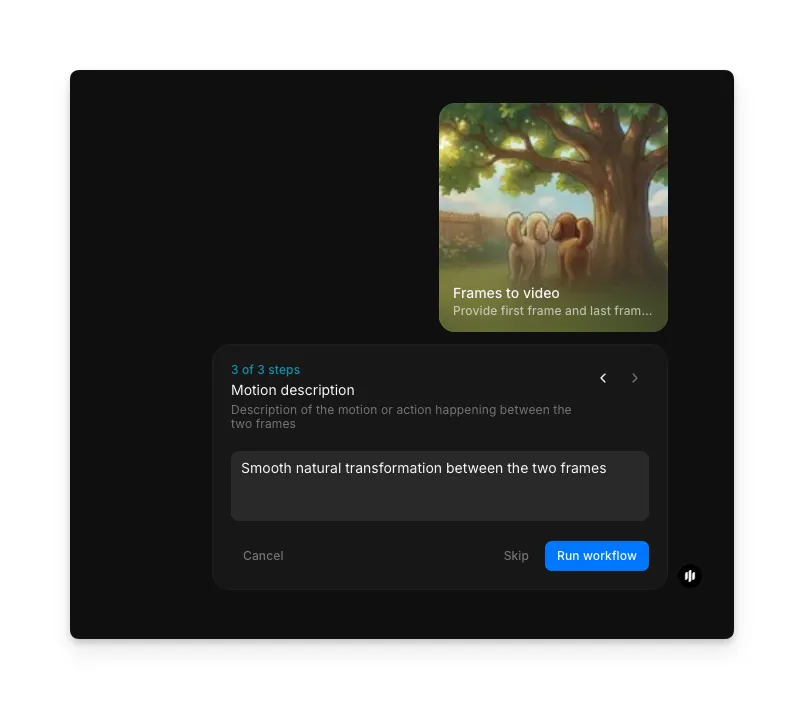
Describe the motion and generate
In the "Motion description" step, describe the motion or action between the two frames. Click "Run workflow" to generate.
Example output
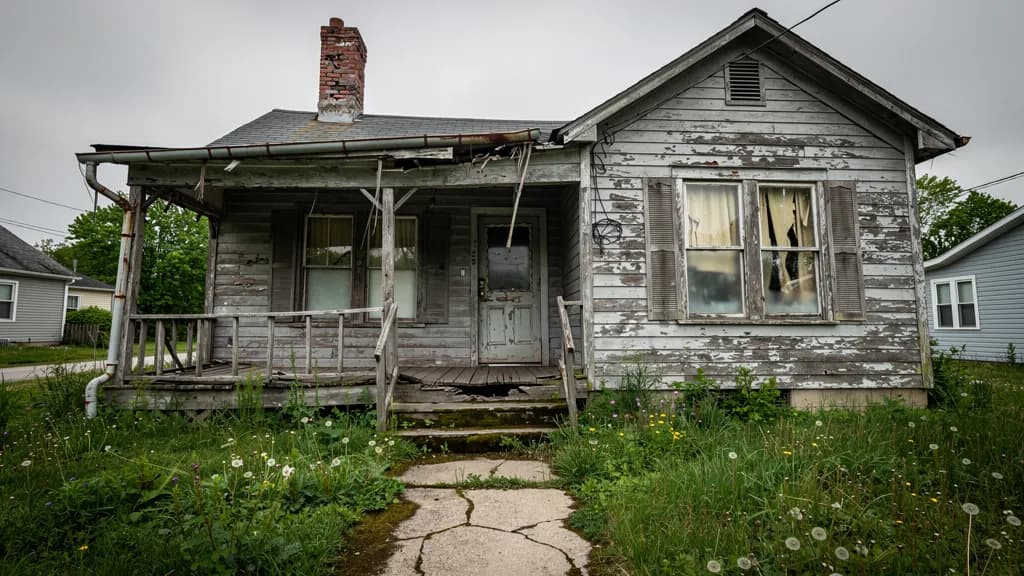
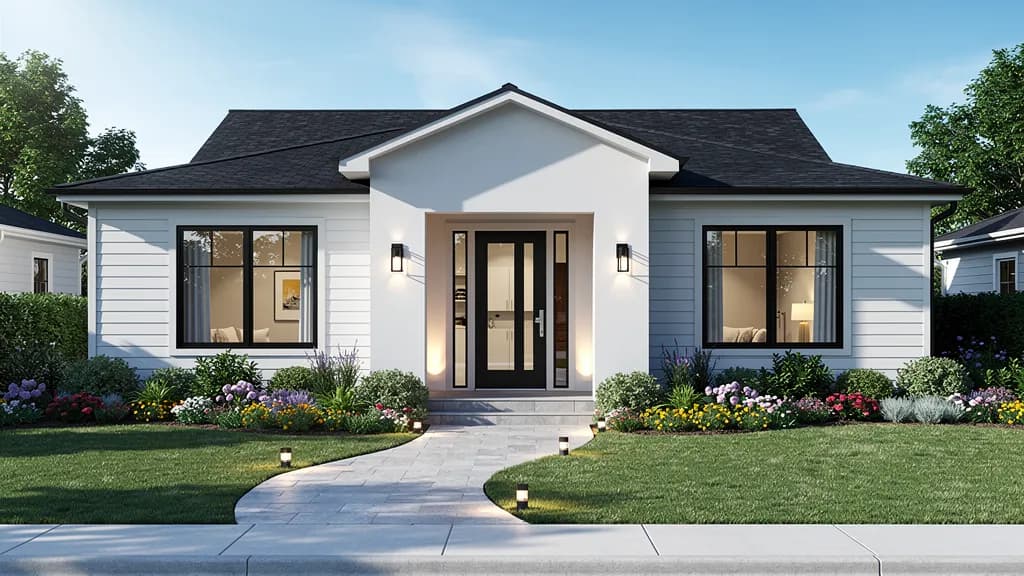
Final output: smooth interpolated video generated from keyframes
What makes great keyframe interpolation
| Quality | What it means | Why it matters |
|---|---|---|
| Motion smoothness | Movement between keyframes flows without stutters or jumps | Choppy transitions look unprofessional and break the viewing experience |
| Temporal consistency | Objects and textures remain stable across all generated frames | Flickering or morphing artifacts destroy the illusion of real motion |
| Frame coherence | Every intermediate frame looks like a plausible real image | Distorted or blurry in-betweens undermine the entire video |
| Transition quality | Changes in pose, lighting, and color progress naturally | Abrupt shifts between keyframes feel jarring rather than cinematic |
The workflow handles all interpolation math, easing, and frame generation automatically, so your keyframes become a polished video without manual tweening.
Morphic vs manual animation
| Morphic keyframe interpolation | Manual animation | |
|---|---|---|
| Time to completion | Under 2 minutes | Hours to days depending on frame count |
| Skill required | Upload keyframes and click generate | Expert knowledge of interpolation, easing, and compositing |
| Frame quality | AI-generated, artifact-free in-betweens | Depends entirely on the animator's skill and patience |
| Iteration speed | Swap a keyframe and regenerate instantly | Rework every in-between frame manually |
| Cost | Available on Morphic | Professional rates |
| Output format | Ready-to-use video file | Requires rendering and export from editing software |
FAQs
You can upload two or more keyframes. Two keyframes (start and end) produce a single interpolated transition. Adding intermediate keyframes gives you finer control over the motion path and timing of the generated video.
The workflow accepts PNG, JPG, and WebP images. All keyframes should ideally share the same resolution and aspect ratio for the smoothest interpolation results.
The workflow automatically determines optimal timing based on the visual distance between your keyframes. Larger differences between frames result in slower, more gradual transitions to maintain smoothness.
The generated video is silent by default. You can add music or sound effects in any video editor after downloading your interpolated video from Morphic.
The keyframe interpolation workflow is available on Morphic. Generate as many interpolated videos as you need.