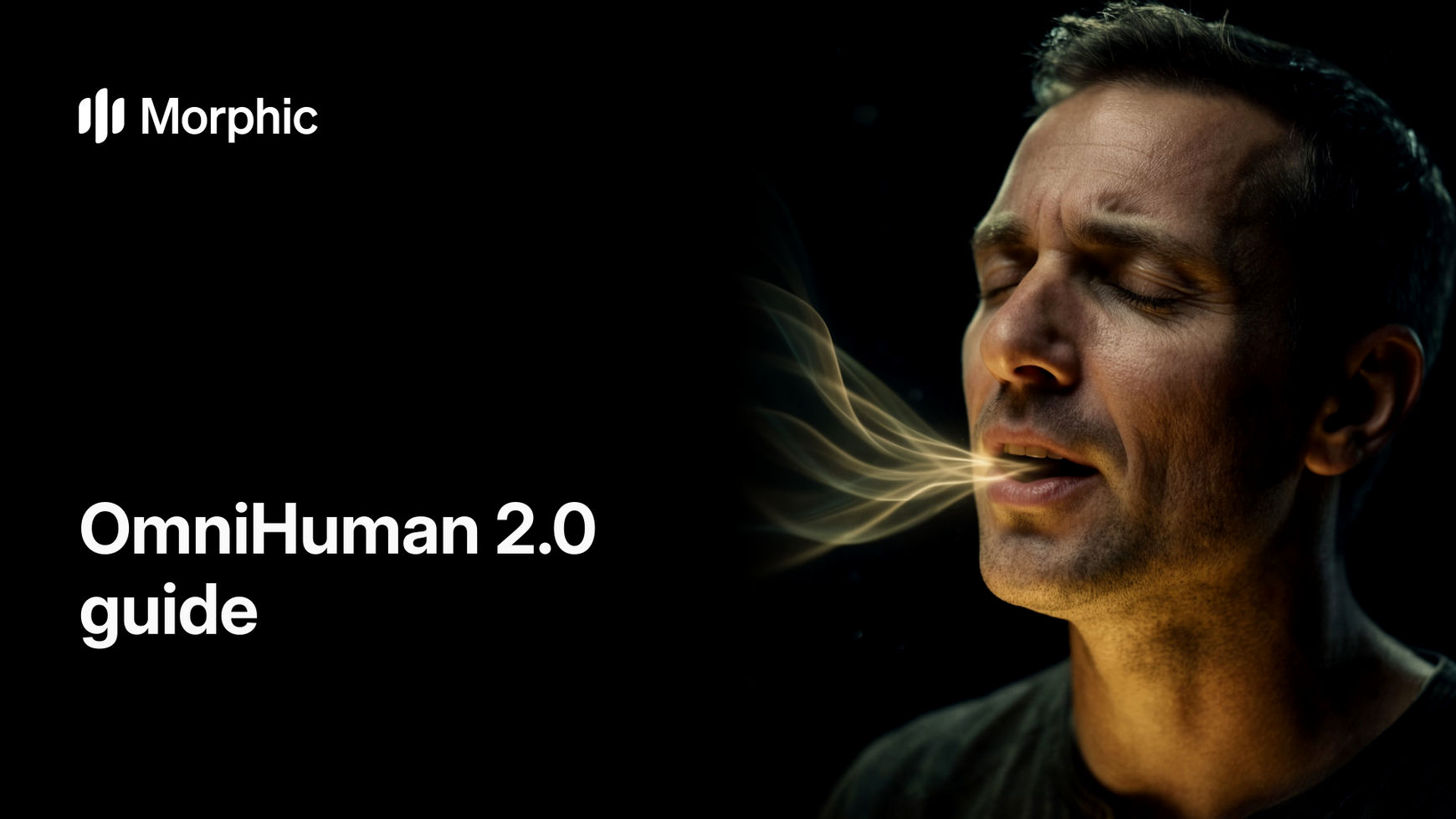
What makes OmniHuman 2.0 different
OmniHuman 2.0 starts from a single photo and builds the whole performance from your audio. It listens for how each line is said, not only which sounds are in it, so the face carries the mood of the track. Turn on sound to hear it.
One photo and a breathless voice line: the performance follows the excitement and the laugh
Three changes set 2.0 apart, according to BytePlus's launch post.
| OmniHuman 2.0 | What it means for your video |
|---|---|
| Reads the audio | Tone, emotion and every word drive the face, so a whisper, a shout and a laugh each look different |
| Any track | Speech, a sung track or a conversation, with no separate mode for each |
| Five minutes in one take | Up from 60 seconds. A lesson or a full song runs as one shot, with no joins to hide |
How OmniHuman 2.0 works
You give it two things, and a third is optional. Most videos need only the first two.
| Input | What it does |
|---|---|
| A photo | The performer. One clear face, looking toward the camera, with the framing you want in the final video |
| An audio track | The performance. Its length sets the length of the video, up to 5 minutes |
| A direction line | Optional. A short note on mood or movement, such as calm and warm or small hand gestures |
Choose the right photo for OmniHuman 2.0
The photo decides more of the result than anything else. The model keeps what it sees, so a sharp, well-lit face gives you a sharp, well-lit performance.
| Do | Why |
|---|---|
| One face, facing the camera | Extra faces in the frame can start moving and talking on their own |
| A plain or soft-focus background | A busy room gives the model more to move. See the background test below |
| Mouth closed, relaxed expression | The model opens the mouth for the words. A wide grin in the photo fights the speech |
| Frame it as you want the video | A head-and-shoulders photo makes a head-and-shoulders video. Leave room for hands if you want gestures |
| Match the aspect to where it will play | Use a vertical photo for reels and shorts, a wide one for lessons and YouTube |
| No text, logos or busy patterns | Small print and fine patterns can shimmer as the person moves |
Clay characters and illustrations work too. Keep the face clearly drawn, with the eyes and mouth easy to read.
A photo: one face, soft-focus background
A clay character as the performer
Prepare the audio for OmniHuman 2.0
The audio is the performance, so how the line is delivered is what you get on screen. Generate or record the voice first, and listen to it before you run the video.
| Track | How to prepare it |
|---|---|
| Speech | One clear voice, no music underneath. Write the pauses and the laughs into the delivery, and the face will follow them |
| Song | Keep the vocal loud and up front. A thin vocal under a busy mix gives the mouth less to follow |
| Dialogue | BytePlus lists dialogue as an input. Test a short exchange first and check that each line lands on the right face |
| Long takes | Trim long silences at the start and end. Every second of audio becomes a second of video |
A sung track: held notes and breaths show on the face
A calm lesson: steady, warm delivery
The same model reads very different deliveries. A whisper, a shout and a laugh each come out as a different performance.
A whisper
A shout
A laugh
Run a long take with OmniHuman 2.0
A single shot can run up to 5 minutes. Before 2.0, anything over 60 seconds had to be generated in pieces and joined, and the face, light or background could jump at each join. A long take avoids that, as long as the photo and the audio hold up for the full length.
A 75-second lesson in one take from one photo
- Write the full script and generate the voice in one pass, so the tone stays the same from start to finish.
- Listen through once and fix any mispronounced word before you generate the video. A fix later means running the whole take again.
- Pick a photo with a calm, neutral expression. It has to work for every moment of the track, not just the opening line.
- Run a 20-second test from the middle of the script first, then the full take.
Write a direction line for OmniHuman 2.0
The audio carries most of the performance. A short direction line helps when you want a particular kind of movement. Describe the delivery, not the words.
| You want | Write |
|---|---|
| A calm presenter | calm and warm, small natural head movement, background stays still |
| A lively creator | upbeat and friendly, expressive face, small hand gestures |
| A storyteller | slow gentle movement, nostalgic smile, pauses between lines |
| A singer | eyes closing on the long notes, gentle sway, emotional |
| A cartoon character | bouncy head movement, playful expressions, keep the drawn style |
Why OmniHuman backgrounds flicker, and how to avoid it
Some early viewers of BytePlus's launch demo noticed the background shifting while the person spoke. Audio-driven models generate every pixel of every frame, not just the face, so anything in the photo can drift: people behind the speaker, shelves, signs, patterns. The more there is to draw, the more there is to move.
We tested this on Morphic with the same face, the same voice line and two backgrounds. In the busy café version, the people behind her turn their heads and move on their own, and the background changes about 2.3 times more from frame to frame than in the plain-wall version.
Busy background: the people behind her start to move
Plain wall: same face and voice, the background holds
Five steps keep the background still:
- Use a plain or soft-focus background. If you only have a busy photo, edit the background into a plain wall first, keeping the person the same. That is how the plain version above was made.
- Keep one face in the frame. Crop out or remove anyone else, even blurred, even at the edge.
- Avoid fine detail behind the person: text, tiles, shelves of small objects, string lights.
- Add "background stays still" to the direction line.
- If one stretch of a long take still drifts, run that stretch again on its own and cut it in, at a pause in the speech where a cut is least noticeable.
Our test used Veed Fabric on Morphic, before OmniHuman 2.0 launched there. The cause is the same for any model that draws the whole frame from one photo, so the same fixes apply.
OmniHuman 2.0 tips
| Tip | Why |
|---|---|
| Fix the audio before the video | The video copies the delivery. A flat read gives a flat face |
| Test 20 seconds before 5 minutes | A short test shows framing, background and expression problems for a fraction of the cost |
| Use a neutral starting expression | The face has to move to every emotion in the track from that one starting point |
| Keep music off speech tracks | Music under the voice can blur which sounds are words |
| One face per photo | Every face in the frame is something the model may animate |
| Match the photo's aspect to the platform | Cropping a finished video later can cut off hands and gestures |
OmniHuman 2.0 and Veed Fabric
Both turn one photo and one audio track into a talking video, and both are live on Morphic. Every example in this guide was made with Veed Fabric, before OmniHuman 2.0 launched.
| OmniHuman 2.0 | Veed Fabric | |
|---|---|---|
| On Morphic | Live | Live |
| Inputs | One photo and one audio track | One photo and one audio track |
| Longest single take | 5 minutes | 5 minutes |
| Audio | Speech, music or dialogue | Speech in any language |
| Styles | Not yet detailed for 2.0 | Photos, illustrations, 3D, clay and anime |
| Resolution | Not yet published for 2.0 | 480p or 720p |
Make an OmniHuman 2.0 talking video on Morphic
- Open Copilot and attach a photo with one clear face and a plain background.
- Attach your voice or song track, or ask Copilot to generate the voice from your script first.
- Ask for a talking video with OmniHuman 2.0, add a short direction line, and download the result or open it in the editor.
FAQs
Give it one photo of the performer and one audio track. The photo sets who appears and how the shot is framed, and the audio sets what they say or sing and how they deliver it. Add a short direction line for mood or movement if you need one.
Audio-driven models draw every pixel of the frame, so details in a busy background can drift and other faces can start moving. Use a plain or soft-focus background, keep one face in the frame, and add "background stays still" to the direction line.
Up to 5 minutes in one continuous shot, according to BytePlus, up from 60 seconds in the version before. The length of your audio sets the length of the video.
Yes. It takes music as well as speech. Keep the vocal clear and up front in the mix so the mouth has the words to follow.
Earlier OmniHuman versions animated cartoons and stylized characters as well as photos, and BytePlus has not detailed styles for 2.0 yet. Give it a clearly drawn face with readable eyes and mouth, and test a short clip first.
No. The photo and the audio carry most of the result. A short direction line helps when you want a specific kind of movement, such as calm, energetic or still.