What is a sports broadcast fan-cam clip?
A sports broadcast fan-cam clip is a short AI-generated video that drops a person into a live sports broadcast: stadium crowd, broadcast lighting, "LIVE" badge, and a viewer count, framed like a real camera operator caught them in the stands. Same energy as a jumbotron moment or a K-pop fan cam, but built from one still photo.
Input photo and AI fan-cam output

Output: the same person dropped into a Formula 1 grandstand with a LIVE badge, viewer count, and broadcast camera framing
The face and outfit stay the same. The world around them changes to a live broadcast.
Upload a clear portrait photo
Open the "Sports broadcast cam" workflow. The first step asks for the person who will appear in the fan-cam clip. Upload a photo from your device or pick one from your Morphic assets.
Use a front-facing photo with the face clearly visible and good lighting. The AI uses the face as the anchor for the whole clip, so a sharp portrait gives a sharper result.
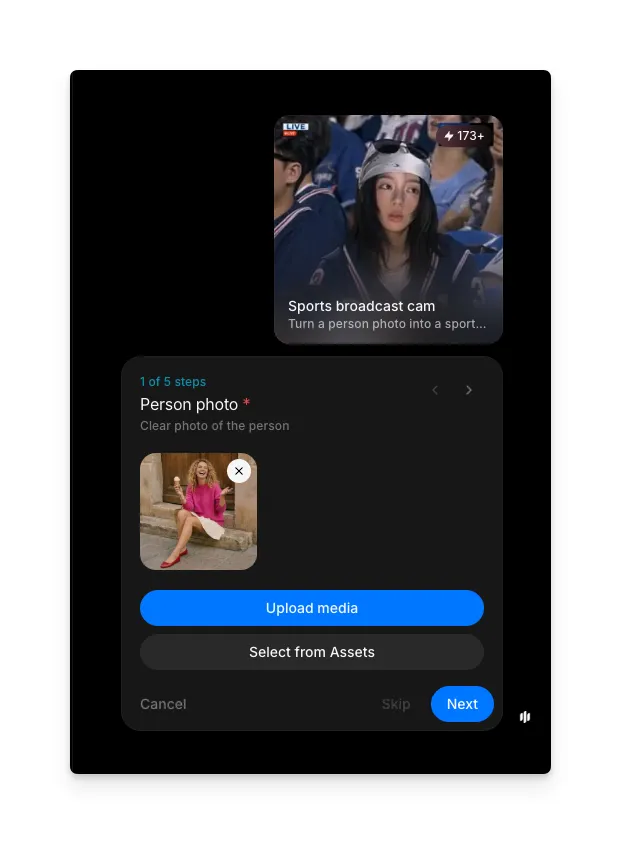
Pick the sport and broadcast region
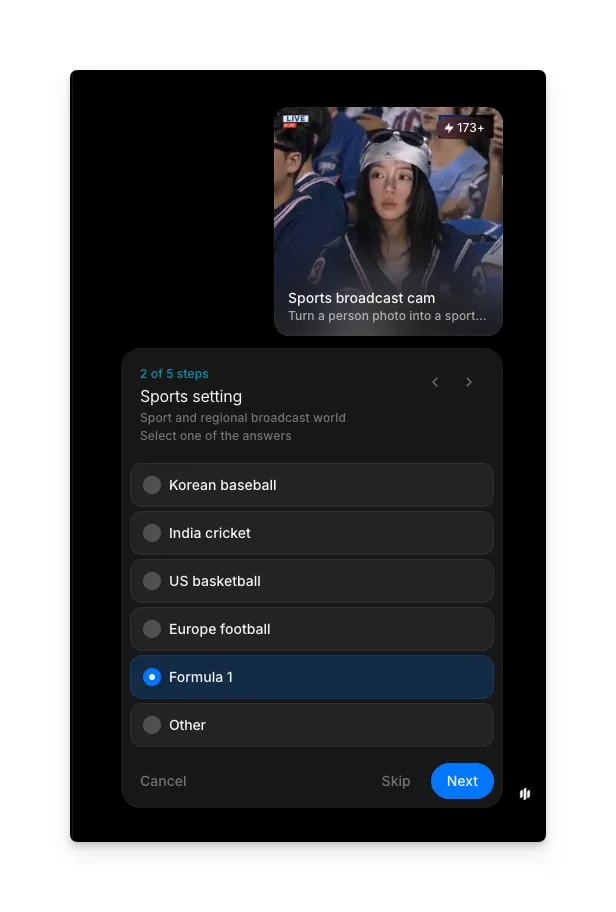
Choose which sport's broadcast world the clip should live in. This step is optional; skip it and the AI will pick a sport that suits the photo.
Five presets cover the most-watched broadcasts: Korean baseball (KBO), India cricket (IPL look), US basketball (NBA arena), Europe football (UEFA stadium), and Formula 1 (grandstand). Pick "Other" to type your own sport, league, or broadcast style. Your choice sets the crowd, stadium, lighting, and on-screen graphics.
| Sports setting | What you get | Best for |
|---|---|---|
| Korean baseball | KBO ballpark, bright crowd colors, daylight broadcast feel | Baseball fan cams and KBO supporter clips |
| India cricket | IPL-style stadium, floodlights, flags, broadcast overlay | Cricket fan cams and IPL match-day clips |
| US basketball | NBA arena, courtside crowd, sideline broadcast angle | Basketball fan cams and game-day arena clips |
| Europe football | UEFA-style stadium, chanting crowd, club colors | Football supporter cams and derby-day clips |
| Formula 1 | F1 grandstand, race-day lighting, circuit ambience | F1 fan cams and race-weekend clips |
| Other | Describe any sport, league, or broadcast style | Niche sports or specific league looks |
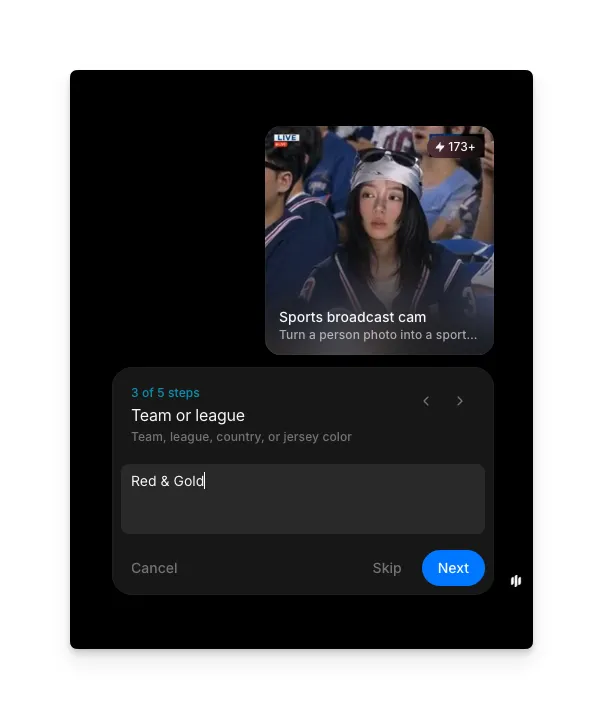
Add a team or league cue
Type a short detail to steer the team look: a club name, country, league, or jersey color. This step is optional, so leave it blank to let the AI choose.
Two or three words is enough. "Red & Gold," "Ferrari," or "Brazil" all work. The AI uses the cue to colour the crowd, jerseys, and broadcast graphics without locking the clip to a real logo.
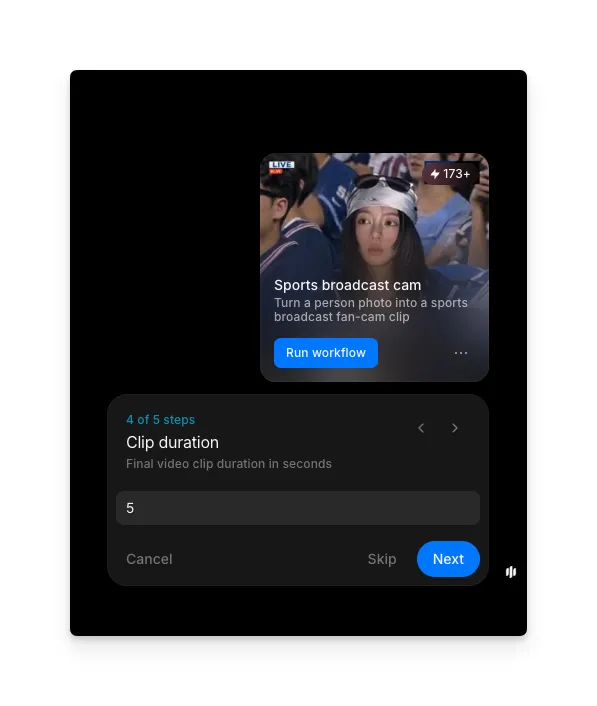
Set the clip duration
Enter how many seconds the fan-cam clip should run for. This step is optional; skip it to use the default length.
Short clips of about 5 seconds work well for Reels, Shorts, and TikTok, and read as a quick "spotted on TV" moment. Longer clips give the broadcast camera more time to pan across the face and crowd, which suits highlight edits.
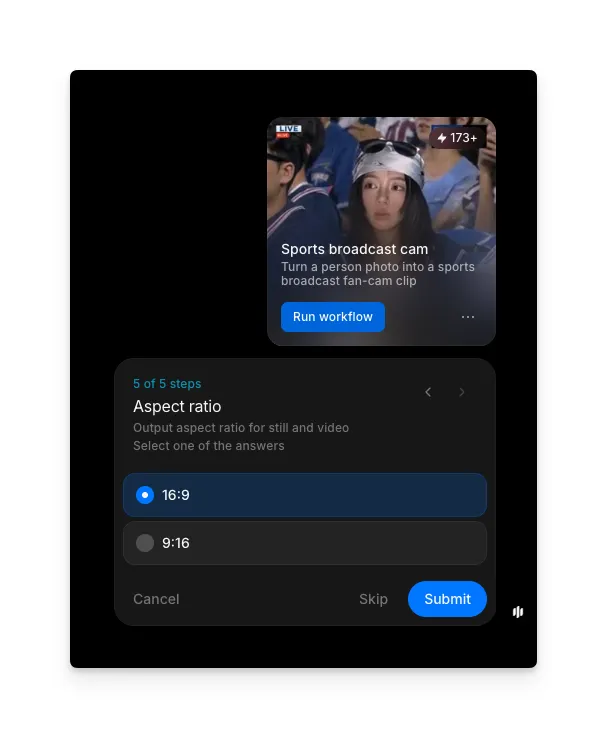
Choose the aspect ratio
Pick how the fan-cam clip should be framed. This step is optional too, so skip it to use the default.
Choose 16:9 for a TV broadcast feel and landscape players like YouTube. Choose 9:16 for Reels, Shorts, TikTok, and Stories so the face isn't cropped on a phone. To post on both, run the workflow twice, once per ratio.
FAQs
A clear, well-lit, front-facing portrait gives the best fan-cam result. Phone selfies, posed shots, and crops from larger photos all work. Avoid very dark images, heavy filters, or photos where the face is hidden, since the AI uses the face as the anchor for the whole clip.
Yes. Choose "Other" in the sports setting step and type the sport, league, and broadcast style you want. The AI follows the description to set the crowd, stadium, and overlay.
A short cue is enough. Jersey colors, a country, a league name, or a club name all work. The cue steers crowd colors and broadcast graphics without locking the clip to a real logo.
About 5 seconds is the sweet spot for social posts and reads as a quick TV cutaway. Pick a longer duration if you want a more cinematic camera move across the face and crowd.
Yes. Run the workflow once for each aspect ratio. 16:9 fits broadcast feeds and landscape players; 9:16 fits Reels, Shorts, TikTok, and Stories without cropping the face.