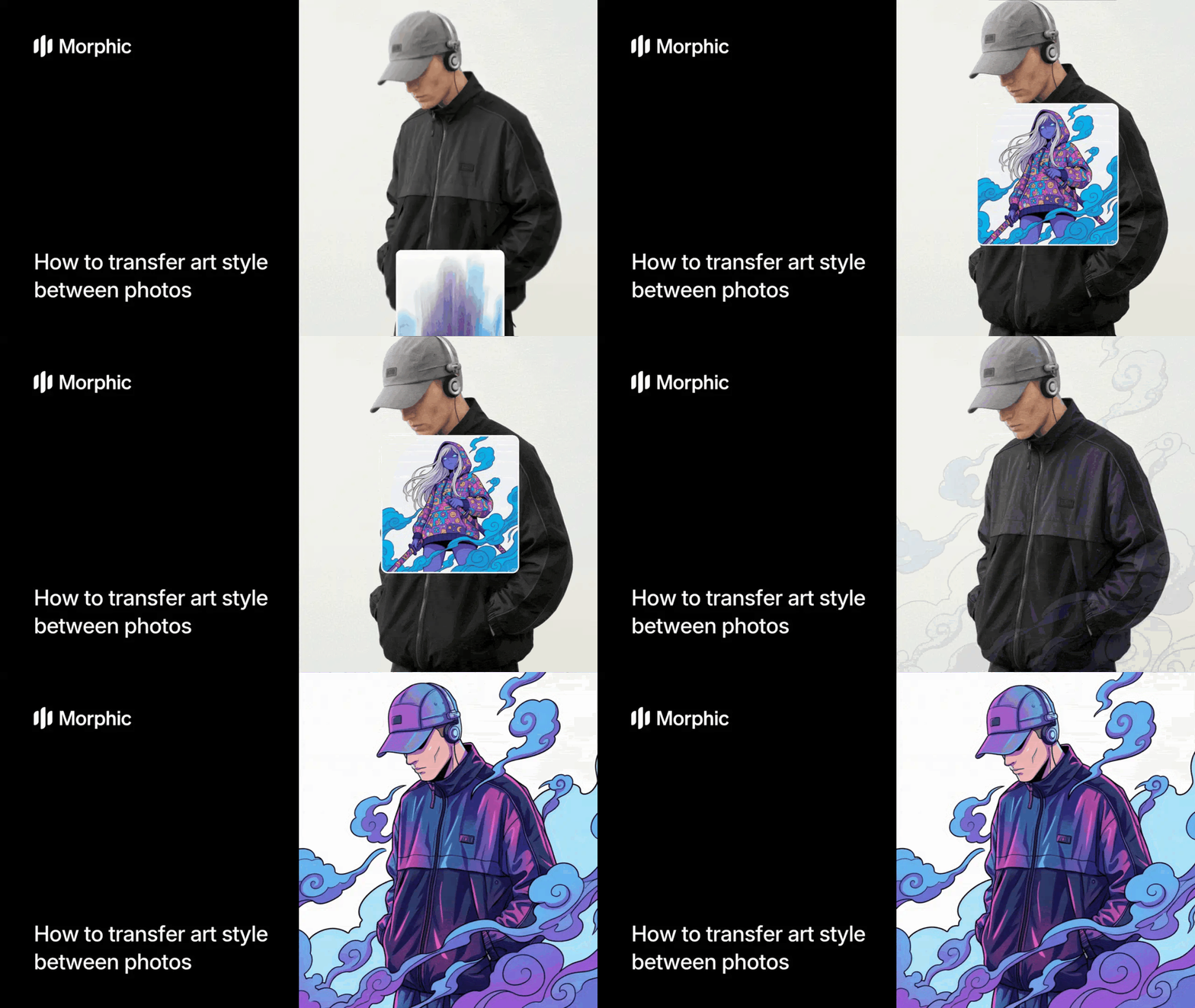
What is art style transfer?
Art style transfer is the process of applying the visual style, mood, color palette, or artistic treatment from one image to another. Instead of manually recreating the look in Photoshop or repainting your work, style transfer analyzes the reference image's characteristics and applies those same qualities to your own photo or artwork.
Morphic's AI-powered style transfer workflow makes this instant. Upload your photo and a style reference, and the workflow applies the reference's aesthetic to your image automatically. Rather than spending hours in post-production or commissioning a digital painter, you get a styled version in seconds.
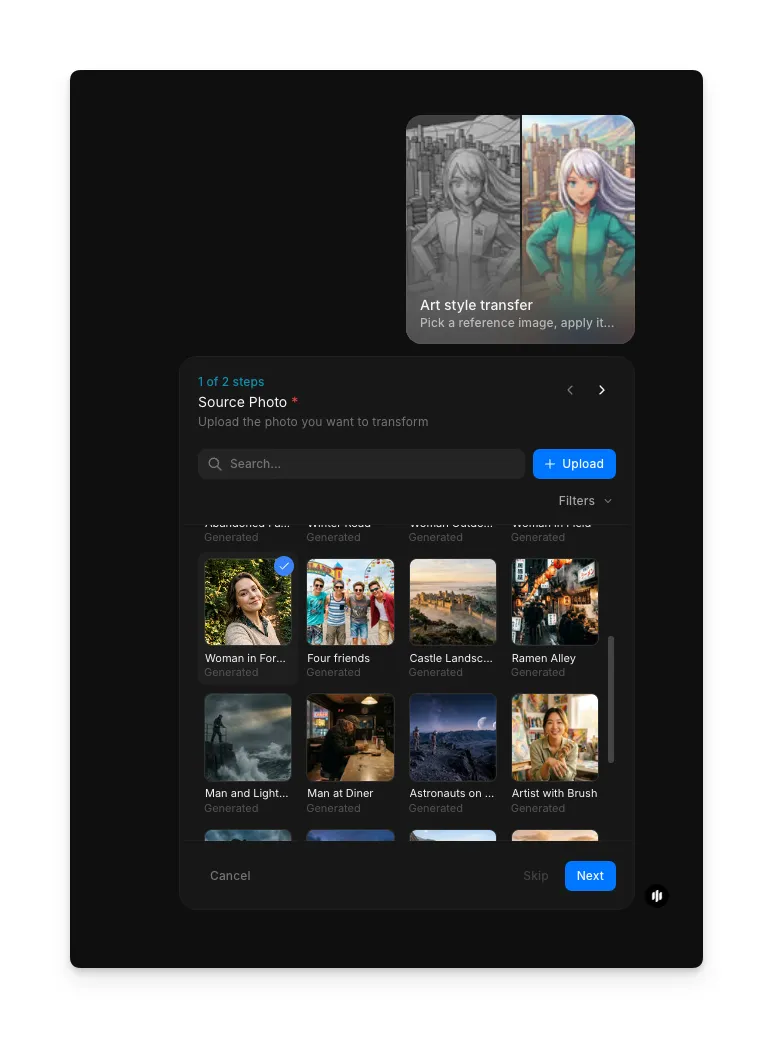
Upload your source photo
Open the Art style transfer workflow on Morphic. In the "Source Photo" step (1 of 2), upload the photo you want to transform. Any photograph works: portraits, landscapes, action shots, or still life.
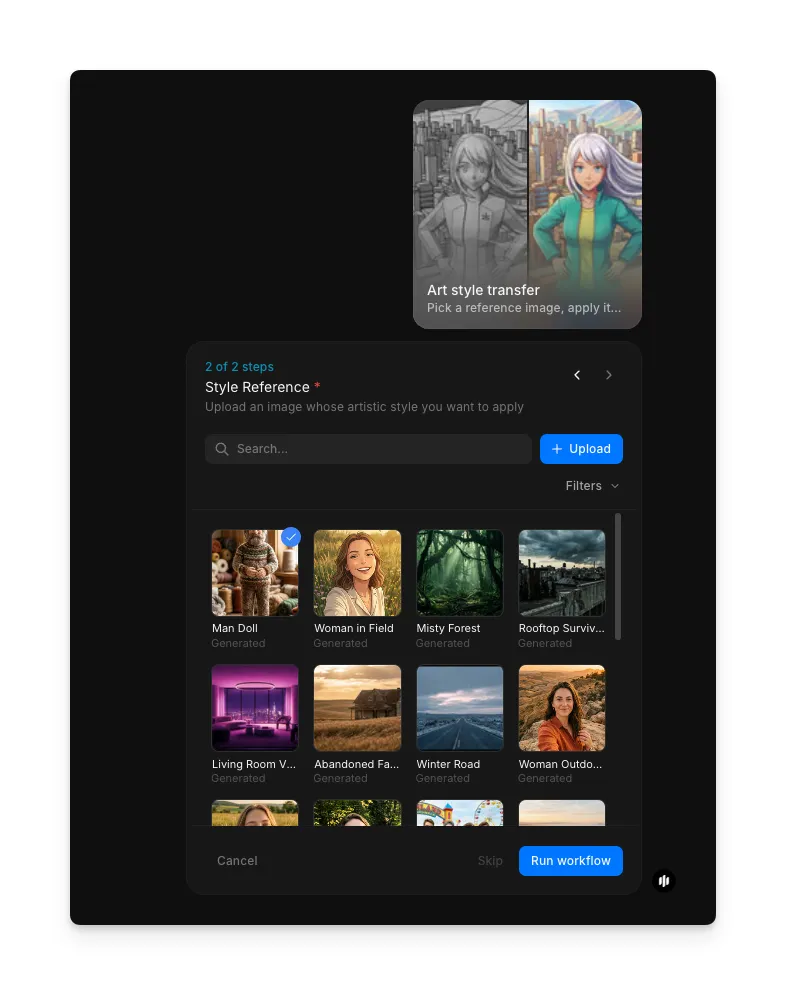
Upload your style reference and generate
In the second step, upload a reference image whose artistic style you want to apply. The reference can be a photograph, painting, film still, or any image with a distinctive visual aesthetic. Once both images are uploaded, click "Run workflow." Morphic analyzes the reference's color palette, lighting, texture, and mood, then applies those qualities to your source photo.
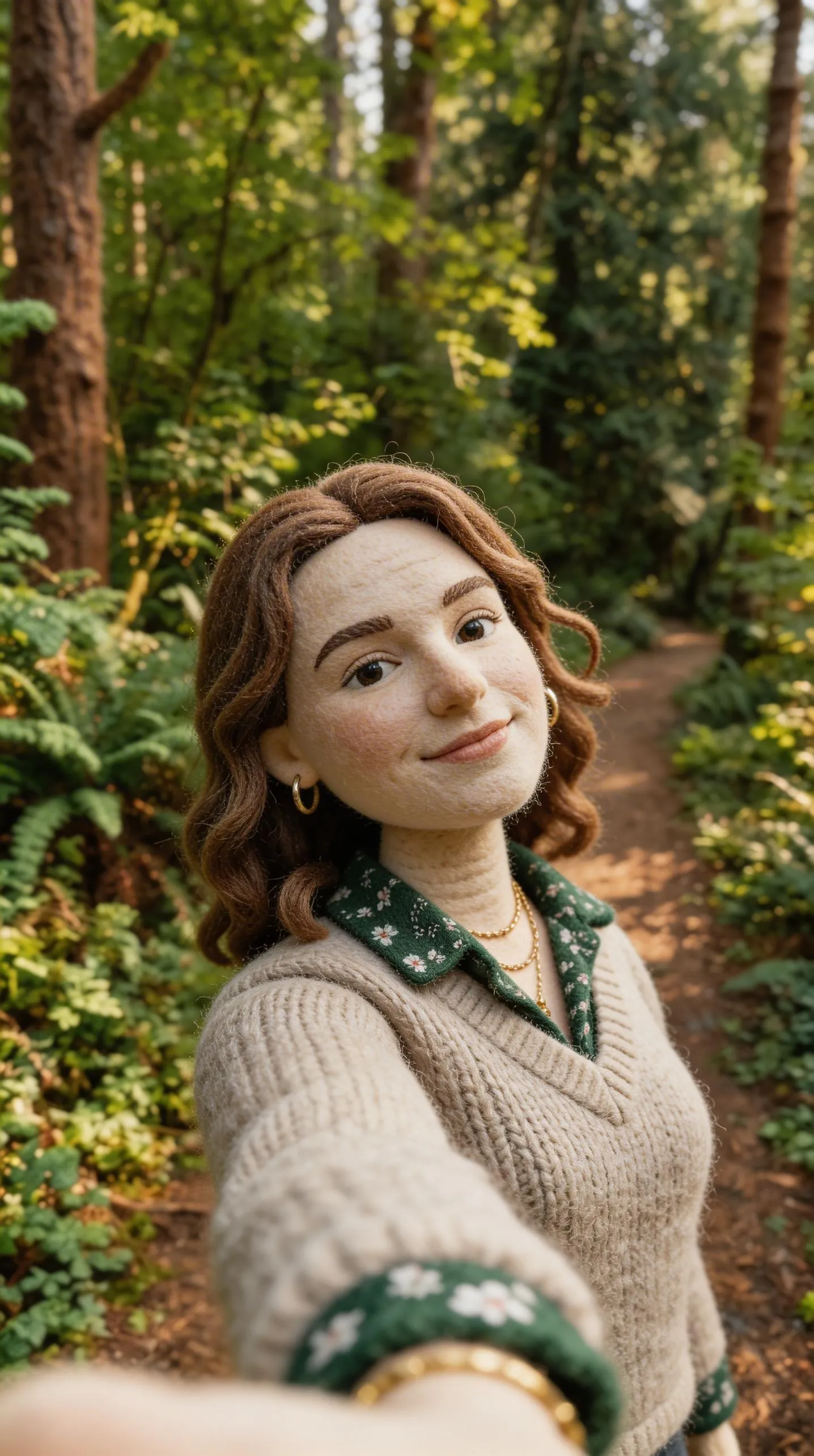
The result is your original photo transformed with a new artistic treatment, preserving your subject while applying the reference's visual style.

What makes effective style transfer
| Quality | What it means | Why it matters |
|---|---|---|
| Color fidelity | The original colors shift to match the reference's palette without losing detail | Maintains subject recognition while changing mood |
| Lighting consistency | Shadows and highlights align with the reference's directional light source | Creates believable, unified results |
| Texture preservation | Artistic textures or grain from the reference transfer without obscuring your subject | Captures the look and feel of the reference |
| Natural blending | The style integrates smoothly rather than appearing as a filter overlay | The result looks intentional, not artificial |
Morphic's AI handles color analysis, lighting adaptation, and texture blending automatically, so you only need to provide a base photo and a style reference.
Art style transfer vs. manual recreation in Photoshop
| Art style transfer workflow | Manual recreation in Photoshop or painting software | |
|---|---|---|
| Cost | Available on Morphic | Software license plus hours of billable work |
| Time to get results | Seconds | Hours to days of manual adjustments |
| Setup required | Two images, nothing else | Layer masking, color grading knowledge, brush skills |
| Consistency across images | Identical style across multiple photos | Must recreate approach for each image |
| Skill required | None, just upload images | Intermediate to advanced design skills |
| Quality | AI-optimized style matching | Dependent on artist skill level |
FAQs
Any image with a distinctive visual style works. Photographs with strong color grading, paintings with recognizable brushwork, film stills with cinematic lighting, or vintage photos with classic color palettes all make effective references. Clearer, more unified references produce better results.
Currently, the style transfer workflow works with still images. You can apply it to individual frames and then combine them, but frame-by-frame consistency is a manual process.
No. Style transfer applies artistic qualities like color, mood, and lighting while preserving your photo's content and recognizability. The subject remains clear and identifiable, just with a new visual treatment.
Style transfer focuses on aesthetic qualities like color, lighting, and texture rather than copying composition. Even if your reference and base photo have different subjects or layouts, the workflow will apply the reference's color palette and mood to your image.
Manual recreation in Photoshop or by a digital painter typically takes hours and costs significantly more. Morphic's art style transfer workflow is available on Morphic and delivers results in seconds.