A CEO earnings address
A bright office set where an executive speaks directly to camera about the quarter, a soft key light on the face and the results screen glowing behind, the framing steady and composed for a confident recap.
Edit prompt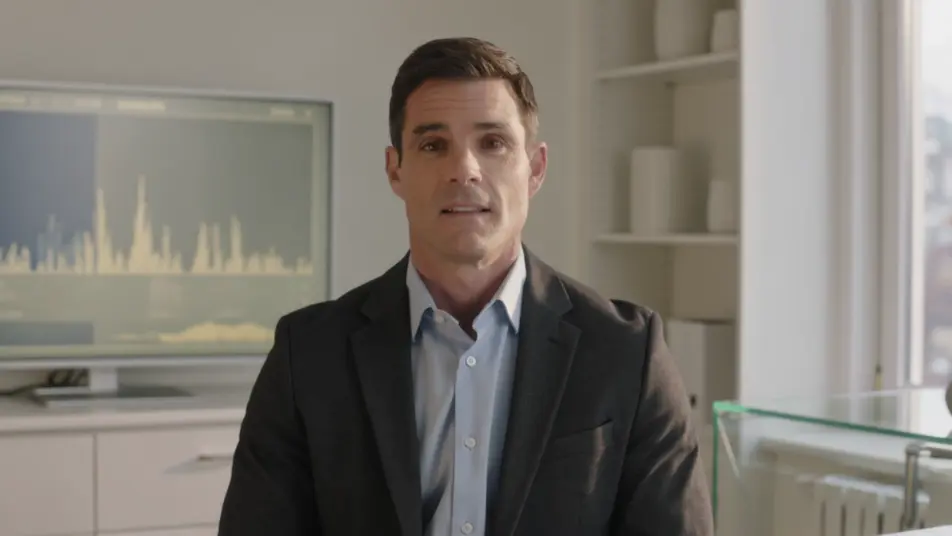
Produce a quarterly results video in your browser with Morphic's quarterly results video generator. Turn the earnings script into a CEO recap, animated revenue charts, and clean metric callouts without booking studio time. Voice the narration with Speech, then assemble the segments into one continuous recap on the Canvas.
A bright office set where an executive speaks directly to camera about the quarter, a soft key light on the face and the results screen glowing behind, the framing steady and composed for a confident recap.
Edit promptA clean minimal frame where a bar chart rises quarter over quarter, each column filling in on cue with the narration, the camera holding still so the growth line reads clearly.
Edit prompt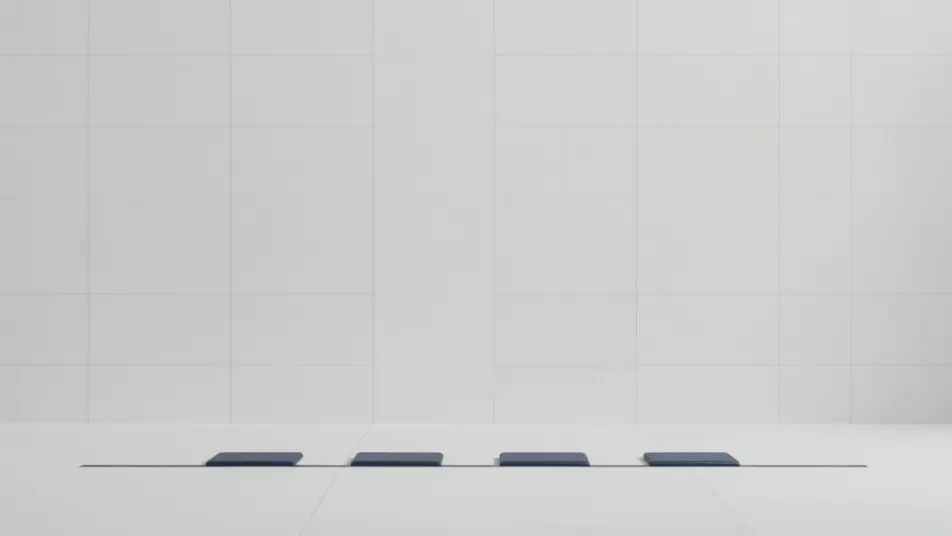
A wide branded frame where one glowing unlabeled ring fills around a clean centered card, soft shadows and open space on every side so a single result holds the moment on its own.
Edit prompt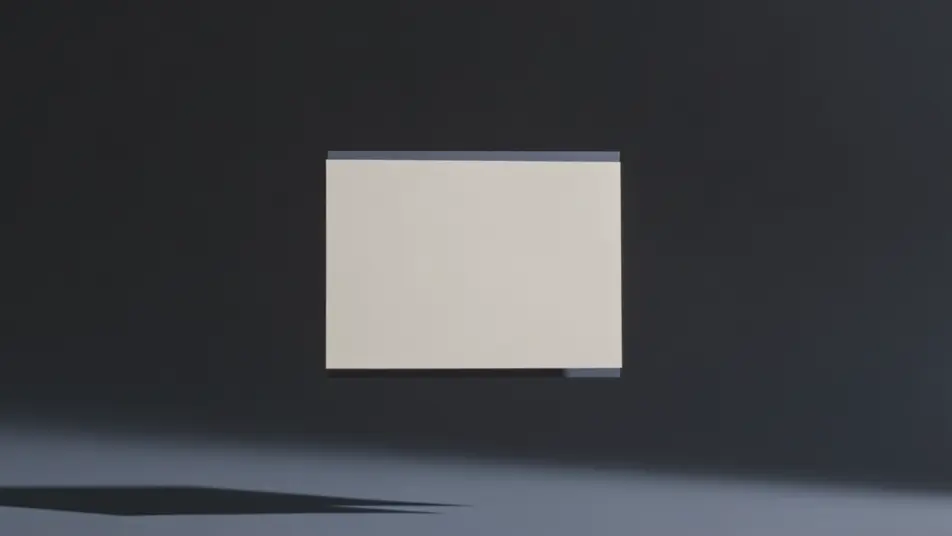
A calm gradient background where next-quarter targets and forward figures fade in as clean text, the motion restrained and the pacing measured to close the recap on the plan ahead.
Edit prompt
Write the quarterly results video scene you want, in plain words.
Morphic generates a cinematic, frame-ready clip on your canvas in seconds.
Tweak the prompt, regenerate variations, then download or share the shot.

Dramatize any text conversation into a cinematic multi-shot video.
Cinematic time-freeze short film for any scene

Generate a professional film title card from scratch, with optional cinematic animation.
Photo of any real-estate becomes a cinematic renovation timelapse video with construction SFX and music.
One image to a 9-scene cinematic video.

Describe a first-person scenario. Get sequential POV frames animated into video clips with audio.
AI Funding announcement videos
Funding announcement video, produced in-house on Morphic. Cut a founder address, a milestone card, and an investor thank-you, then export the same day.
AI Town hall videos
Make a town hall video from a description with Morphic. Build a CEO address, company-update segments, and team shoutouts, then publish the same day.
AI Roadmap videos
Create a roadmap video from a description with Morphic. Build a phased timeline, milestone cards, and a now-next-later breakdown, no crew required.
AI Awards announcement videos
Awards announcement video made without a studio. Reveal each winner with a name-card build, a highlight cut, and a hosted intro. Produce it the same day.
Get started for free today, with the option to upgrade or cancel anytime.
Basic
2400 monthly credits
1 user only
All models
Workflows
Standard
3625 monthly credits
1 user only
All models
Workflows
Pro
6350 shared monthly credits
1 user
All models
Workflows
Max
24650 shared monthly credits
1 user
All models
Workflows
Enterprise
For higher limits
Custom
pricing and billing terms

Free
For playing around
$0
forever free