Wald-Silhouetten-Fusion
Eine Profilsilhouette, gefüllt mit einem nebligen Kiefernwald, Baumreihen verschmelzen durch Gesicht und Haar, ein klarer High-Key-Hintergrund und eine poetische surreale Fusion von Gestalt und Waldland.
Prompt bearbeiten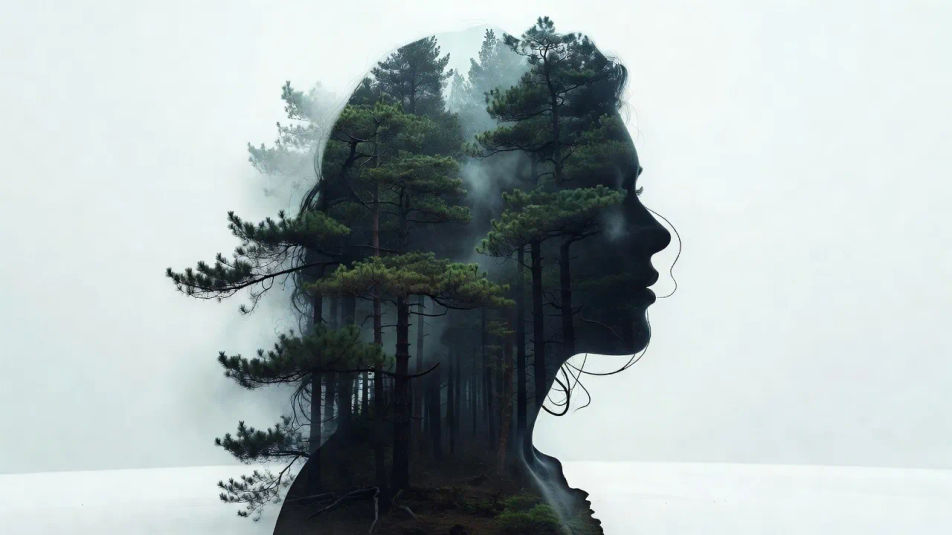
Erstellen Sie Doppelbelichtungsporträts direkt im Browser mit dem KI-Bildgenerator von Morphic. Generieren Sie einen Wanderer, gefüllt mit einem nebligen Wald, einen Träumer, der eine Stadtsilhouette hält, oder einen Seemann, verschmolzen mit einer Meereswoge. Ziehen Sie die fertige Kunst in das Canvas, um den Bildausschnitt zu verfeinern oder einen Titel hinzuzufügen.
Eine Profilsilhouette, gefüllt mit einem nebligen Kiefernwald, Baumreihen verschmelzen durch Gesicht und Haar, ein klarer High-Key-Hintergrund und eine poetische surreale Fusion von Gestalt und Waldland.
Prompt bearbeitenEine Dreiviertel-Silhouette, gefüllt mit einer weichen Stadtsilhouette, Türme verblassen durch die Schultern, ein heller klarer Hintergrund und eine sanfte verschmolzene Überlagerung von Gestalt und Stadtbild.
Prompt bearbeiten
Eine ruhige Silhouette, verschmolzen mit einer Meereswoge, Wellen und Schaum kräuseln sich durch Kiefer und Haar, ein blasser High-Key-Himmel und eine surreale Fusion des Modells und des Meeres.
Prompt bearbeiten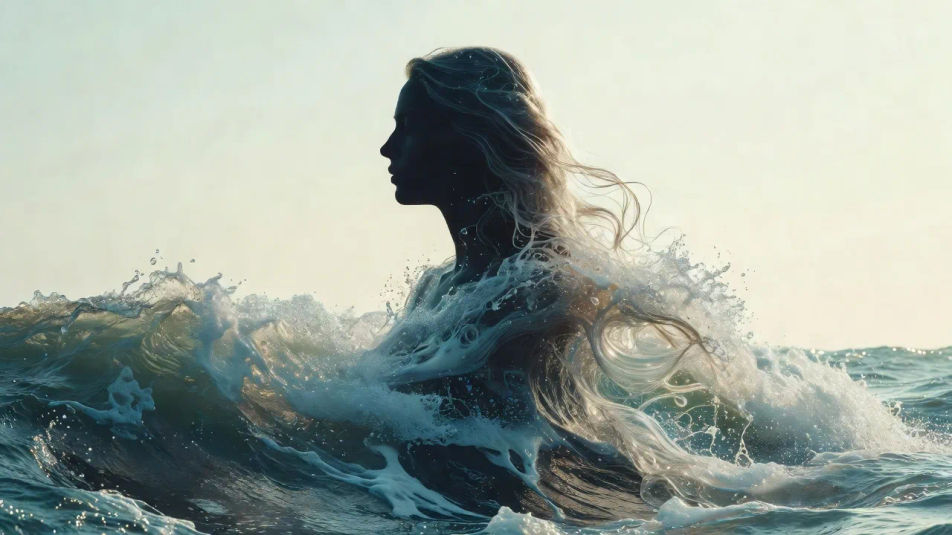
Eine gelassene Silhouette, gefüllt mit einem sternenübersäten Nachthimmel und schwachen Nebeln, kosmisches Licht sickert durch das Profil, ein leuchtender High-Key-Hintergrund und eine weiche verschmolzene Überlagerung.
Prompt bearbeiten
Beschreiben Sie das Doppelbelichtungsporträt, das Sie möchten, in einfachen Worten.
Morphic generiert in Sekunden ein sauberes, veröffentlichungsfertiges Bild auf Ihrer Canvas.
Passen Sie den Prompt an, generieren Sie Varianten und laden Sie das Bild herunter oder teilen Sie es.
Fix plastic-looking AI skin. Adds natural texture, pores, and imperfections for realism.
One selfie becomes a set of professional headshots. Studio-quality, multiple styles.
Choose your viewing angles and get precise perspective shifts of any image with full camera control.
Convert any image to a new aspect ratio. Smart crop or extend the edges to fit.
Set the look with one reference image. Apply that exact grade to any scene or batch.
Bring back any damaged, blurry, or low-res image. Get a sharp, detailed 4K version with natural clarity restored.
Silhouettenporträt-KI-Bilder
Erstellen Sie KI-Silhouettenporträt-Bilder mit Morphic. Generieren Sie authentische Silhouettenporträt-Artworks, -Szenen und -Motive für jedes Projekt in Sekunden.
Schattenporträt-KI-Bilder
Erstellen Sie KI-Schattenporträt-Bilder mit Morphic. Generieren Sie authentische Schattenporträt-Artworks, -Szenen und -Motive für jedes Projekt in Sekunden.
Digital-Art-Porträt-KI-Bilder
Erstellen Sie KI-Digital-Art-Porträt-Bilder mit Morphic. Generieren Sie in Sekunden authentische Digital-Art-Porträt-Kunstwerke, -Szenen und -Motive für jedes Projekt.
Holografisches Porträt-KI-Bilder
Erstellen Sie KI-Bilder holografischer Porträts mit Morphic. Generieren Sie authentische Artworks, Szenen und Visuals holografischer Porträts für jedes Projekt in Sekunden.
Starten Sie noch heute kostenlos, mit der Option, jederzeit zu upgraden oder zu kündigen.
Basic
2400 monatliche Credits
1 Nutzer
Alle Modelle
Workflows
Standard
3625 monatliche Credits
1 Nutzer
Alle Modelle
Workflows
Pro
6350 gemeinsame monatliche Credits
1 Nutzer
Alle Modelle
Workflows
Max
24650 gemeinsame monatliche Credits
1 Nutzer
Alle Modelle
Workflows
Enterprise
Für höhere Limits
Individuell
Preis- und Abrechnungsbedingungen
Free
Zum Ausprobieren
$0
dauerhaft kostenlos