3D models
Ask Copilot for a 3D model from a description or a photo, split a photo into separate objects, rig a character so it can walk, give a model a new look, and place it in a 3D scene.
3D models on Morphic are made by Copilot. Describe an object or attach a photo of it, and Copilot makes a textured 3D model at its real-world size, saves it to your 3D library, and can place it in a 3D scene. It can also rig a person-shaped model so it walks and runs, and give a model a new look while keeping its shape. Models are GLB files you can view, download and reuse in any scene.
Use it for a prop or character a 3D scene's library doesn't have, a product you want to block a shot around, or a quick model to take into another 3D tool.
Make a model from a description
- Open a file and click 'Copilot', or click 'Chat' in a 3D scene
- Describe the object: its shape, materials, colors and condition. For example: "Make me a 3D model of a weathered wooden rowing boat with two oars resting inside it."
- Press Enter. A square card appears in the chat while the model is made
- When it's done, Copilot says what it made, where it's saved and how tall it is
A description alone works with one model, Meshy 7.1, so Copilot starts it right away. Most models finish in a few minutes; Meshy 7.1 can take longer. You can keep chatting, or leave the chat; the model still finishes and lands in your library.
Make a model from a photo
-
Click the paperclip in the prompt bar and attach a photo of the object
-
Ask for a model: "Turn this into a 3D model"
-
Copilot may list the models that fit, with what each is best at and its cost, and ask you to pick one. If you set a model in 'Image to 3D', it uses that one
-
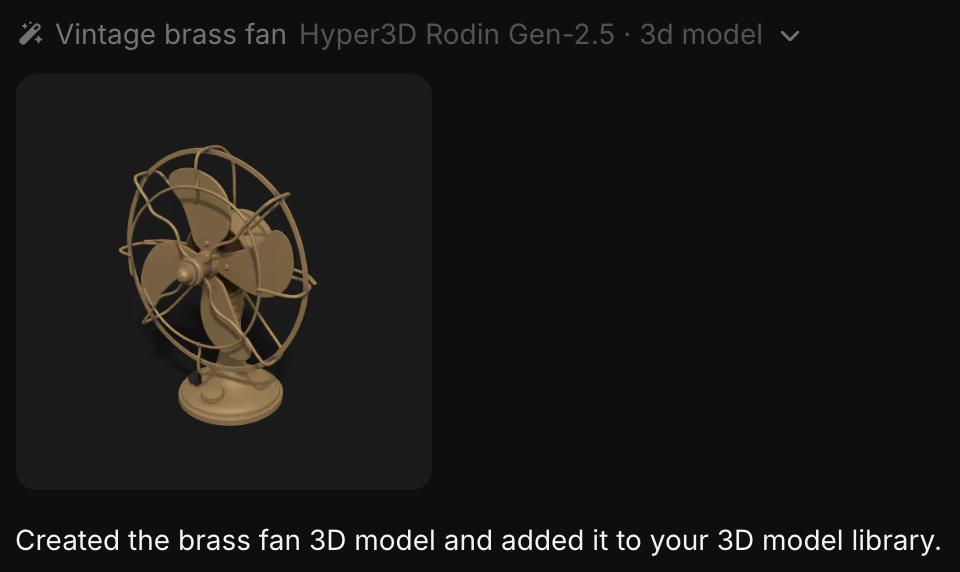
When it's done, the model appears as a card in the chat, with its name and the model that made it
For the most faithful shape:
- Use a photo of one object on a plain background, lit evenly
- Attach a few photos of the same object from different sides. Hyper3D Rodin Gen-2.5 and Meshy 7.1 take several views; the other models take one photo
- Use photos you have the rights to
Copilot can also make the photo first: "Make a product photo of a small ceramic teapot on a white background, then turn it into a 3D model."
A photo that shows only part of a person, such as a waist-up portrait, still gives a full-body model with Meshy 7.1. The parts the photo doesn't show are filled in, so check the legs and feet.
Turn a photo into separate objects
To rebuild several things from one photo, such as the furniture in a room, ask for each object as its own model:
"Turn each object in this photo into its own 3D model, laid out the way they sit in the photo."
Copilot finds up to five kinds of object in the photo and makes one model for each, plus one model of the whole arrangement. It uses SAM 3D Objects, which works from one photo. If you name something the photo doesn't show, Copilot tells you instead of making it.
Choose the model
Copilot picks the model for you unless you set one. To set one:
-
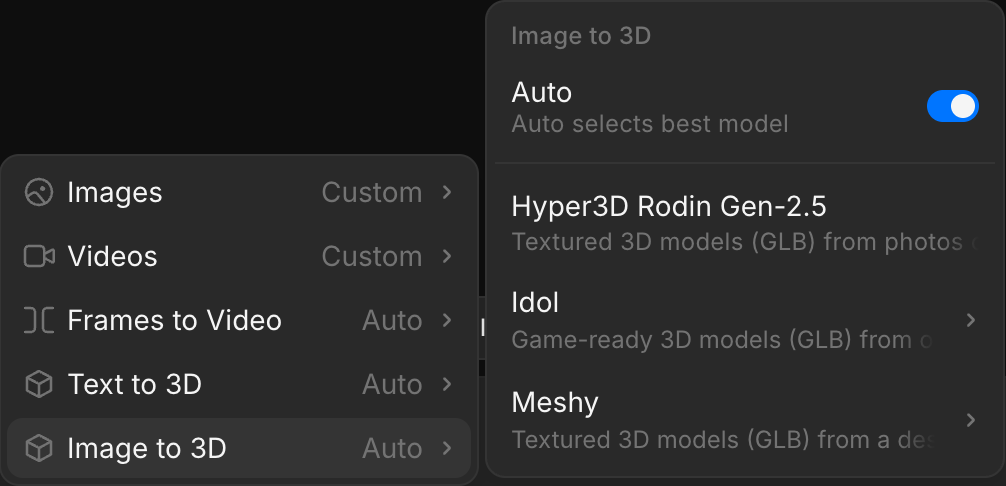
Click the model preferences button (the brain icon) in the prompt bar
-
Open 'Text to 3D' or 'Image to 3D'
-
Turn off 'Auto' and click a model. The row shows 'Custom' and the model you picked
'Text to 3D' is used when you give only a description, and 'Image to 3D' when you attach a photo. Rigging, retexturing and splitting a photo into objects don't use either setting.
| Model | Starts from | Good for |
|---|---|---|
| Meshy 7.1 | A description, or one to four photos | Detailed textured models, and full-body characters from a partial photo |
| Hyper3D Rodin Gen-2.5 | One to five photos | Faithful textured models of a photographed object |
| Meshy T2.5 | One photo | Light models with clean, separate parts |
| Idol Max | One photo | Game-ready models; characters come rigged with walk, run, jump and idle |
| Idol Max Turbo | One photo | A faster, lighter version of Idol Max |
| SAM 3D Objects | One photo | Several objects from one photo, kept where they stand |
Rig a character
A rigged model has a skeleton, so a 3D scene can play walking and running on it.
- Ask Copilot to rig a character from your library, or to rig the one it just made: "Rig it so it can walk"
- Copilot makes a rigged copy with idle, walking and running clips. The original stays in your library
Rigging is for person-shaped characters. Ask to rig an object, such as a boat or a chair, and Copilot offers to animate it along a path in a scene instead.
Idol Max and Idol Max Turbo make characters that come rigged already, with walk, run, jump and idle clips. To get one from a description, Copilot makes a reference image first.
Change a model's look
Ask Copilot to retexture a model in your library: "Retexture my teal ceramic teapot: matte charcoal glaze with a thin gold rim, keep the bamboo handle."
Copilot makes a new copy with the new materials and colors and the same shape, and keeps the original. Name the model as it appears in your library so Copilot finds it quickly. A retextured copy comes back without a rig, so ask Copilot to rig it again if it needs to walk.
Place a model in a 3D scene
- From the chat: click a suggestion under the result, such as 'Place it in a 3D scene', or ask for it. From a regular chat, Copilot makes a new scene
- In your own scene: open the scene, click 'Chat', and ask: "Put the old red iron mailbox from my library at the end of the walk." Copilot places it in that scene
- By hand: in a scene, click 'Add object', then 'My models', and click the model. See Build a set
Models land at their real-world size, so a teapot is small next to a person. Move, rotate and scale them like any object.
View and download a model
Click a model's card in the chat to open the viewer:
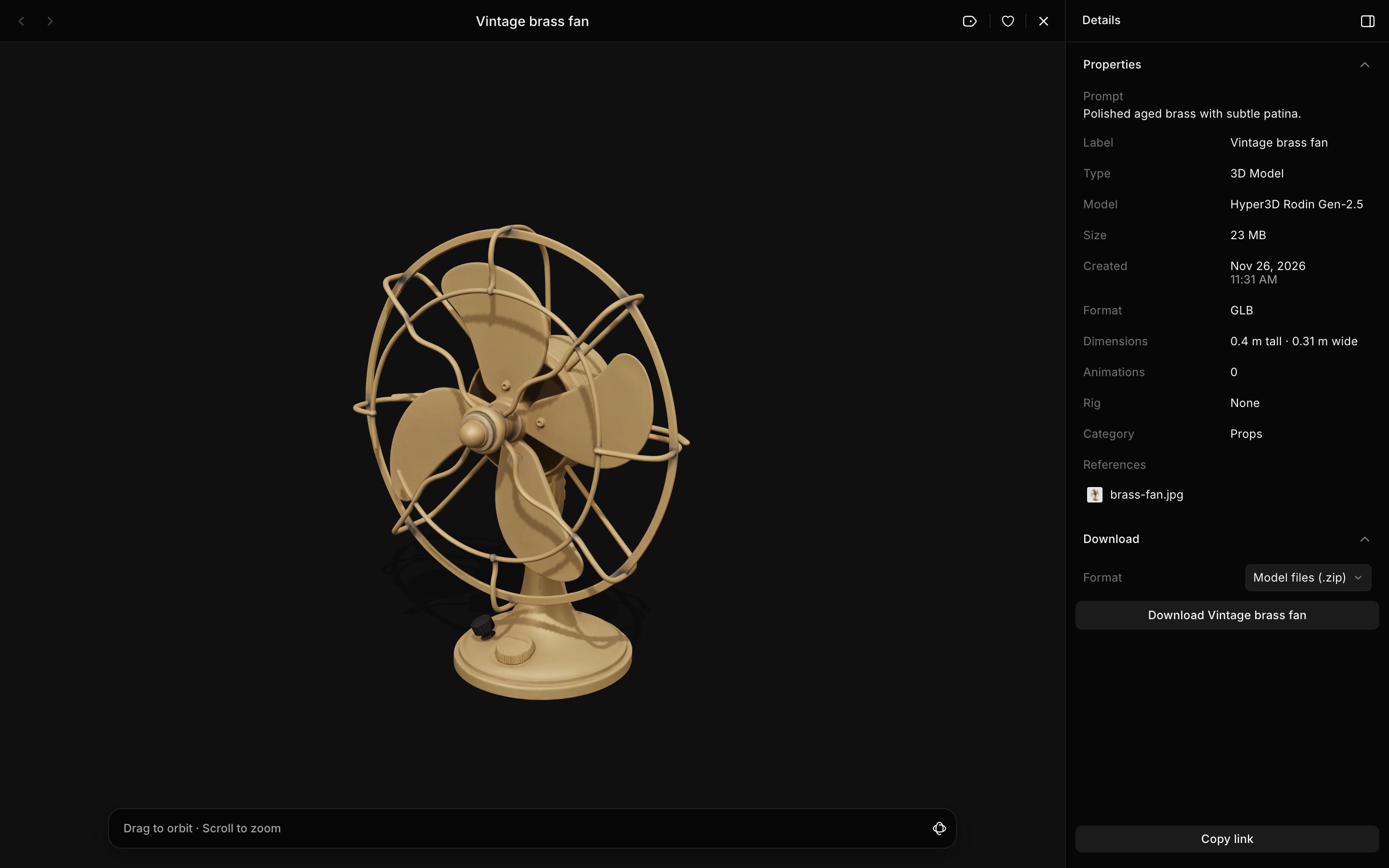
- Drag to orbit and scroll to zoom
- A rigged model shows a clip menu, such as 'Walk' or 'Idle', and a play bar
- 'Details' lists the model's size, dimensions, animations, rig and the photo it was made from
- Under 'Download', pick 'Model files (.zip)' or 'Model with Morphic settings (.zip)', then click the download button
Your models are kept in the 3D library: in any scene, click 'Add object', then 'My models'.
3D models go in 3D scenes, which open only on a computer. They can't be added to the Canvas.
Plans and credits
Every plan can make 3D models. Each model, rig and retexture uses credits at its model's rate, and Copilot's replies use credits like any chat. Each model's price is under 3D models on Plans & Credits.
Before a chat's first costly generation, Copilot names the models that fit with their cost and asks you to pick, unless you set one in the prompt bar. A description alone starts right away, since only Meshy 7.1 works from text.
A model that fails isn't charged. Once a model has started, stopping the chat doesn't cancel it: it still finishes and is charged.
Troubleshooting
Card shows a cube instead of a picture
The preview image can arrive after the model. Reload the chat to see it.
Copilot won't rig a model
Rigging works on person-shaped characters only. Ask Copilot to move it along a path in a scene instead, or make a character model and rig that.
Copilot made a new scene instead of using mine
Copilot can only reach the scene you're in. Open your scene, click 'Chat', and ask there.
Can't add a 3D model to the Canvas
3D models can't go on the Canvas. Place them in a 3D scene instead.
Copilot can't find a model in my library
Use the model's name as it appears under 'My models'. A chat card's title can differ from the saved name, which Copilot gives in its reply.
That's how you make 3D models with Copilot on Morphic. Reach for it when a scene needs a prop or character the library doesn't have, or when you want a model of a real product to block a shot around.
If you have any trouble or have any questions, feel free to reach out. We're happy to help. Write to us at support@morphic.com.