Settings
Where to manage your organization, your billing, and your own account, with a link to every screen.
Settings is where you manage your organization, your billing and credits, and your own account. It comes in two panels. Organization settings holds your organization screens, listed under your organization's name, and the 'Billing & usage' screens below them. Profile settings holds the screens that are yours alone. Switch between the two with the link at the bottom of the left sidebar: 'Go to Profile settings' and 'Go to Organization settings'.
Navigate to Settings
Go straight to Settings anytime at studio.morphic.com/settings/general, or open it from wherever you are.
From Canvas
- After logging in, you land on the Dashboard. Opening a file takes you into Canvas.
- To open Settings from Canvas, click the Morphic logo in the top-left corner. This will open the org/account dropdown.
- In the dropdown menu, select Settings.
Navigate to Dashboard from Canvas
- From the same dropdown (opened by clicking the Morphic logo), select Back to home.
- This will take you to the Dashboard view, where you can see all your project files.
From Dashboard
- In the Dashboard view, click on the organization logo in the top-left corner.
- In the dropdown menu, select Settings.
Every settings screen
Each screen has its own link, so you can go straight there or share it with a teammate.
| Section | Screen | What it is for | Direct link |
|---|---|---|---|
| Organization | General | Your organization name and general details | Open |
| Organization | Members | Invite teammates, set roles, remove members | Open |
| Organization | Groups | Organize members and manage their permissions | Open |
| Organization | Plans | Compare plans, upgrade, or change your plan | Open |
| Organization | Model access | Choose which models your organization can use | Open |
| Organization | Connectors | Connect the tools your organization works in | Open |
| Organization | MCP | Connect AI assistants to Morphic, and turn access on or off | Open |
| Billing & usage | Plan details | Your active plan, payment method, and cancellation | Open |
| Billing & usage | Credit purchases | Your credit balances, buying credits, and expiry dates | Open |
| Billing & usage | Credit usage | See where your credits went, day by day and entry by entry | Open |
| Billing & usage | Credit limits | Cap how many credits each member can spend | Open |
| Billing & usage | Invoices | Your invoice history | Open |
| Account | Profile | Your name, email, profile picture, and account deletion | Open |
| Account | Preferences | Your default chat mode and browser notifications | Open |
| Account | Security | Your sign-in and security options | Open |
Groups
Groups let you organize members and manage their permissions together instead of one by one. Open Groups and click New group to create one. Group permissions are enforced on Enterprise plans, so on any other plan New group opens a prompt to upgrade.
Connectors
Connectors link the tools your organization already works in: a Google Drive to save files from Morphic into, and an ElevenLabs account to use its voices. See Connectors.
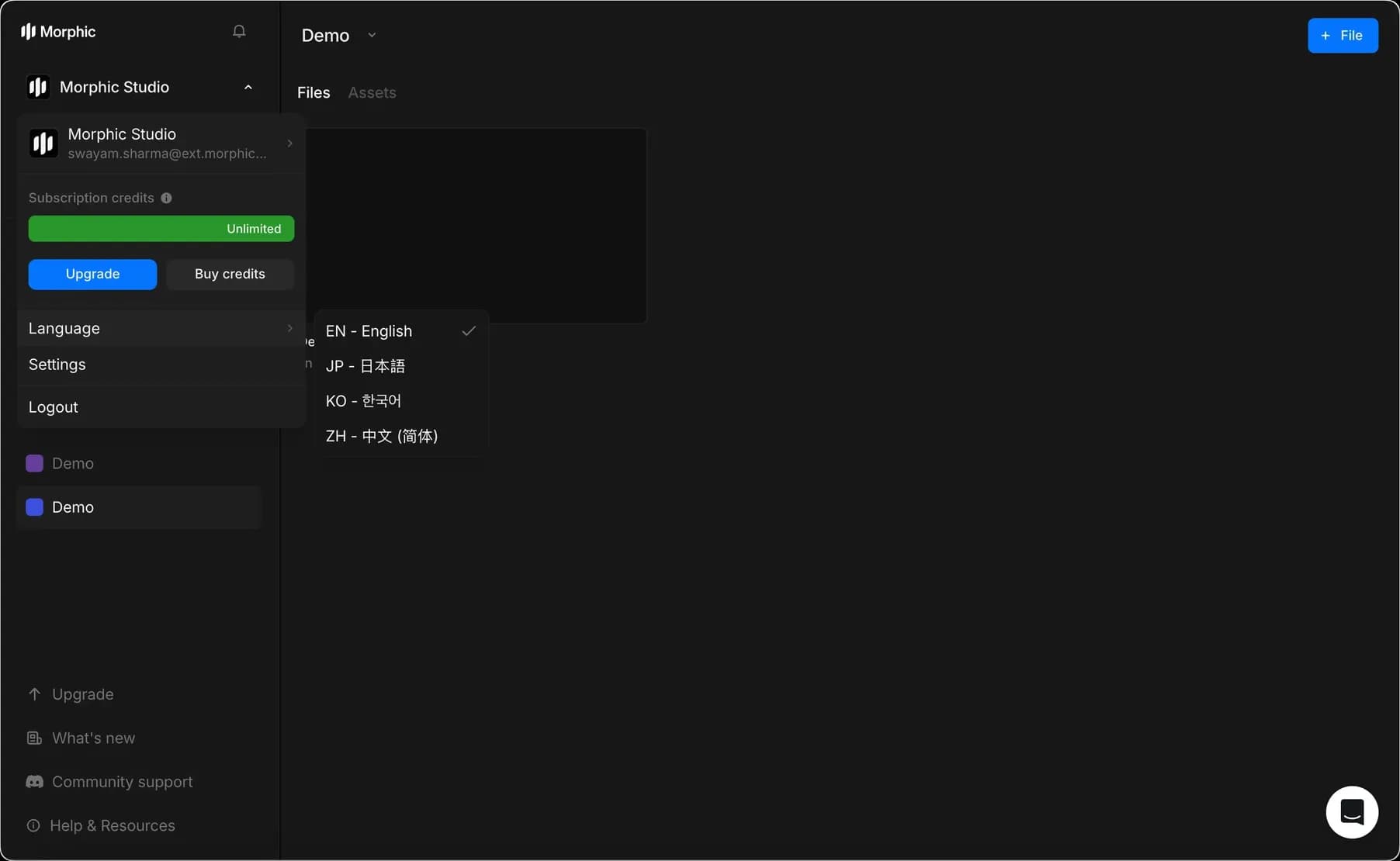
Change language
You can change the interface language in Morphic from either the Canvas or the Dashboard.
Morphic currently supports the following interface languages:
- EN – English
- DE – Deutsch (German)
- FR – Français (French)
- JP – 日本語 (Japanese)
- KO – 한국어 (Korean)
- ZH – 中文 (简体) (Simplified Chinese)
- ES – Español (Spanish)
- PT-BR – Português (Brasil) (Brazilian Portuguese)
- ID – Bahasa Indonesia (Indonesian)
From Canvas
- In the Canvas view, click the Morphic logo in the top-left corner. It will open the org/account dropdown.
- In the dropdown menu, click Language.
- Select your preferred language from the list.
- The interface will switch immediately to the selected language.
From Dashboard
- In the Dashboard view, click the organization logo in the top-left corner. It will open the org/account dropdown.
- In the dropdown menu, click Language.
- Select your preferred language from the list.
- The interface will switch immediately to the selected language.
That's how you find your way around Settings on Morphic. Every screen has its own link, so you can go straight to the one you need or send it to a teammate.
If you have any trouble or have any questions, feel free to reach out. We're happy to help. Write to us at support@morphic.com.