Groups
How Groups work on Morphic. The Default Group sets what everyone can do, and groups give chosen people more permissions or Copilot models.
Groups on Morphic let admins decide what each member can do, such as creating and deleting workflows or deleting files, projects and chats, and which Copilot models they can use. It works in two layers. The Default Group holds everyone and sets the baseline. Groups you create give chosen people more on top of it.
Groups are available on Enterprise plans. On other plans, admins can open the Groups page, but creating or editing a group opens 'Upgrade to Enterprise', and every member keeps every permission.
Here's a quick tutorial on how to use Groups on Morphic:
When to use Groups
- Keep deleting files, projects and workflows to a few trusted people.
- Let the whole team run your workflows while a few people create and edit them.
- Give one team a Copilot model that is switched off for everyone else.
How Groups work
| Default Group | Groups you create | |
|---|---|---|
| Who is in it | Every member of the organization, always | The members you add |
| What it sets | The baseline for everyone | Extra permissions and Copilot models on top |
| Starts with | Every permission on | Nothing ticked |
| You can change | Its permissions | Name, description, permissions, Copilot models, members |
| You cannot | Rename it, delete it or choose its members | Use the name 'Default Group' |
- A member can be in several groups.
- A member can do something if the Default Group or any of their groups allows it. A group adds permissions; it never takes one away.
- To restrict something, turn it off in the Default Group, then turn it back on in a group for the people who need it.
- Admins always have every permission below, so an admin can never be locked out.
Permissions
| Permission | What it allows |
|---|---|
| Create workflows | Create a new workflow, including through Copilot |
| View workflows | See and open the organization's workflows and their versions |
| Edit workflows | Rename a workflow, publish a version, restore an old version |
| Delete workflows | Delete a workflow and all of its versions |
| Delete files | Delete a file from a project |
| Delete projects | Delete a project and every file in it |
| Delete chats | Delete a Copilot chat |
- Each permission stands on its own. Creating a workflow does not let someone delete it later; that takes 'Delete workflows'.
- With 'View workflows' off, a member does not see the organization's workflows at all.
What Groups control
| To set | Go to |
|---|---|
| The actions above, per group | Groups |
| Which Copilot models a group can use | Groups |
| Image, video and audio models, for everyone | Model access |
| What someone can spend | Member credit limits |
| Whether someone is an admin | Members |
Open Groups
- Click the Morphic logo in the top-left corner and select Settings.
- Under your organization's name in the left sidebar, click 'Groups'.
Or go straight there: studio.morphic.com/settings/access
- The Groups tab is visible to admins only.
- The Default Group is always at the top of the list, marked 'Default'.
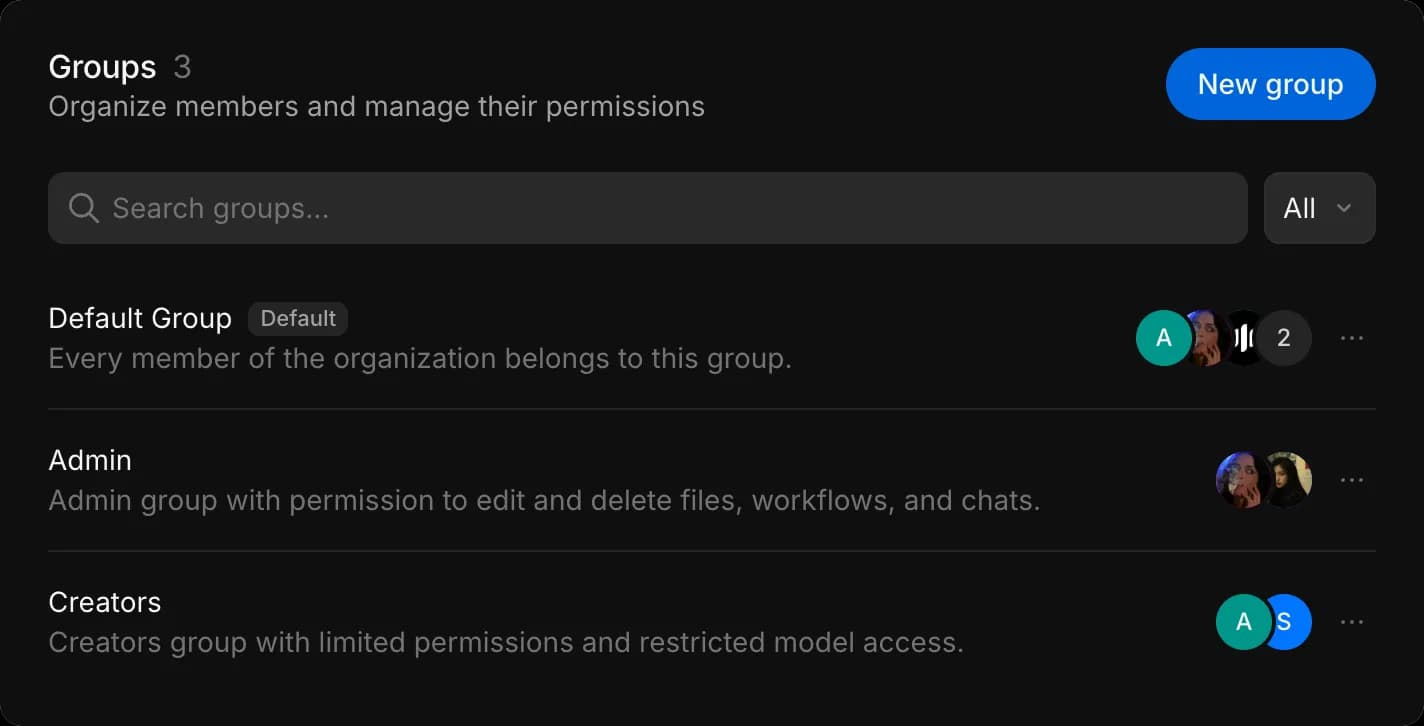
Set up groups in this order:
- Set the Default Group: narrow what everyone can do.
- Switch models off in Model access: turn off models only some people should use.
- Create a group: give access back to the people who need it.
Set the Default Group
- On the Default Group, open the '…' menu and click 'Edit'.
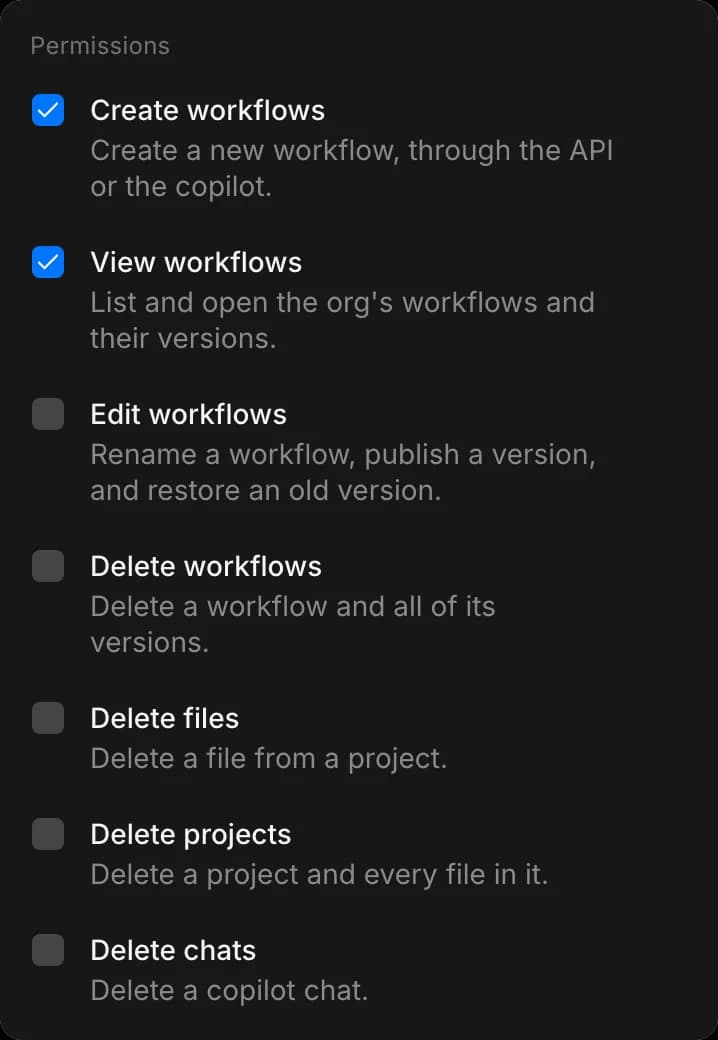
- Under 'Permissions', clear what most people should not do, such as 'Edit workflows', 'Delete workflows', 'Delete files' and 'Delete projects'.
- Click 'Save'. These actions are now off for every member who is not an admin.
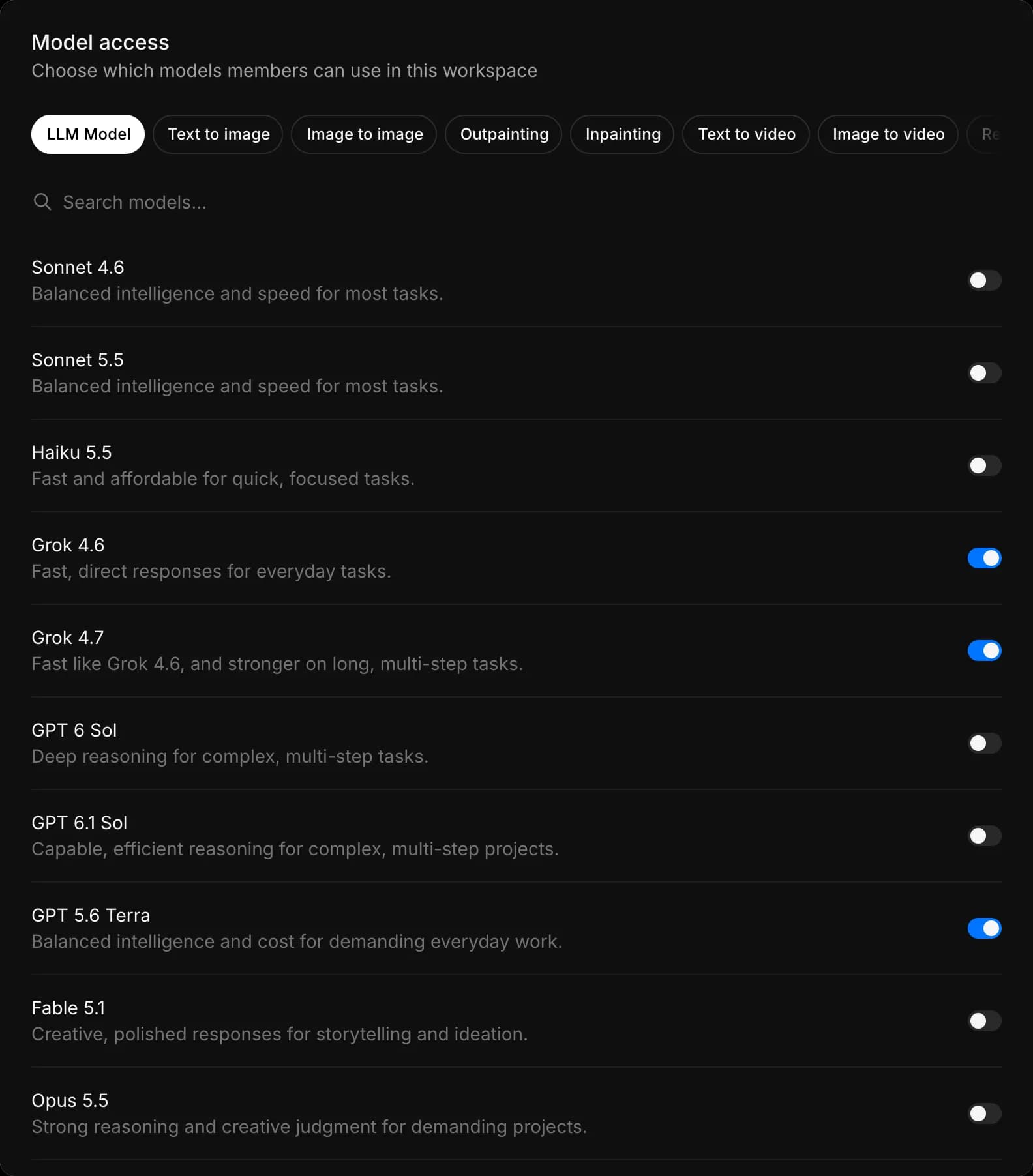
Switch models off in Model access
- Open Model access. The 'LLM Model' tab opens first.
- Turn off the Copilot models that only some people should use.
- They are now off for everyone, admins included.
- An admin who still needs one adds themselves to a group that has it.
Create a group
- Back in Groups, click 'New group'.
- Enter a 'Name', such as 'Creators' or 'Workflow owners', and an optional 'Description'. 'Create' stays grey until the group has a name.
- Under 'Permissions', tick what this group can do on top of the Default Group.
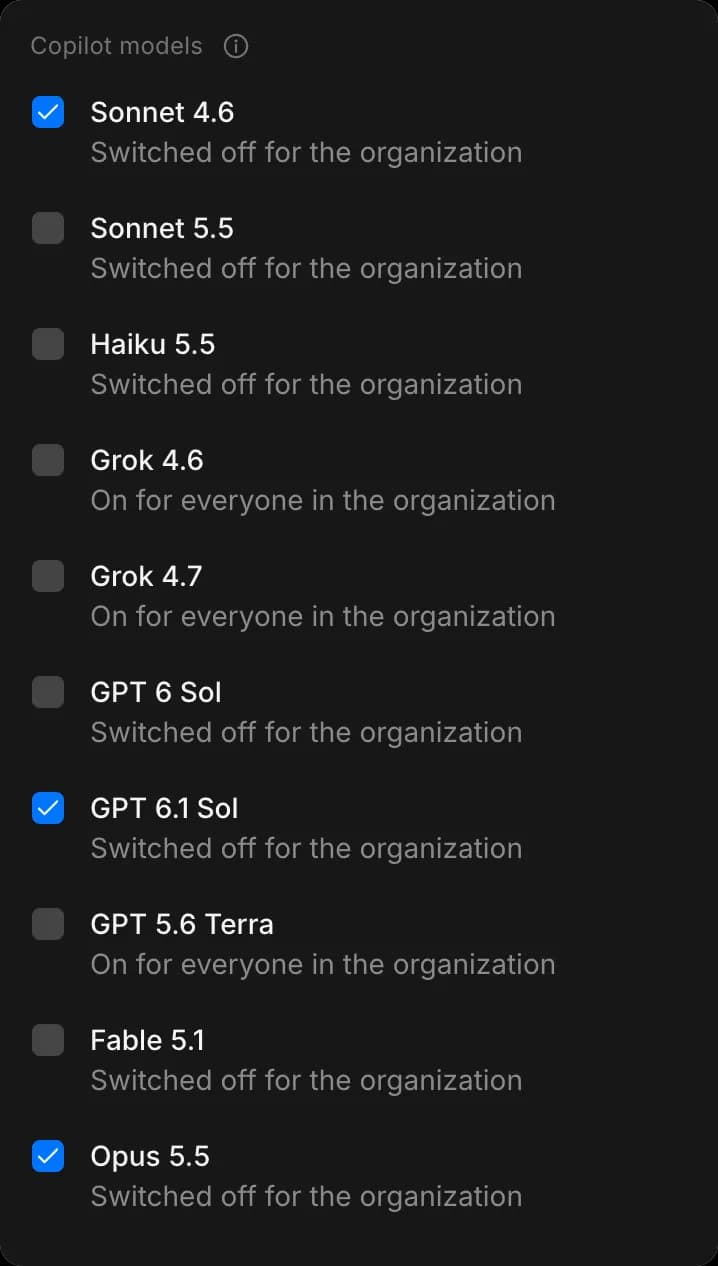
- Under 'Copilot models', tick the models this group can use. Only the ones marked 'Switched off for the organization' need a tick; the ones marked 'On for everyone in the organization' are already available.
- Open the 'Members' tab, click 'Add members', tick the people and click 'Add'.
- Click 'Create'. 'Group saved.' appears and the group joins the list.
- Each group needs its own name.
- Only the group's members see its ticked models in the Copilot model picker.
- 'Copilot models' does not appear on the Default Group, because a model for everyone is set in Model access.
Manage groups
| To | Do this |
|---|---|
| Change a group's permissions, models or members | Open its '…' menu and click 'Edit' |
| See one person's access | Pick them in the 'All' menu beside 'Search groups...'. The list shows only their groups, or says they are only in the Default Group |
| Remove a group | Open its '…' menu and click 'Delete'. This is permanent; its members keep the Default Group's permissions and those of any other group they are in |
When someone leaves your organization, they are taken out of every group.
How access is decided
Three layers decide what a member can do, in this order:
| Layer | What it decides | Where it is set |
|---|---|---|
| Plan | Which features and models your organization has at all | Plans |
| Role | Admin or Member. Admins manage settings, billing and groups | Members |
| Groups | What each member can do, and which extra Copilot models they can use | Groups |
- Groups do not sit inside one another; they are all side by side under the organization.
- Permissions apply across the whole organization. 'Delete files' covers files in every project; there is no setting for one project only.
- A group's name gives no extra rights. A group called 'Admin' does not make its members organization admins; roles are set in Members.
- For models, each layer narrows the one above it: your plan sets which models exist, Model access sets which ones your organization uses, and a group can switch a Copilot model back on for its members.
- A group never adds a model your plan does not include.
"You do not have permission to do this"
- A member sees this message, with the name of the permission, when they try something none of their groups allow. It asks them to contact an admin.
- Copilot gives the same answer when asked to do it.
- To fix it, add the member to a group with that permission, or turn it on in the Default Group.
That's how you use Groups on Morphic. Use them when most of your team should work with a set of everyday actions and a few people need more.
If you have any trouble or have any questions, feel free to reach out. We're happy to help. Write to us at support@morphic.com.