الفوترة والاستخدام
تتيح لك علامة التبويب الفوترة إدارة خطتك، وعرض وتغيير تفاصيل الدفع، والتحقق من سجل الفواتير، والحصول على نظرة عامة على خطتك وتفاصيل التجديد.
الفوترة والاستخدام هي المكان الذي تدير فيه كل ما يتعلق باشتراكك. من هنا، يمكنك عرض خطتك أو ترقيتها، وإلغاء اشتراكك، وتحديث طريقة الدفع، وشراء الرصيد، وتتبع استخدام الرصيد، وتعيين حدود الرصيد للأعضاء، وتنزيل الفواتير.
الوصول إلى الفوترة والاستخدام
- في عرض لوحة التحكم، انقر على شعار المؤسسة في الزاوية العلوية اليسرى.
- من القائمة المنسدلة، اختر الإعدادات.
- في الشريط الجانبي الأيسر، ابحث تحت 'الفوترة والاستخدام'.
'الفوترة والاستخدام' تضم خمس شاشات، لكل منها رابطها الخاص:
| الشاشة | ما الذي يتضمنه |
|---|---|
| تفاصيل الخطة | خطتك النشطة، وطريقة الدفع، والإلغاء |
| شراء الاعتمادات | أرصدة الاعتمادات لديك، وشراء الاعتمادات، وتواريخ الانتهاء |
| استخدام الاعتمادات | أين ذهب رصيدك، يومًا بيوم وبندًا ببند |
| حدود الرصيد | الحدود القصوى لعدد الأرصدة التي يمكن لكل عضو إنفاقها |
| الفواتير | سجل فواتيرك |
الخطة الحالية
افتح تفاصيل الخطة.
- يعرض قسم الخطة الخطة التي أنت عليها، وتكلفتها، وتاريخ تجديدها.
- للانتقال إلى خطة أعلى، انقر على ترقية.
إدارة طريقة الدفع
- افتح تفاصيل الخطة.
- ضمن طرق الدفع، أضف بطاقة أو Link أو Amazon Pay. يمكن استخدام أي طريقة محفوظة للدفع عند الترقية.
- يفتح Amazon Pay موقع Amazon لتأكيد الدفع، ثم يعيدك إلى Morphic.
- ضمن تفاصيل الفوترة، انقر على تعديل لتعيين البريد الإلكتروني وعنوان الفوترة المستخدمين في الفواتير والإيصالات.
إلغاء الخطة
- افتح تفاصيل الخطة.
- انقر على إلغاء الاشتراك بجانب خطتك واتبع الخطوات.
الأعضاء
- قسم الأعضاء في تفاصيل الخطة يُظهر عدد الأعضاء الإضافيين الذين تدفع مقابلهم.
- انقر على إدارة الأعضاء لدعوة أشخاص أو تغيير أدوارهم.
شراء الرصيد
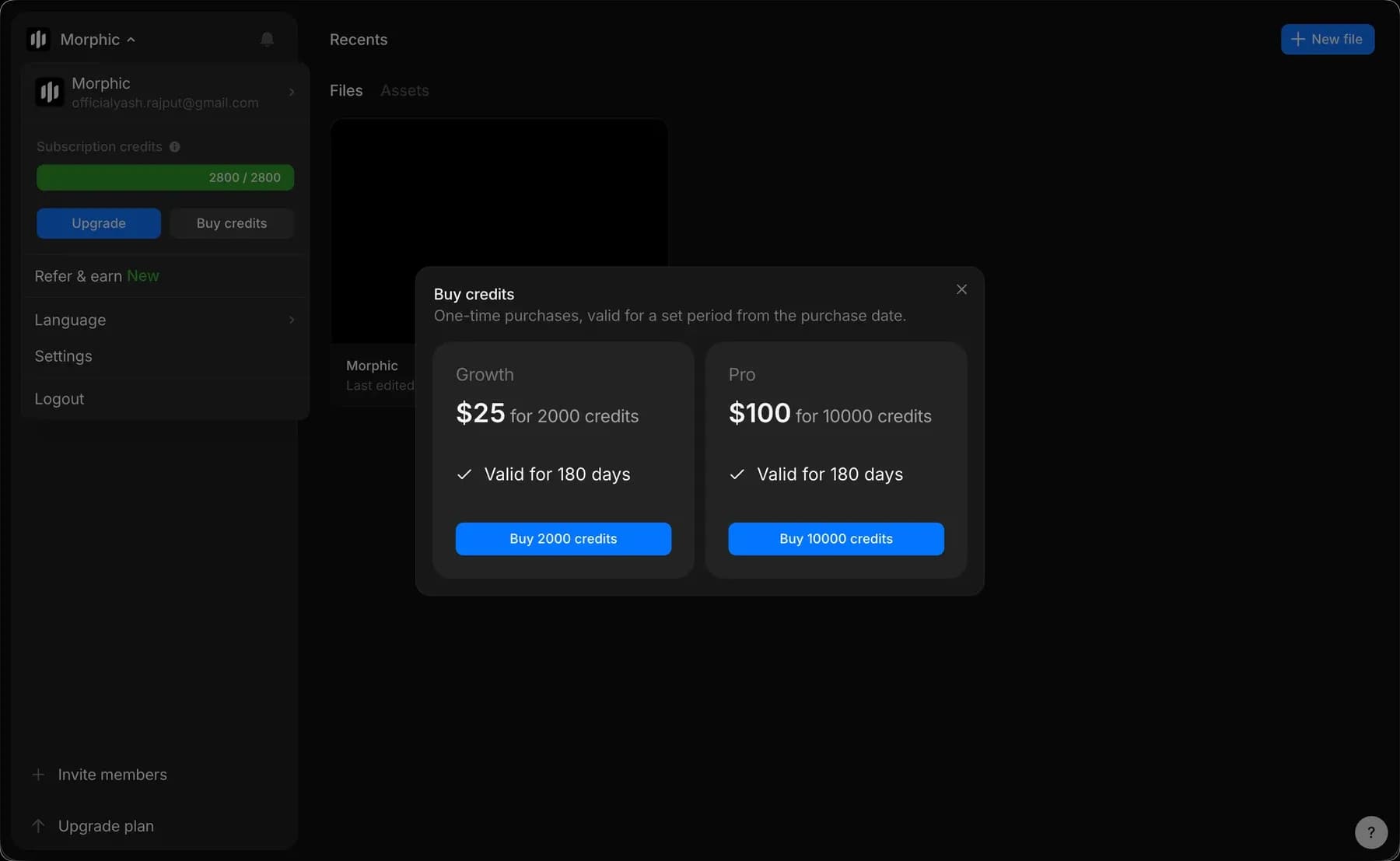
يمكنك شراء الرصيد في أي وقت من شراء الاعتمادات، أو من القائمة المنسدلة للمنظمة/الحساب (انقر على شعار Morphic في الزاوية العلوية اليسرى).
- افتح القائمة المنسدلة للمنظمة/الحساب.
- انقر على شراء الرصيد.
- ستظهر نافذة منبثقة تحتوي على الخطط المتاحة.
- انقر على شراء تحت الخطة المفضلة لديك لإتمام عملية الشراء.
شراء الاعتمادات يعرض أيضًا ما تبقى لديك، مقسّمًا إلى رصيدين:
- تأتي أرصدة الاشتراك مع خطتك. تُعاد ضبطها كل شهر، سواء كانت الفوترة شهرية أو سنوية، وتنتهي صلاحية غير المستخدمة منها بدلًا من ترحيلها.
- أرصدة الإضافة هي عمليات شراء لمرة واحدة. يكون كل منها صالحًا لفترة محددة من تاريخ شرائه، وتعرض القائمة أدناه كل عملية تعبئة إضافية مع الرصيد الذي أضافته وتاريخ انتهاء صلاحيتها.
سجل الفواتير
افتح الفواتير.
- يعرض كل صف رقم الفاتورة وتاريخها والمبلغ وما إذا كانت مدفوعة.
- انقر على أيقونة التنزيل في نهاية الصف لحفظ نسخة.
- ستظهر هنا المشتريات مثل ترقيات الخطة أو عمليات تعبئة الرصيد.
استخدام الاعتمادات
استخدام الرصيد هو المكان الذي ترى فيه أين ذهب رصيدك. افتح استخدام الاعتمادات، أو انقر على شعار Morphic في الزاوية العلوية اليسرى واختر 'الفوترة والاستخدام'.
يحتوي على علامتي تبويب: نظرة عامة للاتجاه، وسجل الاستخدام للبنود الفردية.
نظرة عامة
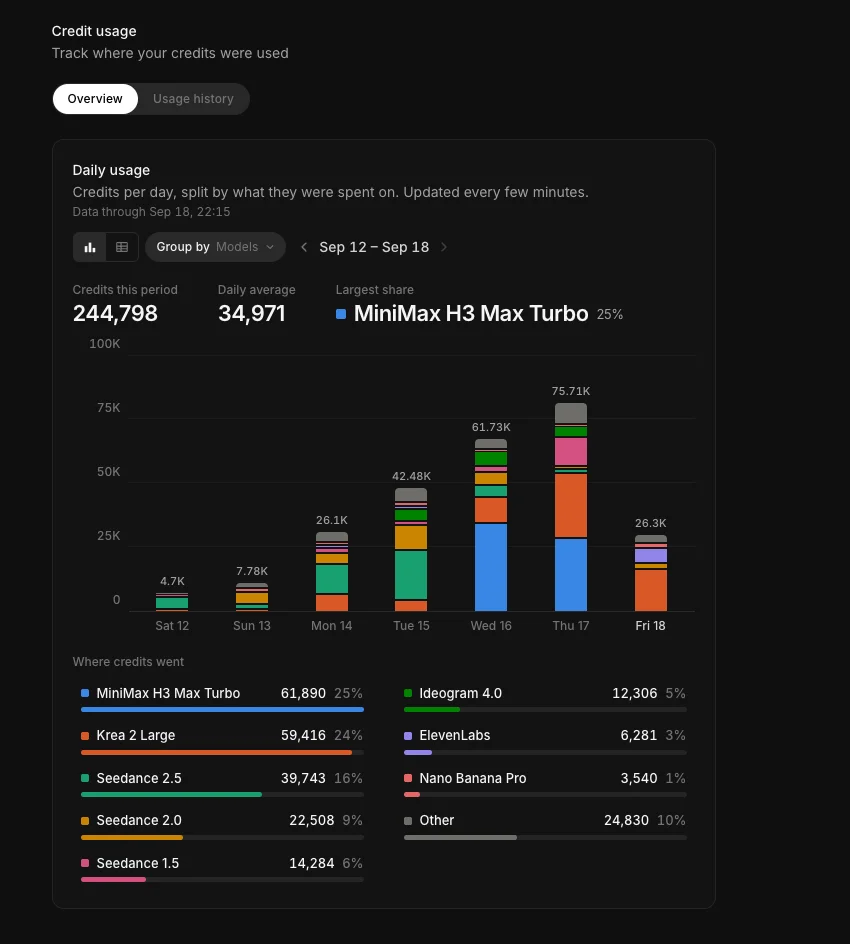
يُظهر الاستخدام اليومي الرصيد لكل يوم، مقسّمًا حسب ما أُنفق عليه. تُحدَّث الأرقام كل بضع دقائق، ويخبرك سطر 'البيانات حتى' أسفل العنوان بمدى حداثتها.
- اضبط 'التجميع حسب' على النماذج أو المشاريع أو الملفات أو الأعضاء أو الدردشات. يتبع التقسيم والألوان والتفصيل أدناه هذا الاختيار.
- بدّل بين عرض المخطط وعرض القائمة باستخدام الأيقونتين على اليسار. يعرض عرض المخطط كل يوم على شكل شريط. أما عرض القائمة فهو جدول يحتوي على صف واحد لكل مجموعة وعمود واحد لكل يوم، بالإضافة إلى عمودي الإجمالي والنسبة، وصف 'كل المجموعات'.
- استخدم السهمين بجانب نطاق التاريخ للانتقال أسبوعًا إلى الخلف أو الأمام.
- الرصيد في هذه الفترة، ومتوسط الاستخدام اليومي، وأكبر حصة تظهر فوق المخطط.
- 'أين ذهب الرصيد' يرتّب المجموعات لذلك الأسبوع، ولكل منها رصيدها وحصتها من الإجمالي. وتُجمع الأصغر منها في 'أخرى'.
سجل الاستخدام
سجل الاستخدام هو السجل بندًا ببند، وهو المكان الذي يوجد فيه التصدير.
- يعرض كل بند التاريخ والوقت، والعضو، والأصل، والرصيد المستخدم، والحالة.
- قم بالتصفية حسب التاريخ (اليوم، أمس، هذا الأسبوع، هذا الشهر، آخر 3 أشهر، أو نطاق مخصص)، أو الأعضاء، أو الحالة، أو المشاريع.
- بدّل بين عروض الكل، أو حسب المشروع، أو حسب الملف، أو حسب العضو.
- يظهر الإجمالي لأي شيء قمت بتصفية النتائج وفقًا له أعلى الجدول، ويقع حجم الصفحة والتنقل بين الصفحات أسفله.
- انقر على تنزيل CSV لتصدير ما تعرضه.
هكذا تدير الفوترة والاستخدام في Morphic. فهو يضع خطتك ورصيدك وسجلًا لأين ذهب هذا الرصيد في مكان واحد.
إذا واجهت أي مشكلة أو كانت لديك أي أسئلة، فلا تتردد في التواصل معنا. يسعدنا مساعدتك. اكتب لنا على support@morphic.com.