Dubbing
How to dub an audio or video recording into another language on Morphic, in the original speakers' voices, from the prompt bar or with Copilot.
Dubbing on Morphic translates an audio or video recording into another language and speaks it back in each original speaker's own voice. Morphic transcribes the speech, translates it, and re-voices it with the speakers' delivery and timing, so the dub lines up with the original.
The result is always a new audio file, even when you start from a video. To get a dubbed video, put that audio back over the picture, then run Lip Sync if the speaker's mouth is on screen.
When to use it
- Release a finished episode, ad or course in another market without generating it again
- Keep a recognizable voice, such as a host or a recurring character, across languages
- Make one version per market from the same master
For a new read in a different voice, use Speech. For another voice in the same language, use Speech to speech. For translated captions instead of new audio, use Transcription.
Dub from the prompt bar
-
Open a file on Morphic
-
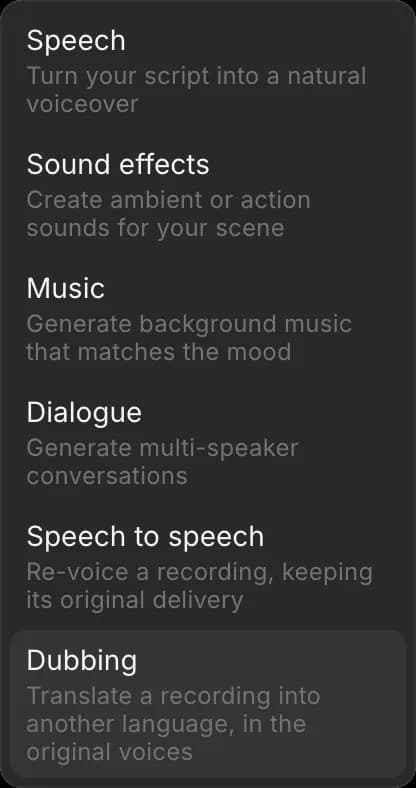
In the prompt bar at the bottom, open the mode picker and choose 'Audio', then 'Dubbing'
-
Add one audio or video file under 'References': upload it, or pick it from your Canvas or Assets
-
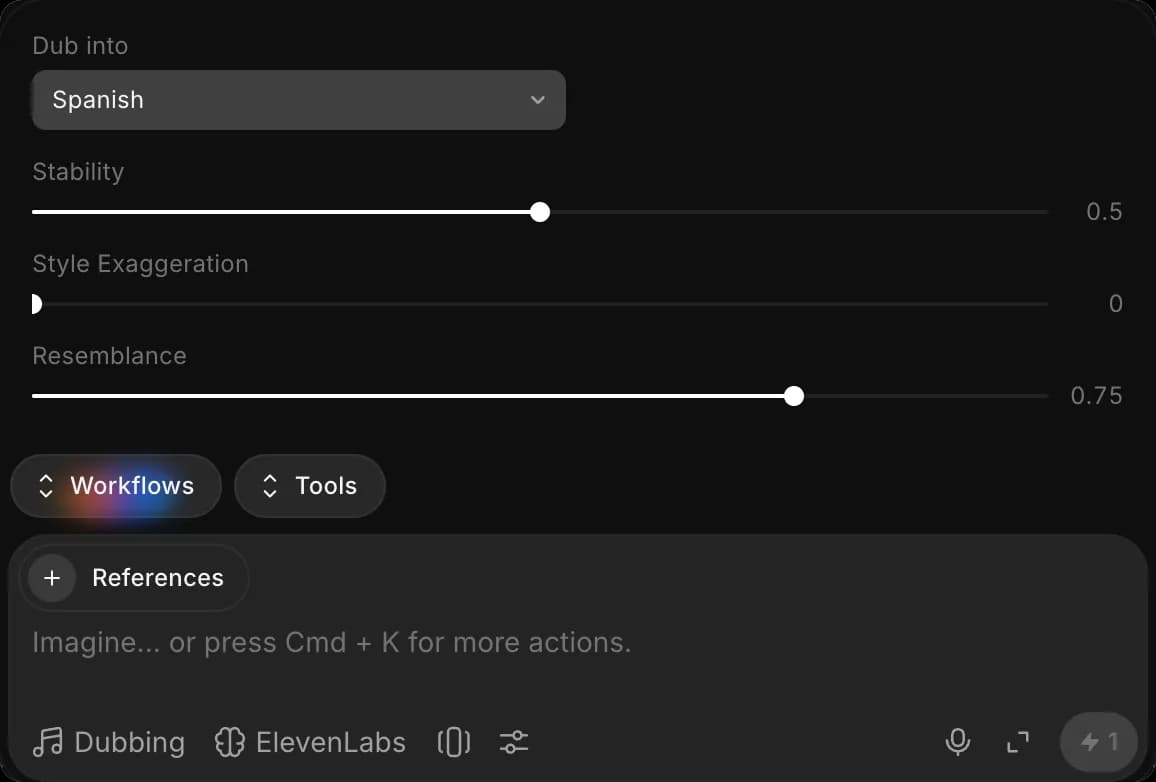
Click the Preferences icon in the prompt bar, then choose a language under 'Dub into'. The list is searchable and includes regional versions, such as 'American English' and 'Arabic (Egypt)'
-
(Optional) Adjust the voice settings in the same panel (see below)
-
Click the blue button in the prompt bar. It shows the credit cost, worked out from the length of your recording
The dub lands on your Canvas as an audio file, the same length as the source.
Voice settings
| Setting | What it changes | Default |
|---|---|---|
| Stability | Lower gives a more varied, expressive read; higher gives a steadier one | 0.5 |
| Style Exaggeration | Pushes the speaker's style further; 0 keeps it as recorded | 0 |
| Resemblance | How closely the new voice keeps to the original speaker | 0.75 |
The defaults suit most recordings. Change one setting at a time if a take comes back wrong.
Dub with Copilot
- Open Copilot
- Attach the recording with the paperclip
- Ask for the dub and name the language, for example "Dub this into Spanish"
What you can add to the same request:
- Several languages: "Dub this into Spanish, French and German" runs one dub per language, side by side
- The source language: name it when the recording is noisy or mixes languages. Otherwise it is detected
- Names and terms: list character names, places or product terms that must not be translated, for example "Keep the names Mira and Halden as they are". Without them, names can come out translated literally
- A dubbed video: ask Copilot to put the dub back on the video, then to lip sync it if you need the mouth to match
Limits
| Item | Limit |
|---|---|
| Files | One audio or video file per dub |
| Length | Up to 30 minutes of source |
| Languages | One target language per dub. Five languages are five dubs |
| Output | An audio file, the length of the source |
What it costs
Dubbing is charged on the length of the source recording, so a 2-minute clip costs the same in every language. Each language is charged separately. The cost shows on the blue button before you run it, and current rates are on Plans & Credits.
The whole file is charged, so to test voices and names, trim a 20-second sample and dub that first.
Troubleshooting
Copilot asks which language
Name the target language in the request. Copilot never guesses it from the language of the chat.
The dub is a sound file, not a video
That is expected. Dubbing always returns audio. Ask Copilot to put it back on the video, or line it up with the clip in Compose.
A name was translated
Run it again and list the names and terms to keep. On the prompt bar there is no field for terms, so use Copilot for recordings with names that matter.
That's how you use Dubbing on Morphic. Reach for it when a finished recording needs to reach another language in the same voices.
If you have any trouble or have any questions, feel free to reach out. We're happy to help. Write to us at support@morphic.com.