Chat with Copilot
Ask Copilot to change your Blender scene in plain language, read every script before it runs, undo it in one step, and pick up the chat in Studio.
The 'Chat' tab puts Copilot next to your scene. Describe what you want ("warmer light", "put the camera at eye level", "scatter ten rocks around the tree"), and Copilot reads the scene, writes a Python script for the change and shows it to you. Nothing changes until you click 'Apply'.
Ask Copilot
- Press N in the 3D viewport and click the 'Morphic' tab, then 'Chat'
- Type in the 'Ask Morphic about this scene' box and press Enter, or click the arrow beside it
- While Copilot works, the chat shows each step it takes and 'Morphic is working…'. Click 'Stop' to end the turn
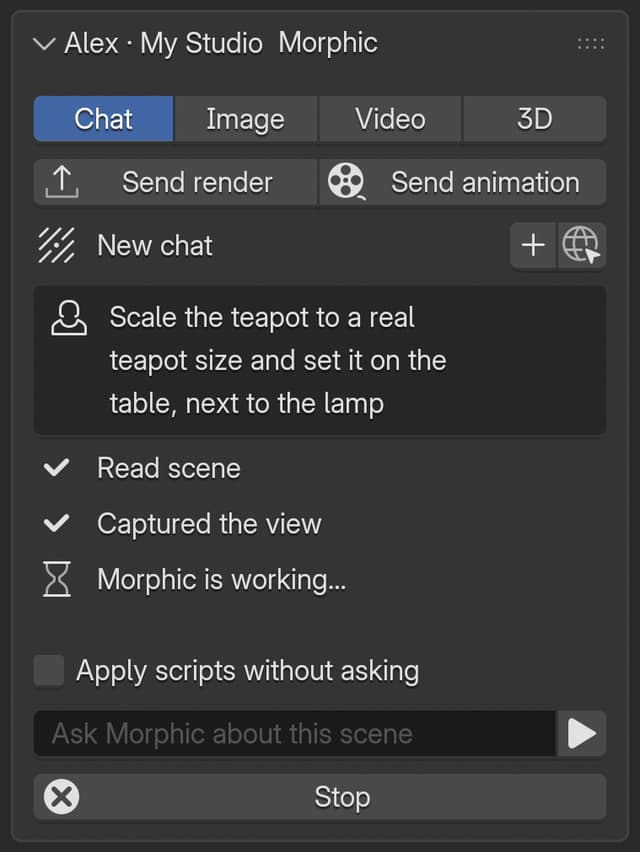
Copilot sees the open .blend: which objects there are, their transforms, dimensions, materials, modifiers and collections, the active camera, the frame range and the render size. It also knows which objects you have selected when you send a message, so "make these taller" works on your selection. When the look matters, it can take a picture of the viewport or the camera view to check its work.
| Step in the chat | What happened |
|---|---|
| Read scene | Copilot read the scene's objects and settings. Nothing changed |
| Captured the view | Copilot took a picture of the viewport or the camera view and uploaded it to your Morphic files |
| Ran script | A script you approved ran on the scene |
Approve a script
Every script Copilot wants to run appears as a card: one line saying what it does, then the whole script, then 'Apply' and 'Skip'.
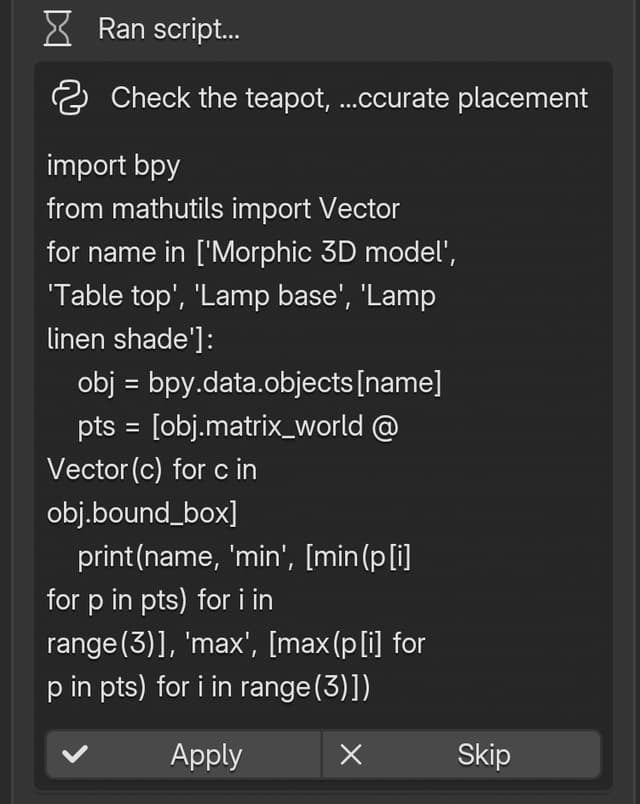
- 'Apply' runs the script exactly as shown. The card then reads 'Applied', and Copilot reads the result and carries on
- 'Skip' runs nothing. The card reads 'Skipped' and Copilot asks what to do instead
A script runs as one undo step. Press Ctrl+Z (Cmd+Z on macOS) once to undo everything it changed, and Ctrl+Shift+Z (Cmd+Shift+Z) to bring it back.
Blender's Python can read and write files on your computer, so treat a script like any other you download. Read the card before you click 'Apply', and save your .blend first when you are trying something big.
Apply scripts without asking
Turn on 'Apply scripts without asking' above the message box to let Copilot run its scripts without a card. It is off each time Blender starts.
Even with it on, a script still asks for approval when it reaches past the scene: one that opens, saves, imports or exports files, loads other Python modules, or touches Blender's add-on and preference settings. That check is a safety net, not a guarantee, so turn the setting on only in chats you trust, for example when you are blocking out a scene from your own prompts.
Write good requests
- Say the result, not the steps. "Light this like a moody night interior" works better than a list of light settings. Copilot picks the settings and you can adjust them afterwards
- Name or select what to change. "the chair on the left", "the selected objects" or "everything in the Props collection"
- Give numbers when they matter. "a 35mm lens", "frames 1 to 120", "2 m to the left of the table"
- Ask first, then change. "What's in this scene?" or "Why is the render so dark?" only reads; follow up with the change
- Build in steps. Keep going in the same chat: Copilot remembers what it already did, so "now make it a bit softer" works
See Examples for prompts to start from.
Chats, history and Studio
- Click '+' beside the chat title to start a new chat. Copilot starts fresh, and your earlier chats stay in Morphic
- Click the globe icon beside the chat title to open the chat in Studio, in the Morphic file made for this .blend. Studio shows each scene read and script run, and the credits the chat used. See Where your work goes
- What Copilot generates in the chat, such as an image or a video, is saved in Studio's 'Assets', not added to the scene. To place a result in the scene, generate it on the 'Image', 'Video' or '3D' tab
- Chats use your organization's credits, the same as Copilot in Studio
If you have any trouble or have any questions, feel free to reach out. We're happy to help. Write to us at support@morphic.com.