Send renders to Morphic
Upload your Blender still renders and rendered animations to your Morphic assets in one click, then use them in Studio.
'Send render' and 'Send animation' upload what you rendered in Blender to your Morphic assets. From there, use a render as a reference for an image or a video, add it to a Canvas, or cut your animation in Compose.
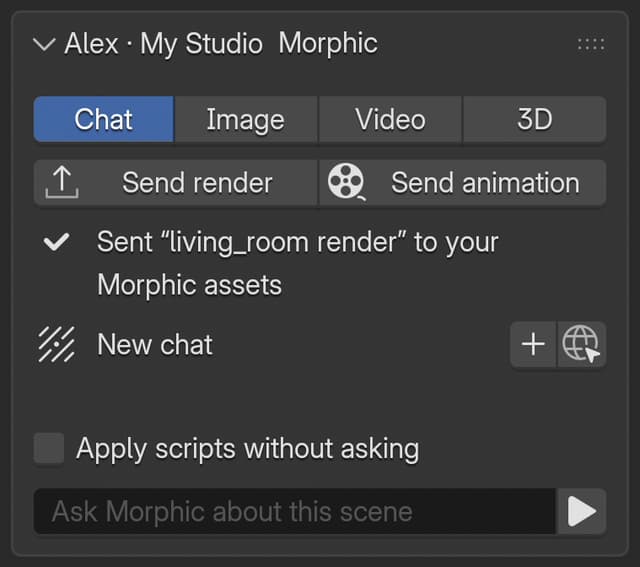
Both buttons sit under the tab row in the 'Morphic' tab once you are signed in.
Send a still
- Render the frame: Render > Render Image, or press F12
- Click 'Send render'
The render is uploaded as a PNG and named after the .blend, for example 'shot_010 render'. The panel says 'Sent "shot_010 render" to your Morphic assets' when it is done.
You can also send it from the render window: open the 'Image' menu and click 'Send Render to Morphic'.
Send an animation
'Send animation' uploads the video file Blender wrote when you rendered the animation, so render to a video format first.
- In the Properties editor, open the 'Output' tab
- Make the output a video file. In Blender 5.0 and later, set 'Media Type' to 'Video'. In Blender 4.x, set 'File Format' to 'FFmpeg Video'
- Set 'Container' to 'MPEG-4', 'QuickTime' or 'WebM'
- Render the animation: Render > Render Animation, or press Ctrl+F12 (Cmd+F12 on macOS)
- Click 'Send animation'
The video is named after the .blend, for example 'shot_010 animation', and the message says when it was rendered, so you can tell it is the take you just made.
An animation rendered as an image sequence (PNG, EXR) cannot be sent as one file. Render it again as a video file, or send single frames with 'Send render'.
Find your renders in Studio
Renders go to the Morphic file made for this .blend, in its 'Assets'. Click the globe icon in the 'Chat' tab to open that file in Studio. See Where your work goes.
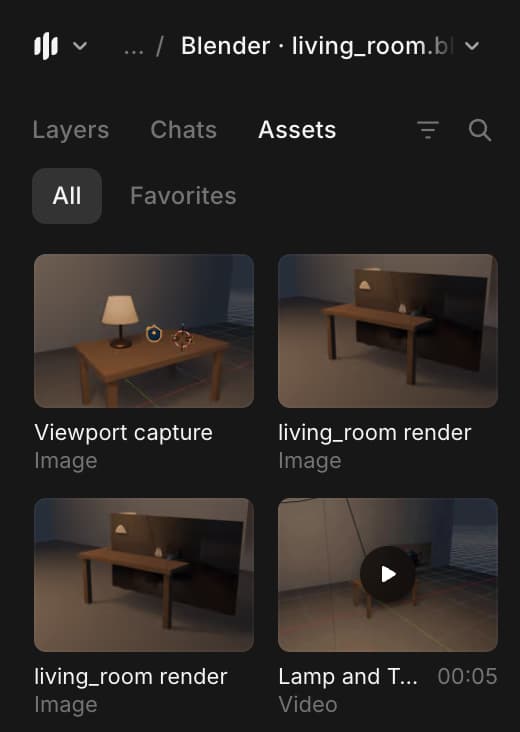
From there you can:
- Use a still as a reference image, for example to restyle a render or to keep a character consistent across shots
- Start a video from a still, so your blocking becomes the first frame
- Add a rendered animation to a Compose timeline
The largest file you can upload depends on your plan.
If you have any trouble or have any questions, feel free to reach out. We're happy to help. Write to us at support@morphic.com.