Micro edits
Fine-cut a dialogue scene in one click. Micro edits tightens the pauses between lines, adds L-cuts and J-cuts that keep a character on screen, and moves cuts to a movement or a blink.
Micro edits on Morphic fine-cuts a dialogue scene for you, so a rough cut plays like an editor cut it. It is a tab in Compose with five edits: one sets the rhythm of the conversation, two decide whose face is on screen, and two move each cut to a natural moment. Each one runs as a request to Copilot in the Compose chat, which measures your shots, makes the edit in one go, and reports what changed.
When to use it
Use it on a scene from a film, a show or a story, once it is assembled: every shot on the timeline, in order, with straight cuts. It suits generated dialogue most, where each shot carries one line and a few seconds of silence around it, and it works the same on footage you upload.
For a podcast, a vlog, an interview or a talk, ask Copilot to remove the pauses and filler words instead. That edit cuts inside each clip and hides the jump cuts with punch-ins or B-roll, which suits talk but would break a scene. Copilot tells the two apart: asking it to 'remove the pauses' on a story scene gets the Micro edits fine cut.
Run it before you add captions, music or B-roll. Micro edits retimes only the shots and their sound, so anything on other lanes stays where it was.
Before you start
Copilot fine-cuts one dialogue scene at a time. It refuses the timeline, and says why, unless:
- Each shot is a video clip with its own sound linked to it
- The shots sit back to back on one video lane, with their sound on one audio lane, with no gaps or overlaps
- Every clip plays at normal speed
- Music and sound effects are on lanes of their own, not on the dialogue lane
Name your characters the same way everywhere: in the prompts, the screenplay and the chat. That is how Copilot knows who is on screen in each shot.
Fine-cut a scene
- Open the timeline in Compose
- In the media browser at the bottom left, click 'Micro edits', the last tab after 'Markers'. Scroll the tabs sideways if you cannot see it.
- Click the edit you want, such as 'Tighten pauses', to open its settings
- (Optional) For 'Character focus' and 'Refine all', type a name in 'Focus character'. Leave it empty and Copilot picks the main character and tells you whom it chose.
- Pick a level under 'Pacing' or 'Strength'
- Click 'Run'
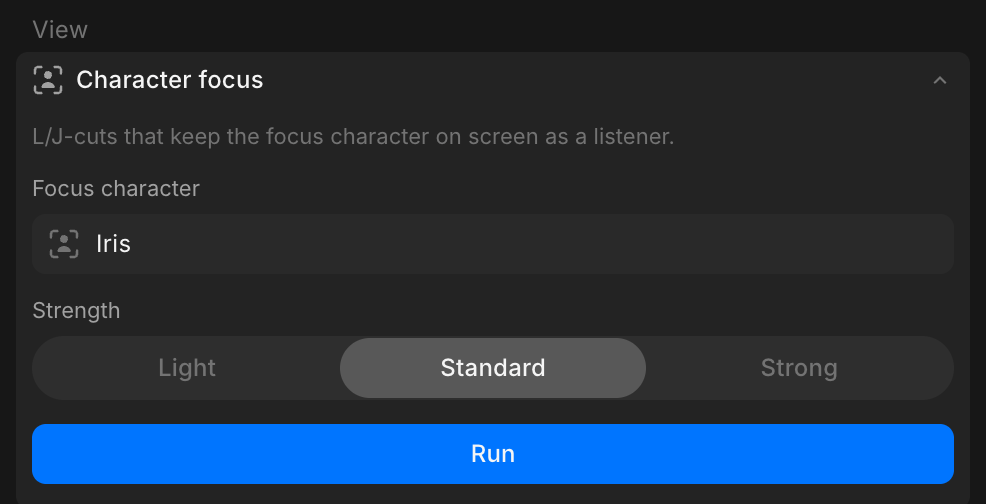
The panel sends the request to the Compose chat. Copilot transcribes each shot, makes the edit, and replies with the new length of the scene, the pauses it set and the L-cuts and J-cuts it made. If it left a cut straight, the reply says why.
You can run one edit after another. Each run starts from the cut as it is now.
The edits
| Edit | What it does | Levels |
|---|---|---|
| Tighten pauses | Sets the pause at every cut, between the end of one line and the start of the next. Picture and sound move together. | Pacing: Gentle, Standard, Snappy |
| Character focus | Adds L-cuts and J-cuts that keep the focus character on screen while the other person talks | Strength: Light, Standard, Strong |
| Refine all | Tightens the pauses, then adds L-cuts and J-cuts for the focus character | Pacing: Gentle, Standard, Snappy |
| Cut on action | Moves the picture cut to where a movement carries across it, such as a turn or a reach | Strength: Light, Standard, Strong |
| Cut before blink | Moves the picture cut to just before the face in the outgoing shot blinks | Strength: Light, Standard, Strong |
'Reaction shots', under 'Coming soon', is not available yet.
Each edit changes the timing at the cuts and nothing else. The words, the order of the shots and the takes stay the same, and the footage trimmed off each shot stays inside the clip.
Pauses
'Tighten pauses' measures each pause from the last word of one shot to the first word of the next, and sets it to the same length at every cut:
| Pacing | Pause between lines |
|---|---|
| Gentle | 0.5 seconds |
| Standard | 0.35 seconds |
| Snappy | 0.25 seconds |
- A pause longer than that is shortened. A shorter one is lengthened, if the shot has spare footage.
- Every silence between two lines counts as a pause, including a look, a reaction or a silent action inside a shot that has speech. If a scene depends on a long held moment, check it after the run.
- A shot with no speech, such as an establishing shot or a cutaway, keeps its full length.
- The silence before the first line and after the last one is left alone, so you decide how the scene meets the next one.
- A short breath stays on each side of every line, so no word is clipped.
L-cuts and J-cuts
In an L-cut or a J-cut, the picture changes at a different moment from the sound. With 'Character focus', the focus character's face stays on screen a little longer as the other person starts talking, or comes in a little early before they speak themselves. The audience sees them listen and react.
| Strength | Largest offset |
|---|---|
| Light | 0.4 seconds |
| Standard | 0.8 seconds |
| Strong | 1.2 seconds |
- The picture only moves into footage where nobody is talking, so lips always match the voice you hear.
- It works at a cut between a shot of the focus character alone and a shot without them. A cut where both people share the frame stays straight.
- L-cuts and J-cuts leave every shot on screen for at least 1 second. With a strong focus on one person, the other person's shots can get close to that.
- 'Character focus' needs spare footage to move into. On shots placed whole, run 'Tighten pauses' or 'Refine all' first, which frees that footage.
'Cut on action' and 'Cut before blink' use the same offsets. Copilot measures the faces and movement in each shot to find the moment.
Using Copilot
Each run is an ordinary Copilot request, so you can also type one yourself in the Compose chat, for example:
- 'Fine-cut this scene and keep the focus on Iris'
- 'Tighten the pauses, gentle pacing'
- 'Put these shots on the timeline as per the screenplay, then fine-cut it'
The last one builds the rough cut and fine-cuts it in one request. Copilot reads who speaks in each shot from the screenplay.
The panel always works on every cut in the scene.
Undo
A Micro edits run is a Copilot edit, so Cmd + Z does not take it back. Ask Copilot to undo it, or duplicate the timeline before you run it. See Undo in Edit with Copilot.
Cost
Micro edits is charged like any other Copilot edit. A run pays for a transcript of each shot that has speech (made once, then reused), the face and movement analysis behind L-cuts, J-cuts and the timing cues, the edit steps and Copilot's reply. The total shows on the reply. For the figures, see Edit costs on the Plans & Credits page.
Troubleshooting
Copilot refuses the timeline
Copilot's reply names what is wrong, for example music on the dialogue lane, a gap between two shots or a clip at a different speed. Fix that one thing and run the edit again. See Before you start.
Copilot says there is nothing to change
The cut already matches the edit, or there was no spare footage to work with. If you ran 'Character focus' on shots placed whole, run 'Refine all' instead.
A silent moment was cut short
A held look or a silent action inside a shot with speech counts as a pause, so it is cut to the pause length. Undo the run to get it back. A moment that has to stay long works best as a shot with no speech, which Micro edits leaves at full length.
Captions or music no longer line up
Micro edits moves only the shots and their sound. Run it before you add captions and music, or redo them afterwards.
That's how you use Micro edits on Morphic. Reach for it when a dialogue scene is assembled and you want it to play with the rhythm and reactions of a finished cut.
If you have any trouble or have any questions, feel free to reach out. We're happy to help. Write to us at support@morphic.com.