Upload assets
The four ways to bring your own files into Morphic, and where they end up once you do.
Morphic lets you upload your own assets to use across your projects. Whether you're working in Canvas or Copilot, you can bring in files using a keyboard shortcut, the Assets panel, drag and drop, or the right-click menu. Everything you upload appears in your library at studio.morphic.com/library.
Here's how you can upload assets on Morphic:
The quickest way to upload assets anywhere in Morphic is with a keyboard shortcut. Press Cmd + O (Mac) or Ctrl + O (Windows) from either Canvas or Copilot to open the file picker, then select the files you want to upload.
From Canvas
You have three more ways to upload assets when working in Canvas:
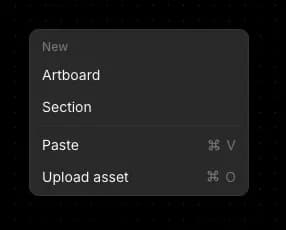
- Context menu: Right-click on any blank area of the Canvas and select 'Upload asset'
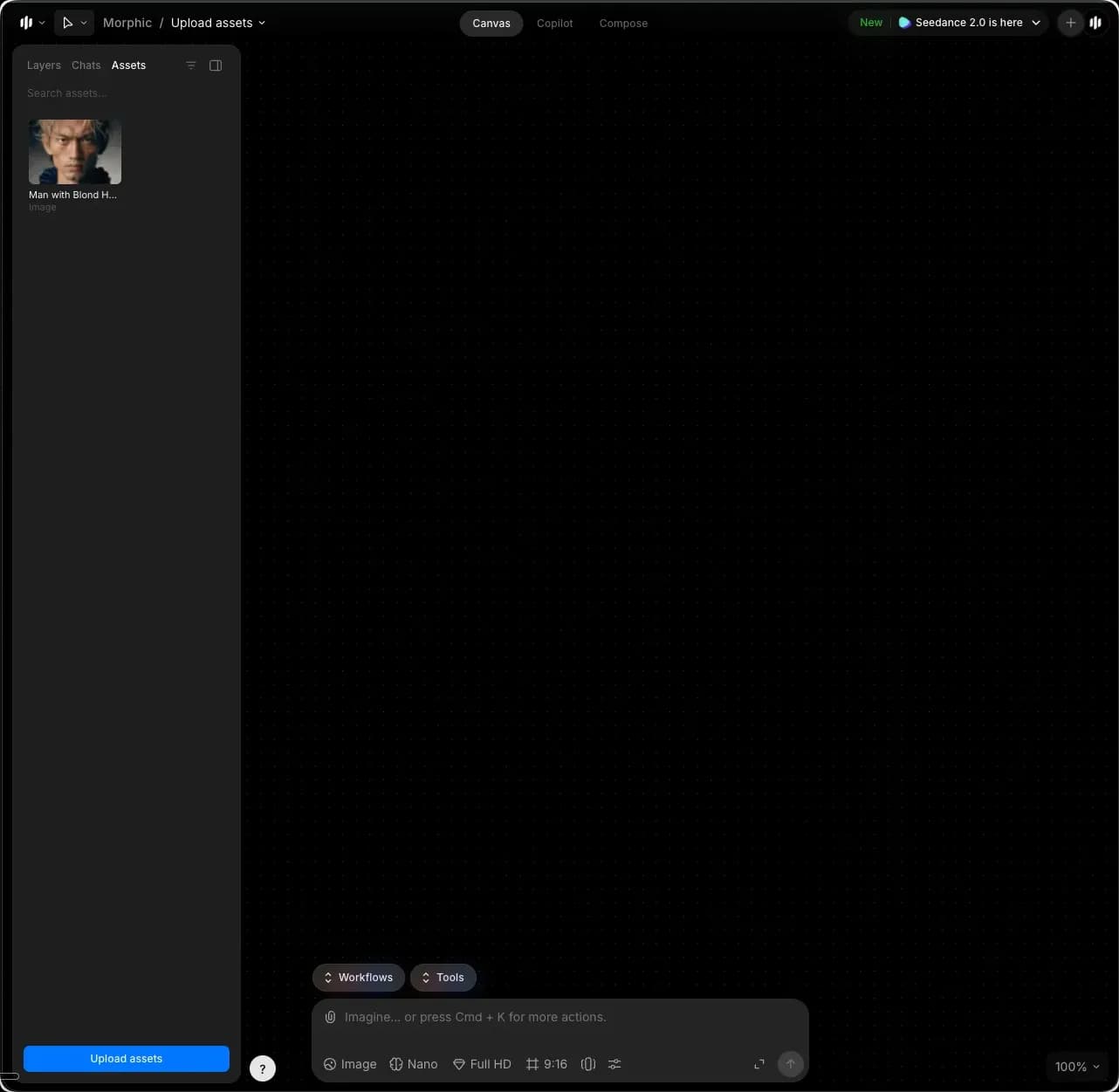
- Assets panel: Click the Assets tab in the left sidebar and click 'Upload assets' at the bottom of the panel.
- Drag and drop: Open the folder on your computer that contains your files, select one or more, and drag them onto the Canvas.
Your uploaded assets will appear on the Canvas and in the Assets tab in the left sidebar.
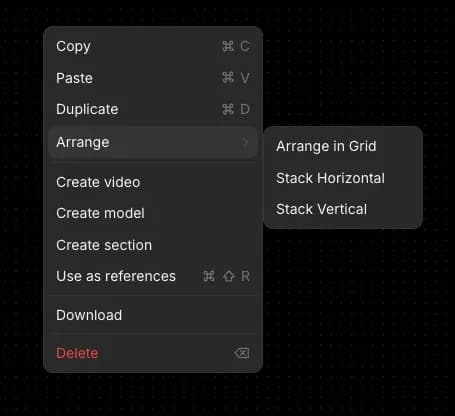
Tip: To arrange uploaded assets neatly on Canvas, select all the assets, right-click, and hover on 'Arrange.' You can choose from:
- Arrange in Grid
- Stack Horizontal
- Stack Vertical
From Copilot
Copilot has one additional way to upload assets beyond the keyboard shortcut:
- Assets panel: Click the Assets tab in the left sidebar and click 'Upload assets' at the bottom of the panel.
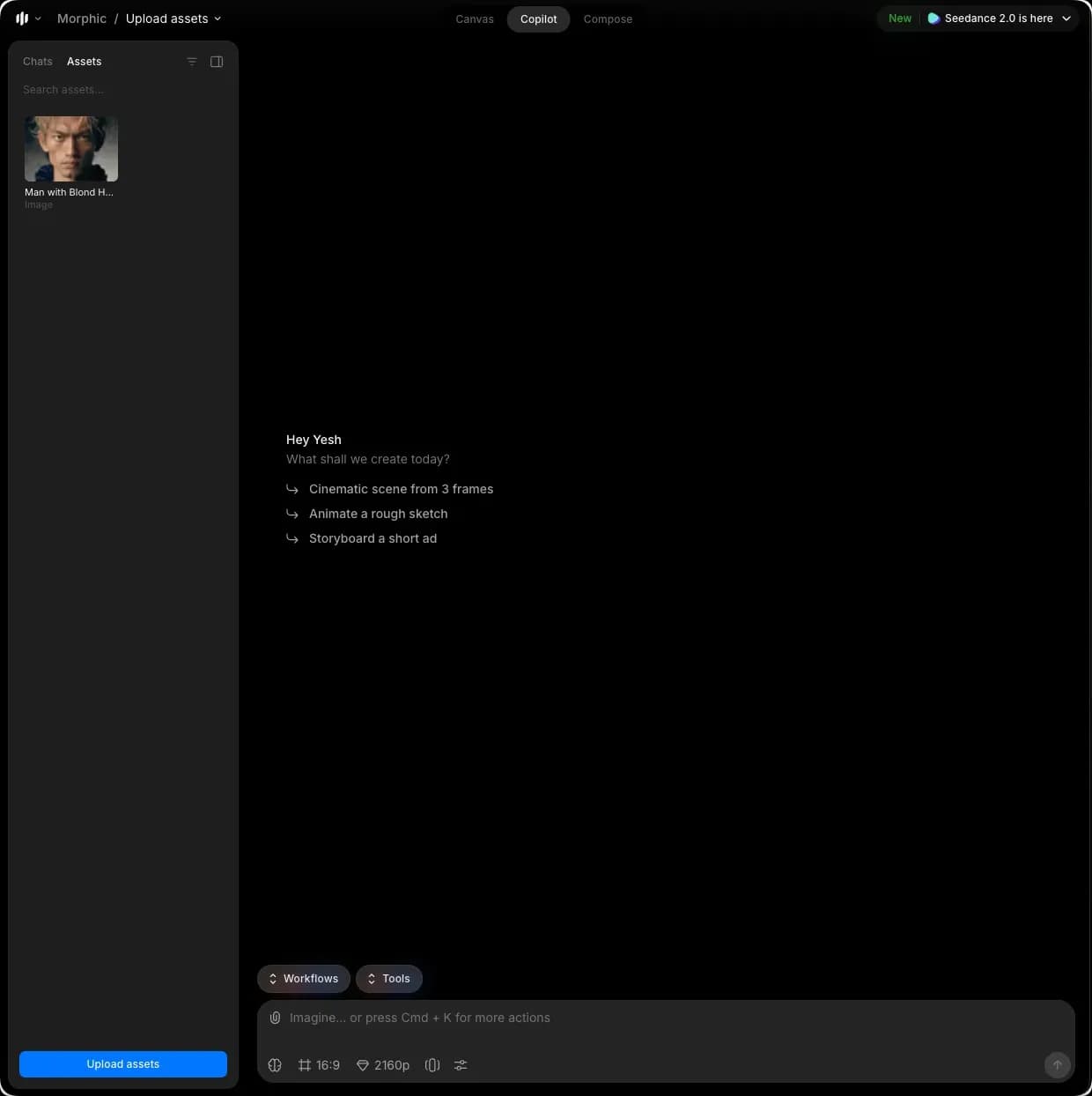
Your uploaded assets will appear in the Assets tab in the left sidebar.
File size limits
Each file can be up to:
| Plan | Images and video | Audio | Documents |
|---|---|---|---|
| Free | 40 MB | 40 MB | 8 MB |
| Basic, Standard, Pro and Max | 1 GB | 500 MB | 100 MB |
| Enterprise | 2 GB | 2 GB | 800 MB |
Documents include PDF, Word, Excel, CSV, text and Markdown files.
If you have any trouble or have any questions, feel free to reach out. We're happy to help. Write to us at support@morphic.com.