Sidebars
What the left and right sidebars hold on the Canvas, and how to reach layers, chats, and assets from them.
The Canvas has a sidebar on each side. The left one holds what is in your file. The right one holds what you can do with whatever you have selected.
Left sidebar
Three tabs across the top: 'Layers', 'Chats', and 'Assets'. The search icon beside them searches the open tab, and the filter icon narrows it by tag or to favorites.
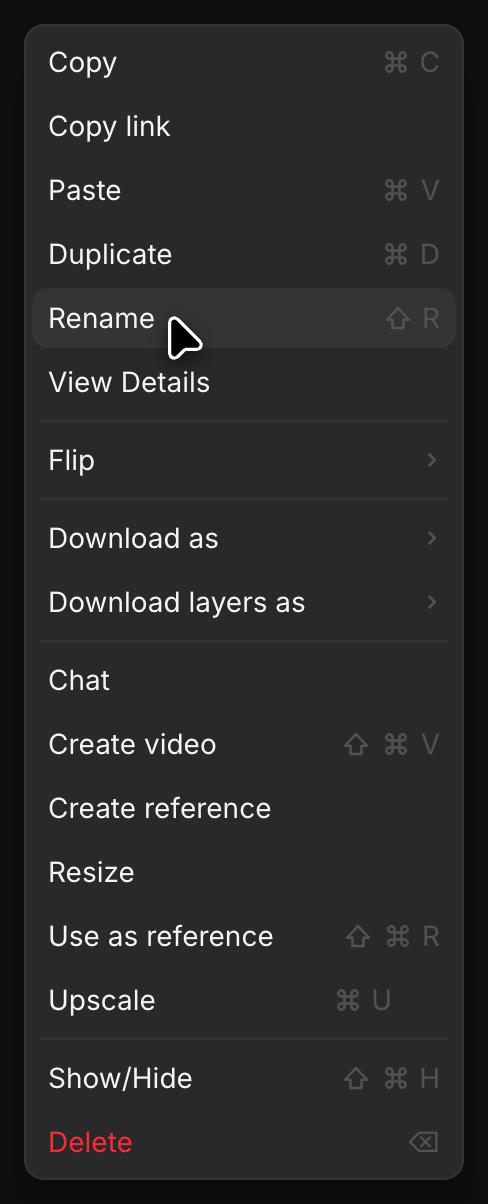
- Layers: every object on the canvas. Click one to select it, or right-click for 'Rename', 'Duplicate', 'Download as', 'Use as reference', and the rest
- Chats: the Copilot conversations in this file. Open one and it appears in a panel beside the canvas, so you can drag results straight out of it. '+' starts a new chat. See Drag and drop from Copilot to Canvas
- Assets: everything uploaded or generated here, each card showing its type and, for video and audio, its length. Cmd-click or Shift-click selects several; right-click them for 'Add tag', 'Add to favorites', 'Move to folder', 'Download', or 'Delete'. 'Upload assets' at the bottom brings in your own files. See Upload assets
Drag its edge to make it wider, or hide it with the sidebar icon in the top bar when you want more room.
Right sidebar
Select something on the canvas and the right sidebar opens, with two tabs: 'Details' and 'Comments'. 'Details' holds:
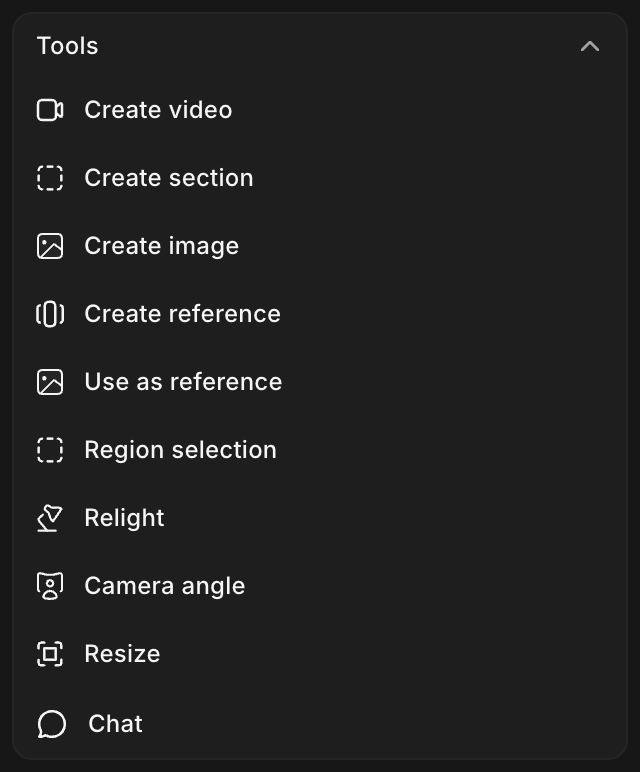
- Tools: what you can run on the selection, such as 'Create video', 'Create image', 'Create reference', 'Use as reference', 'Region selection', 'Relight', 'Camera angle', 'Resize' and 'Create section'
- Properties: the prompt that made it, then its type, model, aspect ratio, dimensions, size, credits used, who made it and when
- Upscale: raise the resolution
- Download: pick a format and save it, or 'Copy link' to share it
'Comments' holds the feedback on the selected asset. See Comments.
The panel is contextual, so an image, a video, and a sketch each show only the tools that apply to them.
That's how the sidebars work on Morphic. Use the left one to find something, and the right one to act on it.
If you have any trouble or have any questions, feel free to reach out. We're happy to help. Write to us at support@morphic.com.