설정
조직, 결제, 개인 계정을 관리하는 위치와, 각 화면으로 연결되는 링크.
설정에서는 조직, 청구 및 크레딧, 그리고 본인 계정을 관리합니다. 설정은 두 개의 패널로 구성됩니다. 조직 설정에는 조직 이름 아래에 나열된 조직 관련 화면과 그 아래의 '청구 및 사용량' 화면이 들어 있습니다. 프로필 설정에는 본인만의 화면이 들어 있습니다. 왼쪽 사이드바 하단의 링크인 '프로필 설정으로 이동'과 '조직 설정으로 이동'을 사용해 둘 사이를 전환할 수 있습니다.
설정으로 이동
언제든지 설정으로 바로 이동하세요: studio.morphic.com/settings/general에서, 또는 어디에 있든 열 수 있습니다.
캔버스에서
- 로그인하면 대시보드로 이동합니다. 파일을 열면 캔버스로 들어갑니다.
- 캔버스에서 설정을 열려면 왼쪽 상단 모서리의 Morphic 로고를 클릭하세요. 그러면 조직/계정 드롭다운이 열립니다.
- 드롭다운 메뉴에서 설정을 선택하세요.
캔버스에서 대시보드로 이동
- 같은 드롭다운( Morphic 로고를 클릭하면 열림 )에서 홈으로 돌아가기를 선택하세요.
- 그러면 대시보드 보기로 이동하며, 여기서 모든 프로젝트 파일을 볼 수 있습니다.
대시보드에서
- 대시보드 보기에서 왼쪽 상단 모서리의 조직 로고를 클릭하세요.
- 드롭다운 메뉴에서 설정을 선택하세요.
모든 설정 화면
각 화면에는 고유한 링크가 있어, 바로 이동하거나 팀원과 공유할 수 있습니다.
| 섹션 | 화면 | 용도 | 직접 링크 |
|---|---|---|---|
| 조직 | 일반 | 조직 이름과 일반 세부 정보 | 열기 |
| 조직 | 멤버 | 팀원을 초대하고, 역할을 설정하고, 멤버를 제거 | 열기 |
| 조직 | 그룹 | 멤버를 정리하고 권한을 함께 관리 | 열기 |
| 조직 | 요금제 | 요금제를 비교하고, 업그레이드하거나, 요금제를 변경 | 열기 |
| 조직 | 모델 액세스 | 조직에서 사용할 수 있는 모델을 선택 | 열기 |
| 조직 | 커넥터 | 조직이 사용하는 도구를 연결 | 열기 |
| 조직 | MCP | AI 어시스턴트를 Morphic에 연결하고, 접근 권한을 켜거나 끄기 | 열기 |
| 청구 및 사용량 | 요금제 상세 정보 | 현재 활성 요금제, 결제 수단, 그리고 취소 | 열기 |
| 청구 및 사용량 | 크레딧 구매 | 크레딧 잔액, 크레딧 구매, 그리고 만료 날짜 | 열기 |
| 청구 및 사용량 | 크레딧 사용량 | 크레딧이 어디에 사용되었는지 날짜별, 항목별로 확인 | 열기 |
| 청구 및 사용량 | 크레딧 한도 | 각 멤버가 사용할 수 있는 크레딧 한도를 설정 | 열기 |
| 청구 및 사용량 | 청구서 | 청구서 내역 | 열기 |
| 계정 | 프로필 | 이름, 이메일, 프로필 사진, 그리고 계정 삭제 | 열기 |
| 계정 | 환경설정 | 기본 채팅 모드와 브라우저 알림 | 열기 |
| 계정 | 보안 | 로그인 및 보안 옵션 | 열기 |
그룹
그룹을 사용하면 멤버를 한 명씩이 아니라 함께 정리하고 권한을 관리할 수 있습니다. 그룹 를 열고 새 그룹을 클릭해 하나를 만드세요. 그룹 권한은 Enterprise 요금제에서 적용되므로, 다른 요금제에서는 새 그룹을 클릭하면 업그레이드 안내가 열립니다.
커넥터
커넥터는 조직이 이미 사용 중인 도구를 연결합니다. Morphic에서 파일을 저장할 Google Drive와, 해당 음성을 사용하기 위한 ElevenLabs 계정이 있습니다. 커넥터.
언어 변경
Canvas 또는 Dashboard에서 Morphic의 인터페이스 언어를 변경할 수 있습니다.
Morphic는 현재 다음 인터페이스 언어를 지원합니다:
- EN – 영어
- DE – 독일어 (Deutsch)
- FR – 프랑스어 (Français)
- JP – 日本語 (일본어)
- KO – 한국어
- ZH – 中文 (간체) (간체 중국어)
- ES – 스페인어 (Español)
- PT-BR – 브라질 포르투갈어 (Português (Brasil))
- ID – 인도네시아어 (Bahasa Indonesia)
캔버스에서
- 캔버스 보기에서 왼쪽 상단 모서리의 Morphic 로고를 클릭하세요. 그러면 조직/계정 드롭다운이 열립니다.
- 드롭다운 메뉴에서 언어를 클릭하세요.
- 목록에서 원하는 언어를 선택하세요.
- 인터페이스가 즉시 선택한 언어로 전환됩니다.
대시보드에서
- 대시보드 보기에서 왼쪽 상단 모서리의 조직 로고를 클릭하세요. 그러면 조직/계정 드롭다운이 열립니다.
- 드롭다운 메뉴에서 언어를 클릭하세요.
- 목록에서 원하는 언어를 선택하세요.
- 인터페이스가 즉시 선택한 언어로 전환됩니다.
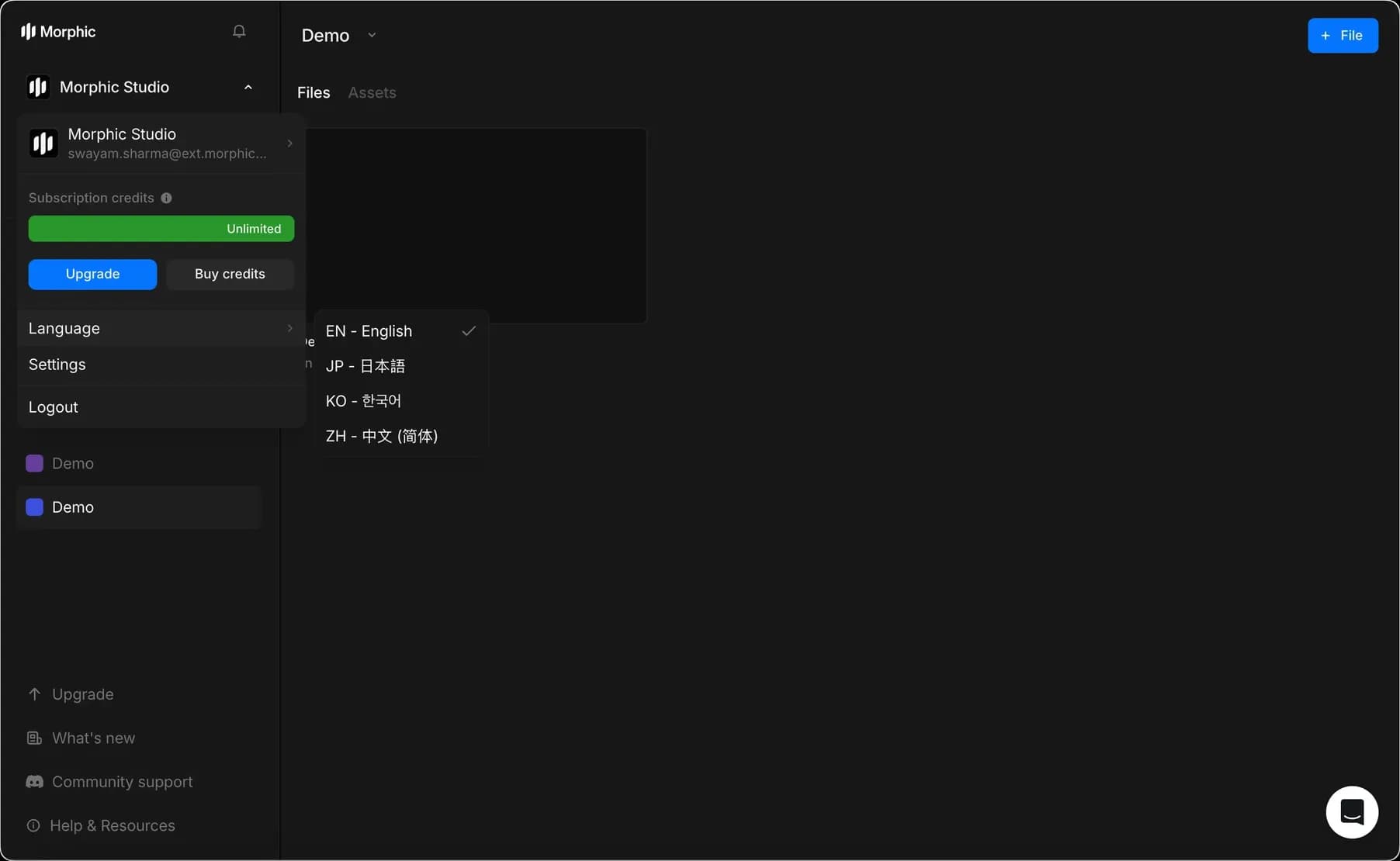
이렇게 하면 Morphic의 설정을 쉽게 찾을 수 있습니다. 각 화면에는 고유한 링크가 있으므로, 필요한 화면으로 바로 이동하거나 팀원에게 보낼 수 있습니다.
문제가 있거나 궁금한 점이 있으면 언제든지 연락해 주세요. 기꺼이 도와드리겠습니다. 다음 주소로 이메일을 보내 주세요: support@morphic.com.