청구 및 사용량
Billing 탭에서는 요금제를 관리하고, 결제 정보를 확인 및 변경하며, 청구서 내역을 확인하고, 요금제 및 갱신 세부 정보를 한눈에 볼 수 있습니다.
결제 및 사용량에서는 구독과 관련된 모든 것을 관리합니다. 여기에서 요금제를 확인하거나 업그레이드하고, 구독을 취소하고, 결제 수단을 업데이트하고, 크레딧을 구매하고, 크레딧 사용량을 추적하고, 멤버 크레딧 한도를 설정하고, 청구서를 다운로드할 수 있습니다.
결제 및 사용량에 액세스하기
- 대시보드 보기에서 왼쪽 상단 모서리의 Org 로고를 클릭합니다.
- 드롭다운에서 설정을 선택합니다.
- 왼쪽 사이드바에서 '결제 및 사용량' 아래를 확인하세요.
'결제 및 사용량'에는 각각 고유한 링크가 있는 5개의 화면이 있습니다:
| 화면 | 내용 |
|---|---|
| 요금제 상세 정보 | 현재 활성 요금제, 결제 수단, 그리고 취소 |
| 크레딧 구매 | 크레딧 잔액, 크레딧 구매, 그리고 만료 날짜 |
| 크레딧 사용량 | 하루 단위와 항목 단위로 본 크레딧 사용처 |
| 크레딧 한도 | 각 멤버가 사용할 수 있는 크레딧의 한도 |
| 청구서 | 청구서 내역 |
현재 요금제
열기 요금제 상세 정보.
- 요금제 섹션에는 현재 사용 중인 요금제, 비용, 갱신 날짜가 표시됩니다.
- 상위 요금제로 이동하려면 업그레이드를 클릭하세요.
결제 수단 관리
- 열기 요금제 상세 정보.
- 결제 수단 아래에서 카드, Link 또는 Amazon Pay를 추가하세요. 저장된 결제 수단은 모두 업그레이드할 때 결제에 사용할 수 있습니다.
- Amazon Pay는 Amazon을 열어 결제를 확인한 다음 Morphic으로 돌아옵니다.
- 청구 정보 아래에서 편집을 클릭하여 청구서와 영수증에 사용되는 이메일과 청구 주소를 설정하세요.
요금제 취소
- 열기 요금제 상세 정보.
- 요금제 옆의 구독 취소를 클릭하고 안내 단계를 따르세요.
멤버
- 의 멤버 섹션은 요금제 상세 정보 추가 멤버에 대해 지불 중인 인원이 몇 명인지 보여줍니다.
- 멤버 관리하기를 클릭하여 사람들을 초대하거나 역할을 변경하세요.
크레딧 구매
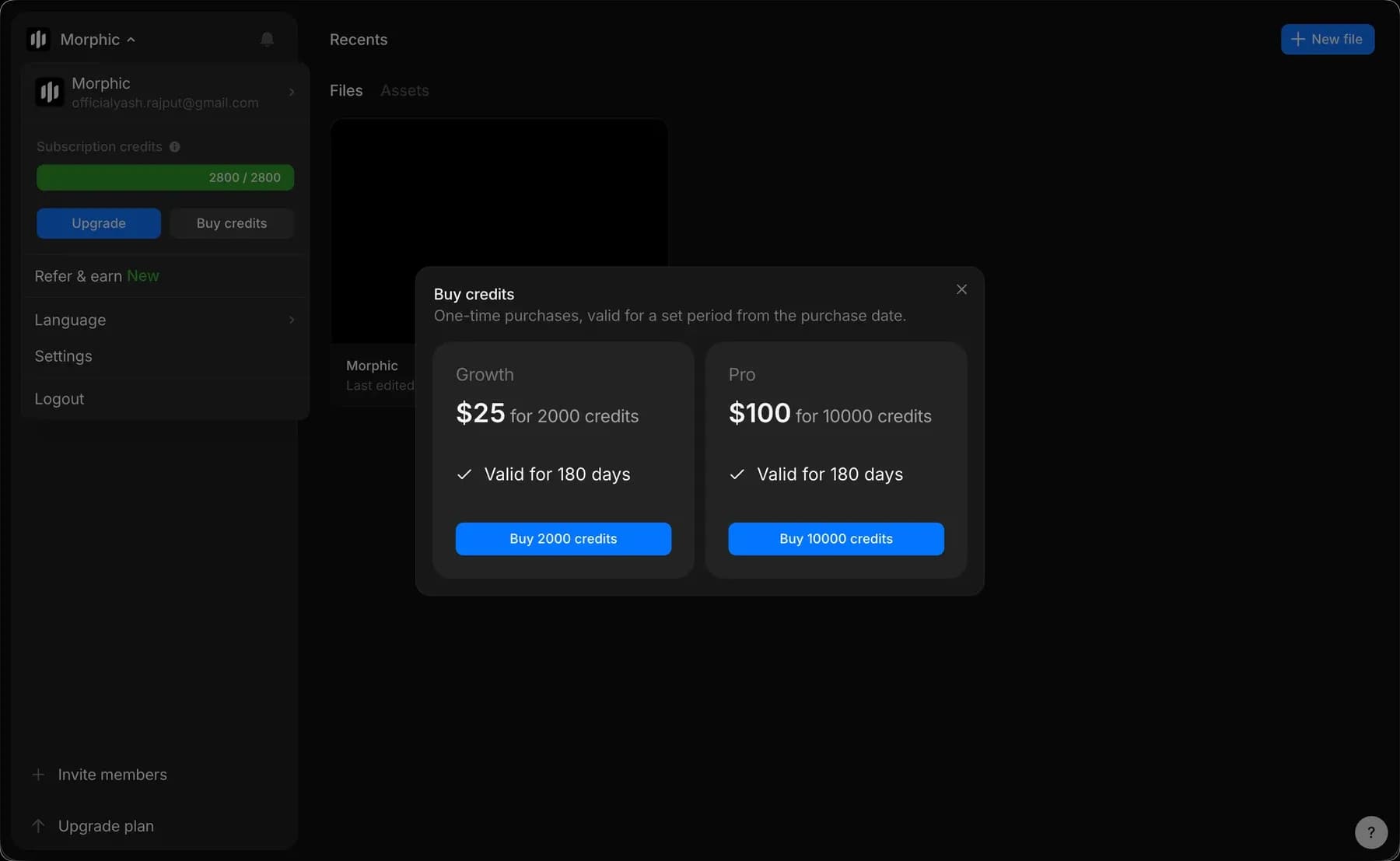
다음에서 언제든지 크레딧을 구매할 수 있습니다 크레딧 구매 또는 조직/계정 드롭다운에서(Morphic 로고를 왼쪽 상단 모서리에서 클릭하세요).
- 조직/계정 드롭다운을 여세요.
- 크레딧 구매를 클릭하세요.
- 사용 가능한 요금제가 표시된 팝업이 나타납니다.
- 원하는 요금제 아래의 구매를 클릭하여 구매를 완료하세요.
크레딧 구매 또한 남은 크레딧을 두 가지 잔액으로 나누어 보여줍니다:
- 구독 크레딧은 요금제에 포함됩니다. 월간 결제와 연간 결제 모두 매달 초기화되며, 사용하지 않은 크레딧은 이월되지 않고 만료됩니다.
- 추가 크레딧은 일회성 구매입니다. 각 항목은 구매일로부터 정해진 기간 동안 유효하며, 아래 목록에는 추가된 크레딧과 만료일이 함께 표시됩니다.
청구서 내역
열기 청구서.
- 각 행에는 청구서 번호, 날짜, 금액, 그리고 결제 여부가 표시됩니다.
- 행 끝의 다운로드 아이콘을 클릭하여 사본을 저장하세요.
- 요금제 업그레이드나 크레딧 충전 같은 구매가 여기에 표시됩니다.
크레딧 사용량
크레딧 사용량에서는 크레딧이 어디에 사용되었는지 확인할 수 있습니다. 다음을 여세요 크레딧 사용량 또는 왼쪽 상단 모서리에서 Morphic 로고를 클릭한 다음 '결제 및 사용량'을 선택하세요.
여기에는 두 개의 탭이 있습니다: 추세를 보는 개요와 개별 항목을 보는 사용 내역입니다.
개요
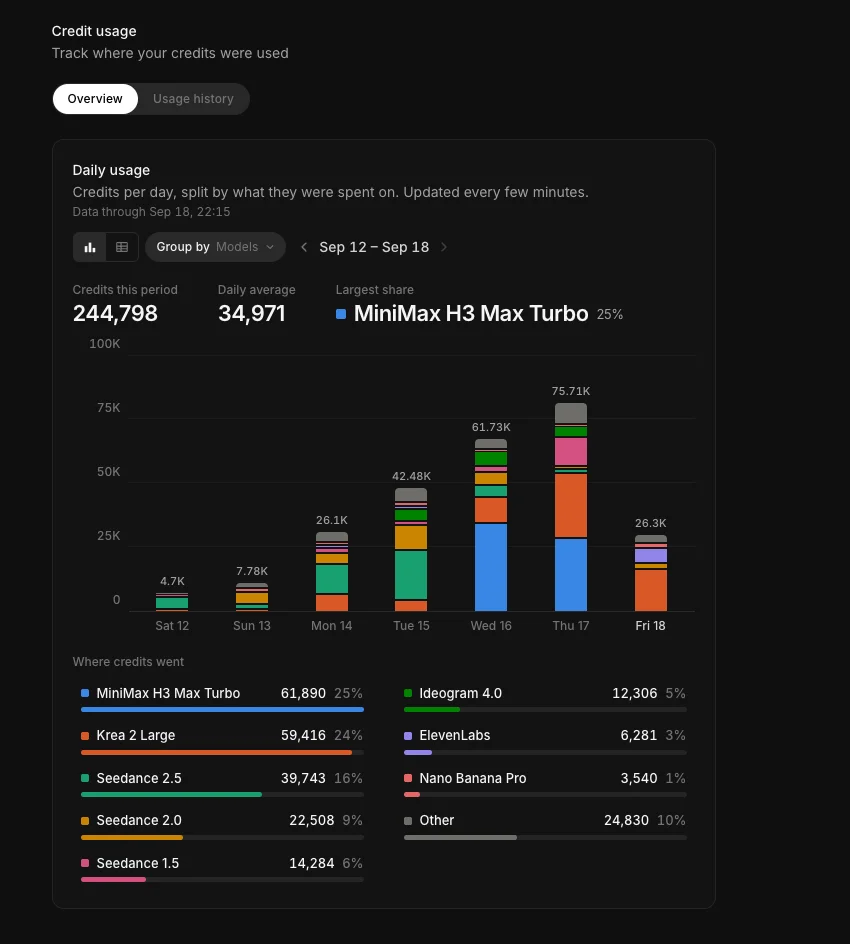
일일 사용량은 크레딧이 하루 단위로 어떤 항목에 사용되었는지 나누어 보여줍니다. 수치는 몇 분마다 업데이트되며, 제목 아래의 '데이터 기준 시점' 줄에서 최신 상태를 확인할 수 있습니다.
- '그룹 기준'을 모델, 프로젝트, 파일, 멤버 또는 채팅으로 설정하세요. 분류, 색상, 아래의 세부 내역은 모두 그 선택을 따릅니다.
- 왼쪽의 두 아이콘으로 차트 보기와 목록 보기 사이를 전환하세요. 차트 보기에서는 각 날짜가 막대 하나로 쌓여 표시됩니다. 목록 보기는 그룹별로 한 행, 날짜별로 한 열이 있는 표이며, 총계와 비율 열, 그리고 '모든 그룹' 행이 추가로 있습니다.
- 날짜 범위 옆의 화살표를 사용하여 일주일씩 앞뒤로 이동하세요.
- 이 기간의 크레딧, 일일 평균, 최대 비율이 차트 위에 표시됩니다.
- '크레딧이 사용된 곳'에서는 해당 주의 그룹을 크레딧과 전체 대비 비율과 함께 순위별로 보여줍니다. 작은 항목은 '기타'로 모아집니다.
사용 내역
사용 내역은 항목별 기록이며, 내보내기가 있는 곳이기도 합니다.
- 각 항목에는 날짜와 시간, 멤버, 자산, 사용한 크레딧, 상태가 표시됩니다.
- 날짜(오늘, 어제, 이번 주, 이번 달, 최근 3개월 또는 사용자 지정 범위), 멤버, 상태, 프로젝트로 필터링하세요.
- 전체, 프로젝트별, 파일별 또는 멤버별 보기 사이를 전환하세요.
- 필터링한 항목의 합계가 표 위에 표시되며, 페이지 크기와 페이지 이동은 그 아래에 있습니다.
- 보고 있는 내용을 내보내려면 CSV 다운로드를 클릭하세요.
이것이 Morphic에서 결제와 사용량을 관리하는 방법입니다. 요금제, 크레딧, 그리고 크레딧이 어디에 사용되었는지에 대한 기록을 한곳에서 확인할 수 있습니다.
문제가 있거나 궁금한 점이 있으면 언제든지 연락해 주세요. 기꺼이 도와드리겠습니다. 다음 주소로 이메일을 보내 주세요: support@morphic.com.