Edit with Copilot
Rewrite part of a screenplay in place, have Copilot edit or reorganize the whole screenplay, review its changes, and write with your team.
Copilot reads the open screenplay and writes back in screenplay format, so every line keeps its type. Rewrite a selection in place, or ask in the chat for bigger changes.
Rewrite selected text
-
Select the text, from one line to several scenes
-
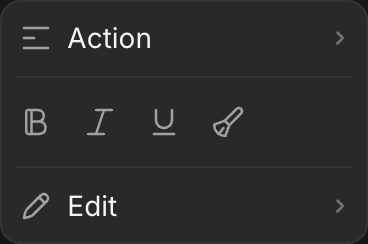
In the menu over the selection, hover 'Edit'
-
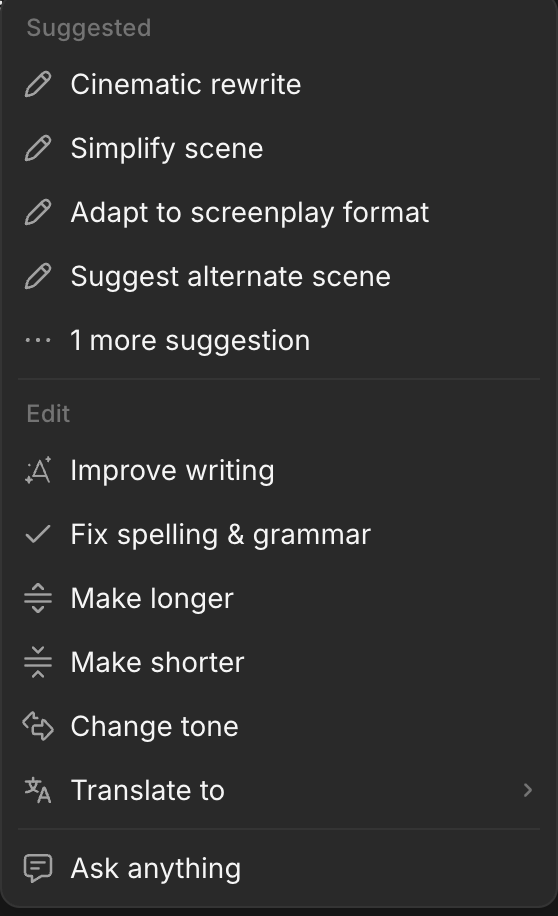
Pick an action:
- 'Suggested': 'Cinematic rewrite', 'Simplify scene', 'Adapt to screenplay format', 'Suggest alternate scene'. '1 more suggestion' adds 'Generate summary'
- 'Edit': 'Improve writing', 'Fix spelling & grammar', 'Make longer', 'Make shorter', 'Change tone', 'Translate to'
- 'Ask anything': type your own instruction
- Click 'Replace' to keep the new text, 'Insert below' to keep your original too, or 'Retry' for another version. 'Show original' compares the two
The same menu changes the selection's line type and applies bold, italic or underline.
Ask Copilot for changes
-
Open the screenplay and click 'Chat' at the top right. Copilot opens beside it with the doc and the screenplay attached. Text you select is attached too
-
Ask for the change, for example:
Finish the scene: Maya pours him one last coffee, and end it on a question.
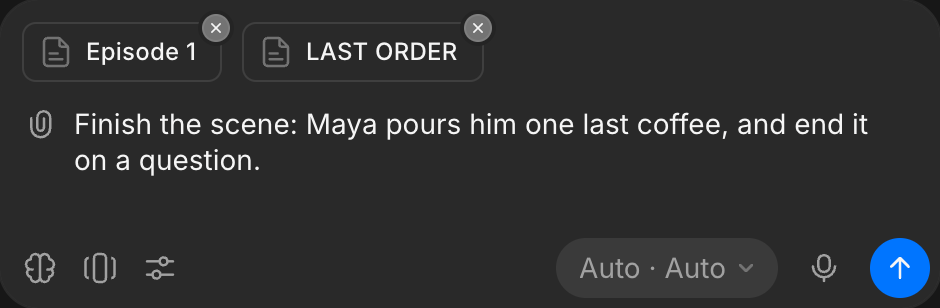
Copilot works on the whole screenplay, not only the open doc. It can read and edit any doc, and create, rename, move or delete docs and groups, for example:
Split Episode 2 into two docs at the diner scene.Add a group called Season 1 and move every episode into it.What happens next depends on the chat mode:
- 'Automatically generate': the change is written in straight away
- 'Ask before generating': Copilot shows its changes first. Click 'Accept' or 'Reject' on each, or 'Accept remaining' or 'Reject remaining', then 'Submit review'. Only accepted changes are saved
Copilot replies use credits, like any Copilot chat.
Put results on the Canvas
Images and other results Copilot makes from the script, such as storyboard frames, arrive in the chat.
- To place one, hover it and click '+'
- To place them all at once as a section, click '...' under the reply, then 'Add to Canvas'
- Drag the section beside the screenplay card, and rename it with Shift+R
Work together
- Everyone in the file edits the same screenplay live, with named cursors
- Undo only takes back your own edits
Manage a screenplay
Click '...' at the top right of the editor, or right-click the card on the Canvas:
| Option | What it does |
|---|---|
| View details | Shows its details |
| Rename (Shift+R) | Changes its name |
| Download, Print | Exports the whole screenplay, this doc or the title page, while the screenplay is open. See Import and export |
| Delete screenplay | Asks first, then deletes the whole screenplay: its title page and every doc and group in it |
To delete one doc, hover it in the side panel, click '...' and delete it there.
For a whole series of short episodes, see Write a micro-drama series.
That's how you edit a screenplay with Copilot on Morphic. Use the Edit menu for one passage and the chat for changes across scenes.
If you have any trouble or have any questions, feel free to reach out. We're happy to help. Write to us at support@morphic.com.