Write a screenplay
How lines format themselves, the keys and shortcuts for each line type, text and block styles, pages and page breaks, the screenplay and doc title pages, and naming.
Type, and each line formats itself. Use Tab, the toolbar or a shortcut when a line needs a different type. The highlighted toolbar button shows the current line's type.

Formatting as you type
- INT., EXT., EST. or I/E at the start of a line makes a scene heading, shown in capitals (what these mean)
- A name in capitals, then Enter, makes a character name; the next line is dialogue
- ( on an empty character or dialogue line starts a parenthetical; the closing bracket is added
- A line in capitals ending in TO:, such as CUT TO:, makes a transition
- Backspace straight after a line formats itself undoes it
- A type you set yourself is never changed automatically
Capitals ending in ! or :, and endings such as FADE OUT and THE END, don't become character names.
Paste a script
Paste several lines in Fountain, the plain-text screenplay format, and each line takes its type. A single pasted line stays as typed. For a whole file, see Import and export.
Keys
| Key | What it does |
|---|---|
| Enter | Starts the type that usually follows: action after a heading, dialogue after a character, action after dialogue, a heading after a transition |
| Enter on an empty line | Changes that line's type |
| Shift+Enter | A new line of the same type |
| Tab, Shift+Tab | Cycle through the seven types |
| Cmd+Shift+Enter (Ctrl+Shift+Enter on Windows) | Start a new page here, or remove the page break |
Line type shortcuts
| Line type | Mac | Windows |
|---|---|---|
| Scene heading | Cmd+Option+1 | Ctrl+Alt+1 |
| Action | Cmd+Option+2 | Ctrl+Alt+2 |
| Character | Cmd+Option+3 | Ctrl+Alt+3 |
| Parenthetical | Cmd+Option+4 | Ctrl+Alt+4 |
| Dialogue | Cmd+Option+5 | Ctrl+Alt+5 |
| Transition | Cmd+Option+6 | Ctrl+Alt+6 |
| Shot | Cmd+Option+7 | Ctrl+Alt+7 |
Text styles
Select text, then click 'Bold', 'Italic' or 'Underline', or press Cmd+B, Cmd+I or Cmd+U (Ctrl on Windows). For headings, lists and tables, use a Document.
Block styles
'Block styles' in the toolbar styles every line of one type at once, for example every character name in bold. The styles show on screen and in downloaded PDFs.
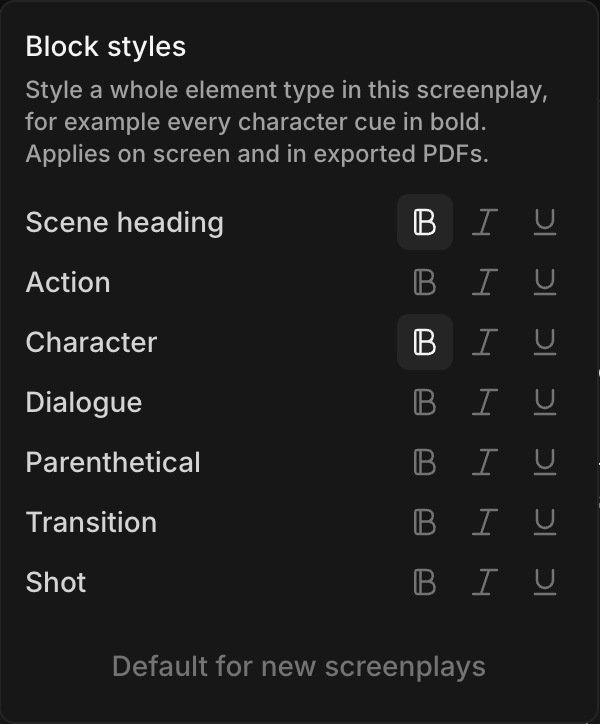
- New screenplays start with scene headings and character names in bold
- 'Use as default for new screenplays' keeps your choice for the next screenplay you create
Pages
The script is laid out on US Letter pages that update as you type. The word and page count sits at the top right.
- To start a new page at a line, click 'Insert page break', or press Cmd+Shift+Enter (Ctrl+Shift+Enter on Windows). Do it again to remove it
- Page breaks carry into Fountain, Final Draft and PDF downloads
Title page
-
Click 'Title page' in the toolbar, or in the side panel
-
Click 'Edit title page' (or 'Add title page' on a new screenplay)
-
Fill in what you need: 'Series', 'Title', 'Episode title', 'Season', 'Episode', 'Author', 'Credit', 'Source', 'Draft', 'Copyright', 'Registration / notes' and 'Contact'. The preview on the right shows the printed page
-
Click 'Save'
- Leave 'Series' blank for a feature film. With a series, the title prints under it
- 'Credit' is the credit wording, such as 'Written by'
- The title page prints as the first page when you download
- Empty every field to remove the title page
Doc title page
A doc can have a title page of its own, for an episode with its own title and credits.
- In the side panel, hover the doc and click '...'
- Click 'Add title page'
- Click the empty page to open the 'Doc title page' form, fill it in, including 'Doc title', and click 'Save'
The doc's title page starts empty and is separate from the screenplay's, so changing one does not change the other. Downloading that doc prints its own title page. To go back to the screenplay's, click '...' beside the doc and choose 'Remove title page'; the doc's own details are deleted.
Name a screenplay
The title page's 'Title' names the screenplay. To rename it yourself, click '...' > 'Rename', or select the card on the Canvas and press Shift+R. An imported script takes its name from its title page, or else from the file name.
That's how you write a screenplay on Morphic. Type naturally, and reach for Tab or a shortcut when a line needs another type.
If you have any trouble or have any questions, feel free to reach out. We're happy to help. Write to us at support@morphic.com.