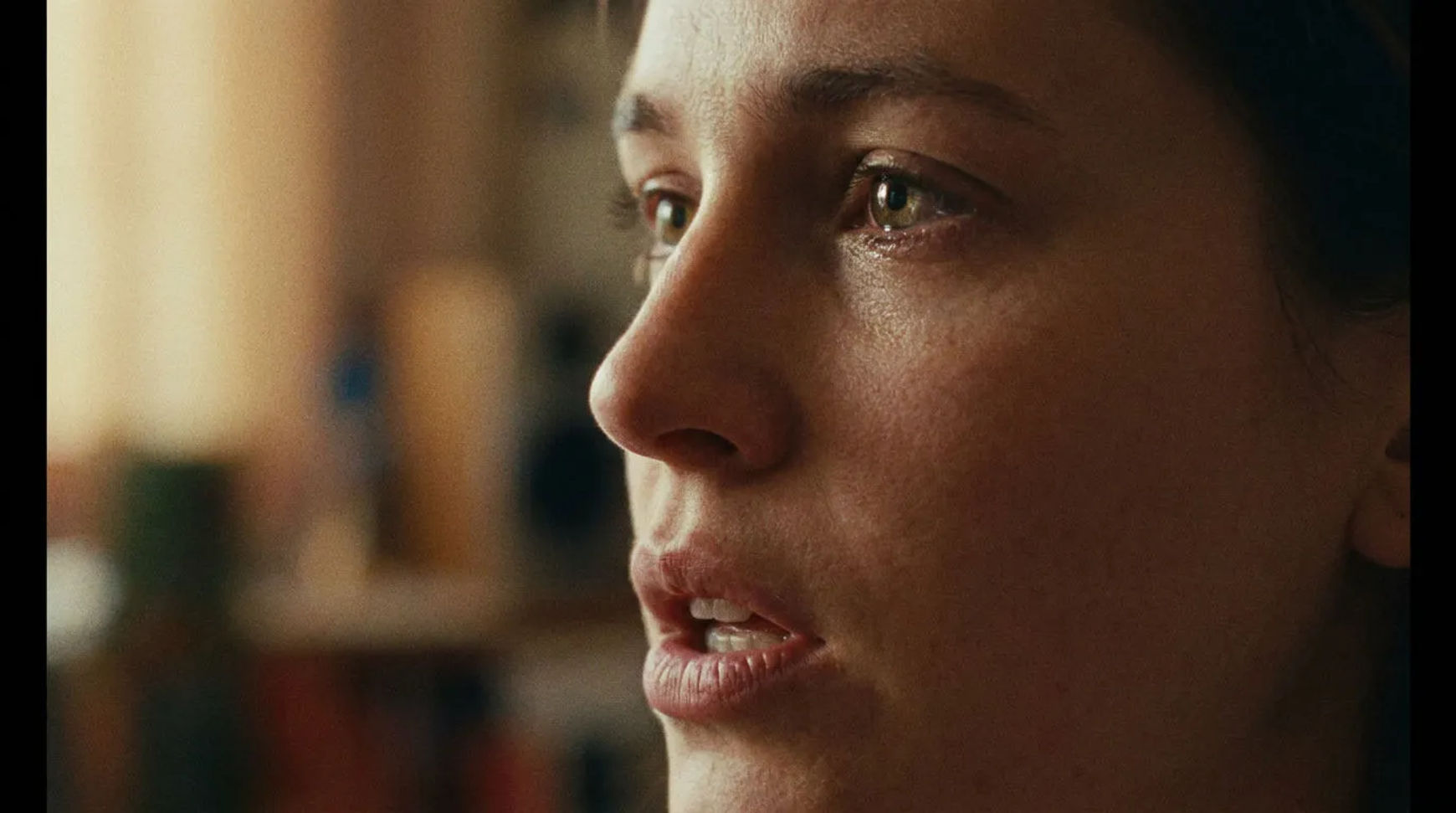
Lip sync is the step that makes a talking character read as real instead of dubbed. As of October 2026 there are three ways to do it in Morphic: let the video model speak the line as it generates the shot, add the sync afterwards by matching a face to a separate audio track, or sync a dubbed line when you are taking a finished scene into another language. For dialogue that carries a scene, a confession, an argument, a cliffhanger line, the second method gives you the most control, because you direct the voice and the picture separately and then lock them together.
This guide walks all three using only what the product does, and then covers why sync goes wrong and how to fix each cause.
What AI lip sync actually does
Lip sync matches a mouth to an audio track. It does not write the line or act it; it aligns the speaker's mouth movements to spoken audio so the words look like they are coming from that face. In practice you supply two things, a shot with a face, and the audio that face should speak, and the model re-times the mouth to the sound. The quality of the result depends almost entirely on the quality of those two inputs, which is why most "bad lip sync" is really a bad input caught too late.
Method 1, Let the video model speak the line
The fastest path is to generate the dialogue shot with a video model that renders speech in the same pass, so the character is already speaking as the clip comes out. This is the right first move for a quick pass, a background line, or a shot where the exact mouth shapes are not load-bearing.
Write the shot with its line
Describe the shot and include the spoken line in the prompt. The model frames the character and renders them delivering it, audio included, in one generation.
Check the read, then regenerate or move to Method 2
Watch it back. If the delivery and the mouth are right, you are done. If the read is close but the sync drifts on a key word, take the clip into Method 2 and replace the audio with a performance you control.
The limit of this method is that you are directing the voice and the picture at once, so a shot that is perfect visually but wrong on one line means regenerating the whole thing. When the line matters, separate the two.
Method 2, Add the sync afterwards (the method for dialogue)
This is the one to reach for when the dialogue is the scene. You generate or upload the picture, produce the audio on its own, and then sync them. Because the two are separate, you can get the performance exactly right before you ever touch the sync.
Lock the shot
Start from a clip with a clear, well-lit, mostly front-facing face. This can be a shot you generated in Morphic or footage you upload.
Get the audio right first
Produce the spoken line as its own audio clip and get the read you want, the pacing, the emphasis, the emotion, before syncing. A line you are happy with is the single biggest factor in a clean result.
Sync the face to the audio
Hand Morphic the clip and the audio and run lip sync. There is a choice of models for this step, a default available on every plan, and others on paid plans that re-voice the main face in a clip, keep its length, and let you set where the new audio starts and how much of the original sound stays. In Copilot the default can detect the speaker on its own.
Decide how a length mismatch resolves
When the audio and the clip are different lengths, you choose how they reconcile rather than accepting a guess, cut off, loop, bounce, hold on silence, or remap the timing. Pick the one that serves the shot.
A clear front-facing dialogue close-up, the kind of clean, well-lit shot that syncs best
A two-hander dialogue scene with one speaker in the foreground
Method 3, Lip sync a dubbed line for another market
When you already have a finished scene and want it in another language, lip sync is the last step of dubbing, not a separate job. Dubbing gives you the translated, re-voiced audio track timed to the original; lip sync then re-times the mouth to that new track so the market you are shipping to sees a native performance, not a voice laid over a mismatched mouth.
Dub the scene
Run the scene through dubbing to get a translated audio track that is timed to the original performance.
Sync the mouth to the dubbed track
Lip sync the character to the dubbed audio. Sync works with the target language rather than being limited to a fixed list; the right move with any new language is to test one scene before you commit a season to it.
Why your AI lip sync looks off, six causes and the fix
Most bad sync traces to one of these. Work down the list in order; the earlier causes are the common ones.
The six causes of bad lip sync
| What you see | Usual cause | The fix |
|---|---|---|
| Mouth drifts late or early across the whole line | Audio and clip lengths do not match | Set the length-mismatch option deliberately instead of accepting the default fit |
| Sync is fine head-on, breaks when the head turns | Face is too far off-axis for part of the shot | Use a shot that stays mostly front-facing, or cut to the turn after the line lands |
| Mouth moves but the shapes are mushy | Face is small, soft, or poorly lit in the frame | Give the model a closer, sharper, better-lit face; regenerate the plate if you have to |
| Words land but the emotion is flat | The audio performance itself is flat | Fix the read before syncing, the sync can only match what the audio gives it |
| A second face in the shot twitches | Model is unsure which face to drive | Isolate the speaker in the shot, or frame the scene on one face at a time |
| Non-English dialogue reads worse than English | Some languages are still harder for the models | Test one scene in that language first; treat clean non-English sync as something you verify, not assume |
Lip sync for a 60-episode microdrama
A single clean lip sync is a craft problem; a season of them is a pipeline problem. Two things keep it consistent at volume. First, fix each character's voice once and reuse it, so the lead sounds like the lead in episode 1 and episode 60 rather than drifting take to take. Second, batch the dialogue shots: produce the audio for a block of episodes, then run the sync across them together, checking a sample rather than every frame. The full episode pipeline, and where lip sync sits inside it, is in the AI microdrama walkthrough, and the question of which engine to send each shot to is covered in best AI models for microdrama.
よくある質問
Give Morphic a clip with a clear face and the audio you want it to speak, then run lip sync to re-time the mouth to the sound. For dialogue that matters, produce the audio separately and get the read right first, then sync, that separation is what gives you control over both the performance and the picture.
Almost always because of an input, not the sync itself. The common causes are an audio track that is a different length from the clip, a face that turns too far off-axis, a face that is too small or soft in the frame, or a flat audio read. Fix the input, set the length-mismatch option, use a front-facing well-lit face, improve the read, and the sync follows.
There is no single best tool; there is a best method for the shot. Let the video model speak the line for a quick or background pass, add the sync afterwards when the dialogue carries the scene, and sync a dubbed track when you are localizing. Morphic gives you all three in one workspace, with a choice of sync models including one on every plan.
Yes. Morphic's default lip sync model is available on every plan, including the free tier, so you can sync a clip to an audio track without a paid plan. Paid plans add models with more control over a longer clip, such as setting where the new audio starts and how much of the original sound stays.
Yes, that is Method 3. After you dub a scene into another language, lip sync re-times the character's mouth to the dubbed audio so it reads as a native performance. Sync works with the target language rather than a fixed list, and the right practice is to test one scene in a new language before committing a whole season to it.